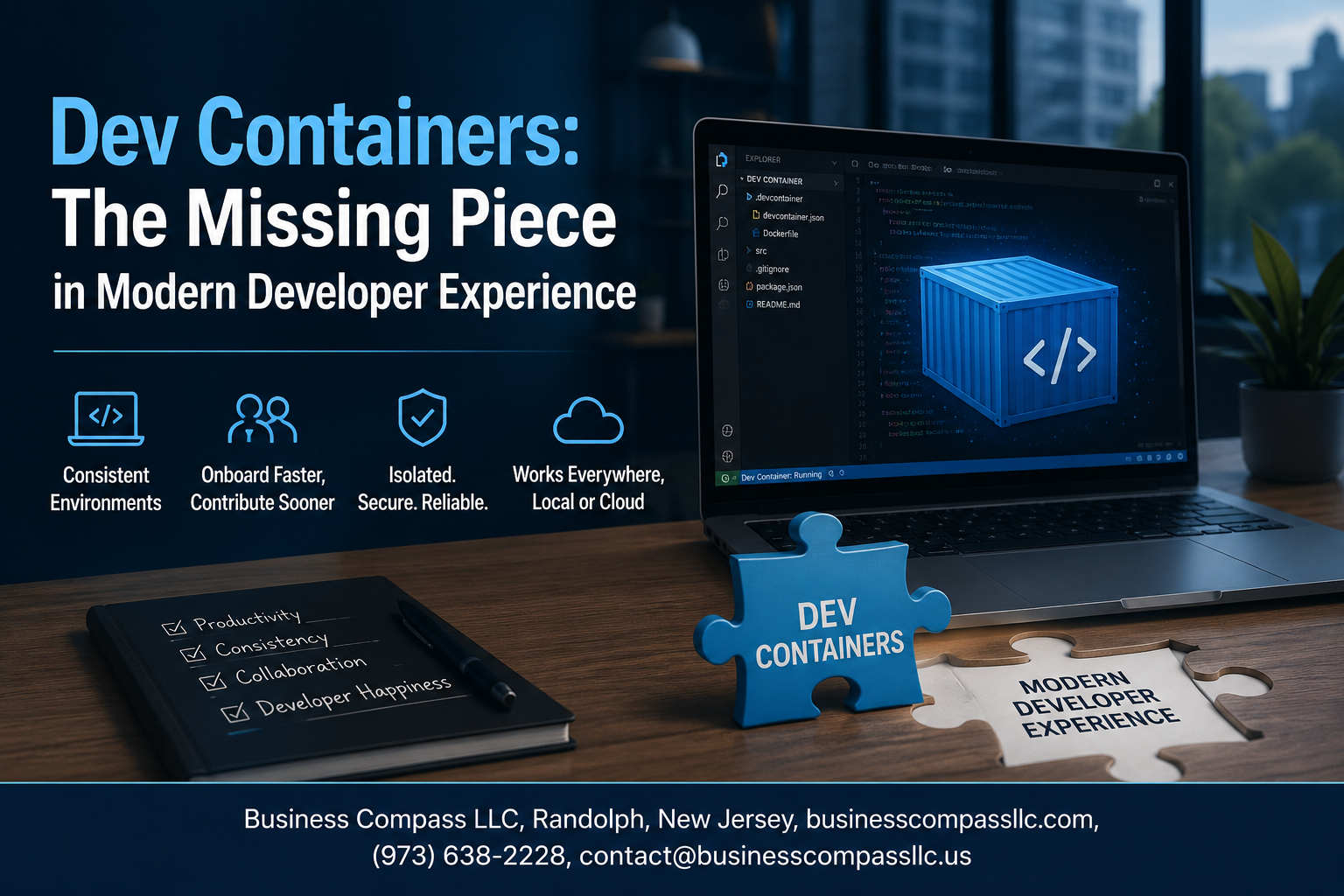
Dev Containers: The Missing Piece in Modern Developer Experience
You’ve seen it happen. A new developer joins the team, spends two days wrestling with environment setup, and still can’t run the app locally. Or your code works perfectly on your machine but breaks in CI. These aren’t edge cases — they’re everyday friction that slows teams down.
This guide is for software developers, engineering teams, and DevOps-minded folks who are tired of “works on my machine” being a punchline and want a real fix. If you’re already using Docker or VS Code and want to level up your workflow, you’re in the right place.
Dev containers give you a fully containerized development environment that lives right alongside your code. We’ll break down exactly what dev containers are and how the devcontainer configuration actually works, how they transform your Docker development workflow from scattered shell scripts into something repeatable and shareable, and what it looks like to get started with VS Code dev containers on a real project — without overcomplicating the setup.
By the end, you’ll have a clear picture of why dev containers have become one of the most practical modern software development tools for teams who want consistency without the chaos.
The Developer Experience Problem Worth Solving

Why Inconsistent Environments Kill Productivity
Every developer knows the frustration of pulling down a repo, following the README, and still spending hours debugging why their local setup refuses to cooperate. The “works on my machine” problem isn’t a myth — it’s a daily tax that quietly drains focus, momentum, and morale across teams of every size.
- Different OS versions, package managers, and system dependencies create invisible walls between teammates
- Debugging environment issues instead of actual product bugs wastes hours that compound across sprints
- Developers lose deep focus every time they context-switch into setup troubleshooting mode
The Hidden Cost of Onboarding Without Standardization
Getting a new developer productive shouldn’t take days, but without a standardized containerized development environment, it often does. Every new hire essentially rebuilds tribal knowledge from scratch, piecing together undocumented dependencies and tool versions from Slack messages and outdated wikis.
- Time-to-first-commit stretches from hours into days or even weeks
- Senior developers get pulled away from high-value work to babysit onboarding setups
- Poor first impressions of the developer experience create early disengagement and attrition risk
How Configuration Drift Slows Down Teams
Even after a smooth onboarding, environments quietly diverge over time. One developer upgrades Node, another pins Python to a different patch version, and suddenly a subtle bug only reproduces on two out of five machines. This is configuration drift — and it’s one of the sneakiest productivity killers in modern software development.
- Drift accumulates silently across weeks and months, making root-cause analysis painful
- CI/CD pipelines start producing different results than local builds, breaking trust in tooling
- Teams spend meeting time debating environment state instead of shipping features
What Dev Containers Actually Are

The Core Concept Behind Containerized Development
A dev container is essentially a Docker container configured specifically to serve as your full development environment — not just a place to run your app, but a place to build it. Think of it as carrying your entire workspace in a box: your editor, your tools, your dependencies, your runtime — all packaged together so any machine can pick up that box and start working instantly.
How Dev Containers Differ From Regular Docker Containers
Regular Docker containers are built for running applications in production or staging. Dev containers are built for developing them. The key differences are practical:
- Editor integration: Dev containers connect directly to VS Code (or other supporting editors), so you write code inside the container with full IntelliSense, extensions, and debugging support.
- Persistence of developer tooling: Things like Git credentials, SSH keys, and dotfiles can be mapped into the container without baking them into the image.
- Lifecycle management: Dev containers start, stop, and rebuild on demand without disrupting your workflow.
- User context: They run with your user permissions, not just root, making day-to-day development feel natural.
Key Components That Make Dev Containers Work
A solid dev container setup usually relies on a few moving parts working together:
- Docker or a compatible runtime — the engine powering the container
- A base image — Ubuntu, Debian, Alpine, or a pre-built Microsoft dev container image
- VS Code Dev Containers extension (or GitHub Codespaces) — the bridge between your editor and the container
- Lifecycle scripts —
postCreateCommand,postStartCommand, etc., that automate setup tasks like installing packages or running migrations - Mounted volumes — your local source code mapped into the container so changes sync in real time
The Role of the devcontainer.json File
The devcontainer.json file is the heart of the whole setup. It sits in a .devcontainer/ folder at the root of your project and tells the editor exactly how to build and configure your development environment. Here’s what it typically controls:
imageorbuild: Defines whether to pull a pre-built Docker image or build from a local Dockerfilefeatures: One-line additions like Node.js, Python, the AWS CLI, or GitHub CLI without touching the Dockerfileextensions: VS Code extensions that get auto-installed inside the container for every team membersettings: Editor settings scoped to the project, like formatting rules or linter configurationsforwardPorts: Ports exposed from the container to your local machine, so your browser can reach your dev serverpostCreateCommand: A script that runs once after the container is created — perfect fornpm installorpip install -r requirements.txt
The beauty of devcontainer.json is that it lives in version control alongside your code. When a new developer clones the repo and opens it in VS Code, they get a prompt to reopen it in the container — and within minutes, they have the exact same containerized development environment as everyone else on the team, no manual setup needed.
How Dev Containers Transform Your Workflow
Instant Onboarding for New Team Members
Getting a new developer up and running used to mean a full day — sometimes a full week — of environment setup, config files, missing dependencies, and “ask Sarah, she knows how to fix that” moments. With a containerized development environment, a new team member clones the repo, opens it in VS Code, clicks “Reopen in Container,” and they’re writing code within minutes. No guesswork, no tribal knowledge required.
Eliminating the “Works on My Machine” Problem
The classic excuse disappears completely. Because every developer is running the exact same Docker development workflow — same OS layer, same runtime versions, same tools — what works on one machine works on all of them. The devcontainer configuration becomes the single source of truth, so bugs are reproducible and debugging stops being a game of “well, what version are you on?”
Consistent Tooling Across Every Developer Workstation
- Every developer gets the same linters, formatters, and extensions automatically
- No more manual syncing of
.nvmrc, SDK versions, or CLI tools - New tools get added to the
devcontainer.jsononce and roll out to the whole team on next container rebuild - Works the same whether someone is on macOS, Windows, or Linux
This is what a modern software development team setup actually looks like — predictable, repeatable, and drama-free.
Powerful Features That Set Dev Containers Apart
Pre-configured Extensions and Settings for Every Project
One of the best things about dev containers is that your devcontainer.json file can specify exactly which VS Code extensions load automatically when someone opens the project. No more “oh, you need to install Prettier and ESLint first” conversations. Everyone gets the same linting rules, formatter settings, and editor configurations the moment they open the repo.
- Define extensions like
"extensions": ["esbenp.prettier-vscode", "dbaeumer.vscode-eslint"] - Set workspace-level settings that override personal preferences for consistency
- Pin specific extension versions to avoid surprise behavior changes
Seamless Integration With VS Code and GitHub Codespaces
The devcontainer configuration works identically whether you’re running locally in VS Code with the Remote – Containers extension or spinning up a GitHub Codespace in your browser. That means a developer with a low-powered laptop gets the exact same containerized development environment as someone on a beefy workstation — because the compute lives in the cloud.
- One config file powers both local Docker development workflow and cloud-based Codespaces
- Teams can offer contributors a “Open in Codespace” button, cutting onboarding to minutes
- VS Code dev containers support multi-root workspaces and complex project structures
Customizable Base Images for Any Tech Stack
Your devcontainer.json can point to any Docker image — official language images, your company’s hardened base image, or a custom Dockerfile sitting right in the repo. This flexibility means a Python ML team and a Node.js team can each have perfectly tuned environments without compromise.
{
  "image": "mcr.microsoft.com/devcontainers/python:3.11",
  "features": {
    "ghcr.io/devcontainers/features/node:1": {}
  }
}
Dev Container Features let you layer tools like Git, AWS CLI, or kubectl on top of any base image without rewriting Dockerfiles from scratch.
Port Forwarding and Service Dependencies Made Simple
Real apps rarely run in isolation. Dev containers handle this through Docker Compose integration, letting you define a database, a cache layer, and your app container together. VS Code automatically forwards ports so you hit localhost:3000 in your browser just like normal.
- Use
docker-compose.ymlalongsidedevcontainer.jsonfor multi-service setups "forwardPorts": [3000, 5432]in your config handles port exposure automatically- Named services in Compose get resolved by hostname inside the dev container network
Lifecycle Scripts That Automate Environment Setup
The remote containers setup supports lifecycle hooks that run commands at specific points — after the container builds, after it starts, or when a specific user attaches. This is where you automate the annoying manual steps every developer forgets.
postCreateCommand— runs once after the container is created (great fornpm installorpip install -r requirements.txt)postStartCommand— fires every time the container starts (good for starting background services)postAttachCommand— triggers when a user connects (handy for displaying setup instructions)
These hooks keep the getting started with dev containers experience smooth, removing the mental overhead of remembering which setup steps to run after cloning a repo.
Real-World Benefits for Teams and Organizations

Faster Time to First Commit for New Hires
Onboarding a new developer used to mean handing them a 20-page setup doc and wishing them luck. With a team development environment built on dev containers, that whole mess disappears. A new hire clones the repo, opens it in VS Code, and the containerized development environment spins up automatically — dependencies, extensions, settings, all of it. They’re writing real code and pushing their first commit on day one, not day five.
- No more “works on my machine” conversations during onboarding
- Consistent tooling across Windows, Mac, and Linux machines
- New teammates skip the mental overhead of manual environment setup
Reduced DevOps Overhead for Environment Maintenance
Every time a team grows or a dependency upgrades, someone from DevOps ends up playing support. Devcontainer configuration files change that dynamic completely. When the environment lives in version-controlled config files, a single update rolls out to every developer automatically on their next container rebuild. Your DevOps team stops firefighting local setup issues and gets back to building actual infrastructure.
- Environment changes get reviewed in pull requests like any other code
- No more “can you check what version of Node you’re running?” Slack messages
- Teams running Docker development workflows see dramatic drops in environment-related support tickets
Stronger Security Through Isolated Development Environments
Running code directly on your host machine means a compromised dependency or a misconfigured script can touch your entire system. Dev containers keep each project sandboxed inside its own containerized development environment, so blast radius stays small. Secrets, credentials, and system files on the host stay protected even when developers experiment with unfamiliar packages or third-party tools.
- Project dependencies can’t accidentally conflict or pollute the host OS
- Developers can test risky changes inside the container without any host-level consequences
- Security-conscious organizations get auditable, reproducible environments without adding friction to the developer experience
Getting Started With Dev Containers the Right Way
Choosing the Right Base Image for Your Stack
Picking the right base image is honestly where most teams go wrong when getting started with dev containers. You want something that matches your production environment as closely as possible without being bloated. Microsoft’s official dev container images are a solid starting point — they cover Node.js, Python, Go, Java, and more, and they’re actively maintained.
- Use official Microsoft dev container images from
mcr.microsoft.com/devcontainers/as your foundation - Match your runtime version to production — don’t run Node 20 locally while deploying on Node 18
- Layer only what you need — resist the urge to throw everything into one massive image; keep it lean and purposeful
- Consider Debian-slim or Alpine variants when image size and startup speed matter to your team
Structuring Your devcontainer.json for Maximum Reusability
Your devcontainer.json file is the heart of the whole containerized development environment setup. When written well, it becomes a self-documenting artifact that any teammate can pick up and run with — no onboarding calls needed.
- Break extensions into logical groups using the
customizations.vscode.extensionsarray, listing only what’s truly project-relevant - Use
postCreateCommandto run setup scripts like dependency installs or database migrations automatically on first launch - Parameterize environment variables through
.envfiles andremoteEnvrather than hardcoding secrets - Reference reusable Features from the Dev Container Features spec to add tools like Git, Docker-in-Docker, or GitHub CLI without reinventing the wheel
{
  "name": "My App",
  "image": "mcr.microsoft.com/devcontainers/node:20",
  "features": {
    "ghcr.io/devcontainers/features/github-cli:1": {}
  },
  "postCreateCommand": "npm install",
  "customizations": {
    "vscode": {
      "extensions": ["dbaeumer.vscode-eslint", "esbenp.prettier-vscode"]
    }
  }
}
Testing and Iterating on Your Container Configuration
Getting your devcontainer configuration right takes a few rounds of trial and error — and that’s completely normal. The key is keeping your iteration loop tight so you’re not waiting ten minutes per rebuild to test a small change.
- Rebuild without cache selectively using VS Code’s “Rebuild Container” command; save the full
--no-cacherebuild for when you genuinely suspect a stale layer - Test your
postCreateCommandscripts independently in a running container before baking them into the config permanently - Use the Dev Containers CLI (
devcontainer buildanddevcontainer up) to test outside of VS Code — great for CI validation - Log verbosely during early setup so you can catch silent failures in setup scripts before they confuse teammates
- Commit small, test often — treat your
devcontainer.jsonlike application code and validate each meaningful change before pushing
Sharing and Versioning Dev Container Configs Across Teams
The single biggest win with dev containers is that your environment lives in the repo — which means versioning it properly is non-negotiable for a healthy team development environment.
- Commit
.devcontainer/directly into your repository root so every developer gets the same environment on every branch, automatically - Tag your custom images with specific version numbers instead of relying on
latest— floating tags cause silent, painful breakages - Document deliberate decisions in a short
README.mdinside.devcontainer/explaining why certain tools or settings were chosen - Use branch-specific configurations when different feature branches genuinely need different tooling — the spec fully supports this pattern
- Set up CI to validate container builds on every pull request using the Dev Containers CLI, catching configuration drift before it reaches teammates

Dev containers quietly solve one of the most frustrating parts of software development — the “works on my machine” problem that has derailed countless projects and wasted hours of developer time. From eliminating messy local setups to giving every team member an identical, reproducible environment, they bring a level of consistency and collaboration that’s hard to match with traditional approaches. The features are powerful, the team benefits are real, and getting started is more straightforward than most developers expect.
If your team is still spending time debugging environment issues instead of shipping great software, dev containers are worth a serious look. Start small, get one project running in a container, and see how quickly the experience clicks. Once you feel the difference, going back to the old way will feel like leaving a good thing behind.