

Build a Full-Stack AWS Application with CloudFront, ECS Fargate, and RDS
If you’re a developer or cloud engineer trying to deploy a production-ready AWS full-stack application, you’ve probably hit the same wall — juggling containers, databases, and content delivery across a dozen AWS services with no clear starting point.
This guide cuts through that noise.
You’ll learn how to wire together CloudFront, ECS Fargate, and Amazon RDS into a scalable, containerized architecture that actually holds up in production. No half-baked examples, no skipping the tricky parts.
Here’s what we’ll walk through together:
- ECS Fargate Docker containerization — packaging your app into containers and deploying them without managing a single server
- Amazon RDS database setup — provisioning a reliable relational database and connecting it securely to your application
- CloudFront content delivery optimization and AWS monitoring — speeding up your app for global users and keeping your costs from quietly running away from you
This is built for developers moving from local environments to AWS, backend engineers adopting microservices, and cloud practitioners who want a real-world architecture reference rather than a toy demo.
By the end, you’ll have a working AWS containerized application deployment you can ship with confidence.
Let’s get into it.
Understanding the Architecture and Its Benefits
Why Combine CloudFront, ECS Fargate, and Amazon RDS for a Full-Stack App
Building an AWS full-stack application with CloudFront, ECS Fargate, and Amazon RDS gives you a rock-solid trio that handles everything from edge caching to containerized compute to managed database storage — without you babysitting servers at 2 AM.
- CloudFront sits at the edge, caching static assets and routing dynamic requests fast
- ECS Fargate runs your Docker containers without you managing EC2 instances
- Amazon RDS handles your relational database needs with automated backups and failover
How Each Service Contributes to Scalability and Performance
Each layer in this CloudFront ECS Fargate RDS stack pulls its own weight:
- CloudFront slashes latency by serving content from 400+ edge locations globally
- ECS Fargate auto-scales your containers based on actual traffic demand, so you’re not paying for idle compute
- Amazon RDS scales storage and supports read replicas, keeping your database from becoming the bottleneck
This AWS cloud architecture lets your app grow without painful re-architecture down the road.
Overview of the Data Flow Across the Stack
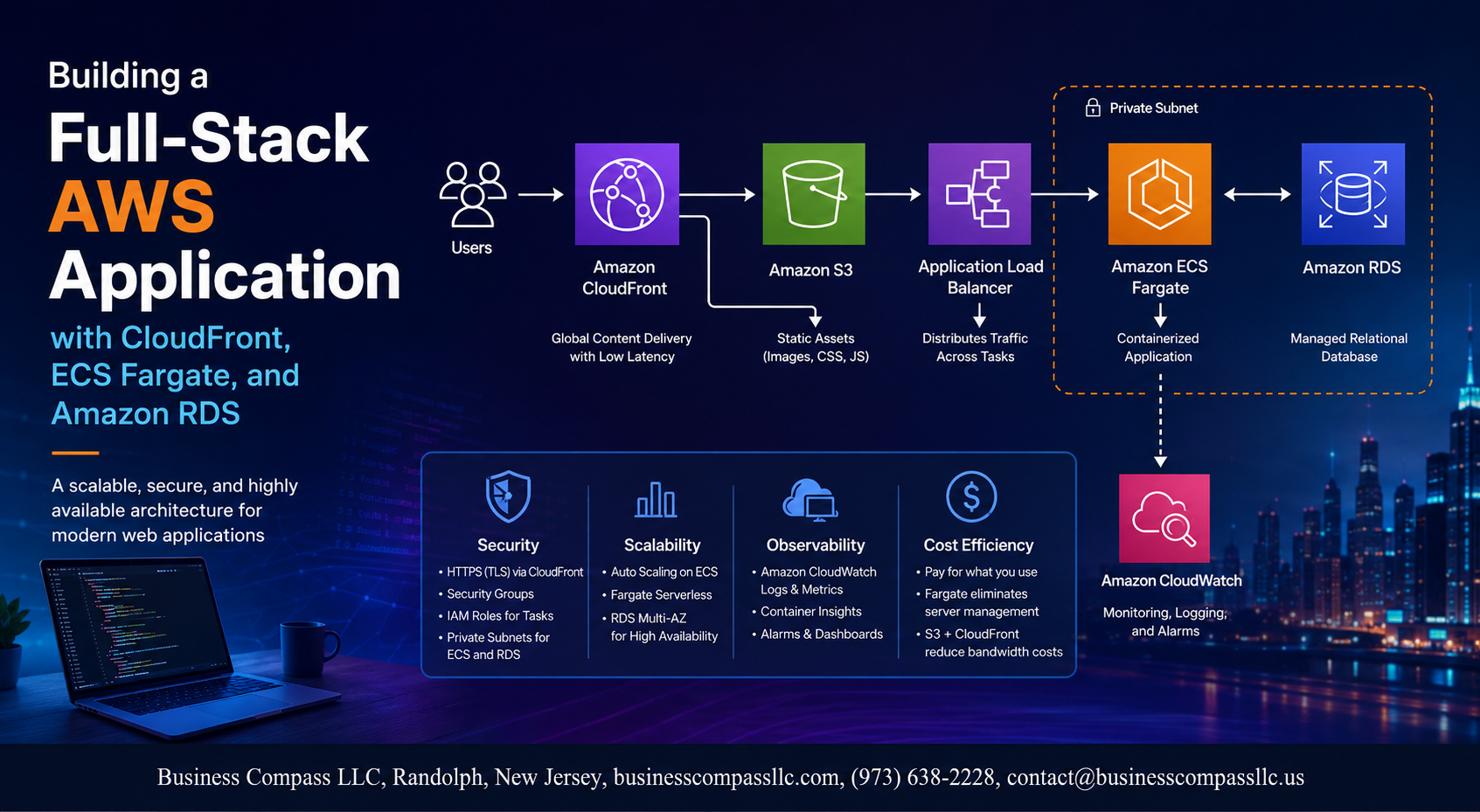
Here’s how a typical request moves through this AWS containerized application deployment:
- A user’s request hits the nearest CloudFront edge location
- Cache miss? CloudFront forwards it to your ECS Fargate service via an Application Load Balancer
- Fargate processes the request, queries Amazon RDS, and returns the response
- CloudFront caches the response where appropriate for the next request
Setting Up Your AWS Environment for Success
Configuring IAM Roles and Permissions for Secure Access
Getting IAM right from the start saves you a massive headache later. Create dedicated roles for ECS task execution, RDS access, and CloudFront interactions rather than stacking permissions onto a single broad role.
- ECS Task Execution Role: Attach
AmazonECSTaskExecutionRolePolicyand add custom inline policies for Secrets Manager or Parameter Store access so your containers can pull database credentials safely at runtime. - RDS Access Policy: Scope down permissions to specific RDS ARNs — avoid wildcard resource definitions in production environments.
- Principle of Least Privilege: Every service gets only what it needs, nothing more.
Organizing Resources with VPCs, Subnets, and Security Groups
A well-structured VPC is the backbone of any solid AWS full-stack application. Place your ECS Fargate tasks and RDS instances in private subnets, and expose only your CloudFront distribution and load balancer through public-facing subnets.
- Public Subnets: Application Load Balancer, NAT Gateway
- Private Subnets: ECS Fargate containers, Amazon RDS instances
- Security Group Rules:
- Allow ALB to reach ECS on your application port only
- Allow ECS security group to reach RDS on port
3306or5432 - Deny all other inbound traffic to private resources
This network segmentation keeps your database and containers shielded from direct internet exposure.
Choosing the Right AWS Region for Your Application
Pick a region closest to the majority of your end users to cut latency on origin requests before CloudFront caching even kicks in. Check that your chosen region supports ECS Fargate, RDS (with your preferred engine), and any other services your AWS containerized application deployment depends on.
- Latency: Use tools like cloudping.info to benchmark regions against your user base.
- Compliance: Data residency requirements may lock you into specific regions regardless of latency.
- Service Availability: Not every AWS feature rolls out to every region simultaneously — double-check before committing.
Preparing the AWS CLI and Required Development Tools
Before writing a single line of infrastructure code, get your local environment sorted. A clean toolchain means fewer surprises during deployment.
- AWS CLI v2: Install and configure with
aws configure, setting your access key, secret, default region, and output format. - Docker: Required for building and pushing container images to Amazon ECR for your ECS Fargate Docker containerization workflow.
- Terraform or AWS CDK: Pick one infrastructure-as-code tool and stick with it for consistent, repeatable deployments.
- Session Manager Plugin: Ditch SSH keys — use AWS Systems Manager Session Manager for secure shell access to containers and EC2 bastion hosts if needed.
Run aws sts get-caller-identity after setup to confirm your credentials are wired up correctly before moving forward.
Building and Containerizing Your Application with ECS Fargate

Designing Your Backend Application for Container Deployment
When building your backend for ECS Fargate Docker containerization, keep services stateless so containers can scale horizontally without holding session data locally. Structure your app around environment-based configuration, separating dev, staging, and production settings cleanly.
- Use 12-factor app principles to keep your codebase portable
- Avoid hardcoding database URLs or API keys directly in source files
- Design health check endpoints (like
/health) so ECS knows when a container is ready to serve traffic - Keep dependencies minimal to reduce image size and attack surface
Writing an Efficient Dockerfile to Package Your Application
A lean, well-structured Dockerfile makes a huge difference in build speed and security for your AWS containerized application deployment.
- Start with a slim or Alpine base image to cut down image size
- Use multi-stage builds to separate your build environment from your runtime environment
- Copy only what’s needed into the final image stage
- Pin dependency versions to avoid unexpected breakage between builds
FROM node:20-alpine AS builder
WORKDIR /app
COPY package*.json ./
RUN npm ci
COPY . .
RUN npm run build

FROM node:20-alpine
WORKDIR /app
COPY --from=builder /app/dist ./dist
COPY --from=builder /app/node_modules ./node_modules
EXPOSE 3000
CMD ["node", "dist/index.js"]
Pushing Your Container Image to Amazon ECR
Amazon ECR is the natural home for container images in an AWS full-stack application setup. It integrates tightly with ECS and IAM, so access control is straightforward.
Steps to push your image:
- Authenticate Docker with ECR using the AWS CLI:
aws ecr get-login-password --region us-east-1 | docker login --username AWS --password-stdin <account_id>.dkr.ecr.us-east-1.amazonaws.com - Create a repository in ECR if you haven’t already:
aws ecr create-repository --repository-name my-app - Tag your local image to match the ECR repository URI
- Push the image with
docker push
Turn on image scanning in ECR to catch known vulnerabilities before they reach production.
Deploying and Scaling Your Service on ECS Fargate
With ECS Fargate, you skip managing EC2 instances entirely — AWS handles the underlying compute. This is one of the biggest wins for teams running a full-stack AWS microservices setup.
Key steps to get your service running:
- Create a Task Definition — define your container image URI, CPU/memory allocation, port mappings, and log configuration (CloudWatch Logs is the easiest starting point)
- Set Up a Cluster — an ECS cluster groups your services together; create one via the console or Terraform
- Create a Service — the service keeps your desired task count running, handles restarts, and integrates with an Application Load Balancer for traffic routing
- Configure Auto Scaling — tie scaling policies to CPU or memory metrics so your service grows and shrinks based on real demand
A typical Fargate task for a Node.js backend works well with 512 MB memory and 0.25 vCPU to start, scaling up as traffic grows.
Managing Environment Variables and Secrets Securely
Hardcoding secrets into Docker images is a fast path to a security incident. In an Amazon ECS Fargate tutorial, the right approach is pulling secrets dynamically at runtime.
- AWS Secrets Manager — store database passwords, API keys, and tokens here; reference them in your ECS Task Definition under
secretsso they inject at container startup without appearing in your image or task logs - AWS Systems Manager Parameter Store — great for non-sensitive config values like feature flags or environment names; it’s cheaper than Secrets Manager for high-volume reads
- Environment variables in Task Definitions — safe for non-sensitive values like
NODE_ENV=productionorPORT=3000 - Never log environment variables at startup — a surprising number of apps accidentally dump their full config to stdout on boot
Attach an IAM Task Role to your ECS service with least-privilege permissions, granting access only to the specific secrets and parameters your app actually needs.
Provisioning and Connecting Amazon RDS for Reliable Data Storage
Selecting the Right RDS Engine and Instance Size for Your Needs
Picking the right database engine sets the foundation for your entire Amazon RDS database setup. Here’s a quick breakdown to help you decide:
- PostgreSQL – Great for complex queries, JSON support, and open-source flexibility
- MySQL – Solid choice for web apps with straightforward relational data needs
- Aurora – AWS’s own engine offering MySQL/PostgreSQL compatibility with better performance and auto-scaling
For instance sizing, start with db.t3.medium for dev/staging workloads and bump to db.r6g.large or higher in production when your AWS full-stack application starts handling real traffic.
Configuring Multi-AZ Deployment for High Availability
Turning on Multi-AZ means AWS automatically keeps a standby replica in a separate Availability Zone, ready to take over if your primary instance goes down — no manual intervention needed.
- Enable Multi-AZ during RDS creation or modify an existing instance
- Failover typically completes within 60–120 seconds
- Read replicas are separate from Multi-AZ standby — don’t confuse the two
Connecting Your ECS Fargate Tasks to the RDS Instance Securely
Keeping your CloudFront ECS Fargate RDS stack secure means never hardcoding database credentials. Instead:
- Store connection strings in AWS Secrets Manager and reference them in your ECS task definition as environment variables
- Place RDS inside a private subnet — your Fargate tasks and RDS should share a VPC
- Create a dedicated security group for RDS that only allows inbound traffic on port
5432(PostgreSQL) or3306(MySQL) from your Fargate task’s security group
Accelerating Content Delivery with Amazon CloudFront

Setting Up a CloudFront Distribution for Your Frontend Assets
Getting your frontend assets behind CloudFront is one of the smartest moves you can make for your AWS full-stack application. Start by uploading your static files — HTML, CSS, JavaScript, images — to an S3 bucket, then create a CloudFront distribution pointing to that bucket as the origin.
Key steps to follow:
- Create an S3 bucket with a unique name and disable public access (CloudFront will handle access through an Origin Access Control policy)
- Set up an Origin Access Control (OAC) so only CloudFront can read from your S3 bucket, keeping your data locked down
- Choose your price class — if your users are mostly in North America and Europe, Price Class 100 cuts costs without sacrificing much performance
- Set the default root object to
index.htmlso your app loads correctly when users hit the root URL
Routing API Requests to ECS Fargate Through CloudFront
CloudFront content delivery optimization really shines when you route both static assets and API traffic through a single distribution. Instead of exposing your ECS Fargate service directly, you can add it as a second origin in CloudFront and use path-based routing to send /api/* requests straight to your Application Load Balancer.
Here’s how to wire it up:
- Add your ALB as a second origin in the CloudFront distribution settings, pointing to the ALB’s DNS name
- Create a cache behavior for
/api/*that forwards all headers, query strings, and cookies to the ALB — API responses usually shouldn’t be cached - Set the cache policy to “CachingDisabled” for API paths so users always get fresh data from your containerized application deployment
- Enable origin failover if you want extra reliability — CloudFront can automatically retry requests against a backup origin if the primary fails
This approach also removes the need to deal with CORS headaches, since your frontend and API share the same domain through CloudFront.
Enabling HTTPS and Custom Domain Names with SSL Certificates
Running everything over HTTPS is non-negotiable for any production AWS cloud architecture, and CloudFront makes it surprisingly painless. You can attach a free SSL/TLS certificate from AWS Certificate Manager (ACM) to your distribution in just a few clicks.
Steps to get your custom domain live:
- Request a public certificate in ACM — make sure you do this in the
us-east-1region, since CloudFront only works with certificates from that specific region - Add your domain names to the certificate, including both the root domain (
example.com) and the wildcard or subdomain (www.example.com) - Validate ownership through DNS validation by adding the CNAME records ACM provides to your Route 53 hosted zone (or wherever your DNS lives)
- Attach the certificate to your CloudFront distribution under “Alternate domain names (CNAMEs)” and select the ACM certificate from the dropdown
- Update your DNS with a Route 53 alias record or CNAME pointing your custom domain to the CloudFront distribution URL (something like
d1234abcd.cloudfront.net)
Once everything propagates — usually within a few minutes — your app will be live at your custom domain with HTTPS enforced automatically.
Optimizing Cache Behaviors to Reduce Latency and Costs
Getting your cache behaviors right is where CloudFront goes from “nice to have” to a genuine game-changer for reducing latency and cutting your AWS costs. The goal is to cache as aggressively as possible for static assets while making sure dynamic content always stays fresh.
Practical cache optimization tips:
- Set long TTLs for versioned assets — if your build tool appends a content hash to filenames (like
app.a3f9b2.js), you can safely cache these for a year usingCache-Control: max-age=31536000 - Use short or zero TTLs for HTML files — your
index.htmlshould have a short cache time (orCache-Control: no-cache) so users always pick up the latest version of your app - Enable compression in your CloudFront distribution to automatically serve Gzip or Brotli-compressed files, which shrinks transfer sizes dramatically
- Use cache invalidations sparingly — each invalidation after the first 1,000 paths per month costs money; leaning on versioned filenames is a much cheaper pattern
- Monitor your cache hit ratio in CloudFront metrics — a healthy distribution should be hitting 80–90%+ for static asset requests, meaning those requests never even reach your ECS Fargate origin
Implementing Monitoring, Logging, and Cost Optimization

Tracking Application Health with CloudWatch Metrics and Alarms
Set up CloudWatch dashboards to keep a close eye on your AWS full-stack application across all layers:
- ECS Fargate metrics: Track CPU and memory utilization per task and service. Set alarms when CPU crosses 80% so you can scale out before users feel any slowdown.
- RDS metrics: Watch
DatabaseConnections,FreeStorageSpace, andReadLatency. A spike in connections usually means your app has a connection leak worth hunting down. - CloudFront metrics: Monitor
4xxErrorRateand5xxErrorRatealongsideCacheHitRate. A low cache hit rate is money left on the table and a sign your cache behaviors need tuning.
Create composite alarms to reduce alert noise — trigger a page only when both high latency and high error rates appear together, not in isolation.
Centralizing Logs from CloudFront, ECS, and RDS for Easy Debugging
Chasing bugs across three separate services is painful without a single place to look. Here’s how to pull everything together:
- ECS Fargate: Configure the
awslogslog driver in your task definition to ship container logs straight to CloudWatch Logs. Group logs by service name and environment for clean separation. - CloudFront: Enable standard logging to an S3 bucket, then use CloudWatch Logs Insights or Amazon Athena to query access patterns, identify slow requests, and spot abuse.
- RDS: Turn on slow query logs and error logs via the parameter group. Stream them to CloudWatch using the RDS console’s log export feature.
Once all logs land in CloudWatch, use Log Insights with queries like filter @message like /ERROR/ to pinpoint failures fast across your entire AWS containerized application deployment without jumping between consoles.
Applying Cost-Saving Strategies Across All Three Services
Running CloudFront, ECS Fargate, and Amazon RDS together is powerful, but costs can creep up quietly. These practical moves keep your bill in check:
- ECS Fargate:
- Right-size your task CPU and memory — many teams over-provision by 40% out of habit.
- Use Fargate Spot for non-critical workloads like batch jobs or background workers. You can cut compute costs by up to 70%.
- Enable ECS Service Auto Scaling so you’re not paying for idle capacity during off-peak hours.
- Amazon RDS:
- Choose Reserved Instances for production databases if you know you’ll run them for a year or more — savings hit around 40% compared to on-demand pricing.
- Use RDS Proxy to pool connections, which reduces database load and lets you run a smaller instance class.
- Stop non-production RDS instances overnight using AWS Lambda and EventBridge schedules.
- CloudFront:
- Maximize your cache hit rate by setting appropriate
Cache-Controlheaders on static assets. Every cache hit is a request your origin never has to handle. - Use CloudFront Price Classes to limit distribution to regions where your users actually are, rather than paying for global edge coverage you don’t need.
- Compress objects at the edge with Gzip or Brotli to reduce data transfer costs alongside improving load times.
- Maximize your cache hit rate by setting appropriate
Pair these tactics with AWS Cost Explorer and monthly budget alerts so surprises never show up on your bill at the end of the month.
Building a full-stack AWS application with CloudFront, ECS Fargate, and Amazon RDS gives you a powerful, scalable setup that handles everything from fast content delivery to reliable data storage. Each piece of the puzzle plays a clear role — CloudFront speeds up how your content reaches users, ECS Fargate takes the headache out of managing containers, and RDS keeps your data safe and accessible. Throw in solid monitoring, logging, and cost optimization practices, and you’ve got an architecture that’s built to grow with your needs without burning through your budget.
The best next step? Start small. Spin up your environment, get your containers running, and connect your database. Once the core pieces are in place, layer in CloudFront and set up your monitoring so you always know what’s happening inside your app. The AWS ecosystem has a lot to offer, and this stack is one of the smartest ways to take full advantage of it.