Stop Rotating AWS IAM Keys by Hand — Here’s How to Automate It
If you’re still logging into the AWS console to manually rotate IAM access keys, you’re spending time on a task that code can handle better, faster, and without human error. This guide is for DevOps engineers, cloud security teams, and AWS administrators who want to swap out risky manual processes for a solid AWS IAM key rotation automation setup.
Here’s what we’re covering:
- Why manual rotation is quietly hurting your security posture — the gaps that slip through when humans are in the loop
- The AWS tools and IAM key rotation scripts that do the heavy lifting — no need to reinvent the wheel
- How to build an automated IAM access key management workflow that actually holds up in production, edge cases included
By the end, you’ll have a clear picture of what automated AWS credential rotation looks like in practice and how to measure whether it’s actually working.
The Hidden Risks of Manual IAM Key Rotation

Why Human Error Makes Manual Rotation Dangerously Unreliable
Manual AWS IAM key rotation depends entirely on someone remembering to do it — and people forget, get busy, or skip steps under pressure. A missed rotation window, a key accidentally shared in Slack, or a spreadsheet entry left blank can quietly expose your AWS environment for months before anyone notices.
The Compliance and Audit Costs of Inconsistent Key Management
When auditors ask for proof that your IAM access keys are rotated on schedule, inconsistent manual processes create painful gaps. Without automated IAM access key management, you end up scrambling to explain why certain keys are 180 days old, building compliance reports by hand, and burning hours that could go toward actual security work.
- Audit preparation takes significantly longer without rotation logs
- Manual tracking tools like spreadsheets introduce version control risks
- Missed rotation cycles can trigger compliance violations under SOC 2, PCI-DSS, and ISO 27001
How Stale Access Keys Become Entry Points for Attackers
Old, forgotten AWS access keys sitting in a developer’s local config or a decommissioned CI/CD pipeline are essentially open doors. Attackers actively scan for exposed credentials in public repositories and compromised endpoints. Replacing manual AWS key rotation with automated credential rotation workflows closes those doors before they become a breach.
Core AWS Tools That Power Automated Key Rotation

Leveraging AWS Secrets Manager to Store and Rotate Keys Safely
AWS Secrets Manager takes the heavy lifting out of AWS IAM key rotation automation by handling both storage and rotation in one place. Instead of keeping access keys in config files or environment variables, you store them as secrets, and Secrets Manager rotates them automatically on a schedule you define.
Key capabilities worth knowing:
- Automatic rotation schedules – set rotation intervals from 1 to 365 days
- Version staging – Secrets Manager keeps the previous key version alive during transition, so nothing breaks mid-rotation
- Built-in encryption – every secret is encrypted with AWS KMS by default
- Native integrations – works directly with Lambda rotation functions for custom IAM key lifecycle management
Using AWS Lambda to Trigger Rotation on a Reliable Schedule
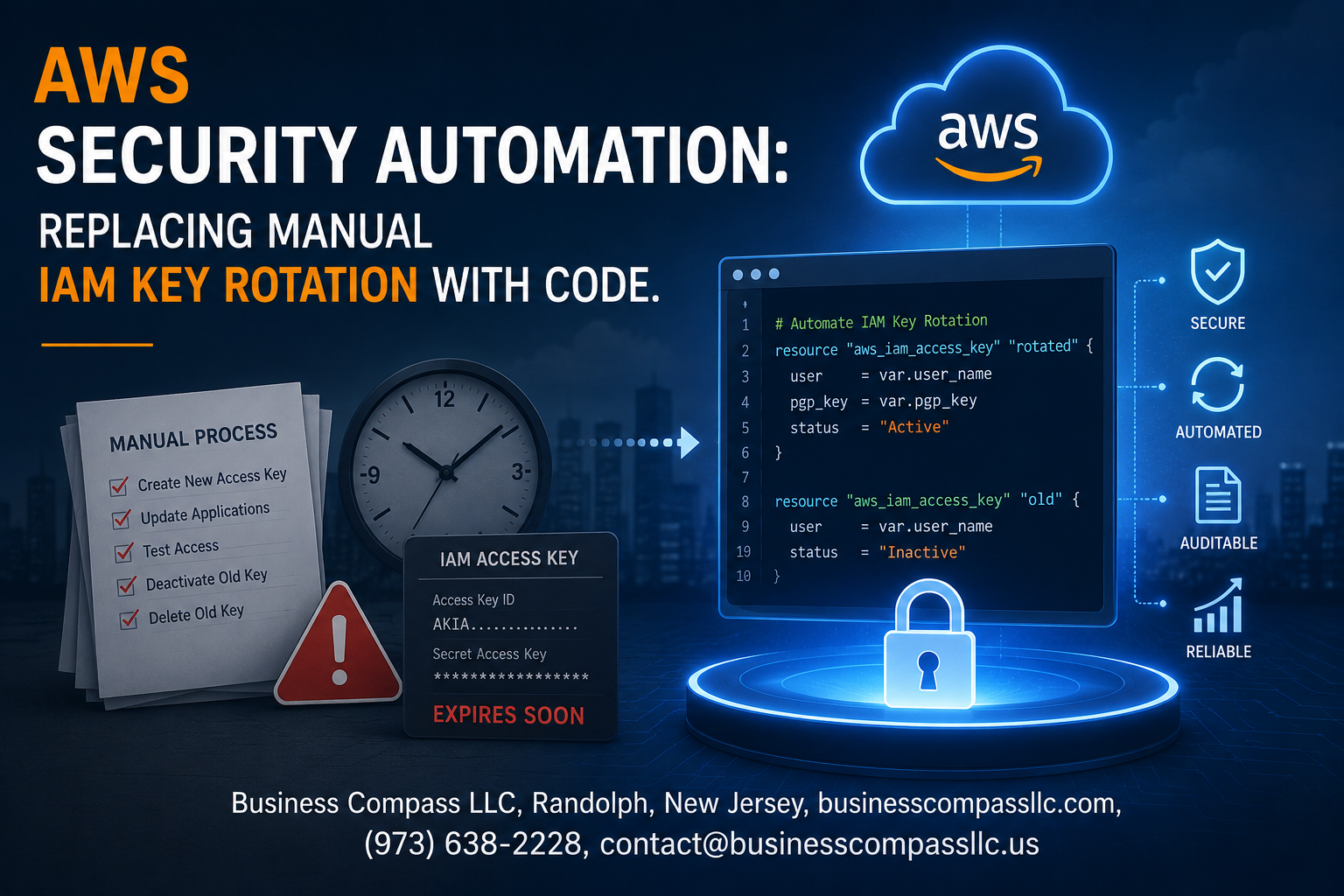
Lambda is the engine behind the actual rotation logic. When Secrets Manager triggers a rotation event, it calls a Lambda function that handles four distinct steps: creating the new key, testing it, switching your application to the new key, and deleting the old one.
A typical IAM key rotation script in Lambda follows this flow:
- createSecret – generate a fresh IAM access key pair
- setSecret – update the secret value in Secrets Manager
- testSecret – verify the new credentials actually work before cutting over
- finishSecret – mark the new version as current and deprecate the old one
You can write this in Python using boto3, and AWS even provides rotation function templates to speed things up.
How AWS Config Detects Non-Compliant and Overdue Keys
AWS Config acts like a continuous auditor for your IAM access key lifecycle management. The managed rule access-keys-rotated checks every active IAM key against a maximum age threshold you set, and flags anything overdue as non-compliant.
What makes this powerful for automate AWS security compliance efforts:
- Config evaluates keys continuously, not just on a fixed schedule
- Non-compliant findings can trigger automated remediation via AWS Systems Manager Automation runbooks
- All compliance history is logged, giving you an audit trail without manual tracking
- Config can push alerts to SNS, feeding into your broader incident response workflow
Integrating IAM Policies to Enforce Least Privilege During Rotation
The rotation process itself needs tight permissions. Giving your Lambda function or automation role broad IAM access defeats the purpose of rotating AWS access keys with code in the first place.
Build a scoped-down IAM policy for your rotation role that only allows:
iam:CreateAccessKey– for the specific user being rotatediam:DeleteAccessKey– scoped to the same useriam:ListAccessKeys– to check existing key countsecretsmanager:GetSecretValueandsecretsmanager:PutSecretValue– for the specific secret ARN
Using resource-level conditions like "Resource": "arn:aws:iam::ACCOUNT_ID:user/specific-user" keeps blast radius small if the rotation role is ever compromised. Pair this with a permission boundary on the Lambda execution role, and your AWS IAM automation tools stay contained within a well-defined trust boundary.
Building Your Automated Key Rotation Workflow Step by Step

Identifying and Inventorying All Active IAM Access Keys
Before automating anything, you need a clear picture of what keys exist across your AWS environment. Use the AWS CLI command aws iam generate-credential-report to pull a full snapshot of every IAM user and their associated access keys, including creation dates and last-used timestamps.
- Run
aws iam list-userscombined withaws iam list-access-keys --user-nameto build a structured inventory - Tag keys with metadata like owning team, application name, and environment (prod, staging, dev)
- Flag any keys older than 90 days as immediate rotation candidates
- Store this inventory in DynamoDB or an S3 bucket so your Lambda functions can reference it during automated runs
Writing Lambda Functions to Generate and Replace Keys Automatically
Your IAM key rotation script lives inside a Lambda function triggered on a schedule via EventBridge. The function calls aws iam create-access-key to generate fresh credentials, then writes those values to AWS Secrets Manager or Parameter Store before anything else happens.
import boto3

def rotate_key(username):
    iam = boto3.client('iam')
    new_key = iam.create_access_key(UserName=username)
    secret_client = boto3.client('secretsmanager')
    secret_client.put_secret_value(
        SecretId=f"iam/{username}/access-key",
        SecretString=str(new_key['AccessKey'])
    )
    return new_key['AccessKey']['AccessKeyId']
Key decisions to make inside your Lambda logic:
- Check how many active keys the user already has — IAM caps it at two per user
- If two keys exist, deactivate the older one first before creating a new one
- Log every action to CloudWatch Logs with timestamps for your audit trail
- Use IAM roles for the Lambda function itself — never hardcode credentials inside the function
Notifying Application Owners and Systems of New Key Values
Rotation only works if downstream systems and people actually get the updated credentials. Wire your Lambda function to send SNS notifications or Slack messages the moment a new key gets stored in Secrets Manager.
- Send an SNS message with the Secrets Manager ARN so application owners can fetch the new value programmatically
- For automated systems like EC2 instances or ECS tasks, configure them to pull credentials directly from Secrets Manager at startup rather than relying on injected environment variables
- Include a deadline timestamp in every notification — something like “old key deactivates in 24 hours” — so teams have a clear window to update their configs
- For human-managed keys, attach a direct link to the AWS Console with instructions to update their local
~/.aws/credentialsfile
Deactivating and Deleting Old Keys Without Breaking Services
This step is where most AWS IAM key rotation automation attempts fall apart. Deleting a key too fast breaks things; waiting too long defeats the purpose.
Follow this staged approach:
- Generate new key → store it in Secrets Manager → notify owners
- Wait 24–48 hours → give applications time to pick up the new credentials
- Deactivate old key using
aws iam update-access-key --status Inactive→ monitor CloudTrail for any API calls still hitting the old key ID - Wait another 24 hours → if CloudTrail shows zero activity on the old key, proceed
- Delete old key using
aws iam delete-access-key→ log the deletion event
Build a CloudTrail query into your Lambda workflow using Athena or CloudWatch Insights to check whether the old key made any API calls in the last 24 hours. If it did, pause the deletion and alert the team instead of proceeding blindly.
Testing the Workflow in a Safe Non-Production Environment
Never point your AWS credential rotation workflow at production accounts on the first run. Set up a dedicated sandbox AWS account with dummy IAM users that mirror your real environment’s structure.
- Create test IAM users with keys intentionally aged past 90 days
- Run the full Lambda workflow end to end and verify each step in CloudWatch Logs
- Simulate failure scenarios — what happens if Secrets Manager is throttled, or if a user already has two active keys?
- Use AWS Step Functions to visualize each stage of the workflow, making it easier to catch where things break during testing
- Once the non-prod run produces clean results across five or more test cycles, gradually roll out to lower-risk production accounts before touching anything business-critical
Handling Edge Cases That Break Automated Rotation

Managing Keys Hardcoded in Legacy Applications and Scripts
Legacy codebases are the biggest headache in any AWS IAM key rotation automation project. Before your rotation script touches anything, run a discovery scan across your repositories, CI/CD configs, Dockerfiles, and cron jobs to find hardcoded credentials.
- Use tools like git-secrets, truffleHog, or AWS Macie to surface hardcoded keys
- Replace hardcoded values with references to AWS Secrets Manager or Parameter Store
- For apps that can’t be refactored quickly, build a grace period into your IAM key rotation script — create the new key, update the secret store, wait 24–48 hours, then deactivate the old key
Coordinating Rotation Across Multi-Account AWS Environments
In multi-account setups, rotating AWS access keys without a centralized orchestration layer causes serious drift between accounts.
- Deploy your automated IAM access key management logic through AWS Organizations and Systems Manager Automation runbooks
- Tag IAM users consistently across accounts so your rotation workflow targets the right identities every time
- Store per-account rotation state in DynamoDB to avoid double-rotation or missed accounts during parallel runs
Avoiding Service Disruptions During High-Traffic Rotation Windows
Rotating credentials during peak traffic is asking for trouble.
- Schedule AWS credential rotation workflows during low-traffic windows using EventBridge Scheduler
- Always follow the create → propagate → verify → deactivate sequence — never delete the old key before confirming the new one works
- Build health checks into your Lambda rotation function that validate API calls with the new key before marking rotation complete
Measuring the Success of Your Automation Implementation

Tracking Key Age and Rotation Frequency with CloudWatch Metrics
Set up custom CloudWatch metrics that push key age data every 24 hours using a Lambda function querying IAM.list_access_keys(). Build dashboards showing:
- Average key age across all IAM users
- Rotation frequency per account or organizational unit
- Keys approaching expiry (flagged at 80-day threshold)
Using AWS Security Hub to Monitor Ongoing Key Health
AWS Security Hub runs the CIS AWS Foundations Benchmark control 1.4 automatically, flagging any access key older than 90 days. Connect Security Hub findings to EventBridge rules so your team gets Slack or PagerDuty alerts before keys become a compliance problem — not after an auditor finds them.
Proving Compliance Gains to Auditors with Automated Reports
Pull compliance evidence straight from AWS Config with queries like:
SELECT resourceId, configuration.createDate
WHERE resourceType = 'AWS::IAM::AccessKey'
Schedule these queries weekly and dump results to S3. Auditors get a clean, timestamped paper trail showing your AWS IAM key rotation automation is running consistently — no manual screenshots needed.
Benchmarking Time Saved Versus Manual Rotation Processes
Track these numbers before and after automation:
- Mean time to rotate a single key (manual avg: 12–20 minutes)
- Human error rate during rotation (credential mismatches, forgotten updates)
- Tickets opened for broken deployments caused by stale keys
Teams running automated IAM access key management typically cut rotation-related incidents by over 70%, with near-zero engineer hours spent on routine key lifecycle tasks.

Manually rotating IAM keys is one of those tasks that feels manageable at first, until your team grows, your AWS environment scales, and suddenly you’re one missed rotation away from a serious security incident. Automating this process with AWS-native tools like Lambda, Secrets Manager, and CloudWatch takes that risk off the table, giving you consistent, auditable key rotation without relying on anyone to remember to do it.
The real win here isn’t just saving time, it’s closing the gaps that manual processes always leave open. By building a solid workflow, accounting for edge cases, and tracking the right metrics, you end up with a security posture that actually holds up under pressure. If you haven’t started automating your IAM key rotation yet, now’s a great time to dig in and get it running. Your future self will thank you.