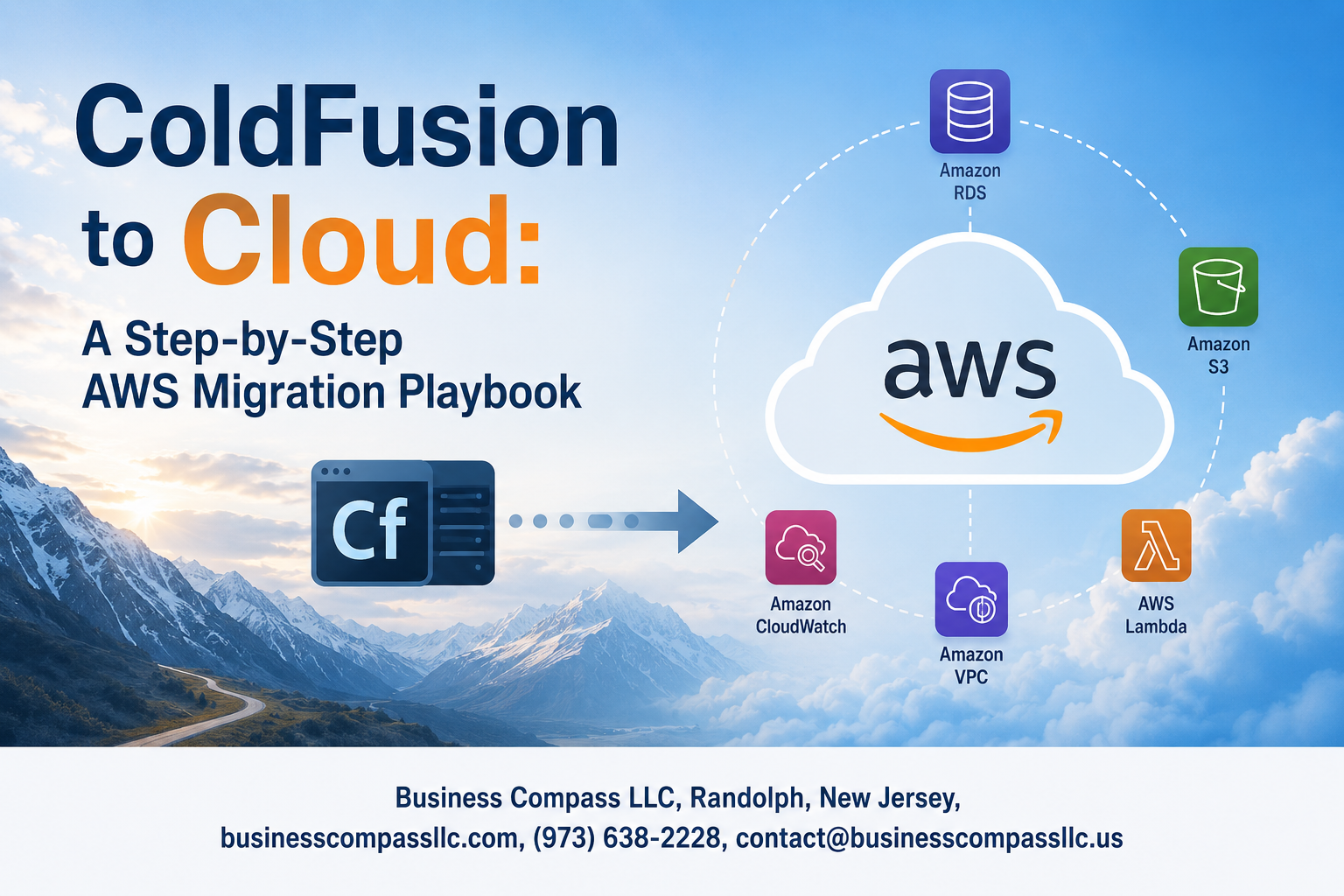
Moving Your ColdFusion App to AWS Doesn’t Have to Be a Nightmare
If you’re still running ColdFusion on aging on-premise servers, you already know the pain — slow performance, mounting maintenance costs, and an infrastructure that feels like it’s held together with duct tape. A ColdFusion AWS migration is one of the smartest moves you can make right now, but only if you do it right.
This guide is for developers, IT managers, and CTOs who are responsible for keeping ColdFusion applications alive and healthy. You might be running a legacy enterprise app, a content-heavy web platform, or a business-critical tool built on CFML — regardless, this playbook walks you through the full journey from your current setup to a stable, scalable cloud environment.
Here’s what we’re going to cover:
- Why your ColdFusion application actually needs to move — not just because “cloud is trending,” but because staying put has real, measurable costs
- How to assess your current environment and pick the right AWS services for your specific ColdFusion workload — no guesswork, no one-size-fits-all answers
- How to execute the migration step by step and keep your app secure, optimized, and easy to monitor once it’s live on AWS
By the end, you’ll have a clear, actionable ColdFusion cloud migration playbook you can start using today.
Understanding Why ColdFusion Applications Need to Move to AWS

The Growing Limitations of Legacy ColdFusion Hosting
Running ColdFusion on aging on-premises servers or outdated hosting environments creates real headaches for development teams. Hardware refresh cycles are expensive, scaling during traffic spikes means scrambling for capacity, and keeping up with Adobe ColdFusion licensing costs on physical infrastructure drains budgets fast. Older hosting setups also struggle with:
- Limited scalability — you’re stuck with whatever hardware you bought, even when demand doubles overnight
- High maintenance overhead — patching, monitoring, and managing physical servers pulls engineers away from building actual features
- Single points of failure — one bad disk or network outage can take your entire application offline
- Poor geographic reach — serving users in multiple regions from a single data center means slow load times and frustrated customers
Key Business Benefits of Migrating to AWS
A ColdFusion AWS migration opens doors that legacy hosting simply can’t. AWS gives your ColdFusion application elastic compute power through EC2, managed database options via RDS, and a global content delivery network through CloudFront — all working together to deliver better performance at lower cost. Teams that migrate ColdFusion to cloud environments typically see:
- Pay-as-you-go pricing that replaces unpredictable CapEx with manageable OpEx
- Auto Scaling groups that handle sudden traffic surges without manual intervention
- Built-in redundancy through multi-AZ deployments, reducing downtime risk dramatically
- Faster release cycles because developers spend less time on infrastructure and more time shipping code
- Access to managed services like AWS RDS, Elastic Beanstalk, and CloudWatch that simplify operations
ColdFusion cloud hosting on AWS also makes disaster recovery straightforward — snapshots, replication, and automated backups replace complex manual processes that were easy to forget or misconfigure.
Common Risks of Delaying the Migration
Staying on legacy infrastructure while competitors modernize is a gamble that gets riskier every quarter. The longer a ColdFusion application modernization project gets pushed back, the more technical debt accumulates — outdated OS versions, unsupported ColdFusion builds, and tangled configurations that nobody fully understands anymore. Delayed migrations also expose businesses to:
- Security vulnerabilities from unpatched servers and end-of-life software stacks that attract attackers
- Compliance gaps that become harder and costlier to close as regulations tighten around data handling
- Talent shortages because finding engineers willing to maintain old-school infrastructure gets harder every year
- Missed growth opportunities since scaling a legacy setup to handle new products or markets is slow and expensive
- Rising operational costs as aging hardware requires increasingly expensive maintenance contracts and emergency replacements
Assessing Your ColdFusion Environment Before Migration

Auditing Existing ColdFusion Code and Dependencies
Before you move a single file to AWS, you need a clear picture of what you’re actually working with. Start by cataloging every CFML file, custom tag, and CFComponent in your application. Tools like CFLint can help spot outdated syntax or deprecated functions that will cause headaches later.
- Map out all third-party libraries, JAR files, and custom modules
- Note which ColdFusion version your app was built on (CF9, CF11, CF2018, etc.)
- Flag any code that relies on Windows-specific paths or local file system calls
- Document scheduled tasks, CF Administrator settings, and server-side configurations
Identifying Compatibility Issues and Technical Debt
Older ColdFusion applications often carry years of quick fixes and workarounds that were “temporary” but never got cleaned up. These become real problems during a ColdFusion AWS migration if you don’t catch them early.
- Look for deprecated tags like
<cfobject>or old-school<cfquery>patterns without parameterized queries - Identify hardcoded IP addresses or server paths that won’t survive a cloud move
- Check for CF-specific session management that may conflict with load-balanced AWS environments
- Flag any application relying on COM objects or Windows registry calls — these simply won’t work on Linux-based EC2 instances
Evaluating Database Connections and Third-Party Integrations
Your database setup and external connections deserve serious attention before you migrate ColdFusion to cloud infrastructure. Poorly documented integrations are usually where migrations go sideways.
- List every data source defined in CF Administrator, including connection pool settings
- Identify whether your database is SQL Server, MySQL, Oracle, or something else — this affects which AWS RDS option fits best
- Document all API calls, payment gateways, SMTP configurations, and external file storage dependencies
- Check for any direct socket connections or legacy LDAP/Active Directory integrations that need rerouting in a cloud environment
Defining Migration Goals and Success Metrics
Going into a ColdFusion cloud migration without clear goals is like driving without a destination. You need specific, measurable targets so you actually know when you’ve succeeded.
- Performance targets: Define acceptable page load times and server response benchmarks
- Uptime goals: Most teams shoot for 99.9% availability as a baseline
- Cost expectations: Establish a monthly AWS spend budget compared to your current hosting costs
- Rollback criteria: Decide upfront what conditions would trigger rolling back to your on-prem environment
- Team readiness: Make sure developers and ops staff know the AWS services for ColdFusion your stack will rely on, like EC2, RDS, and Elastic Load Balancing
Choosing the Right AWS Services for Your ColdFusion Workload
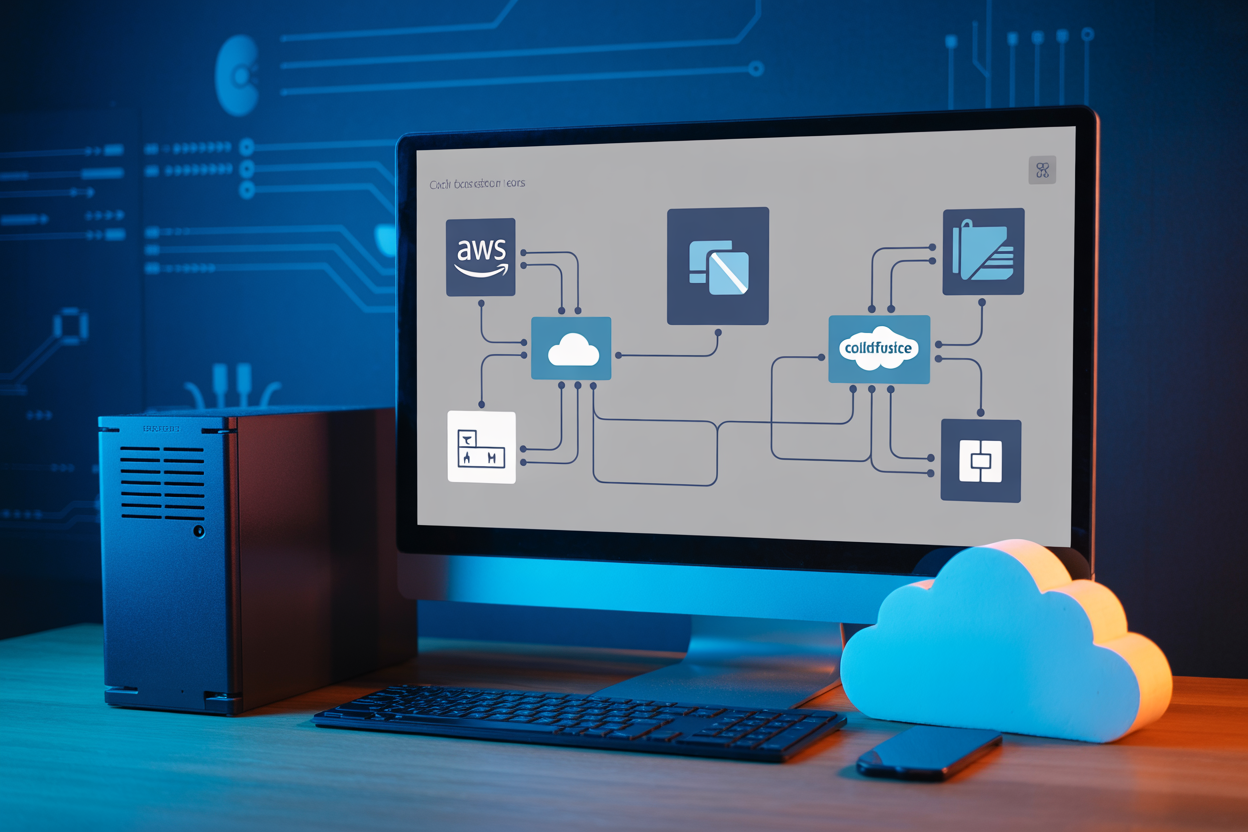
Selecting the Best Compute Option: EC2 vs. Elastic Beanstalk vs. ECS
Picking the right compute service is one of the biggest decisions in your ColdFusion AWS migration journey. Each option has a different personality:
- EC2 gives you full control — you manage the OS, Java version, and ColdFusion server settings exactly the way you want. Great if your app has quirky custom configurations.
- Elastic Beanstalk handles the heavy lifting of deployment, load balancing, and auto-scaling automatically, making it a solid middle ground for teams who want AWS to manage infrastructure without going fully serverless.
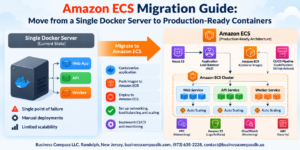
- ECS (Elastic Container Service) works best when you’ve containerized your ColdFusion app using Docker — perfect for teams leaning into ColdFusion application modernization.
Matching Your Database to Amazon RDS or Aurora
Most ColdFusion apps talk to a relational database, and AWS makes that transition painless:
- Amazon RDS supports MySQL, SQL Server, PostgreSQL, and Oracle — covering nearly every database ColdFusion shops typically run.
- Aurora is worth a look if you need higher performance and automatic failover, especially for high-traffic applications.
- Your existing ColdFusion datasource configurations need minimal changes — just swap the connection string to point to your RDS endpoint.
Leveraging AWS Storage Solutions for ColdFusion File Management
ColdFusion apps frequently read and write files — uploads, PDFs, email attachments — and AWS storage handles this cleanly:
- Amazon S3 replaces local file storage for uploads and static assets, with virtually unlimited capacity.
- Amazon EFS (Elastic File System) works well when multiple EC2 instances need shared access to the same files, mimicking a traditional network drive.
- Pair S3 with CloudFront to deliver files faster to users globally, cutting load times noticeably.
Building a Solid Migration Strategy and Roadmap

A. Choosing Between Lift-and-Shift, Re-platforming, and Refactoring
When planning your ColdFusion AWS migration, picking the right approach is everything. Each path comes with its own trade-offs:
- Lift-and-Shift (Rehost): Move your ColdFusion app to AWS EC2 with minimal changes. It’s the fastest route and works well when you need to get off aging hardware quickly. You’re not solving technical debt, but you’re buying yourself time and stability.
- Re-platforming: Keep your ColdFusion codebase mostly intact but swap out supporting pieces — like moving from a local SQL Server to Amazon RDS, or dropping an on-prem load balancer for an AWS Application Load Balancer. You get meaningful cloud benefits without a full rewrite.
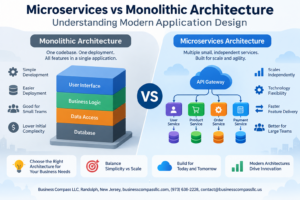
- Refactoring: Break apart monolithic ColdFusion apps into smaller services or gradually modernize components using AWS Lambda, containers, or API Gateway. This takes the most effort but delivers the strongest long-term payoff for ColdFusion application modernization.
Most teams start with lift-and-shift for critical systems and layer in re-platforming or refactoring over time.
B. Prioritizing Applications for Phased Migration
Not every ColdFusion app should move at the same time. Rank your applications using a simple scoring approach:
- Business criticality — How badly would operations break if this app went down?
- Technical complexity — Does the app rely on COM objects, custom tags, or deep database integrations that could complicate the move?
- Dependency chains — Which apps talk to each other? Migrating one without the other can cause unexpected breakage.
- Value of modernization — Some older ColdFusion apps generate massive ROI once moved to scalable AWS infrastructure.
Start with lower-risk, lower-complexity apps to build your team’s confidence and refine your migration process before tackling mission-critical systems.
C. Structuring a Timeline That Minimizes Business Disruption
A rushed migration is a risky one. Build your ColdFusion cloud migration playbook around realistic phases:
- Phase 1 – Discovery & Prep (Weeks 1–4): Finish your environment assessment, set up your AWS landing zone, and establish networking basics like VPC, subnets, and security groups.
- Phase 2 – Pilot Migration (Weeks 5–8): Move one or two low-stakes apps. Test thoroughly. Fix what breaks.
- Phase 3 – Staged Rollout (Weeks 9–20): Migrate remaining applications in priority order with blue-green or canary deployments to avoid downtime.
- Phase 4 – Cutover & Stabilization (Weeks 21–24): Decommission on-prem servers, monitor closely, and fine-tune performance.
Schedule major cutovers during low-traffic windows — weekends or overnight — and always keep rollback plans ready.
D. Allocating Budget and Resources Effectively
Migrating ColdFusion to cloud isn’t just a technical project — it’s a financial one too. Here’s how to plan your spend smartly:
- Use AWS Pricing Calculator early to model EC2 instance costs, RDS pricing, data transfer fees, and storage.
- Factor in Reserved Instances or Savings Plans if you know your baseline workload won’t fluctuate much — you can cut costs by 30–40% compared to on-demand pricing.
- Budget for hidden costs like data egress, additional licensing for Adobe ColdFusion on AWS, and any third-party monitoring tools.
- Staff your team right — you’ll need at least one AWS-certified engineer familiar with ColdFusion hosting environments, plus a project manager to keep timelines on track.
- Set aside a contingency buffer of roughly 15–20% of your total migration budget for surprises — there will always be surprises.
Treating budget planning as an afterthought is one of the most common reasons AWS migration strategies stall halfway through.
Executing the Migration Step by Step
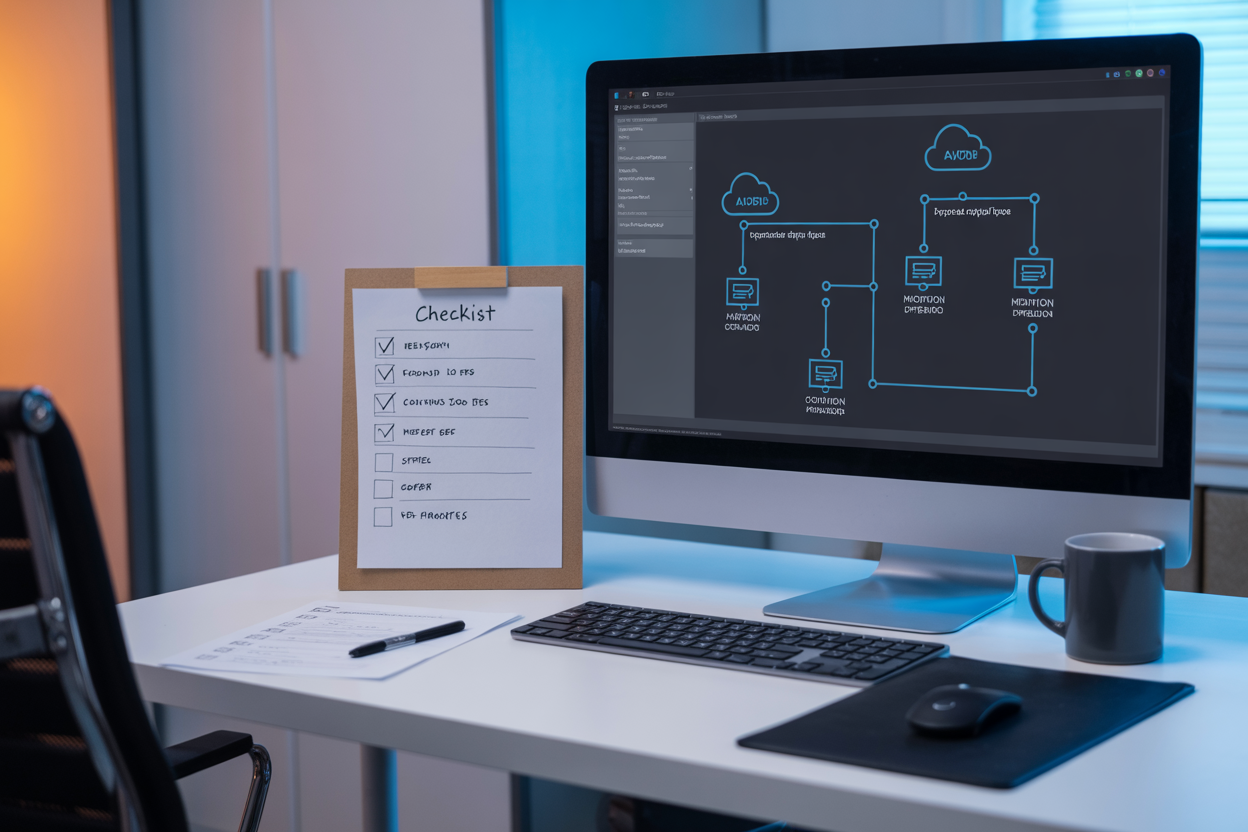
A. Setting Up Your AWS Environment and Networking
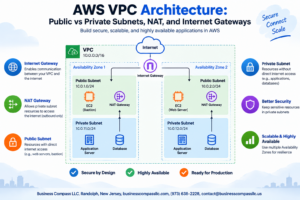
Start by creating a dedicated VPC (Virtual Private Cloud) with public and private subnets across at least two Availability Zones. This gives your ColdFusion AWS migration a solid, isolated network foundation. Configure security groups to control inbound and outbound traffic tightly — only open the ports your application actually needs.
Key steps to get your networking right:
- Create your VPC with a CIDR block that leaves room for growth (e.g., 10.0.0.0/16)
- Set up public subnets for your load balancer and NAT gateway
- Keep private subnets for your ColdFusion application servers and databases
- Configure route tables so traffic flows correctly between subnets
- Set up an Internet Gateway for outbound traffic from public subnets
- Enable VPC Flow Logs so you can troubleshoot connectivity issues down the road
If your team needs direct access to internal resources without jumping through a public bastion host every time, set up AWS Client VPN or Site-to-Site VPN early. Getting the network right at this stage saves you from painful rework later when you’re trying to migrate ColdFusion to cloud services at scale.
B. Installing and Configuring ColdFusion on AWS Infrastructure
Once your networking is in place, spin up your EC2 instances. Choose an instance type that matches your workload — a compute-optimized instance like c6i.xlarge works well for most ColdFusion workloads, but memory-heavy applications might need r6i series instances.
Here’s a practical approach to getting ColdFusion running on AWS:
- Launch EC2 instances using Amazon Linux 2 or Windows Server, depending on your existing stack
- Download and install Adobe ColdFusion (matching your current version to avoid compatibility surprises)
- Apply your ColdFusion license and configure the server settings to mirror your on-premises setup as closely as possible
- Set up your ColdFusion Administrator — lock it down so it’s only accessible from trusted IP ranges
- Install your application code by pulling it from your source control system or an S3 bucket
- Configure JVM settings — tune heap sizes based on your traffic patterns and available instance memory
- Set up an Application Load Balancer (ALB) in front of your EC2 instances for traffic distribution and SSL termination
If you’re running multiple ColdFusion servers for high availability, use an Auto Scaling Group so AWS can automatically replace unhealthy instances. This is one of the biggest wins you get when moving to ColdFusion cloud hosting — your infrastructure self-heals without anyone waking up at 2 AM.
C. Migrating Data Safely to AWS Database Services
Data migration is where things can go sideways if you rush. The goal is to move your data with zero corruption and minimal downtime. Before touching anything in production, do a full backup of your existing database and verify it restores cleanly.
For SQL Server or MySQL databases, Amazon RDS is your best bet. Here’s how to approach the migration cleanly:
- Use AWS Database Migration Service (DMS) for continuous replication — it keeps your source and target databases in sync while you finish the rest of the migration
- Run a schema conversion first using the AWS Schema Conversion Tool if you’re changing database engines (for example, moving from SQL Server to PostgreSQL)
- Migrate data in phases — start with read-only or archival tables, then move active transactional data last
- Validate row counts and checksums on every table after migration, not just spot-check a few
- Test your ColdFusion datasource connections against RDS before cutting over — connection string changes are easy to miss
If you’re running a large Oracle database, plan for extra time. Oracle-to-RDS migrations often turn up stored procedures, triggers, or proprietary functions that need rewriting. Finding these early keeps them from becoming a cutover-day crisis.
D. Redirecting Traffic and Validating Application Functionality
Once your AWS environment is running and your data is migrated, it’s time to start shifting real traffic over. Don’t flip the switch all at once — a gradual cutover gives you a safety net.
Weighted routing through Amazon Route 53 is the cleanest way to do this:
- Start by sending 5–10% of traffic to your new AWS environment
- Watch your application logs and CloudWatch metrics for errors or performance drops
- Gradually increase the traffic percentage — 25%, 50%, 75% — over hours or days depending on your risk tolerance
- Keep your on-premises environment running until you’re fully confident in the new setup
While traffic is shifting, validate everything your application does:
- Run through your critical user journeys manually — login, checkout, form submissions, report generation
- Check all ColdFusion scheduled tasks are firing correctly in the new environment
- Verify email sending if your application sends transactional emails (SES is a great swap for SMTP here)
- Confirm file upload and storage paths point to S3 or the correct EFS mount rather than local disk
- Test API integrations with third-party services — they sometimes behave differently when requests come from new IP addresses
This step is really about building confidence. The more thoroughly you validate during the ramp-up, the calmer your full cutover will be.
E. Conducting Performance Testing Before Full Cutover
Never skip performance testing before the final cutover. Your ColdFusion to AWS step-by-step migration could be technically perfect, but if the application collapses under real traffic loads, all that work means nothing.
Tools and approaches that work well here:
- Apache JMeter or k6 for load testing — simulate your peak concurrent user counts, not just average traffic
- AWS CloudWatch to monitor CPU, memory, and network metrics on your EC2 instances during load tests
- ColdFusion Server Monitor to track active requests, memory usage, and slow queries in real time
- RDS Performance Insights to identify slow database queries that only show up under load
Things to specifically test:
- Peak load scenarios — match or exceed your historical traffic spikes (think Black Friday, end-of-month reports, etc.)
- Session handling — make sure user sessions persist correctly across multiple instances behind the load balancer (use ElastiCache for centralized session storage if needed)
- File I/O operations — uploads, downloads, and report generation under concurrent load
- Database connection pooling — ColdFusion’s built-in connection pooling should be tuned to match RDS’s max connection limits
If something breaks or slows down during testing, you’ve found it at the best possible time — before real users are affected. Fix it, retest, and only declare the migration ready when your performance benchmarks match or beat what you were seeing on-premises.
Securing and Optimizing Your ColdFusion Application on AWS

Implementing IAM Roles and Security Groups for Access Control
When you move your ColdFusion application to AWS, locking down access is the first thing you want to get right. IAM roles let you define exactly who or what can touch your resources, and security groups act like firewalls at the instance level.
- Assign dedicated IAM roles to your EC2 instances running ColdFusion so they can interact with S3, RDS, or other services without hardcoding credentials
- Apply the least-privilege principle — only grant permissions your app actually needs
- Set up security groups to restrict inbound traffic, allowing only ports 80, 443, and your ColdFusion Administrator port (8500) from trusted IPs
Enabling AWS WAF and Shield to Protect Against Threats
ColdFusion applications have historically been targeted by web-based attacks, so adding AWS WAF in front of your load balancer or CloudFront distribution is a smart move.
- Create WAF rules to block SQL injection, cross-site scripting, and known bad IP ranges
- AWS Shield Standard comes free and covers basic DDoS protection automatically
- Upgrade to Shield Advanced if your ColdFusion cloud hosting environment handles sensitive data or high traffic
Reducing Costs with Auto Scaling and Right-Sizing Instances
One of the biggest wins in a ColdFusion AWS migration is finally paying only for what you use.
- Start with AWS Cost Explorer to spot over-provisioned instances
- Set up Auto Scaling groups tied to CPU or request-count metrics
- Use Reserved Instances or Savings Plans for predictable baseline traffic, and Spot Instances for background processing tasks
Maintaining and Monitoring Your ColdFusion Application Post-Migration

Using Amazon CloudWatch to Track Performance and Errors
Once your ColdFusion AWS migration is complete, keeping a close eye on how your app behaves in the cloud is a full-time job. Amazon CloudWatch makes this manageable by giving you real-time dashboards, custom metrics, and automated alerts:
- Set up custom metrics for ColdFusion-specific data like request response times, JVM heap usage, and CFML template execution times
- Create CloudWatch Alarms that fire when error rates spike or CPU usage crosses a threshold you define
- Use CloudWatch Logs Insights to dig into ColdFusion server logs without manually SSH-ing into instances
- Build dashboards that show your app’s health at a glance, combining EC2, RDS, and application-level metrics in one view
Automating Backups and Disaster Recovery on AWS
No ColdFusion cloud hosting setup is complete without a solid backup and recovery plan. AWS gives you several tools to automate this without building anything from scratch:
- AWS Backup lets you set centralized backup policies across EC2 instances, RDS databases, and EFS storage tied to your ColdFusion environment
- RDS automated snapshots handle database backups on a schedule, with point-in-time recovery available for most database engines
- AMI snapshots of your ColdFusion EC2 instances mean you can spin up a clean replacement server in minutes if something goes wrong
- Multi-AZ deployments on RDS keep a standby replica ready to take over automatically during an outage, cutting your recovery time dramatically
Continuously Optimizing for Speed and Cost Efficiency
Migration day is not the finish line. Keeping your ColdFusion application modernization effort paying off means regularly reviewing how AWS resources are being used:
- AWS Cost Explorer shows where money is going, helping you spot over-provisioned EC2 instances or underused Reserved Instances
- Right-sizing recommendations from AWS Compute Optimizer analyze actual usage patterns and suggest cheaper instance types that still meet your performance needs
- ElastiCache for session caching reduces database load, which directly speeds up ColdFusion page rendering under heavy traffic
- Auto Scaling policies ensure you are only running the compute you need, scaling down during quiet hours and scaling up when traffic hits

Moving a ColdFusion application to AWS is no small task, but breaking it down into clear steps makes the whole process much more manageable. From understanding why the move makes sense, to assessing what you’re working with, picking the right AWS services, and actually executing the migration — each phase plays a big role in getting you to a stable, cloud-ready setup. Throw in the right security practices and ongoing monitoring, and you’ve got an application that’s not just running on the cloud but actually thriving there.
The hard work doesn’t stop once the migration is done. Keeping a close eye on performance, staying on top of updates, and fine-tuning your setup over time will make sure you’re getting the most out of what AWS has to offer. If you’re ready to take the leap, start with a solid assessment of your current environment and work through each step with a clear plan in hand — your future self will thank you for it.