Stop Managing AWS Access Like It’s 2010
If your team is juggling multiple AWS accounts, scattered IAM users, and separate login credentials for every service, you already know the pain. Someone leaves the company, and you spend three days hunting down every access point they touched. A new developer joins, and onboarding takes a week instead of an hour. Sound familiar?
Centralized identity management on AWS fixes all of that — and Keycloak is one of the best open-source tools to make it happen. Whether you’re a DevOps engineer, a cloud architect, or a security-minded developer tired of access control being a mess, this guide is built for you.
Here’s what we’ll walk through together:
- Why centralized identity management matters for AWS environments and what breaks down when you skip it
- How to set up Keycloak AWS integration — including connecting it to AWS IAM and configuring AWS SSO with Keycloak as your identity provider
- The security and scaling practices that keep your Keycloak IAM setup solid as your infrastructure grows
By the end, you’ll have a clear path to federated identity management on AWS that’s easier to maintain, faster to audit, and way less of a headache for your whole team. Let’s get into it.
Understanding the Need for Centralized Identity Management in AWS

Challenges of Managing Multiple AWS Accounts Without a Unified Identity Solution
Running multiple AWS accounts without a centralized identity management system quickly turns into a nightmare. Teams end up juggling separate IAM users, inconsistent permission policies, and zero visibility across accounts. Password sprawl grows out of control, audit trails become fragmented, and onboarding or offboarding employees takes way longer than it should.
- Duplicate user management across accounts wastes engineering time and creates security gaps
- Inconsistent access policies make it nearly impossible to enforce least-privilege principles
- No single source of truth for who has access to what, making compliance audits painful
- Manual credential rotation increases the risk of stale or compromised credentials sitting undetected
Key Benefits of Centralizing Authentication and Authorization
Centralized identity management AWS teams adopt tends to pay off fast. When all authentication flows through a single system, you get consistent policy enforcement, faster user provisioning, and a clean audit trail that compliance teams actually appreciate. Federated identity management AWS environments support means employees log in once and get the right access automatically, without needing separate credentials for every account or service.
- Single sign-on (SSO) reduces password fatigue and cuts helpdesk tickets related to access issues
- Role-based access control applied centrally keeps permissions consistent and easy to review
- Real-time user deprovisioning across all connected AWS accounts the moment someone leaves the org
- Improved security posture through MFA enforcement and session management at a single control point
Why Keycloak Stands Out as the Right Tool for AWS Identity Management
Keycloak AWS integration checks a lot of boxes that enterprise teams care about. It’s open-source, battle-tested, and flexible enough to act as a full identity provider AWS configuration without locking you into a vendor ecosystem. Unlike proprietary solutions, Keycloak gives you complete control over your identity flows, token policies, and protocol support — all while playing nicely with AWS IAM roles and AWS SSO.
- Protocol support for SAML 2.0 and OpenID Connect makes Keycloak compatible with virtually every AWS service
- Keycloak IAM setup integrates directly with AWS Identity Center, simplifying role federation
- Fine-grained authorization lets you map Keycloak groups and attributes directly to AWS IAM roles
- Self-hosted flexibility means your identity data stays under your control, not a third-party SaaS provider
- Active community and enterprise support options make long-term maintenance realistic for teams of any size
Core Concepts of Keycloak You Need to Know Before Getting Started

Realms, Clients, and Roles Explained Simply
Think of a realm as a completely isolated workspace inside Keycloak — it holds its own users, settings, and security policies. Each client is an application that talks to Keycloak to verify who someone is, whether that’s your AWS console, an internal dashboard, or a third-party tool. Roles define what authenticated users are actually allowed to do once they’re inside:
- Realm roles apply across the entire realm
- Client roles are scoped to a specific application
- Composite roles bundle multiple roles together for easier assignment
How Keycloak Handles OAuth 2.0 and OpenID Connect
Keycloak works as a full Authorization Server under OAuth 2.0, meaning it hands out access tokens that other services trust. On top of that, OpenID Connect (OIDC) adds an identity layer — so instead of just knowing what a user can access, your applications also know who the user actually is. For Keycloak AWS integration, this matters a lot because AWS services like IAM Identity Center can consume OIDC tokens directly to grant access without needing separate credentials.
The basic flow looks like this:
- User hits the login page
- Keycloak authenticates them and issues an ID token + access token
- The application or AWS service validates the token
- Access is granted based on claims inside the token
Understanding Federation and Identity Brokering
Federated identity management in AWS gets a lot simpler when Keycloak acts as the bridge. Instead of connecting AWS directly to a dozen different identity sources — Active Directory, Google Workspace, GitHub SSO — you connect everything to Keycloak first, and Keycloak talks to AWS as one trusted identity provider.
- Identity federation lets Keycloak sync users from external sources like LDAP or Active Directory
- Identity brokering lets Keycloak delegate authentication to external providers like Google or Okta, then re-issue its own tokens to downstream services
- This means AWS always sees one consistent identity provider, even if your users come from five different places
How Keycloak Tokens Work With AWS Services
When a user authenticates through Keycloak, they receive a JWT (JSON Web Token) packed with claims — things like username, email, group memberships, and custom attributes. AWS services can read these claims to make access decisions, especially when you configure Keycloak AWS IAM roles mapping.
Here’s what that actually means in practice:
- Keycloak issues a token containing a claim like
aws_role: arn:aws:iam::123456789:role/DevOps - AWS STS uses the AssumeRoleWithWebIdentity API to exchange that token for temporary AWS credentials
- The user gets time-limited access to AWS resources tied to that specific IAM role
This keeps credentials short-lived and avoids hardcoding any long-term AWS keys anywhere — which is exactly where AWS identity access management best practices want you to land.
Setting Up Keycloak for AWS Integration

A. Choosing the Right Deployment Model for Keycloak on AWS
Picking the right deployment model upfront saves a lot of headaches down the road. You have three solid options to consider:
- EC2-based deployment – Great for teams that want full control over the OS, JVM tuning, and Keycloak configuration files. You manage patching and scaling yourself, but nothing is hidden from you.
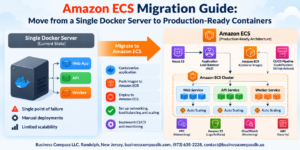
- ECS/Fargate containers – A better fit if your team already runs containerized workloads. Fargate removes the need to manage underlying instances, and you can scale tasks up or down based on load.
- Kubernetes (EKS) – Best for organizations running large-scale, multi-region identity setups. The Keycloak Operator makes lifecycle management smoother on EKS.
For most mid-sized AWS environments, ECS with Fargate strikes the right balance between operational simplicity and flexibility for Keycloak AWS integration.
B. Installing and Configuring Keycloak on an EC2 Instance or ECS
On EC2:
- Launch an Amazon Linux 2 or Ubuntu 22.04 instance (at minimum a
t3.mediumfor non-production,m5.largefor production). - Install Java 17+:
sudo dnf install java-17-amazon-corretto -y - Download the latest Keycloak release from keycloak.org and extract it:
wget https://github.com/keycloak/keycloak/releases/download/24.0.1/keycloak-24.0.1.tar.gz tar -xvzf keycloak-24.0.1.tar.gz - Set up a PostgreSQL RDS instance as the backend database — never run Keycloak with its embedded H2 database in production.
- Configure database credentials in
keycloak.conf:db=postgres db-url=jdbc:postgresql://<rds-endpoint>:5432/keycloak db-username=keycloak db-password=<your-password> - Start Keycloak in production mode:
./kc.sh start --hostname=<your-domain>
On ECS with Fargate:
- Use the official
quay.io/keycloak/keycloakDocker image. - Pass environment variables for database configuration, admin credentials, and hostname through ECS task definition environment variables or AWS Secrets Manager references.
- Set health check paths to
/health/readyto make sure ECS only routes traffic to healthy Keycloak nodes. - Use an Aurora PostgreSQL Serverless cluster as the backend for automatic scaling alongside your ECS tasks.
A clean Keycloak IAM setup starts with a properly configured, production-grade backend — skipping this step causes painful issues later when you start handling real AWS SSO traffic.
C. Securing Keycloak With HTTPS and a Load Balancer
Running Keycloak without HTTPS is a non-starter, especially when it sits in front of AWS IAM and SSO workflows. Here’s the recommended setup:
- Application Load Balancer (ALB) handles TLS termination using an ACM (AWS Certificate Manager) certificate. This keeps SSL management centralized and automatic.
- Configure Keycloak to trust the ALB as a reverse proxy by setting:
proxy=edge hostname=https://auth.yourdomain.com - Set the ALB target group to forward traffic to port
8080on your Keycloak instances (plain HTTP internally is fine since the ALB handles encryption externally). - Enable ALB access logs to S3 for auditing authentication traffic.
- Set up an HTTPS listener (port 443) on the ALB with a redirect rule from HTTP (port 80) to HTTPS.
- Use AWS WAF attached to the ALB to block common threats like brute-force login attempts and suspicious IP ranges targeting your Keycloak login endpoints.
This setup makes sure your identity provider AWS configuration is both secure and production-ready without requiring Keycloak to manage its own TLS certificates directly.
D. Connecting Keycloak to an Existing User Directory or Identity Provider
Keycloak works really well as a federation hub — it can pull users from your existing directory without forcing a full migration.
LDAP / Active Directory:
- Go to User Federation in the Keycloak admin console.
- Select LDAP as the provider type.
- Fill in your AD connection URL, bind DN, bind credentials, and user DN.
- Choose the sync mode:
READ_ONLYis safest if you want AD to stay the source of truth. - Map LDAP attributes (like
sAMAccountName,mail,memberOf) to Keycloak user attributes. - Run a synchronization and verify users appear in the realm.
External SAML or OIDC Identity Providers (e.g., Okta, Azure AD):
- Navigate to Identity Providers in Keycloak admin.
- Select SAML 2.0 or OpenID Connect depending on what your upstream IdP supports.
- Import the IdP metadata URL or paste in the SAML descriptor XML.
- Configure identity provider mappers to translate incoming claims (like group membership or department) into Keycloak roles.
This federated identity management AWS pattern lets Keycloak act as a broker — your users authenticate with their existing credentials, and Keycloak handles converting that identity into something AWS can consume.
E. Configuring Keycloak Realms and Clients for AWS Access
Getting realms and clients right is where Keycloak single sign-on AWS really comes together.
Realm setup:
- Create a dedicated realm for AWS access (e.g.,
aws-sso) rather than using the master realm. The master realm should only ever be used for Keycloak administration itself. - Set token lifespans to match your security requirements — shorter-lived tokens (15–60 minutes) are better for AWS environments.
- Enable brute force detection under the realm security settings.
Client configuration for AWS IAM Identity Center (SSO):
- Create a new SAML client in Keycloak.
- Set the Client ID to the AWS SSO entity ID (found in the AWS IAM Identity Center SAML metadata).
- Set Valid Redirect URIs to the AWS SSO ACS (Assertion Consumer Service) URL.
- Configure the Name ID format as
emailorpersistentdepending on your AWS SSO setup. - Add SAML attribute mappers to pass:
https://aws.amazon.com/SAML/Attributes/Role→ maps to a Keycloak role or group containing the IAM role ARN and IdP ARNhttps://aws.amazon.com/SAML/Attributes/RoleSessionName→ maps to the user’s email
Client configuration for AWS IAM with OIDC (if using custom apps):
- Create an OIDC client with
confidentialaccess type. - Enable
Standard FlowandService Accountsbased on your use case. - Configure client scopes to include
profile,email, and any custom scopes you’ve defined for AWS IAM roles mapping.
Properly mapped SAML attributes are the glue that connects Keycloak identities to specific AWS IAM roles — getting these right means your users land in exactly the right AWS account and permission set after authenticating.
Integrating Keycloak With AWS IAM and SSO

Mapping Keycloak Roles to AWS IAM Roles for Seamless Access Control
Getting Keycloak roles to talk to AWS IAM roles is really the heart of this whole setup. You create roles in Keycloak that mirror the permissions you want in AWS, then map them through SAML assertions so AWS knows exactly what access to grant each user.
- Define Keycloak roles that match your AWS IAM role naming convention (e.g.,
aws-developer,aws-admin,aws-readonly) - Add a SAML attribute mapper in your Keycloak client with the attribute name
https://aws.amazon.com/SAML/Attributes/Role - The attribute value should combine your IAM role ARN and the identity provider ARN, separated by a comma:
arn:aws:iam::ACCOUNT_ID:role/ROLE_NAME,arn:aws:iam::ACCOUNT_ID:saml-provider/PROVIDER_NAME - Assign Keycloak roles to users or groups, and those assignments automatically flow through to AWS during authentication
This role mapping is what makes Keycloak AWS IAM roles work cleanly without manual intervention every time a user logs in.
Configuring SAML-Based Federation Between Keycloak and AWS
SAML federation is the bridge that connects Keycloak as your identity provider to AWS. Here’s the straight path to getting it configured:
- Export the Keycloak SAML metadata — Go to your Keycloak realm, open the client you created for AWS, and download the SAML metadata XML file.
- Create an IAM Identity Provider in AWS — Head to IAM → Identity Providers → Add Provider, choose SAML, give it a name, and upload the Keycloak metadata file.
- Create the AWS client in Keycloak — Set the client protocol to SAML, use
https://signin.aws.amazon.com/samlas the master SAML processing URL, and enableSign DocumentsandSign Assertions. - Configure SAML assertions — Add mappers for
RoleSessionName(map it to the user’s email or username) andSessionDurationif you want to control token expiry. - Download AWS SAML metadata — Grab the AWS metadata from
https://signin.aws.amazon.com/static/saml-metadata.xmland import it into your Keycloak client.
This identity provider AWS configuration forms the core trust relationship. Once both sides trust each other through signed SAML assertions, users can authenticate through Keycloak and land directly in the AWS console.
Enabling Single Sign-On Across Multiple AWS Accounts
One of the biggest wins with Keycloak single sign-on AWS is getting users into multiple AWS accounts without separate logins. The cleanest way to handle this is through AWS Organizations combined with your Keycloak setup.
- Option 1 — Multiple SAML clients in Keycloak: Create a separate Keycloak SAML client for each AWS account. Users see account-specific tiles in the Keycloak app launcher and click through directly. Simple, but it scales linearly with account count.
- Option 2 — AWS IAM Identity Center (formerly AWS SSO) with Keycloak as the external IdP: This is the preferred path for teams managing more than a handful of accounts.
- Set up AWS IAM Identity Center in your management account
- Configure Keycloak as an external SAML IdP inside IAM Identity Center
- Use automatic provisioning (SCIM) to sync users and groups from Keycloak to IAM Identity Center
- Assign permission sets to synced groups, and access flows automatically across all member accounts
With SCIM provisioning turned on, when you add someone to a group in Keycloak, they get the right access across every linked AWS account within minutes — no manual steps in the AWS console.
Testing and Validating Token Exchange Between Keycloak and AWS
Skipping proper testing here is how misconfigurations slip into production. Run through this checklist to make sure everything is solid:
Basic Login Flow Test
- Open an incognito browser and go to
https://signin.aws.amazon.com/saml - Keycloak should redirect you to its login page
- After logging in, you should land in the AWS console under the correct role
SAML Assertion Inspection
- Install the SAML tracer browser extension (available for Chrome and Firefox)
- Run through a login and capture the SAML response
- Decode the Base64 assertion and check that
RoleandRoleSessionNameattributes are present and correct - Confirm the
Issuermatches your Keycloak realm URL exactly
IAM Role Assumption Check
Run this in AWS CLI after logging in through the console:
aws sts get-caller-identity
The output should show the correct IAM role ARN and the session name matching the Keycloak username.
Common Issues to Watch For
RoleArnandPrincipalArnvalues are swapped in the mapper — order matters- Clock skew between Keycloak server and AWS — SAML assertions are time-sensitive, so keep NTP in sync
- Missing
SessionDurationattribute causing default short-lived sessions - Keycloak client signature verification failing because the certificate expired or was regenerated
Doing this validation after any change to your Keycloak IAM setup saves hours of debugging later.
Enforcing Security Best Practices Across Your Identity Setup

Implementing Multi-Factor Authentication in Keycloak
Setting up MFA in Keycloak is one of the smartest moves you can make for your Keycloak AWS integration. Head into your realm settings, go to Authentication, and configure an OTP policy using TOTP or HOTP. You can make MFA conditional — requiring it only for specific roles, IP ranges, or high-risk actions — which keeps things smooth for everyday users while locking down sensitive access paths.
- Go to Authentication > Flows and duplicate the browser flow
- Add the OTP Form execution and set it to Required
- Bind the new flow under Bindings > Browser Flow
- Use Required Actions to force MFA enrollment on first login
Managing Token Lifetimes and Session Policies Effectively
Token lifetimes directly affect how secure your centralized identity management AWS setup actually is. Short-lived access tokens reduce the window of exposure if something gets intercepted. In Keycloak, you can tune these under Realm Settings > Tokens.
- Access Token Lifespan: Keep this short — 5 to 15 minutes works well
- Refresh Token Lifespan: Set based on your session needs, typically 30 minutes to a few hours
- SSO Session Idle/Max: Controls how long a user stays logged in without activity
- For AWS IAM roles accessed via federated identity, align token expiry with your assumed role session duration to avoid silent failures
Auditing and Monitoring Login Activity Through Keycloak Event Logs
Keycloak ships with built-in event logging that gives you solid visibility into what’s happening across your identity layer. Under Realm Settings > Events, turn on both Login Events and Admin Events, and make sure you’re storing them long enough to be useful.
- Track events like
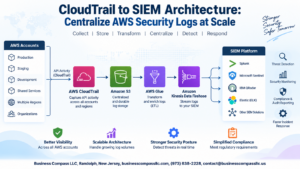
LOGIN_ERROR,LOGOUT,CODE_TO_TOKEN_ERROR, andCLIENT_LOGIN_ERROR - Ship logs to external systems like AWS CloudWatch or a SIEM using Keycloak’s SPI extensions
- Set up alerts for repeated failed login attempts or unusual access patterns
- Regularly review admin events to catch unexpected configuration changes in your Keycloak IAM setup
Scaling and Maintaining Your Centralized Identity System

Designing Keycloak for High Availability on AWS
Running Keycloak in a single-node setup is fine for testing, but production workloads need something more resilient. On AWS, you can deploy Keycloak across multiple Availability Zones using an Auto Scaling Group behind an Application Load Balancer. Keycloak’s built-in clustering relies on JGroups for node discovery, and on AWS, the recommended approach is using the JDBC_PING protocol with your database (Amazon RDS Aurora works great here) as the coordination point rather than multicast, which doesn’t work in VPC environments.
- Deploy at least two Keycloak nodes across separate AZs
- Use Amazon RDS Aurora (Multi-AZ) as the shared backend database
- Configure sticky sessions on your ALB to reduce session-related issues during upgrades
- Set up an ElastiCache (Redis) or Infinispan cluster for distributed session caching
- Store Keycloak’s configuration in environment variables or AWS Secrets Manager instead of hardcoding values
Automating User Provisioning and Deprovisioning
Manual user management doesn’t scale. When your team grows or people leave, you need accounts created and revoked instantly without anyone touching the Keycloak admin console by hand. The SCIM (System for Cross-domain Identity Management) protocol handles this well — many HR systems like Workday or identity platforms like Okta can push user changes directly to Keycloak via SCIM endpoints.
- Connect your HR system or identity source to Keycloak using SCIM 2.0
- Write custom SPI (Service Provider Interface) providers in Keycloak if your upstream system doesn’t support SCIM natively
- Use Keycloak’s event listener SPI to trigger downstream actions (like revoking AWS IAM role assignments) when a user is deactivated
- Automate group membership sync so that AWS SSO permission sets tied to Keycloak groups update automatically
- Test deprovisioning flows regularly — don’t wait for an offboarding incident to discover a gap
For federated identity management on AWS, tying deprovisioning back to AWS IAM roles and permission sets is critical. When a Keycloak user loses group membership, the mapped AWS roles should stop being issued in SAML assertions immediately.
Keeping Keycloak Updated Without Disrupting Access
Keycloak releases updates frequently, and skipping them means missing security patches that matter. The good news is that rolling updates in a clustered setup are doable without taking the whole system offline.
- Always test upgrades in a staging environment that mirrors production
- Use blue-green deployments on AWS: spin up a new Keycloak cluster on the updated version, migrate config, then shift traffic via ALB target group swap
- Back up the Keycloak database before every upgrade — a simple RDS snapshot before you start is a habit worth keeping
- Read the Keycloak migration guide for each version; breaking changes in realm configuration or token formats can catch you off guard
- Pin your Keycloak Docker image to a specific version tag in your ECS task definition or Kubernetes deployment, and update it deliberately rather than chasing
latest
Measuring the Performance and Health of Your Identity Infrastructure
You can’t fix what you can’t see. Keycloak exposes metrics via a /metrics endpoint (compatible with Prometheus) that gives you data on login success rates, token issuance latency, failed authentication attempts, and cluster node health.
- Scrape Keycloak metrics with Amazon Managed Prometheus or a self-hosted Prometheus instance
- Build dashboards in Grafana or Amazon Managed Grafana to visualize login throughput and error rates
- Set CloudWatch alarms on ALB 5xx errors hitting your Keycloak target group as an early warning signal
- Monitor RDS connection pool exhaustion — this is one of the most common bottlenecks under heavy load
- Track failed login spikes as a security signal; sudden increases often point to credential stuffing attacks
- Log Keycloak events to CloudWatch Logs and run queries in CloudWatch Logs Insights to spot patterns like repeated failed logins from specific IPs
Keeping an eye on token refresh rates also helps you tune session timeout settings, which directly affects user experience across your Keycloak single sign-on AWS setup.

Managing identity across AWS doesn’t have to be a fragmented, headache-inducing process. By bringing Keycloak into the picture, you get a powerful, flexible way to centralize authentication and authorization — giving your team a single source of truth for who can access what. From understanding the core building blocks of Keycloak to wiring it up with AWS IAM and SSO, the path to a cleaner identity setup is very much within reach.
The real payoff comes when you layer in strong security practices and build with scale in mind from day one. A well-maintained centralized identity system saves you from the chaos of managing scattered credentials and reduces the risk of security gaps slipping through the cracks. If you’re ready to take control of your AWS identity management, start small — get Keycloak running, connect it to your AWS environment, and grow from there. The investment in getting this right early pays off every single day after.