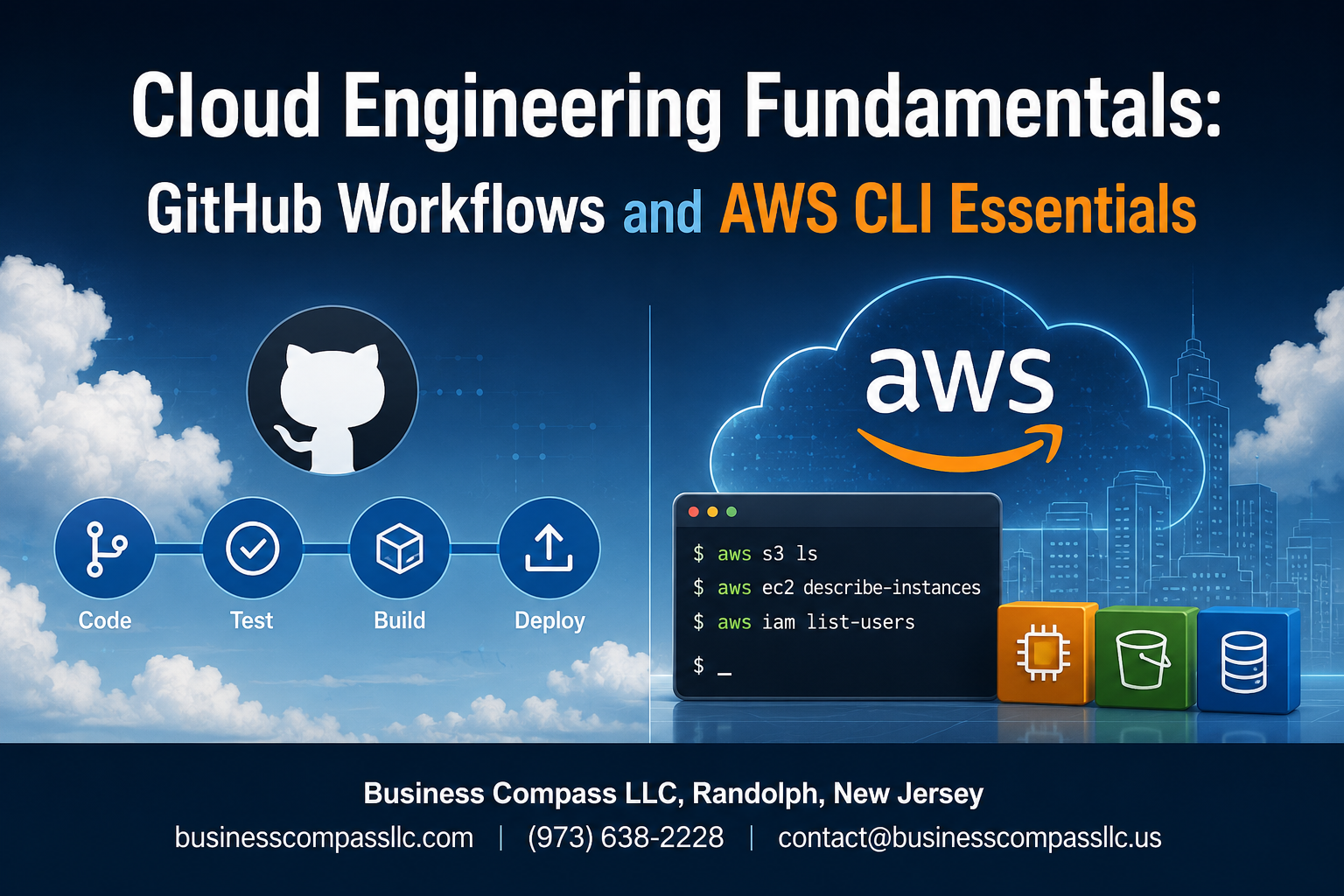
Cloud Engineering Fundamentals: GitHub Workflows and AWS CLI Essentials
Modern cloud development moves fast, and you need the right tools to keep up. This guide is designed for developers, DevOps engineers, and cloud practitioners who want to master GitHub Actions AWS integration and streamline their cloud automation workflows.
Manual deployments and scattered AWS CLI commands slow you down and create room for errors. By combining GitHub workflows with essential AWS CLI commands, you can build reliable, automated pipelines that handle everything from code testing to production deployments.
We’ll start by breaking down GitHub workflows tutorial basics, showing you how to create automated processes that trigger on code changes. You’ll learn the core AWS CLI for developers – the commands you actually use daily, not just reference documentation. Finally, we’ll walk through practical GitHub AWS integration examples that connect your repositories directly to AWS services for seamless cloud infrastructure automation.
Whether you’re setting up your first CI/CD pipeline or improving existing cloud engineering best practices, this guide gives you hands-on knowledge you can apply immediately.
GitHub Workflows Fundamentals for Cloud Automation

Set Up Your First CI/CD Pipeline in Minutes
Creating your first GitHub Actions CI/CD pipeline takes just a few clicks. Start by adding a .github/workflows directory to your repository and create a YAML file defining your automation steps. GitHub’s marketplace offers pre-built actions for common tasks like code checkout, dependency installation, and testing frameworks. Your pipeline can automatically build, test, and deploy applications whenever code changes occur, streamlining your development workflow without complex server management.
Automate Code Testing and Quality Checks
GitHub workflows excel at running automated tests and quality checks on every code commit. Configure actions to execute unit tests, integration tests, and code linting across multiple programming languages and environments. Set up parallel job execution to speed up testing cycles, and use matrix builds to test against different Node.js versions, Python environments, or operating systems. Failed tests automatically block pull requests, ensuring only quality code reaches your main branch.
Deploy Applications Seamlessly to Cloud Platforms
GitHub Actions integrates directly with AWS, Azure, and Google Cloud for streamlined deployments. Use official AWS CLI commands within workflow steps to deploy containerized applications to ECS, update Lambda functions, or sync static websites to S3 buckets. Configure environment-specific secrets for secure credential management, and implement blue-green deployments for zero-downtime updates. Your applications deploy automatically after successful testing, reducing manual intervention and human error.
Trigger Workflows Based on Repository Events
GitHub workflows respond to various repository events beyond simple code pushes. Configure triggers for pull request creation, issue comments, scheduled cron jobs, or external webhook calls. Set up conditional workflows that run different actions based on branch names, file paths, or commit messages. Use workflow dispatch events for manual deployments, and implement approval gates for production releases. This event-driven approach creates flexible automation that adapts to your team’s development practices.
Essential AWS CLI Commands Every Developer Needs

Configure AWS CLI for Secure Multi-Account Access
Setting up AWS CLI with proper security starts with creating IAM users with minimal required permissions instead of using root credentials. Use aws configure --profile to establish separate profiles for different environments or accounts. Enable MFA with aws configure set mfa_serial for your device ARN. Store sensitive credentials securely using AWS CLI credential files or environment variables, never hardcode them in scripts.
Manage S3 Buckets and Objects with Command Line Efficiency
Master S3 operations with essential AWS CLI commands for developers. Create buckets using aws s3 mb s3://bucket-name and sync directories efficiently with aws s3 sync local-folder/ s3://bucket-name/. Copy files with aws s3 cp file.txt s3://bucket-name/ and use --recursive for folders. Set bucket policies with aws s3api put-bucket-policy and configure lifecycle rules through aws s3api put-bucket-lifecycle-configuration to automate cost optimization.
Control EC2 Instances from Your Terminal
Command your EC2 infrastructure directly through AWS CLI commands that every cloud engineer should know. Launch instances with aws ec2 run-instances specifying AMI ID, instance type, and security groups. Monitor running instances using aws ec2 describe-instances with filters for specific states or tags. Stop instances gracefully with aws ec2 stop-instances and terminate when needed using aws ec2 terminate-instances. Create and attach security groups using aws ec2 create-security-group and aws ec2 authorize-security-group-ingress for network access control.
Integrate GitHub Actions with AWS Services

Authenticate GitHub Workflows with AWS Using IAM Roles
Setting up secure authentication between GitHub Actions and AWS services requires creating IAM roles with specific trust relationships. Configure OpenID Connect (OIDC) identity providers in AWS to enable passwordless authentication. GitHub workflows can assume IAM roles dynamically using the aws-actions/configure-aws-credentials action, eliminating the need to store long-term access keys. Define trust policies that restrict role assumption to specific repositories and branches for enhanced security.
Deploy Infrastructure as Code with CloudFormation Templates
GitHub Actions AWS integration streamlines CloudFormation deployments through automated workflows. Store your CloudFormation templates in version control and trigger deployments on code changes. Use the AWS CLI commands within workflows to validate, create, and update CloudFormation stacks. Implement change sets for safer production deployments and configure rollback mechanisms. This cloud automation workflow ensures consistent infrastructure provisioning across environments while maintaining audit trails.
Automate Lambda Function Deployments
Deploying Lambda functions through GitHub workflows creates seamless CI/CD pipelines for serverless applications. Package your function code using GitHub Actions runners and deploy using AWS CLI or SAM CLI commands. Configure environment-specific deployment strategies with staging and production branches. Implement automated testing before deployment and use versioning for safe rollbacks. This DevOps automation approach reduces manual deployment errors and accelerates development cycles.
Sync Code Changes to S3 Buckets Automatically
Automatic S3 synchronization keeps static assets and deployment artifacts updated across environments. Configure GitHub workflows to sync specific directories to S3 buckets on every push or release. Use the aws s3 sync command with appropriate flags for efficient transfers. Implement cache invalidation for CloudFront distributions when updating web assets. This cloud infrastructure automation ensures consistent content delivery and reduces manual deployment overhead.
Monitor Deployments with CloudWatch Integration
CloudWatch integration provides comprehensive monitoring for GitHub Actions deployments across AWS services. Configure custom CloudWatch alarms to track deployment metrics and application health. Send deployment events and logs to CloudWatch for centralized monitoring and troubleshooting. Use CloudWatch dashboards to visualize deployment success rates and performance metrics. Implement automated notifications through SNS topics when deployments fail or performance thresholds are breached, enabling rapid incident response.
Advanced Workflow Strategies for Production Environments

Implement Multi-Stage Deployment Pipelines
Production-ready GitHub Actions workflows demand sophisticated multi-stage pipelines that mirror real-world deployment scenarios. Start by creating separate environments for development, staging, and production, each with distinct AWS CLI commands and cloud automation workflows. Configure environment gates between stages using approval mechanisms and automated testing checkpoints. Your pipeline should deploy to development automatically, require approval for staging, and implement additional security checks before production deployment.
jobs:
  deploy-dev:
    if: github.ref == 'refs/heads/develop'
    runs-on: ubuntu-latest
    environment: development

  deploy-staging:
    if: github.ref == 'refs/heads/main'
    needs: deploy-dev
    environment: staging

  deploy-prod:
    needs: deploy-staging
    environment: production
    runs-on: ubuntu-latest
Leverage GitHub environments to enforce branch protection rules and deployment restrictions. Each stage should validate the previous deployment success before proceeding, creating a robust safety net for your cloud infrastructure automation.
Use Environment-Specific Configuration Management
Managing configurations across multiple environments requires a strategic approach that keeps sensitive data secure while maintaining deployment flexibility. Store environment-specific variables in GitHub secrets and organize them using naming conventions like DEV_AWS_REGION, STAGING_AWS_REGION, and PROD_AWS_REGION. This pattern ensures your GitHub AWS integration workflows can adapt to different cloud environments without hardcoding values.
Create environment-specific configuration files that your AWS CLI commands can reference during deployment. Use GitHub Actions variables to dynamically select the appropriate configuration file based on the target environment:
- name: Set Environment Config
  run: |
    case "${{ github.event.inputs.environment }}" in
      "production") CONFIG_FILE="prod.yml" ;;
      "staging") CONFIG_FILE="staging.yml" ;;
      *) CONFIG_FILE="dev.yml" ;;
    esac
    echo "CONFIG_FILE=$CONFIG_FILE" >> $GITHUB_ENV
Implement configuration validation steps that verify all required environment variables exist before deployment begins. This approach prevents partial deployments and catches configuration errors early in your cloud engineering best practices workflow.
Set Up Automated Rollback Mechanisms
Automated rollback capabilities are essential for maintaining system reliability when deployments fail. Build rollback triggers into your GitHub Actions CI/CD workflows that activate when health checks fail or error thresholds are exceeded. Store deployment artifacts and database snapshots before each deployment, enabling quick recovery to known-good states.
Configure your AWS DevOps automation to monitor application health using CloudWatch metrics and trigger rollback procedures automatically. Create a rollback job that can restore previous versions using stored artifacts:
rollback:
  if: failure()
  runs-on: ubuntu-latest
  steps:
    - name: Restore Previous Version
      run: |
        aws s3 cp s3://backup-bucket/previous-deployment.zip .
        aws lambda update-function-code --function-name MyFunction --zip-file fileb://previous-deployment.zip
Implement rollback verification steps that confirm the previous version is functioning correctly after restoration. Your rollback mechanism should also send notifications to team members and create incident tickets automatically, ensuring proper documentation and follow-up for failed deployments.
Security Best Practices for Cloud Engineering Workflows

Store Secrets Safely with GitHub Encrypted Secrets
GitHub encrypted secrets protect sensitive data like AWS access keys and API tokens in your workflows. Store these values in repository settings rather than hardcoding them in workflow files. GitHub encrypts secrets using libsodium sealed boxes, making them invisible in logs and accessible only to authorized workflows. Reference secrets using the ${{ secrets.SECRET_NAME }} syntax to maintain security while enabling automated deployments.
Implement Least Privilege Access with AWS IAM Policies
Create dedicated IAM users for GitHub Actions with minimal permissions required for specific tasks. Avoid using root credentials or overly broad policies that grant unnecessary access. Define resource-specific permissions using condition keys to restrict actions to particular S3 buckets, EC2 instances, or regions. Regularly review and rotate access keys, implementing temporary credentials through IAM roles when possible to reduce exposure risks.
Audit and Monitor Workflow Activities
Enable CloudTrail logging to track all AWS API calls made by your GitHub Actions workflows. Set up CloudWatch alerts for unusual activity patterns or failed authentication attempts. Review workflow run logs regularly and implement notification systems for critical deployment failures. Use AWS Config rules to monitor compliance with security policies and detect configuration drift in your cloud infrastructure automation.
Scan Code for Vulnerabilities Before Deployment
Integrate security scanning tools like CodeQL, Snyk, or Trivy into your GitHub Actions CI/CD pipeline. Configure automated scans for dependencies, container images, and infrastructure-as-code templates before pushing to production environments. Set up branch protection rules that require successful security checks before merging pull requests. Establish vulnerability thresholds and break builds when critical security issues are detected in your cloud engineering workflows.

Cloud engineering success depends on mastering the tools that streamline your development workflow. GitHub workflows combined with essential AWS CLI commands create a powerful foundation for automating deployments and managing cloud resources efficiently. When you integrate GitHub Actions with AWS services, you unlock the ability to build truly automated pipelines that respond to code changes and deploy updates seamlessly across your infrastructure.
The security practices and advanced workflow strategies covered here aren’t just nice-to-have features—they’re critical components that separate professional cloud engineering from amateur experiments. Start implementing these practices in your next project, beginning with basic AWS CLI operations and gradually building more sophisticated GitHub workflows. Your future self will thank you when deployments run smoothly and your team can focus on building features instead of wrestling with infrastructure problems.