
Monitoring your applications and infrastructure shouldn’t feel like guesswork. Visualizing metrics with Grafana and Prometheus gives you the clear, real-time insights you need to keep systems running smoothly and catch issues before they become problems.
This guide is for DevOps engineers, system administrators, and developers who want to build robust monitoring solutions that actually help them make better decisions. You’ll learn how to turn raw performance data into actionable dashboards that your entire team can understand and use.
We’ll walk through setting up your monitoring infrastructure from scratch, showing you how to configure Prometheus data sources and connect them to Grafana dashboards that tell the story of your system’s health. You’ll also discover how to create advanced monitoring queries that go beyond basic metrics and implement real-time alerting systems that notify you about issues at the right time—not too early, not too late. Finally, we’ll cover Grafana performance optimization techniques to keep your monitoring stack fast and reliable as your infrastructure grows.
Set Up Your Monitoring Infrastructure

Install and Configure Prometheus for Data Collection
Prometheus serves as the backbone of your monitoring infrastructure setup, collecting and storing time-series metrics from your applications and systems. Download the latest Prometheus binary from the official GitHub releases, create a dedicated user account for security, and configure the prometheus.yml file to define your scrape targets and intervals. Essential configuration includes setting global scrape intervals, defining job targets for your applications, and configuring retention policies to manage storage effectively.
Deploy Grafana for Visualization Dashboard
Grafana transforms raw Prometheus metrics into compelling visual dashboards that make monitoring data actionable. Install Grafana using your preferred method – Docker containers, package managers, or binary installations – then access the web interface on port 3000. Complete the initial setup by configuring admin credentials, setting up your organization preferences, and installing essential plugins for enhanced functionality. The visualizing metrics with Grafana process becomes seamless once you establish proper authentication and user management.
Establish Secure Network Connections Between Services
Network security between Prometheus and Grafana requires careful configuration of firewall rules, SSL certificates, and authentication mechanisms. Configure Prometheus to accept connections only from authorized Grafana instances using IP whitelisting or service discovery methods. Enable HTTPS communication by generating SSL certificates and updating both services’ configuration files to use encrypted connections. Implement proper authentication tokens and API keys to prevent unauthorized access while maintaining optimal performance for your Grafana Prometheus monitoring stack.
Configure Prometheus Data Sources
Define Target Applications and Services to Monitor
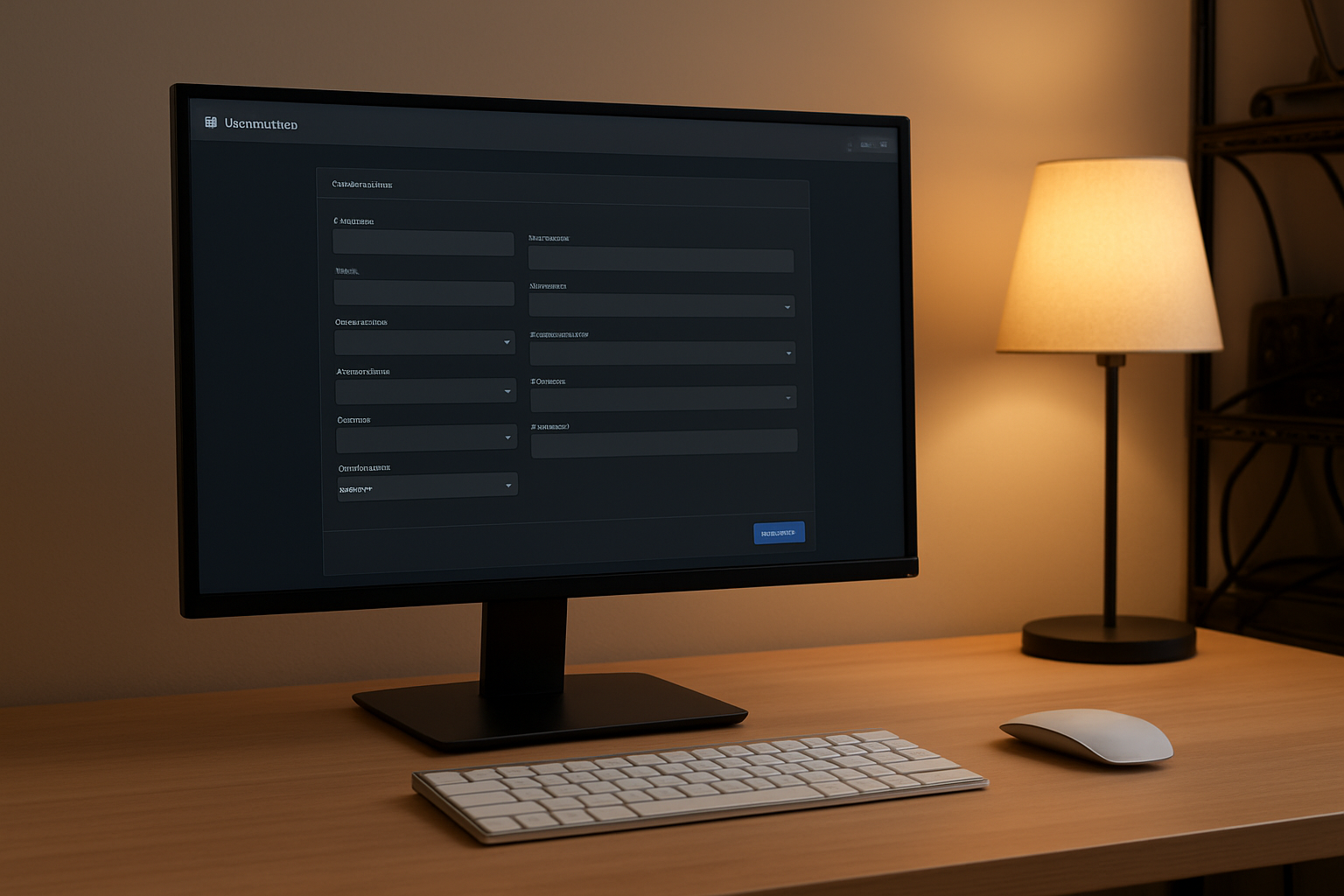
Start by identifying the applications, services, and infrastructure components that need monitoring. Focus on critical services like web servers, databases, microservices, and API endpoints. Create a comprehensive inventory that includes service names, endpoints, and the specific metrics each service exposes. Consider both system-level metrics (CPU, memory, disk usage) and application-specific metrics (response times, error rates, throughput).
Set Up Scraping Intervals for Optimal Performance
Configure Prometheus scraping intervals based on your monitoring requirements and system capacity. High-frequency applications typically need 15-30 second intervals, while less critical services can use 1-5 minute intervals. Balance data granularity with storage overhead by adjusting scrape intervals according to service importance. Use different job configurations to assign appropriate intervals for various service tiers.
Create Custom Metrics Collection Rules
Design custom recording rules to pre-calculate complex queries and reduce dashboard load times. Define rules for aggregating metrics across multiple instances, calculating rates, and generating business-specific KPIs. Store frequently accessed calculations as new time series to improve query performance. Structure rules hierarchically, starting with basic aggregations and building more complex metrics on top.
Implement Data Retention Policies
Establish retention policies that balance storage costs with monitoring needs. Configure different retention periods for various metric types – keep high-resolution data for recent periods and downsample older data. Set up automatic cleanup processes to remove outdated metrics and optimize storage usage. Consider implementing tiered storage strategies where critical metrics retain longer than routine system metrics.
Design Effective Grafana Dashboards

Select Appropriate Visualization Types for Different Metrics
Choosing the right visualization type makes your Grafana dashboard design more effective and intuitive. Time series graphs work perfectly for tracking CPU usage, memory consumption, and request rates over time, while single stat panels highlight current values like uptime percentages or active user counts. Heat maps excel at showing data distribution patterns, and gauge panels provide quick visual status checks for thresholds.
Bar charts and pie charts help compare discrete values like error rates across different services or resource usage by department. When visualizing metrics with Grafana, match your visualization to your data’s nature—continuous metrics need line graphs, while categorical data works better with bar charts or tables.
Organize Panels for Maximum Visual Impact
Strategic panel organization transforms cluttered dashboards into powerful monitoring tools. Place your most critical metrics at the top-left corner where eyes naturally focus first, then arrange related panels in logical groups. Create distinct sections for infrastructure metrics, application performance, and business KPIs using row panels as dividers.
Size panels proportionally to their importance—make critical alerts larger and supporting metrics smaller. Use consistent spacing between panels and align them properly to create a clean, professional appearance that helps teams quickly identify issues during incidents.
Configure Time Ranges and Refresh Intervals
Smart time range configuration balances data freshness with system performance. Set shorter refresh intervals (5-15 seconds) for real-time operational dashboards monitoring live traffic, while longer intervals (1-5 minutes) work better for capacity planning dashboards. Default time ranges should match your typical troubleshooting needs—usually last 1-6 hours for operational views.
Create dashboard variables for time ranges so users can quickly switch between different time windows. Configure relative time ranges like “Last 24 hours” instead of absolute dates to keep dashboards relevant. Remember that shorter refresh intervals increase load on your Prometheus data sources, so balance responsiveness with resource consumption.
Apply Consistent Color Schemes and Layouts
Consistent visual styling makes dashboards more professional and easier to interpret. Establish a color palette where green indicates healthy status, yellow shows warnings, and red signals critical issues across all panels. Use the same color scheme for similar metrics throughout different dashboards to build user familiarity and reduce cognitive load.
Maintain consistent panel sizes, fonts, and spacing throughout your dashboard collection. Create templates with predefined styles and share them across teams to ensure uniformity. Avoid using too many colors simultaneously—stick to a limited palette that clearly differentiates between normal, warning, and critical states while remaining accessible to colorblind users.
Create Advanced Monitoring Queries
Master PromQL Query Language Fundamentals
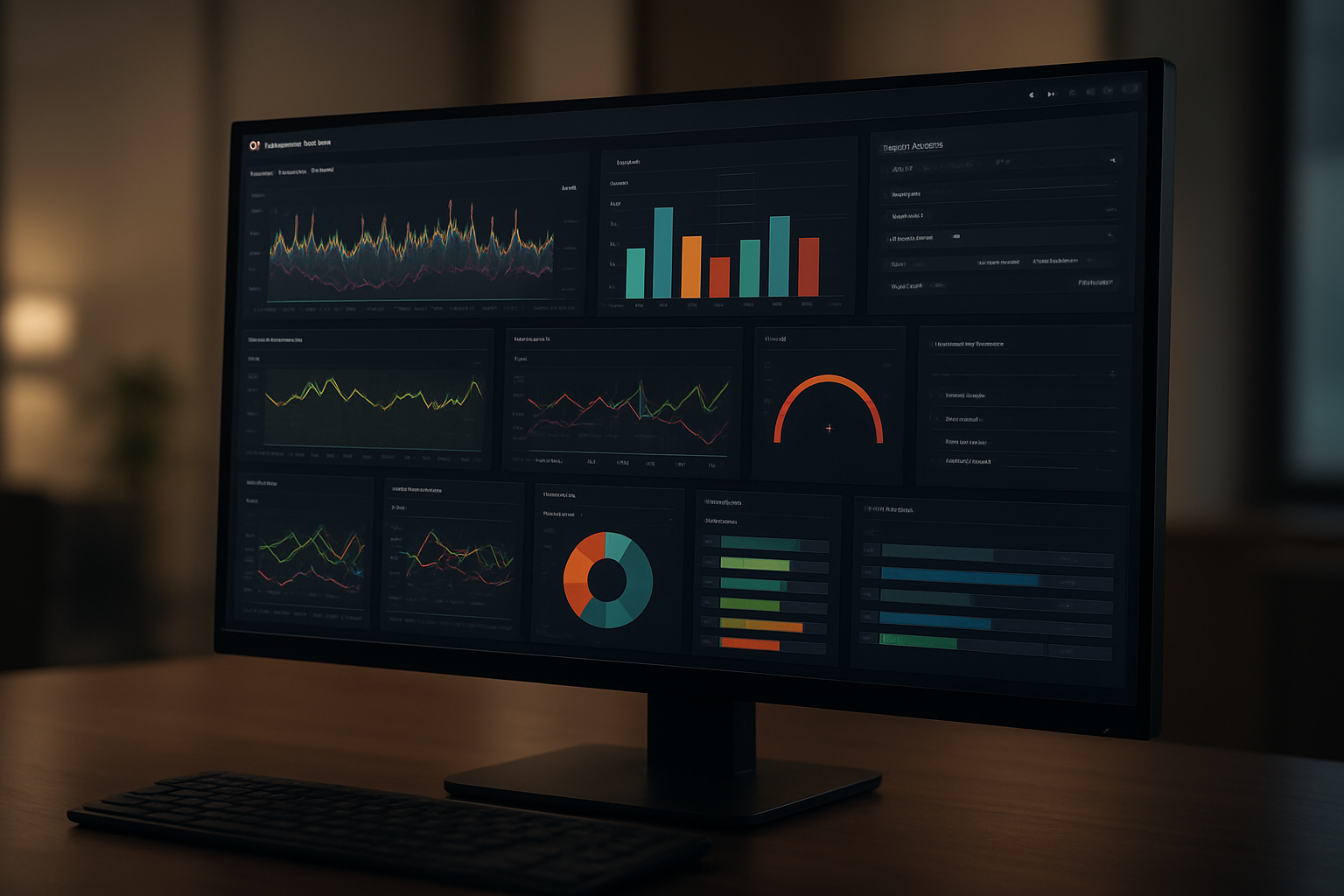
PromQL serves as the backbone for creating advanced monitoring queries in Prometheus and Grafana dashboards. Understanding basic selectors, operators, and functions helps you extract meaningful insights from your metrics data. Start with simple queries like up or cpu_usage_percent before progressing to more complex expressions that filter and manipulate time series data.
Build Complex Aggregation Functions
Aggregation functions transform raw metrics into actionable insights by grouping and calculating values across multiple time series. Functions like sum(), avg(), and max() combined with grouping operators enable you to create powerful visualizations that show system-wide performance trends and identify bottlenecks across your infrastructure.
Implement Rate and Histogram Calculations
Rate calculations using rate() and irate() functions convert counter metrics into meaningful per-second values, essential for monitoring request rates and error frequencies. Histogram metrics provide detailed distribution analysis through histogram_quantile() functions, allowing you to track response time percentiles and performance characteristics across your applications effectively.
Implement Real-Time Alerting Systems

Define Critical Threshold Values for Key Metrics
Setting meaningful alert thresholds requires deep understanding of your application’s normal behavior patterns. CPU usage above 80% for 5 minutes might trigger warnings, while memory consumption exceeding 90% demands immediate attention. Response times over 2 seconds often indicate performance degradation worth monitoring.
Network bandwidth utilization beyond 75% capacity and disk space usage above 85% represent critical infrastructure boundaries. Error rates exceeding 1% of total requests typically signal application problems requiring investigation. Database connection pools reaching 90% capacity can prevent new user sessions from establishing successfully.
Configure Multi-Channel Alert Notifications
Real-time alerting Grafana Prometheus systems support multiple notification channels for comprehensive incident response coverage. Slack integrations deliver instant team notifications, while PagerDuty escalates critical alerts to on-call engineers automatically. Email notifications provide detailed context for non-urgent issues requiring documentation.
Webhook configurations enable custom integrations with existing ticketing systems like Jira or ServiceNow. SMS alerts ensure critical infrastructure failures reach responsible teams even during off-hours. Microsoft Teams channels keep stakeholders informed about system status changes affecting business operations.
Set Up Alert Escalation Procedures
Escalation workflows prevent critical alerts from going unnoticed during peak incidents or staff unavailability. Primary on-call engineers receive initial notifications within 30 seconds, followed by secondary contacts after 5 minutes without acknowledgment. Management escalation occurs after 15 minutes for severity-one incidents.
Time-based escalation rules account for business hours, holidays, and maintenance windows. Geographic rotation schedules ensure 24/7 coverage across different time zones. Automatic escalation to vendor support teams happens when internal resources cannot resolve infrastructure issues within defined timeframes.
Test Alert Response Mechanisms
Regular alert testing validates notification delivery and team response procedures before real incidents occur. Synthetic monitoring generates controlled threshold breaches to verify alerting pipeline functionality. Monthly fire drills simulate production outages, measuring mean time to detection and resolution across different scenarios.
Alert fatigue prevention requires tuning notification frequency and severity levels based on historical incident data. False positive rates above 20% indicate threshold adjustments needed for specific metrics. Response time metrics help identify bottlenecks in escalation procedures requiring process improvements.
Optimize Performance and Scalability

Fine-Tune Data Storage and Retrieval Speed
Prometheus stores time-series data in local storage by default, but you can dramatically improve performance by adjusting retention policies and storage configurations. Set appropriate retention periods using --storage.tsdb.retention.time and --storage.tsdb.retention.size flags to balance historical data needs with disk space. Consider implementing remote storage solutions like Thanos or Cortex for long-term data retention while keeping frequently accessed metrics in local storage.
Query performance becomes critical as your monitoring infrastructure grows. Enable query logging to identify slow-running queries and optimize them using recording rules. Grafana performance optimization involves setting reasonable refresh intervals, limiting dashboard query complexity, and using template variables effectively to reduce data transfer overhead.
Implement High Availability Configurations
Configure Prometheus in a highly available setup by running multiple identical instances that scrape the same targets independently. This approach provides redundancy without complex clustering requirements. Place a load balancer like HAProxy in front of multiple Grafana instances to distribute user requests and eliminate single points of failure.
For true high availability, implement Prometheus federation or use external storage backends. Set up alertmanager clusters with gossip protocols to ensure alert delivery continues even when individual nodes fail. Configure shared storage for Grafana dashboards using external databases like PostgreSQL or MySQL instead of the default SQLite.
Monitor Resource Usage of Monitoring Stack
Track CPU, memory, and disk usage of your Prometheus and Grafana instances using node_exporter metrics. Create dedicated dashboards that monitor the monitoring infrastructure itself, including query durations, ingestion rates, and storage growth patterns. Set alerts for resource exhaustion scenarios like high memory usage or slow query performance.
Monitor network bandwidth consumption between Prometheus instances and their targets, especially in distributed environments. Use Grafana’s built-in metrics to track dashboard load times, user sessions, and query performance. Regular capacity planning based on these metrics prevents performance degradation as your monitoring scope expands.

Getting your monitoring stack up and running with Grafana and Prometheus gives you incredible visibility into your systems. You’ve learned how to set up the infrastructure, connect your data sources, and build dashboards that actually tell a story about your application’s health. The real magic happens when you combine powerful queries with smart alerting – suddenly you’re not just watching numbers, you’re staying ahead of problems before they impact your users.
Start small with a few key metrics that matter most to your business, then gradually expand your monitoring coverage. Your dashboards should be your mission control center, giving you quick answers when things go sideways. Remember that monitoring isn’t just about collecting data – it’s about turning that data into actionable insights that help you sleep better at night knowing your systems are healthy and performing well.