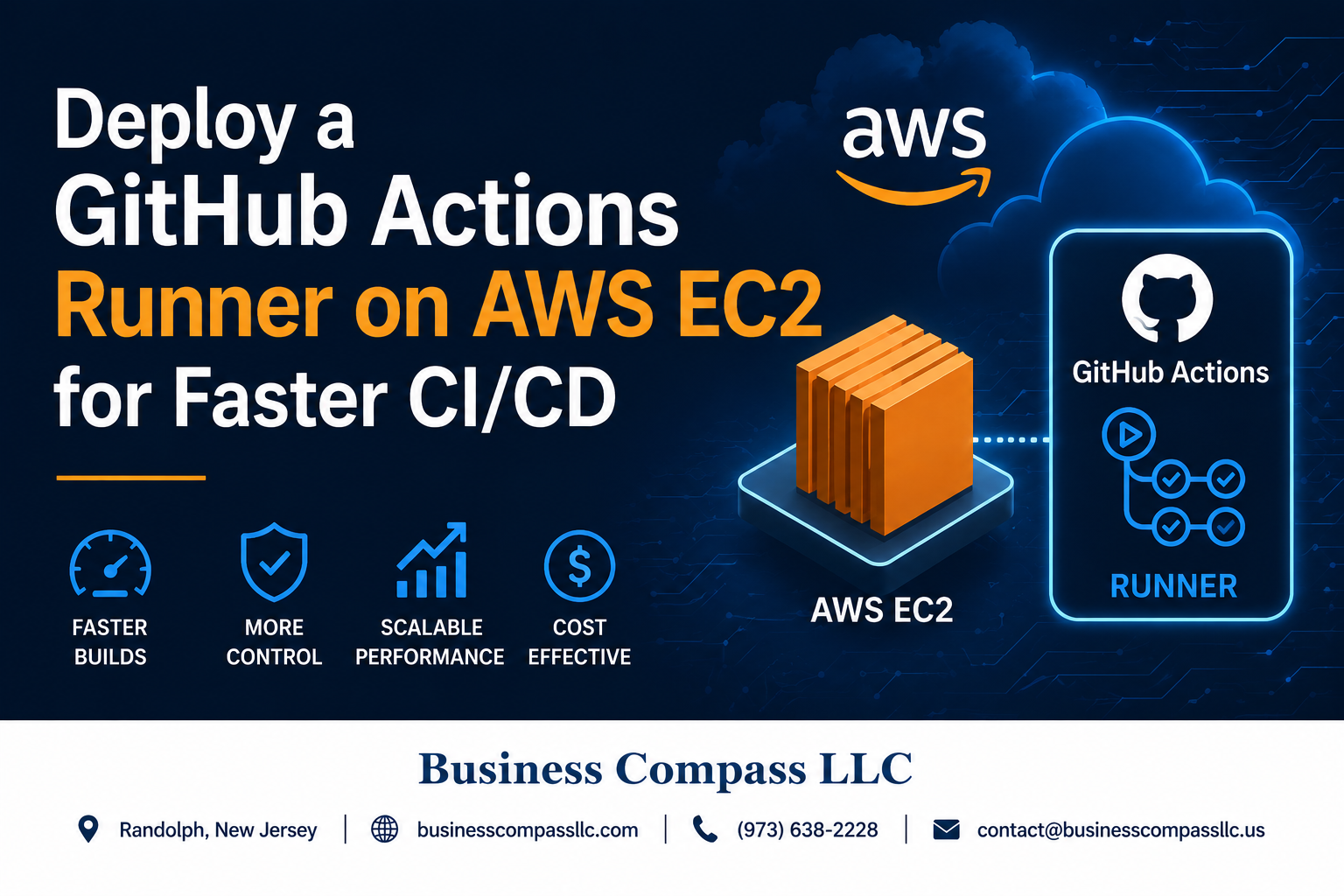
Slow CI/CD pipelines can kill your development momentum. Running GitHub Actions on your own AWS EC2 instance gives you full control over build environments, better performance, and cost savings compared to GitHub’s hosted runners.
This guide is for developers and DevOps engineers who want to set up a self-hosted GitHub Actions runner on AWS EC2 to speed up their CI/CD pipeline. You’ll learn how to break free from GitHub’s runner limitations and create a more powerful, customized build environment.
We’ll walk through the complete GitHub Actions runner AWS EC2 setup process, from preparing your AWS environment to installing and configuring the runner on your EC2 instance. You’ll also discover how to optimize your self-hosted runner deployment for better performance and implement GitHub runner security best practices to keep your infrastructure safe.
By the end, you’ll have a reliable, secure runner that handles your GitHub Actions CI/CD pipeline faster than ever before.
Understand GitHub Actions Self-Hosted Runners Benefits
Eliminate GitHub-hosted runner limitations and costs
GitHub’s hosted runners come with strict time limits, queue delays during peak hours, and monthly minute caps that can quickly drain your budget. Self-hosted runners on AWS EC2 eliminate these constraints, giving you unlimited build minutes and immediate job execution without waiting in shared queues.
Gain full control over your CI/CD environment
Running your GitHub Actions runner on AWS EC2 gives you complete control over hardware specifications, operating system configurations, and installed dependencies. You can customize CPU, memory, and storage to match your exact build requirements, creating an optimal environment that GitHub’s standardized runners can’t provide.
Access to custom software and configurations
Self-hosted runners let you pre-install proprietary tools, specific software versions, and custom configurations that aren’t available on GitHub-hosted runners. This eliminates the need to download and configure dependencies during each build, significantly reducing CI/CD pipeline execution time and improving reliability.
Enhanced security for private repositories
AWS EC2 runners keep your code and build artifacts within your own cloud infrastructure, never exposing sensitive data to GitHub’s shared hosting environment. You can implement custom security policies, network isolation, and compliance requirements that meet your organization’s strict security standards while maintaining fast CI/CD automation.
Prepare Your AWS Environment for Runner Deployment
Set up appropriate IAM roles and permissions
Creating the right IAM configuration is your first step toward a secure GitHub Actions runner AWS EC2 deployment. Start by creating an IAM role specifically for your EC2 instance that includes permissions for EC2 operations, CloudWatch logging, and any AWS services your CI/CD pipeline will access. Attach the AmazonEC2InstanceProfileForImageBuilder policy as a baseline, then add custom policies based on your specific workflow requirements. For enhanced security, create a separate IAM user for GitHub Actions with programmatic access keys, limiting permissions to only the resources your runner needs. Consider implementing least-privilege access by starting with minimal permissions and gradually adding more as needed. This approach ensures your self-hosted runner deployment maintains security while providing necessary functionality for your CI/CD automation AWS workflows.
Choose the optimal EC2 instance type for your workloads
Selecting the right EC2 instance type directly impacts your GitHub Actions CI/CD pipeline performance and costs. For basic workflows like code testing and simple builds, t3.medium instances offer a cost-effective balance of CPU and memory. Development teams running resource-intensive tasks should consider c5.large or c5.xlarge instances for CPU-optimized performance. If your workflows involve Docker builds, machine learning tasks, or heavy compilation, m5.large or m5.xlarge instances provide better memory allocation. For teams with unpredictable workloads, consider using spot instances to reduce costs by up to 90%, though this requires handling potential interruptions gracefully. Evaluate your typical build times, concurrent job requirements, and budget constraints when making this decision. Remember that you can always resize instances later as your GitHub runner configuration needs evolve.
Configure VPC and security groups for secure access
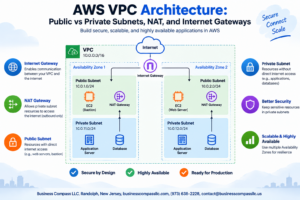
Network security forms the backbone of any secure self-hosted runner environment. Create a dedicated VPC or use an existing one with private subnets to isolate your GitHub Actions runner from public internet access. Configure your security groups to allow outbound HTTPS traffic (port 443) for GitHub API communication while restricting inbound access to only necessary ports. If you need SSH access for maintenance, limit it to specific IP addresses or use AWS Session Manager for secure shell access without exposing SSH ports. Enable VPC Flow Logs to monitor network traffic patterns and detect potential security issues. Consider using NAT Gateway or NAT Instance for outbound internet connectivity from private subnets, ensuring your EC2 instance runner installation can download necessary packages and communicate with GitHub’s servers. This setup provides a secure foundation for your self-hosted GitHub Actions infrastructure while maintaining the flexibility needed for effective CI/CD operations.
Launch and Configure Your EC2 Instance
Select the Right AMI for Your Runner Requirements
Amazon Linux 2 provides the best balance for GitHub Actions runner AWS EC2 deployments, offering built-in Docker support and optimized performance. Ubuntu 20.04 LTS serves as an excellent alternative, especially for teams requiring specific package versions. Choose t3.medium instances for basic workloads or c5.large for compute-intensive CI/CD pipelines. ARM-based Graviton2 instances deliver cost-effective performance for compatible workflows.
Install Essential Dependencies and Docker
Begin your GitHub Actions AWS integration by updating the system packages and installing Git, curl, and wget. Docker installation requires adding the official Docker repository and configuring the service to start automatically. Install the GitHub Actions runner dependencies including dotnet runtime and nodejs. Configure Docker permissions for the runner user to avoid permission issues during container builds.
# Essential package installation
sudo yum update -y
sudo yum install -y git curl wget

# Docker setup for self-hosted runner deployment
sudo amazon-linux-extras install docker
sudo systemctl start docker
sudo systemctl enable docker
sudo usermod -a -G docker ec2-user
Configure Storage and Networking Settings
Allocate at least 20GB for the root volume to accommodate GitHub runner configuration files, build artifacts, and Docker images. Attach additional EBS volumes for persistent build caches when running resource-intensive CI/CD automation AWS workloads. Configure security groups to allow outbound HTTPS traffic to GitHub’s API endpoints. Enable detailed monitoring for better visibility into your EC2 instance runner installation performance.
Set up Monitoring and Logging Capabilities
CloudWatch agent installation enables comprehensive monitoring of your self-hosted GitHub Actions environment. Configure custom metrics to track runner job execution times, resource utilization, and build success rates. Set up log aggregation for GitHub runner logs, system logs, and Docker container outputs. Create CloudWatch alarms for disk space, memory usage, and runner connectivity to ensure reliable GitHub Actions CI/CD pipeline operations.
Install and Register Your GitHub Actions Runner

Download and extract the GitHub Actions runner package
Connect to your EC2 instance via SSH and navigate to your preferred directory. Download the latest GitHub Actions runner package directly from GitHub’s releases page using wget or curl. The package comes as a compressed tar file that you’ll need to extract using the tar command. Create a dedicated directory like actions-runner to keep your runner files organized and make future maintenance easier.
Generate and configure authentication tokens
Access your GitHub repository settings and navigate to the Actions section to generate a runner registration token. This token provides secure authentication between your EC2 instance runner and GitHub’s infrastructure. Copy the token immediately as it expires quickly and cannot be retrieved later. You’ll also need your repository URL and organization details for the configuration process.
Register your runner with your GitHub repository
Run the configuration script included in the runner package using the ./config.sh command. Provide your repository URL, the authentication token you generated, and choose a meaningful name for your runner that identifies its purpose or location. The script will establish the connection between your EC2 instance and GitHub, creating the necessary configuration files for your self-hosted GitHub Actions runner.
Configure runner labels and capabilities
Assign custom labels during registration to help identify your runner’s specific capabilities and environment. Use descriptive labels like aws-ec2, linux, production, or technology-specific tags that match your CI/CD pipeline requirements. These labels allow you to target specific runners in your workflow files using the runs-on parameter, ensuring jobs execute on the appropriate infrastructure with the right tools and configurations.
Optimize Runner Performance and Reliability

Implement auto-scaling for dynamic workload handling
Auto-scaling your GitHub Actions runner AWS EC2 infrastructure dramatically improves CI/CD pipeline efficiency during peak development periods. Configure AWS Auto Scaling Groups to launch additional EC2 instances when queue depths exceed predefined thresholds, automatically registering new runners with your repository. Set scaling policies based on metrics like pending job count, average queue wait times, and CPU utilization across your runner fleet. Use launch templates to ensure consistent runner configuration across scaled instances, including proper IAM roles, security groups, and GitHub runner software pre-installation through user data scripts.
Set up automated runner updates and maintenance
Maintaining up-to-date GitHub Actions runners prevents security vulnerabilities and ensures compatibility with latest CI/CD features. Create automated maintenance windows using AWS Systems Manager Patch Manager to schedule regular OS updates across your runner instances. Deploy custom Lambda functions that monitor GitHub’s runner software releases and trigger automated updates through Systems Manager Run Command. Configure CloudWatch Events to orchestrate maintenance tasks like log cleanup, temporary file removal, and runner software updates during low-activity periods. Implement rolling updates to maintain availability while refreshing runner software versions.
Configure proper resource allocation and limits
Right-sizing your EC2 instance runner setup directly impacts both performance and cost optimization for self-hosted GitHub Actions workflows. Analyze historical job execution patterns to determine optimal instance types, considering CPU-intensive builds may require compute-optimized instances while memory-heavy operations need memory-optimized configurations. Configure Docker resource limits to prevent runaway processes from consuming entire instance resources, protecting concurrent job execution. Set appropriate disk space allocation with automated cleanup scripts for build artifacts, container images, and temporary files. Monitor resource utilization through CloudWatch metrics to identify bottlenecks and adjust instance sizing accordingly. Implement job concurrency limits based on instance capacity to prevent resource contention and ensure reliable pipeline execution.
Secure Your Self-Hosted Runner Environment

Implement Network Security Best Practices
Configure your EC2 security groups to allow only necessary inbound traffic, restricting SSH access to specific IP addresses and enabling HTTPS for GitHub communications. Set up VPC isolation to contain your runner within private subnets, using NAT gateways for outbound internet access. Deploy AWS WAF and enable VPC Flow Logs to monitor network traffic patterns and detect suspicious activities.
Configure Secrets Management and Access Controls
Store sensitive credentials using AWS Secrets Manager or Systems Manager Parameter Store, avoiding hardcoded secrets in your runner configuration. Create dedicated IAM roles with minimal permissions following the principle of least privilege, and rotate access keys regularly. Implement GitHub repository secrets for CI/CD variables and configure environment-specific access controls to prevent unauthorized deployments across different stages.
Set up Audit Logging and Monitoring Alerts
Enable CloudTrail logging to track all API calls and administrative actions on your runner infrastructure. Configure CloudWatch alarms for CPU usage, memory consumption, and disk space to prevent performance degradation. Set up SNS notifications for failed job executions, security events, and system health issues. Monitor GitHub Actions workflow logs and establish automated alerts for suspicious runner registration attempts or unusual activity patterns.
Establish Backup and Disaster Recovery Procedures
Create automated AMI snapshots of your configured runner instances using AWS Backup or custom Lambda functions. Document your runner setup process and maintain Infrastructure as Code templates using CloudFormation or Terraform for rapid restoration. Test disaster recovery procedures monthly by spinning up new instances from backups. Store configuration files and runner tokens securely in version control with proper encryption to enable quick reconstruction of your GitHub Actions runner AWS EC2 environment during outages.
Monitor and Maintain Your Runner Infrastructure

Set up CloudWatch metrics and alarms
Track your GitHub Actions runner AWS EC2 performance using CloudWatch metrics to monitor CPU usage, memory consumption, and disk space. Create custom alarms that trigger when resource utilization exceeds 80% or when runner jobs fail repeatedly. Set up SNS notifications to alert your team when critical thresholds are breached, enabling proactive maintenance before issues impact your CI/CD pipeline performance.
Implement cost optimization strategies
Right-size your EC2 instances based on actual runner workload patterns rather than peak capacity estimates. Use Spot Instances for non-critical development builds to reduce costs by up to 90%, while reserving On-Demand instances for production deployments. Schedule automatic scaling policies that launch additional runners during peak hours and terminate idle instances after 15 minutes of inactivity to optimize your GitHub Actions AWS integration expenses.
Configure automated health checks and recovery
Deploy Lambda functions that periodically test runner connectivity and job execution capabilities every 5 minutes. Configure Auto Scaling Groups with health check grace periods to automatically replace unhealthy EC2 instance runner installations. Create recovery scripts that re-register runners with GitHub when connection issues occur, ensuring your self-hosted runner deployment maintains consistent availability without manual intervention during network outages or service disruptions.
Setting up your own GitHub Actions runner on AWS EC2 gives you complete control over your CI/CD pipeline while delivering faster build times and better resource management. You’ve learned how to create a secure AWS environment, launch the right EC2 instance, and get your runner registered and optimized for peak performance. The combination of proper security measures, ongoing monitoring, and regular maintenance keeps your infrastructure running smoothly.
Your self-hosted runner is now ready to handle your team’s workloads more efficiently than shared runners ever could. Take the time to fine-tune your setup based on your specific needs, and don’t forget to keep an eye on those performance metrics. Start small with one runner, get comfortable with the process, and then scale up as your projects grow.