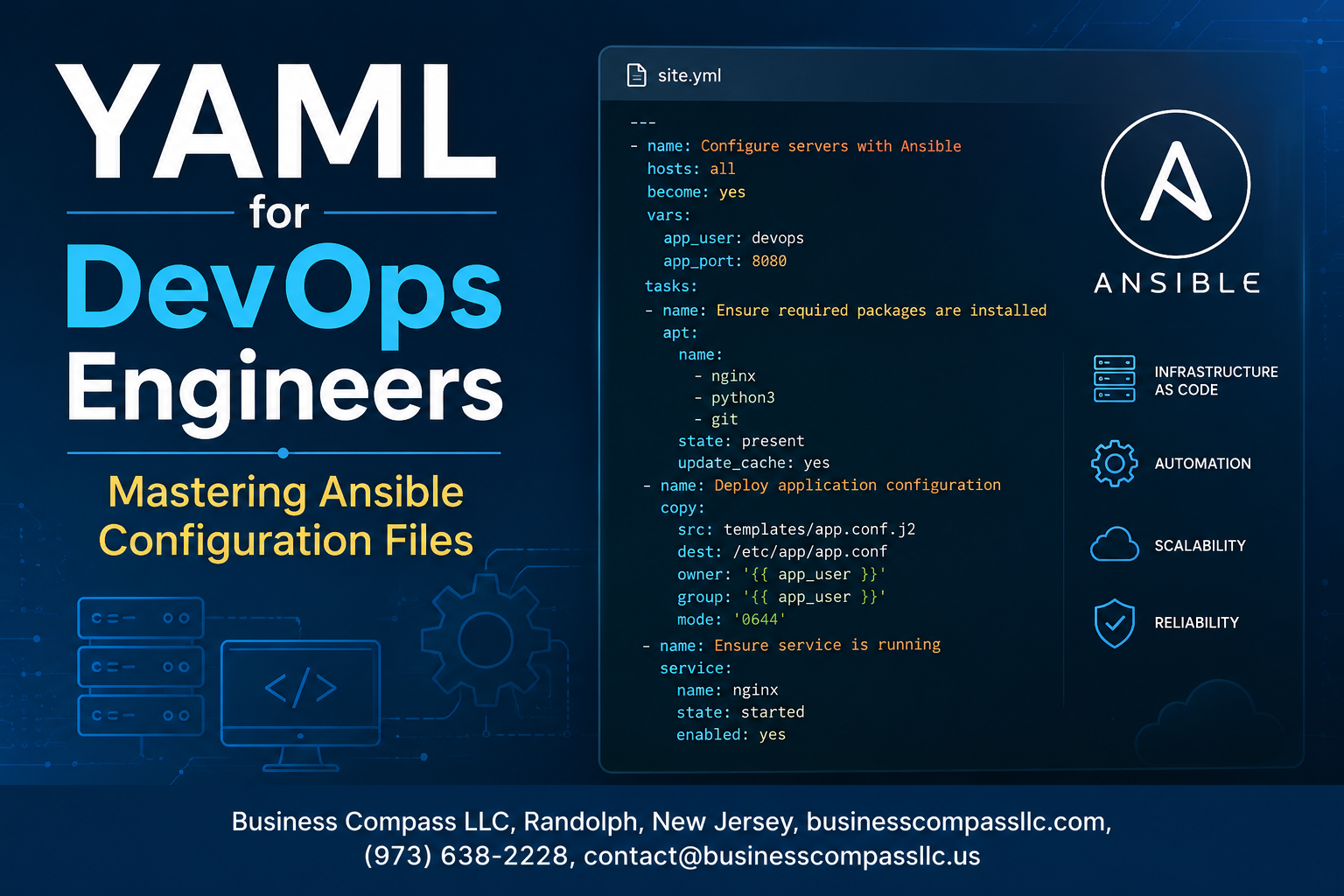
YAML for DevOps Engineers: Mastering Ansible Configuration Files
If you’re a DevOps engineer who keeps running into walls with Ansible configuration files, this guide is for you. YAML for DevOps sounds simple on the surface — just indentation and colons, right? But once you’re managing real infrastructure, a misplaced space or a poorly structured playbook can break your entire deployment pipeline.
This Ansible YAML tutorial walks you through everything from the ground up. You’ll get a solid grip on Ansible playbook structure so your automation actually does what you intend. You’ll learn how to work with Ansible roles and variables to keep your configs clean, reusable, and easy to scale across environments. And when you’re ready to go beyond the basics, we’ll dig into advanced Ansible techniques that hold up in production.
Here’s a quick look at what’s ahead:
- YAML fundamentals — the syntax rules that trip people up most in DevOps workflows
- Ansible environment setup and playbook structure — building a solid foundation before scaling
- Variables, roles, and advanced YAML best practices — the tools that separate working configs from maintainable ones
By the end, you’ll have the confidence to write, debug, and scale Ansible configurations without second-guessing every line.
Understanding YAML Fundamentals for DevOps Workflows

Key Differences Between YAML, JSON, and XML for Configuration Management
When you’re working with YAML for DevOps, knowing why it beats JSON and XML for configuration files makes a real difference in how fast you move. Here’s a quick breakdown:
- YAML: Human-readable, minimal punctuation, supports comments (
#), and reads almost like plain English — perfect for Ansible YAML tutorials and playbooks - JSON: Great for APIs and data exchange, but no comment support and heavy on curly braces and quotes — not fun to read in large config files
- XML: Verbose, tag-heavy, and overkill for most DevOps automation with Ansible scenarios
YAML’s clean indentation-based structure makes YAML configuration files far easier to maintain across teams.
Essential YAML Syntax Rules Every DevOps Engineer Must Know
Getting the syntax right is non-negotiable. A single mistake will break your pipeline faster than anything else.
- Indentation uses spaces, never tabs — 2 spaces is the standard in Ansible playbook structure
- Key-value pairs look like
key: valuewith a space after the colon - Lists are defined with a dash and space (
- item) - Strings rarely need quotes, but use them when values contain special characters like
:or# - Multiline strings use
|for literal blocks or>for folded blocks - Booleans are
true/falseoryes/no— Ansible treats both the same way - Comments start with
#and can appear anywhere on a line
Mastering these rules is the foundation of YAML best practices for DevOps and keeps your Ansible configs clean and predictable.
Avoiding Common YAML Parsing Errors That Break Pipelines
These mistakes show up constantly, even with experienced engineers:
- Tab characters instead of spaces — YAML strictly rejects tabs; configure your editor to convert tabs to spaces automatically
- Inconsistent indentation — mixing 2-space and 4-space indentation within the same file causes immediate parse failures
- Missing space after colon —
key:valueis wrong;key: valueis correct - Unquoted special characters — values containing
:,{,},[,], or#need to be wrapped in quotes - Incorrect list formatting — forgetting the space after the dash (
-itemvs- item) silently corrupts your data structure - Duplicate keys — YAML technically allows them, but Ansible will only read the last one, making earlier values vanish without warning
Run ansible-playbook --syntax-check your_playbook.yml regularly — it catches most of these before they hit production.
Setting Up Your Ansible Environment for YAML Success

Installing and Configuring Ansible to Work Seamlessly with YAML Files
Getting Ansible up and running is pretty straightforward, but doing it right saves you headaches later. Here’s a clean setup path:
- On Ubuntu/Debian: Run
sudo apt update && sudo apt install ansible -y - On RHEL/CentOS: Use
sudo yum install epel-release && sudo yum install ansible - Via pip (recommended for latest versions):
pip install ansible
After installation, your main configuration file lives at /etc/ansible/ansible.cfg. You can override this by dropping an ansible.cfg file directly in your project directory, which is the smarter move for project-specific DevOps automation with Ansible. Key settings to tune right away:
[defaults]
inventory = ./inventory
remote_user = ubuntu
host_key_checking = False
retry_files_enabled = False
Choosing the Right Code Editor and YAML Linting Tools
Your editor choice genuinely affects how fast you write clean YAML configuration files. VS Code is the go-to for most DevOps engineers, and for good reason:
- Install the YAML extension by Red Hat — it gives you schema validation, auto-completion, and real-time error highlighting
- Install Ansible extension by Red Hat — adds playbook-specific intelligence on top of YAML support
- Enable format on save to keep indentation consistent automatically
Beyond VS Code, keep these linting tools in your toolkit:
| Tool | Purpose |
|---|---|
yamllint |
Checks YAML syntax and style issues |
ansible-lint |
Catches Ansible-specific bad practices |
pre-commit hooks |
Runs both tools automatically before every git commit |
Install them fast:
pip install yamllint ansible-lint
A .yamllint config file in your project root lets you customize rules — things like line length limits and whether trailing spaces are allowed.
Structuring Your Ansible Project Directory for Maximum Efficiency
A messy project directory makes scaling impossible. Ansible actually has an official recommended layout, and sticking to it pays off as your configs grow:
ansible-project/
├── ansible.cfg
├── inventory/
│   ├── production
│   └── staging
├── group_vars/
│   ├── all.yml
│   └── webservers.yml
├── host_vars/
│   └── web01.yml
├── playbooks/
│   ├── deploy.yml
│   └── configure.yml
├── roles/
│   └── nginx/
│       ├── tasks/
│       ├── handlers/
│       ├── templates/
│       ├── files/
│       ├── vars/
│       └── defaults/
└── requirements.yml
A few things worth doing from day one:
- Separate inventories for production and staging — never mix them
- group_vars and host_vars folders keep your YAML variables clean and scoped correctly
- roles/ directory is where reusability actually lives — keep playbooks thin and push logic into roles
Validating Your YAML Files Before Deployment to Prevent Costly Errors
Running broken YAML into production is an easily avoidable disaster. Build validation into your workflow at multiple checkpoints:
Step 1 — Syntax check with yamllint:
yamllint playbooks/deploy.yml
Step 2 — Ansible’s built-in syntax check:
ansible-playbook playbooks/deploy.yml --syntax-check
Step 3 — Dry run with check mode:
ansible-playbook playbooks/deploy.yml --check
Step 4 — Automate with pre-commit hooks:
Create a .pre-commit-config.yaml file:
repos:
  - repo: https://github.com/adrienverge/yamllint
    rev: v1.32.0
    hooks:
      - id: yamllint
  - repo: https://github.com/ansible/ansible-lint
    rev: v6.22.0
    hooks:
      - id: ansible-lint
Then run pre-commit install once, and every commit gets validated automatically. This is the kind of YAML best practices DevOps teams adopt early and never regret — catching a bad indent before it triggers a 3am production incident is always the right call.
Mastering Ansible Playbook Structure with YAML

Breaking Down the Core Components of an Ansible Playbook
An Ansible playbook is essentially a YAML file that tells your infrastructure what to do and how to do it. Think of it as a recipe — it lists the ingredients (hosts, variables) and the steps (tasks) needed to get your systems into the desired state.
A basic playbook looks like this:
---
- name: Configure web servers
  hosts: webservers
  become: true
  vars:
    http_port: 80
  tasks:
    - name: Install Apache
      ansible.builtin.package:
        name: httpd
        state: present
Every playbook has these key building blocks:
---— The YAML document start marker (a good habit, not strictly required)name— A human-readable description of what the play doeshosts— Which machines from your inventory this play targetsbecome— Whether to escalate privileges (run as sudo)vars— Variables scoped to this specific playtasks— The actual work being done, top to bottom
Writing Plays and Tasks That Execute Reliably Across Multiple Hosts
When you’re targeting multiple hosts, writing tasks that work everywhere takes a bit of care. The goal is idempotency — running the same playbook ten times should produce the same result as running it once.
Here’s what reliable task writing looks like in practice:
tasks:
  - name: Ensure Nginx is installed
    ansible.builtin.package:
      name: nginx
      state: present

  - name: Deploy config file
    ansible.builtin.template:
      src: nginx.conf.j2
      dest: /etc/nginx/nginx.conf
      owner: root
      group: root
      mode: '0644'

  - name: Ensure Nginx is running and enabled
    ansible.builtin.service:
      name: nginx
      state: started
      enabled: true
A few habits that keep playbooks reliable:
- Always use fully qualified collection names (FQCN) like
ansible.builtin.packageinstead of justpackage— this avoids ambiguity as your automation scales - Prefer
state: presentorstate: startedover one-time commands that don’t check existing state - Use
whenconditionals to handle differences between OS families cleanly:
- name: Install Apache on RedHat systems
  ansible.builtin.package:
    name: httpd
    state: present
  when: ansible_os_family == "RedHat"

- name: Install Apache on Debian systems
  ansible.builtin.package:
    name: apache2
    state: present
  when: ansible_os_family == "Debian"
Leveraging Handlers to Trigger Actions Only When Needed
Handlers are one of the most underused features in Ansible playbook structure. They’re tasks that only run when something else actually changes — perfect for things like restarting a service after a config file update.
Without handlers, you’d restart Nginx every time the playbook runs, even if nothing changed. That’s wasteful and can cause unnecessary downtime.
Here’s the pattern:
tasks:
  - name: Update Nginx configuration
    ansible.builtin.template:
      src: nginx.conf.j2
      dest: /etc/nginx/nginx.conf
    notify: Restart Nginx

handlers:
  - name: Restart Nginx
    ansible.builtin.service:
      name: nginx
      state: restarted
Key things to know about handlers:
- They run at the end of the play by default, not immediately when notified
- If a handler is notified multiple times, it still only runs once
- You can force handlers to run mid-playbook with
meta: flush_handlers - Multiple tasks can notify the same handler
tasks:
  - name: Update SSL certificate
    ansible.builtin.copy:
      src: cert.pem
      dest: /etc/nginx/ssl/cert.pem
    notify: Restart Nginx

  - name: Update Nginx config
    ansible.builtin.template:
      src: nginx.conf.j2
      dest: /etc/nginx/nginx.conf
    notify: Restart Nginx
# Nginx only restarts once, regardless of how many tasks notify it
Using Tags to Run Specific Sections of Your Playbook on Demand
As your YAML configuration files grow, running the entire playbook for every small change gets slow. Tags let you slice your playbook and run only what you need.
Assign tags to tasks like this:
tasks:
  - name: Install packages
    ansible.builtin.package:
      name: "{{ item }}"
      state: present
    loop:
      - nginx
      - git
      - curl
    tags:
      - packages
      - install

  - name: Deploy application config
    ansible.builtin.template:
      src: app.conf.j2
      dest: /etc/app/app.conf
    tags:
      - config
      - deploy

  - name: Start application service
    ansible.builtin.service:
      name: myapp
      state: started
    tags:
      - services
Running specific tags:
# Run only package installation tasks
ansible-playbook site.yml --tags "packages"

# Run everything except config tasks
ansible-playbook site.yml --skip-tags "config"

# Run multiple tags at once
ansible-playbook site.yml --tags "packages,services"
A few tagging strategies that work well in real environments:
- Use tags like
always,never,install,config,deployconsistently across your playbooks - Tag at the play level as well as the task level for broad targeting
- The built-in
alwaystag makes a task run regardless of which tags you specify — great for setup tasks that everything depends on
Organizing Complex Playbooks with Includes and Imports
Once a playbook grows past a few dozen tasks, keeping everything in one file becomes a maintenance headache. Ansible gives you two ways to split things up: import_* and include_*.
The key difference:
| Feature | import_* |
include_* |
|---|---|---|
| Processed at | Parse time (static) | Runtime (dynamic) |
| Works with tags | Yes, fully | Limited |
| Works with loops | No | Yes |
| Error visibility | Early (before run) | Only when reached |
Importing task files (static):
# main playbook
- name: Full server setup
  hosts: all
  tasks:
    - name: Run base configuration
      ansible.builtin.import_tasks: tasks/base.yml

    - name: Run security hardening
      ansible.builtin.import_tasks: tasks/security.yml
Including task files dynamically (great for loops or conditionals):
- name: Configure each application
  ansible.builtin.include_tasks: "tasks/configure__var: app_name
Importing entire playbooks:
# site.yml — the master playbook
- name: Import base setup playbook
  ansible.builtin.import_playbook: playbooks/base.yml

- name: Import web server playbook
  ansible.builtin.import_playbook: playbooks/webservers.yml

- name: Import database playbook
  ansible.builtin.import_playbook: playbooks/databases.yml
A clean file structure that pairs well with this approach:
project/
├── site.yml
├── playbooks/
│   ├── webservers.yml
│   └── databases.yml
└── tasks/
    ├── base.yml
    ├── security.yml
    └── deploy.yml
Splitting playbooks this way makes your DevOps automation with Ansible much easier to read, test, and hand off to teammates. Each file has one clear job, and your master playbook reads almost like plain English.
Supercharging Ansible Configurations with YAML Variables

Defining and Overriding Variables at Multiple Levels for Flexibility
Ansible’s variable precedence system gives you serious control over your YAML configuration files. Variables can live in playbooks, inventory files, group_vars, host_vars, or get passed directly via the command line. The order matters — command-line vars always win, making them perfect for quick overrides during deployments.
- Playbook-level variables — defined under
vars:in your playbook, great for defaults - group_vars/ — YAML files named after your inventory groups, applied to matching hosts automatically
- host_vars/ — host-specific overrides that take priority over group variables
- Extra vars — passed with
-eat runtime, the highest precedence of all
Using Inventory Variables to Manage Environment-Specific Configurations
Managing dev, staging, and production environments with Ansible YAML becomes clean when you lean on inventory variables properly. Create separate inventory files per environment, then drop matching group_vars directories beside them.
# group_vars/production/app.yml
app_port: 443
debug_mode: false
db_host: prod-db.internal
# group_vars/staging/app.yml
app_port: 8443
debug_mode: true
db_host: staging-db.internal
This approach keeps environment-specific configs isolated without duplicating playbook logic — a core YAML best practice for DevOps teams managing multiple environments.
Protecting Sensitive Data with Ansible Vault Encryption
Hardcoding passwords or API keys into YAML files is a quick way to ruin your week. Ansible Vault encrypts sensitive variables directly inside your YAML configuration files so secrets never sit exposed in version control.
# Encrypt an entire file
ansible-vault encrypt group_vars/production/secrets.yml

# Or create an encrypted file from scratch
ansible-vault create group_vars/production/secrets.yml
Inside the encrypted file, variables look totally normal:
db_password: "supersecretpassword"
api_key: "abc123xyz"
- Run playbooks with
--ask-vault-passor point to a vault password file using--vault-password-file - Store only the encrypted file in Git — never the raw secrets
- Use separate vault files per environment to limit exposure if one key gets compromised
Reusing and Scaling Configurations with Ansible Roles

Building Modular Roles That Save Time Across Multiple Projects
Ansible roles are basically your way of packaging reusable automation logic into self-contained units you can drop into any project. Instead of copying the same tasks across ten different playbooks, you write them once as a role and call them wherever needed.
- A role bundles tasks, handlers, variables, templates, and files into one clean package
- You can share roles across teams without anyone needing to understand the internals
- Roles make your DevOps automation with Ansible dramatically faster on new projects
Structuring Role Directories to Keep Your Codebase Clean and Maintainable
Ansible expects a specific directory layout when you create a role, and sticking to it pays off big time as your codebase grows.
roles/
  webserver/
    tasks/
      main.yml
    handlers/
      main.yml
    templates/
      nginx.conf.j2
    files/
    vars/
      main.yml
    defaults/
      main.yml
    meta/
      main.yml
tasks/main.ymlholds the actual work the role doesdefaults/main.ymlstores low-priority variables that users can easily overridevars/main.ymlstores higher-priority variables meant to stay consistenttemplates/keeps your Jinja2 YAML configuration files and config templates organized
Keeping this structure consistent across every role means any teammate can jump into an unfamiliar role and immediately know where everything lives.
Sharing and Reusing Roles from Ansible Galaxy to Accelerate Delivery
Ansible Galaxy is a free public hub where the community shares pre-built roles you can pull directly into your projects. Instead of writing a role to install and configure MySQL from scratch, there’s a good chance someone already did that and tested it across dozens of environments.
ansible-galaxy install geerlingguy.mysql
- Browse roles at galaxy.ansible.com by category, rating, and download count
- Install roles into your project’s
roles/directory or a shared system path - Pin specific role versions in a
requirements.ymlfile to avoid surprise breaking changes
# requirements.yml
roles:
  - name: geerlingguy.mysql
    version: 3.4.0
  - name: geerlingguy.nginx
    version: 3.1.0
Run ansible-galaxy install -r requirements.yml and your whole team gets the same versions every time — no guesswork, no drift.
Overriding Role Defaults to Customize Behavior Without Rewriting Code
The whole point of separating defaults/main.yml from vars/main.yml is to give you a clean, predictable way to customize role behavior without touching the role’s core code. Defaults are designed to be overridden — that’s the whole idea behind mastering Ansible configuration properly.
- Override defaults directly in your playbook under
vars: - Pass overrides through inventory group variables or host variables
- Use extra vars at the command line for one-off overrides during testing
# playbook calling the role with overrides
- hosts: web_servers
  roles:
    - role: webserver
      vars:
        nginx_port: 8080
        nginx_worker_processes: 4
This approach keeps Ansible roles and variables cleanly separated. The role stays generic and reusable, while each project or environment supplies its own specific values — no copy-pasting, no messy forks of the same role floating around your repo.
Implementing Advanced YAML Techniques for Production-Grade Ansible

Using Jinja2 Templating Inside YAML to Create Dynamic Configurations
Jinja2 templating turns your static YAML files into smart, dynamic configurations that adapt based on context. Instead of hardcoding values, you inject variables directly into your playbooks and templates.
- Reference variables with
{{ variable_name }}syntax inside YAML strings - Use filters like
{{ hostname | upper }}or{{ port | default(8080) }}to transform values on the fly - Store template files as
.j2files and deploy them with thetemplatemodule:
- name: Deploy app config
  template:
    src: app.conf.j2
    dest: /etc/app/app.conf
Inside app.conf.j2, you can write:
server_name = {{ inventory_hostname }}
max_connections = {{ app_max_connections | default(100) }}
This keeps your YAML configuration files clean while letting Jinja2 handle all the heavy lifting for environment-specific values.
Applying Conditionals and Loops to Handle Complex Automation Scenarios
Conditionals and loops are where Ansible YAML really starts showing its muscle for DevOps automation with Ansible.
Conditionals with when:
- name: Install Apache on Debian systems
  apt:
    name: apache2
    state: present
  when: ansible_os_family == "Debian"
Loops with loop:
- name: Create multiple users
  user:
    name: "{{ item.name }}"
    groups: "- { name: carol, groups: ops }
Key tips for production-grade Ansible:
- Combine
whenwithloopto skip specific items conditionally - Use
loop_controlwithlabelto keep your output readable when looping over large lists - Prefer
loopover the olderwith_items— it’s cleaner and more consistent across modern Ansible versions
Managing Multi-Environment Deployments with Separate YAML Configuration Files
Juggling dev, staging, and production environments without separate YAML files is a recipe for disaster. The cleanest approach is organizing your inventory and variable files by environment.
Recommended directory layout:
inventories/
  dev/
    hosts.yml
    group_vars/
      all.yml
  staging/
    hosts.yml
    group_vars/
      all.yml
  production/
    hosts.yml
    group_vars/
      all.yml
Each all.yml holds environment-specific values:
# production/group_vars/all.yml
db_host: prod-db.internal
app_replicas: 5
debug_mode: false
# dev/group_vars/all.yml
db_host: localhost
app_replicas: 1
debug_mode: true
Run playbooks targeting a specific environment like this:
ansible-playbook -i inventories/production site.yml
ansible-playbook -i inventories/dev site.yml
- Never share a single
hostsfile across environments — variable collisions will cause headaches - Use
vaultto encrypt sensitive values like passwords and API keys inside your YAML configuration files - Keep environment-agnostic defaults in
roles/defaults/main.ymland override them at the inventory level
This setup makes your YAML for DevOps workflows predictable, auditable, and easy for teammates to pick up without confusion.

Getting comfortable with YAML in Ansible is one of those skills that quietly transforms how you work. Once you nail the fundamentals, set up your environment right, and get a solid grip on playbook structure, everything else starts clicking into place. Variables keep your configs flexible, roles keep things clean and reusable, and those advanced techniques push your setups from “good enough” to genuinely production-ready.
The best part? You don’t need to master all of this overnight. Start with the basics, build a few playbooks, and gradually work your way up to roles and advanced patterns. Every Ansible engineer you admire today started exactly where you are right now. So fire up your editor, grab a real project to work on, and start writing YAML that actually does something useful. That hands-on practice will take you further than any tutorial ever could.