Docker Compose File Explained: YAML Syntax, Services, Volumes, and Networks
If you’ve ever tried to run a multi-container app and ended up juggling a dozen docker run commands, a Docker Compose file is about to become your new best friend.
This guide is for developers who are just getting started with Docker Compose or anyone who wants a clearer picture of what actually goes inside a docker-compose.yml file. No prior Compose experience needed — just a basic comfort with Docker itself.
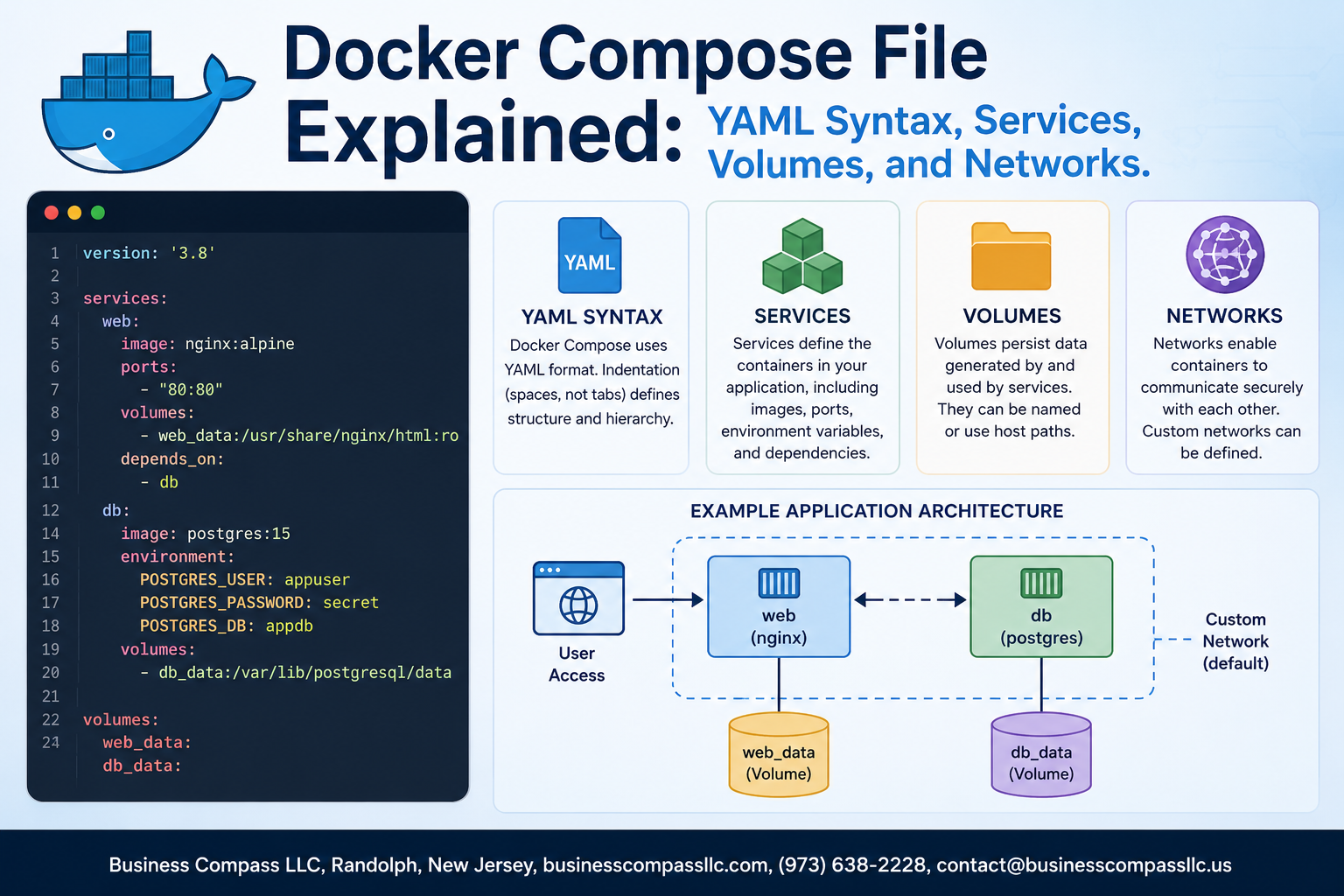
Here’s what you’ll walk away knowing: how the docker-compose.yml structure works from top to bottom, how to define Docker Compose services, volumes, and networks without guessing, and how YAML syntax fits into the whole setup without tripping you up. You’ll also see a real-world Docker Compose example that ties everything together so it actually clicks.
Let’s get into it.
Understanding the Docker Compose File Structure

What a Docker Compose File Is and Why It Simplifies Multi-Container Apps
Running multiple containers manually means typing long docker run commands repeatedly, managing ports, networks, and volumes by hand — and it gets messy fast. A Docker Compose file solves this by letting you define your entire multi-container application in one place. Instead of juggling separate commands for your web server, database, and cache, you describe everything in a single docker-compose.yml file and spin it all up with one command: docker compose up.
Here’s what a Docker Compose file actually handles for you:
- Services — each container your app needs, like a Node.js API, a PostgreSQL database, or an Nginx reverse proxy
- Volumes — persistent storage so your data survives container restarts
- Networks — controlled communication between your containers so they can talk to each other securely
How the docker-compose.yml File Fits Into Your Project Directory
The docker-compose.yml file lives at the root of your project directory, sitting alongside your Dockerfile, source code, and .env files. This placement matters because Docker Compose uses the directory name as the default project name, which prefixes all your containers, networks, and volumes to keep things organized and avoid naming collisions across projects.
A typical project layout looks like this:
my-app/
├── docker-compose.yml
├── Dockerfile
├── .env
└── src/
When you run docker compose up from this directory, Docker Compose automatically picks up the docker-compose.yml file without you needing to specify a path. You can also use a custom filename with the -f flag, which comes in handy when managing separate configs for development and production environments.
Choosing the Right Docker Compose File Version for Your Needs
The version key at the top of a docker-compose.yml file used to determine which features were available to you. Older files might show version: "3" or version: "3.8", and you’d need to match these to your Docker Engine version to avoid compatibility headaches.
Here’s the quick breakdown:
- Version 2.x — best for single-host setups, supports more granular resource limits without extra flags
- Version 3.x — designed with Docker Swarm in mind, widely used for production deployments
- No version key (Compose Specification) — the current standard for anyone using Docker Compose V2, which ships with modern Docker Desktop and Docker Engine
If you’re starting a new project today, skip the version key entirely. The Compose Specification is the active standard now, and Docker’s official docs recommend dropping the version field in favor of the unified spec that works across all modern Docker environments.
Mastering YAML Syntax for Docker Compose

Key YAML Formatting Rules That Prevent Common Errors
YAML is the backbone of any docker-compose.yml file, and getting it right makes the difference between a smooth setup and a frustrating debugging session. A few rules to keep in mind:
- Always use spaces, never tabs — YAML strictly forbids tab characters for indentation. Most modern editors handle this automatically, but it’s worth double-checking your editor settings.
- Colons need a space after them —
key: valueworks, butkey:valuewill throw an error. - Strings with special characters need quotes — If a value contains colons, hash signs, or curly braces, wrap it in single or double quotes to avoid misinterpretation.
- Boolean values are tricky —
true,false,yes, andnoare all recognized as booleans. If you mean the literal string “yes”, quote it.
How Indentation and Hierarchy Control Your Configuration
The entire Docker Compose YAML syntax relies on indentation to express relationships between configuration elements. Think of it like folders nested inside folders — the deeper the indentation, the more specific the setting.
services:
  web:
    image: nginx
    ports:
      - "80:80"
Here, web belongs to services, and image and ports belong to web. A two-space indent per level is the standard, and sticking to it consistently across your file keeps everything predictable. Mixing two-space and four-space indentation within the same file will break your setup almost every time.
Using Comments and Environment Variables to Keep Files Clean
Comments and environment variables are two of the best tools for keeping a docker-compose.yml readable and maintainable over time.
Comments start with a # and can appear on their own line or at the end of a line:
services:
  db:
    image: postgres:15  # Always pin to a specific version
Environment variables let you pull sensitive or environment-specific values out of the file entirely. You can reference them directly using ${VARIABLE_NAME}:
services:
  app:
    environment:
      - DB_PASSWORD=${DB_PASSWORD}
Pair this with a .env file sitting in the same directory, and Docker Compose will automatically pick up those values. This keeps credentials out of version control and makes your Docker Compose configuration guide-worthy for team projects.
- Store secrets in
.envfiles - Add
.envto your.gitignore - Use descriptive variable names like
POSTGRES_USERinstead ofPG_U
Avoiding Syntax Mistakes That Break Your Docker Compose Setup
A few mistakes show up again and again when people are learning how to write a Docker Compose file:
- Misaligned indentation — If a key is off by even one space, YAML will either throw a parse error or silently attach it to the wrong parent.
- Duplicate keys — Defining the same key twice under the same parent causes unpredictable behavior. The second definition usually wins, but the first is silently ignored.
- Wrong data types — Ports should be strings (
"8080:8080"), not plain integers, to avoid YAML interpreting them incorrectly. - Missing dashes on list items — In a
docker-compose.ymlstructure, lists likeportsandvolumesrequire a-prefix for each item. Forgetting it turns a list into a single malformed value.
Running docker compose config is a quick sanity check — it validates and prints the resolved configuration, catching most syntax problems before you even try to spin up your services.
Defining Services to Power Your Application

How to Declare a Service and Set Its Core Properties
Every service in a docker-compose.yml file lives under the services key. Think of each service as a separate container with its own identity, behavior, and configuration. Here’s a basic skeleton:
services:
  web:
    image: nginx:latest
    container_name: my-web-app
    restart: always
Key core properties you’ll use most often:
- container_name – gives your container a human-readable name instead of a random one
- restart – controls what happens if the container crashes (
always,on-failure,unless-stopped) - working_dir – sets the default directory inside the container when commands run
- command – overrides the default command defined in the image
Specifying Images Versus Building From a Dockerfile
When writing a Docker Compose configuration guide, one of the first decisions you’ll face is whether to pull a ready-made image from a registry or build your own from a Dockerfile.
Using a pre-built image:
services:
  db:
    image: postgres:15
Building from a Dockerfile:
services:
  app:
    build:
      context: ./app
      dockerfile: Dockerfile.dev
- Use
imagewhen you’re working with official or third-party images likenginx,redis, orpostgres - Use
buildwhen your app has custom dependencies, code, or configuration baked into the image - You can even combine both — build the image and assign it a name using
imagealongsidebuildso Docker caches it properly
Mapping Ports to Expose Your Application to the Outside World
Port mapping is how you let traffic from your machine (or the internet) reach a service running inside a container. The format is HOST_PORT:CONTAINER_PORT.
services:
  web:
    image: nginx
    ports:
      - "8080:80"
      - "443:443"
"8080:80"means requests hitting port8080on your host get forwarded to port80inside the container- If you only specify a container port like
"80", Docker picks a random host port — handy for avoiding conflicts during local development - Use
exposeinstead ofportswhen you only want other services (not the outside world) to reach a container
Setting Environment Variables to Configure Service Behavior
Environment variables are the cleanest way to pass configuration into a container without hardcoding anything into the image. Docker Compose gives you a few ways to do this.
Inline in the Compose file:
services:
  app:
    image: myapp:latest
    environment:
      - NODE_ENV=production
      - PORT=3000
      - DATABASE_URL=postgres://user:pass@db:5432/mydb
Using an external .env file:
services:
  app:
    env_file:
      - .env
environmentis great for non-sensitive config values visible in the Compose fileenv_filekeeps secrets and credentials out of version control — always add.envto your.gitignore- Variables defined in
environmentoverride anything inenv_fileif both are present for the same key
Controlling Service Startup Order With the depends_on Option
When your app needs a database to be running before it starts, depends_on tells Docker Compose the order to spin up services.
services:
  app:
    build: .
    depends_on:
      - db
      - redis

  db:
    image: postgres:15

  redis:
    image: redis:alpine
depends_onmakesdbandredisstart beforeapp, but it doesn’t wait for them to be ready — just running- For true readiness checks (waiting until Postgres actually accepts connections), pair
depends_onwith ahealthcheckon the dependency service:
  db:
    image: postgres:15
    healthcheck:
      test: ["CMD", "pg_isready", "-U", "postgres"]
      interval: 5s
      retries: 5

  app:
    depends_on:
      db:
        condition: service_healthy
- The
condition: service_healthyoption is the real fix for race conditions between services in a docker-compose.yml structure
Leveraging Volumes for Persistent and Shared Data

Why Volumes Are Essential for Keeping Data Across Container Restarts
Containers are ephemeral by design — the moment one stops or gets recreated, everything inside it disappears. That’s a big problem when you’re running a database or storing user uploads. Docker Compose persistent volumes solve this by keeping your data alive on the host machine, completely independent of the container lifecycle.
- Without volumes, a PostgreSQL container loses every row in your database the second it restarts
- Volumes act as an external storage layer that containers plug into, not own
- Multiple services can share the same volume, making data exchange between containers straightforward
Defining Named Volumes at the Top Level for Reusability
Named volumes are declared at the root level of your docker-compose.yml under the volumes key, then referenced inside individual services. This separation keeps things clean and makes the volume reusable across multiple services without repeating configuration.
volumes:
  db_data:
  app_cache:

services:
  db:
    image: postgres
    volumes:
      - db_data:/var/lib/postgresql/data
- The top-level
volumesblock registers the volume with Docker - The service-level
volumesentry mounts it to a specific path inside the container - Docker manages where the actual data lives on your host — usually under
/var/lib/docker/volumes/
Mounting Host Directories to Enable Real-Time Code Changes
Bind mounts map a folder directly from your local machine into the container. This is a game-changer during development because any file you edit on your laptop shows up inside the running container instantly — no rebuild needed.
services:
  app:
    image: node:18
    volumes:
      - ./src:/app/src
./srcis the path on your host machine (relative to thedocker-compose.ymlfile)/app/srcis where that folder gets mounted inside the container- Changes you make locally are reflected live, which makes iterating on code much faster
- Bind mounts differ from named volumes — Docker doesn’t manage them; you control exactly which directory gets shared
Configuring Networks to Control Service Communication

How Docker Compose Creates a Default Network for Your Services
When you spin up a Docker Compose project, Docker automatically creates a default bridge network for all your services. Every container in your docker-compose.yml file gets connected to this network automatically, meaning your services can talk to each other using their service names as hostnames — no manual configuration needed.
- The default network name follows the pattern
projectname_default - Services discover each other using the service name defined in the Compose file
- No extra networking setup is required for basic inter-service communication
Defining Custom Networks to Isolate or Connect Specific Services
Custom networks give you real control over which services can communicate with each other. You define them under the top-level networks key and then reference them inside each service.
networks:
  frontend:
  backend:
This is a core part of any solid Docker Compose networking tutorial — isolating your database on a backend network keeps it hidden from public-facing services.
Assigning Services to Multiple Networks for Flexible Architecture
A single service can belong to multiple networks simultaneously, which is super handy for building layered architectures.
services:
  api:
    networks:
      - frontend
      - backend
  db:
    networks:
      - backend
apibridges both networks, acting as a middlemandbstays private, only reachable from the backend network- Frontend services cannot directly hit the database
This pattern is a go-to approach when writing a production-ready docker-compose.yml structure.
Using Network Aliases to Simplify Inter-Service Communication
Network aliases let you give a service an alternative hostname on a specific network, which makes cross-service calls cleaner and easier to manage.
services:
  database:
    networks:
      backend:
        aliases:
          - db
          - postgres-host
- Other services on the backend network can reach
databaseusingdborpostgres-host - Aliases are scoped to the network they’re defined on
- Useful when migrating services or maintaining backward-compatible hostnames without changing application code
Putting It All Together With a Real-World Example

Walking Through a Complete docker-compose.yml File Step by Step
Here’s a real-world docker-compose.yml for a web app with a Node.js backend, PostgreSQL database, and Nginx reverse proxy — the kind of stack you’d actually ship to production:
version: '3.8'

services:
  db:
    image: postgres:15
    restart: always
    environment:
      POSTGRES_USER: appuser
      POSTGRES_PASSWORD: secretpassword
      POSTGRES_DB: myappdb
    volumes:
      - postgres_data:/var/lib/postgresql/data
    networks:
      - backend_net

  api:
    build:
      context: ./api
      dockerfile: Dockerfile
    restart: on-failure
    environment:
      DATABASE_URL: postgres://appuser:secretpassword@db:5432/myappdb
      NODE_ENV: production
    ports:
      - "3000:3000"
    depends_on:
      - db
    volumes:
      - ./api:/usr/src/app
      - /usr/src/app/node_modules
    networks:
      - backend_net
      - frontend_net

  nginx:
    image: nginx:latest
    restart: always
    ports:
      - "80:80"
    volumes:
      - ./nginx/nginx.conf:/etc/nginx/nginx.conf:ro
    depends_on:
      - api
    networks:
      - frontend_net

volumes:
  postgres_data:

networks:
  backend_net:
  frontend_net:
Breaking this down piece by piece:
dbservice — pulls the official Postgres 15 image, sets credentials via environment variables, and mounts a named volume (postgres_data) so your data survives container restarts. It only lives onbackend_net, keeping it hidden from the public-facing layer.apiservice — builds from a local Dockerfile, connects to the database using the service namedbas the hostname (Docker’s internal DNS handles this), and sits on both networks so it can talk to the database and receive traffic from Nginx.nginxservice — acts as the front door, listening on port 80 and proxying requests to theapi. The config file is mounted as read-only (:ro), which is a small but smart security move.- Named volume
postgres_data— declared at the bottom so Docker manages it independently of any container lifecycle. - Two networks —
backend_netkeeps the database isolated, whilefrontend_nethandles the Nginx-to-API traffic. This is clean network segmentation without any extra tooling.
Running and Managing Your Stack With Essential Docker Compose Commands
Once your docker-compose.yml is ready, these are the commands you’ll use constantly:
docker compose up -d— starts the entire stack in detached mode (runs in the background). Add--buildif you’ve changed your Dockerfile and need a fresh image.docker compose down— stops and removes containers and networks. Add-vif you also want to wipe named volumes (careful — that deletes your data).docker compose logs -f api— streams live logs from theapiservice. Swap the service name for whichever one you’re watching.docker compose ps— shows the current state of all services at a glance.docker compose exec api sh— opens a shell inside the runningapicontainer, great for quick debugging or running one-off commands.docker compose restart nginx— restarts a single service without touching the rest of the stack.docker compose pull— pulls the latest versions of all images defined withimage:(not built ones).docker compose build --no-cache api— forces a clean rebuild of theapiimage, skipping any cached layers.
A practical tip: use docker compose up --build during development so code changes and config updates always get picked up without you having to manually rebuild.
Debugging Common Issues in Your Docker Compose Configuration
Even a well-written docker-compose.yml can hit snags. Here are the problems that come up most often and how to fix them fast:
Service can’t connect to the database
- Check that both services are on the same network. If
apianddbaren’t sharing a network, Docker’s DNS won’t resolve the service name. - Make sure
depends_onis set — but know it only waits for the container to start, not for the database to be ready. For that, you need a health check or a retry loop in your app.
Port already in use error
- Another process on your host is already using that port. Run
lsof -i :80(macOS/Linux) ornetstat -ano | findstr :80(Windows) to find and stop the conflicting process, or just change the host-side port in your compose file.
Volume changes aren’t showing up
- If you’re using a bind mount (
./api:/usr/src/app) and edits aren’t reflecting, check that the path on the left side of the colon points to the right directory relative to yourdocker-compose.ymlfile. - On Windows with WSL2, store your project files inside the WSL filesystem rather than
/mnt/c/...— performance and file-watching both work better that way.
Environment variables not being picked up
- Double-check the variable names match exactly (they’re case-sensitive).
- If you’re using a
.envfile, make sure it’s in the same directory as yourdocker-compose.yml. You can verify what Docker Compose sees by runningdocker compose config— it prints the fully resolved configuration with all variables substituted in.
Container keeps restarting
- Run
docker compose logs <service_name>immediately after starting to catch the error before the container restarts again. - A crash loop usually means a missing environment variable, a failed dependency connection, or an error in your app’s startup code.
docker compose up builds old images
- Always use
docker compose up --buildwhen you’ve changed a Dockerfile or any files in the build context. Without--build, Compose reuses the existing image even if your source code changed.

Docker Compose takes what could be a messy, manual process and turns it into something clean and repeatable. Once you get comfortable with YAML syntax, defining your services, setting up volumes for persistent data, and wiring up networks so your containers can talk to each other, you’ll wonder how you ever managed multi-container apps without it. The real-world example ties all these pieces together and shows just how much easier your workflow can get.
Now it’s your turn to take these concepts and put them to work. Start small — spin up a simple two-service setup, get familiar with the structure, and build from there. The more you experiment, the more natural it becomes. Your future self, debugging a complex app at midnight, will be glad you took the time to learn this properly.