

AWS Storage Architecture Explained: From Object Storage to High-Performance File Systems
If you’ve ever spun up an AWS workload and wondered which storage service to pick — S3, EBS, EFS, or FSx — you’re not alone. Most developers and cloud architects hit that same wall early on, and a wrong choice can quietly drain your budget or tank your app’s performance.
This guide is for cloud engineers, solutions architects, and developers who want a clear, practical breakdown of AWS storage architecture without wading through pages of documentation.
Here’s what we’ll cover:
- How the AWS storage ecosystem actually fits together — so you stop guessing and start picking the right tool for the job
- The real differences between Amazon S3 object storage, Amazon EBS block storage, Amazon EFS shared file storage, and Amazon FSx high-performance file systems — with enough context to make smart decisions fast
- How to design a cost-effective AWS storage architecture that scales with your workload without unnecessary spend
By the end, you’ll know exactly when to reach for each AWS storage solution — and how to combine them in a setup that’s both resilient and lean.
Understanding the AWS Storage Ecosystem

Why Choosing the Right AWS Storage Service Saves Time and Money
Picking the wrong AWS storage service can quietly drain your budget and slow down your applications before you even realize what’s happening. AWS storage architecture gives you multiple purpose-built options, and each one is priced and optimized differently. A team storing application logs in Amazon EBS when Amazon S3 object storage would do the job ends up paying significantly more for no real benefit. Getting this decision right from the start means faster apps, predictable costs, and way less refactoring down the road.
Key Differences Between Object, Block, and File Storage
These three storage types solve completely different problems:
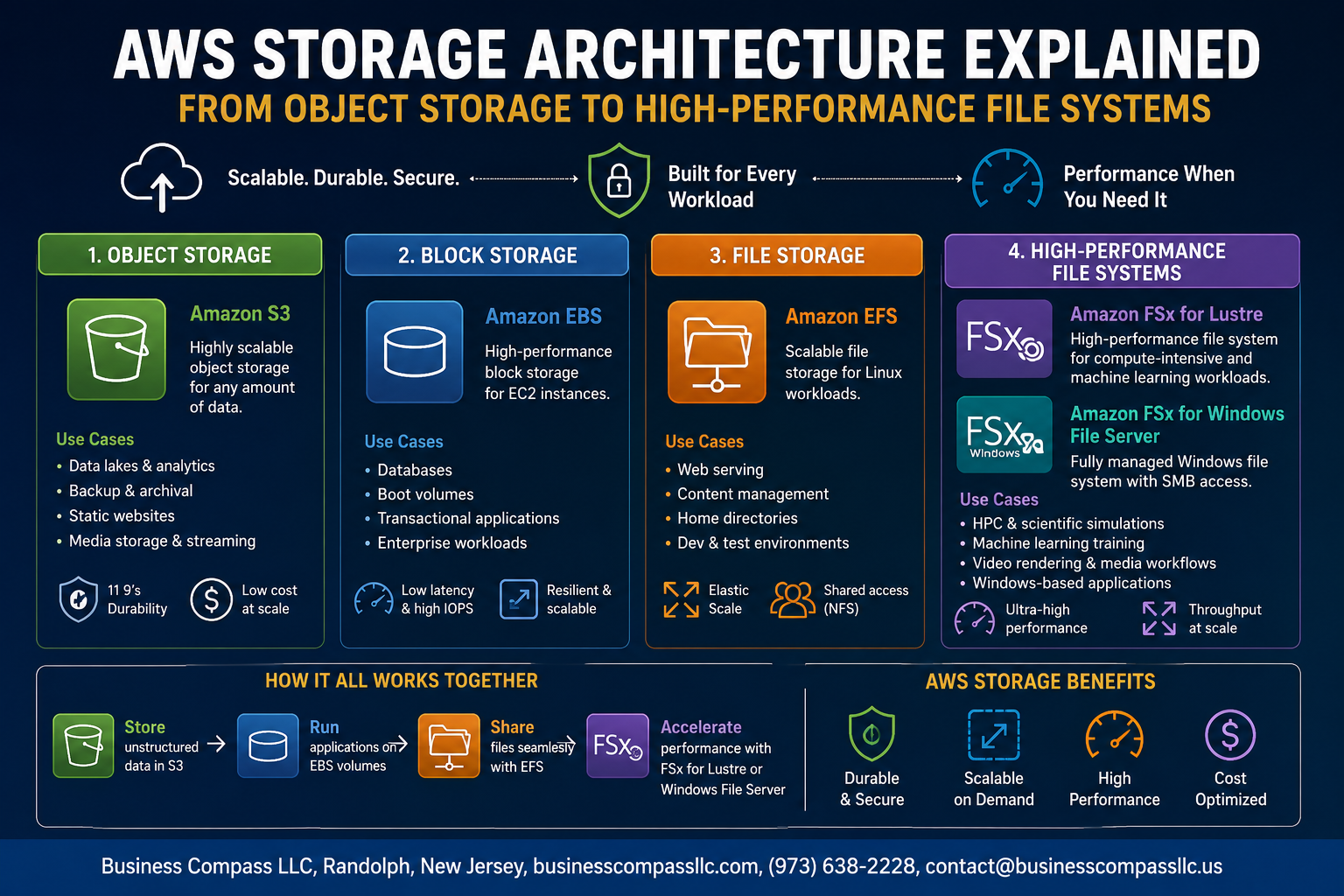
- Object storage (Amazon S3): Stores data as objects with metadata and a unique key. Perfect for images, backups, videos, and any unstructured data you need to access at scale. No hierarchy, just buckets and objects.
- Block storage (Amazon EBS): Breaks data into fixed-size blocks, like a virtual hard drive attached to an EC2 instance. Best for databases, boot volumes, and workloads that need low-latency, high-IOPS performance.
- File storage (Amazon EFS, Amazon FSx): Organizes data in a traditional folder/file hierarchy. Multiple servers can read and write simultaneously, making it great for shared workloads, content management, and development environments.
How AWS Storage Services Work Together in Modern Architectures
Real-world AWS storage solutions rarely rely on just one service. A typical web application might run its database on Amazon EBS block storage for speed, serve static assets from Amazon S3 object storage for scalability, and share configuration files across multiple EC2 instances using Amazon EFS shared file storage. High-performance workloads like machine learning or video rendering might pull in Amazon FSx high-performance file systems for the raw throughput they need. These services are designed to complement each other, so thinking about them as a team rather than individual choices leads to a much smarter, cost-effective AWS storage design overall.
Mastering Amazon S3 for Scalable Object Storage

Core S3 Concepts Every Developer Needs to Know
Amazon S3 (Simple Storage Service) is the backbone of scalable cloud storage on AWS. Everything in S3 revolves around a few key building blocks:
- Buckets — These are the top-level containers where your data lives. Each bucket has a globally unique name and is tied to a specific AWS region.
- Objects — Every file you store is an object. An object includes the data itself, a key (the file name/path), and metadata.
- Keys — Think of these as the full “path” to your file within a bucket, like
images/profile/user123.jpg. - Regions — You pick where your bucket lives geographically, which affects latency, compliance, and data transfer costs.
S3 also offers versioning, which keeps multiple versions of an object so you can recover from accidental deletions or overwrites. Pair that with lifecycle rules and you have a powerful way to automate data management without touching a single file manually.
Storage Classes That Optimize Cost Without Sacrificing Accessibility
One of the biggest advantages of Amazon S3 object storage is the ability to match your storage class to your actual access patterns — so you’re not paying for premium speed on data nobody’s touched in six months.
Here’s a quick breakdown of the main S3 storage classes:
| Storage Class | Best For | Retrieval Time |
|---|---|---|
| S3 Standard | Frequently accessed data | Milliseconds |
| S3 Intelligent-Tiering | Unpredictable access patterns | Milliseconds |
| S3 Standard-IA | Infrequent access, but needs fast retrieval | Milliseconds |
| S3 One Zone-IA | Non-critical, infrequently accessed data | Milliseconds |
| S3 Glacier Instant Retrieval | Archive data accessed occasionally | Milliseconds |
| S3 Glacier Flexible Retrieval | Long-term archiving | Minutes to hours |
| S3 Glacier Deep Archive | Rarely accessed compliance data | Up to 12 hours |
S3 Intelligent-Tiering is a standout pick when you genuinely don’t know how often data will be accessed. AWS automatically moves objects between access tiers based on usage patterns, charging a small monitoring fee but potentially saving a lot on storage costs over time.
A solid cost-effective AWS storage design always starts with asking: how often will this data actually be read?
Securing Your S3 Data With Bucket Policies and Encryption
Security in S3 isn’t optional — it’s the first thing you should lock down. AWS gives you several layers of control:
Access Control Options:
- Bucket Policies — JSON-based policies attached directly to the bucket. You can allow or deny access based on IP address, IAM principals, VPCs, and more.
- IAM Policies — Control which users or roles can perform specific S3 actions.
- ACLs (Access Control Lists) — Older method, largely replaced by bucket policies. AWS now recommends disabling ACLs for most use cases.
- Block Public Access Settings — A safety net that prevents accidental public exposure of your bucket, even if a policy tries to make it public.
Encryption Options:
- SSE-S3 — AWS manages the keys for you. Simple and low-overhead.
- SSE-KMS — You get more control and audit visibility via AWS Key Management Service.
- SSE-C — You provide and manage your own encryption keys.
- Client-Side Encryption — Data is encrypted before it even leaves your application.
For most teams, SSE-KMS hits the sweet spot between control and convenience, especially when compliance requirements call for detailed key usage logs in AWS CloudTrail.
Boosting Performance With S3 Transfer Acceleration and Multipart Uploads
When you’re moving large amounts of data into or out of S3, default upload speeds can become a real bottleneck. AWS tackles this with two powerful tools:
S3 Transfer Acceleration:
- Routes your uploads through AWS CloudFront’s globally distributed edge locations.
- Data travels over AWS’s optimized internal network instead of the public internet for the long haul.
- Works especially well when users are uploading from geographically distant locations.
- You can test whether Transfer Acceleration will actually help your use case using the S3 Transfer Acceleration Speed Comparison tool provided by AWS.
Multipart Uploads:
- Splits large files into smaller parts and uploads them in parallel.
- Recommended for any file over 100 MB and required for files over 5 GB.
- If one part fails, only that part needs to be re-uploaded — not the whole file.
- Works well in combination with Transfer Acceleration for maximum throughput.
A practical tip: always set a lifecycle policy to clean up incomplete multipart uploads. Partial uploads that never finish still consume storage and rack up costs silently if left unmanaged.
Leveraging Amazon EBS for Reliable Block Storage

Choosing the Right EBS Volume Type for Your Workload
Picking the wrong EBS volume type can quietly hurt your application’s performance and inflate your AWS bill. Amazon EBS block storage offers several volume types, each built for different needs:
- gp3 (General Purpose SSD): The go-to choice for most workloads — boot volumes, dev/test environments, and medium-traffic databases. You get 3,000 IOPS and 125 MB/s baseline throughput, and you can scale both independently without paying for extra storage.
- io2 Block Express: Built for mission-critical databases like Oracle, SAP HANA, or SQL Server that demand consistent, low-latency performance and up to 256,000 IOPS.
- st1 (Throughput Optimized HDD): A solid pick for big data workloads, log processing, and data warehouses where sequential reads dominate.
- sc1 (Cold HDD): The cheapest EBS option, designed for infrequently accessed data where cost matters more than speed.
How EBS Snapshots Protect Your Data and Enable Fast Recovery
EBS snapshots are incremental backups stored in Amazon S3 — only changed blocks get saved after the first full snapshot, which keeps storage costs low. A few things worth knowing:
- Snapshots can be automated through Amazon Data Lifecycle Manager (DLM), removing the risk of human error in backup schedules.
- You can copy snapshots across AWS regions for disaster recovery purposes.
- Fast Snapshot Restore (FSR) eliminates the volume initialization delay, letting restored volumes deliver full performance immediately — great for time-sensitive recovery scenarios.
- Snapshots also make it simple to clone volumes for testing or migration without touching production data.
Maximizing IOPS and Throughput for Demanding Applications
Getting peak performance from Amazon EBS block storage comes down to a few practical factors:
- Match volume type to workload: io2 Block Express for random, high-frequency I/O; st1 for heavy sequential throughput.
- Use EBS-optimized instances: Most modern EC2 instance types are EBS-optimized by default, dedicating network bandwidth exclusively to storage traffic.
- RAID 0 striping: Combining multiple EBS volumes in a RAID 0 configuration multiplies both IOPS and throughput — useful when a single volume hits its ceiling.
- Monitor with CloudWatch: Track
VolumeReadOps,VolumeWriteOps, andBurstBalancemetrics to catch bottlenecks before they affect users. - Pre-warm volumes restored from snapshots: Unless FSR is enabled, newly restored volumes need initialization I/O to reach full performance.
Simplifying Shared File Storage With Amazon EFS

How EFS Enables Seamless Multi-Instance File Sharing
Amazon EFS shared file storage works like a shared drive that multiple EC2 instances can plug into at the same time — no copying files around, no complicated sync jobs. You mount it once, and every instance in your cluster reads and writes to the same file system simultaneously. It runs on NFS protocol and scales storage automatically as your data grows, so you never have to pre-provision capacity upfront.
- Supports thousands of concurrent connections across multiple Availability Zones
- Automatically replicates data across AZs for built-in durability
- Works with Linux-based workloads right out of the box
- Integrates natively with ECS, EKS, and Lambda for containerized environments
Performance Modes That Scale With Your Application Needs
EFS gives you two performance modes to match what your workload actually needs:
- General Purpose — the default choice for most apps, offering low latency and solid throughput for web servers, CMS platforms, and development environments
- Max I/O — built for massively parallel workloads like big data processing or media rendering, where hundreds of instances hammer the file system at once
On top of that, you pick a throughput mode:
- Bursting Throughput — throughput scales with storage size, great for spiky workloads
- Provisioned Throughput — you set a fixed throughput level regardless of storage size, ideal when your app demands consistent performance
Cost Management Strategies Using EFS Lifecycle Policies
EFS lifecycle policies move files you haven’t touched recently into cheaper storage classes automatically — similar to how S3 Intelligent-Tiering works, but for your file system.
- EFS Standard — for frequently accessed files that need fast retrieval
- EFS Infrequent Access (IA) — costs up to 92% less than Standard, perfect for files sitting idle
- EFS Archive — the cheapest tier, designed for data you rarely touch but need to keep
Set a lifecycle rule like “move files not accessed in 30 days to IA,” and EFS handles the rest without any manual effort. This approach makes cost-effective AWS storage design practical without sacrificing accessibility.
Real-World Use Cases Where EFS Outperforms Other Storage Options
EFS shines brightest in scenarios where multiple servers need to share the same files at the same time — something EBS simply can’t do since it attaches to one instance at a time.
- Content management systems like WordPress running across an auto-scaling group where all instances need access to the same media uploads
- Machine learning training pipelines where multiple training nodes read from a shared dataset simultaneously
- DevOps and CI/CD environments where build servers need a shared workspace
- Home directories for enterprise users accessing files across different sessions and instances
- Genomics and research workflows processing massive datasets with parallel compute nodes
When your AWS storage architecture calls for shared, elastic, fully managed file storage without the headache of managing a NAS or file server, EFS is the go-to option.
Achieving Peak Performance With Amazon FSx File Systems

When to Choose FSx for Windows File Server Over EFS
If your workloads run on Windows and need native SMB protocol support, Active Directory integration, and NTFS permissions, FSx for Windows File Server is the right call. EFS works great for Linux-based workloads, but it simply doesn’t speak Windows natively the way FSx does.
Key reasons to pick FSx for Windows File Server:
- Native SMB protocol support
- Seamless Active Directory authentication
- Full NTFS file system compatibility
- Support for Windows-specific features like shadow copies and DFS namespaces
- Ideal for .NET applications, SharePoint, and Windows-based home directories
Unlocking High-Speed Workloads With FSx for Lustre
FSx for Lustre is built for workloads that demand serious speed — think machine learning training, high-performance computing (HPC), financial simulations, and media rendering. It can deliver hundreds of gigabytes per second of throughput with sub-millisecond latencies.
Where FSx for Lustre shines:
- Machine learning and AI model training
- Genomics and scientific research processing
- Video processing pipelines
- Tight integration with Amazon S3, so you can pull data directly into your high-performance file system without complex data movement workflows
FSx for NetApp ONTAP and OpenZFS for Enterprise-Grade Needs
For enterprise teams already running NetApp or ZFS on-premises, FSx for NetApp ONTAP and FSx for OpenZFS make the cloud migration path much smoother. ONTAP brings multi-protocol support (NFS, SMB, iSCSI), storage efficiency features like deduplication and compression, and SnapMirror replication. OpenZFS delivers strong data integrity, fast snapshots, and cloning capabilities that teams in data-heavy industries rely on daily.
Standout features:
- Multi-protocol access with ONTAP (great for mixed environments)
- Instant snapshots and clones with OpenZFS
- Built-in data deduplication and compression
- Enterprise replication and disaster recovery capabilities
Designing a Cost-Effective and Resilient AWS Storage Architecture

Combining Storage Services to Build a Layered Architecture
A solid AWS storage architecture rarely relies on a single service. Instead, it stacks multiple services together based on what each workload actually needs:
- Amazon S3 handles static assets, backups, and data lakes where you need massive scale at low cost
- Amazon EBS sits close to EC2 instances for low-latency block storage powering databases and boot volumes
- Amazon EFS connects multiple compute instances to the same shared file system without any manual syncing
- Amazon FSx steps in when you need Windows-native file shares or high-throughput workloads like HPC and ML training
Using AWS Storage Gateway to Bridge On-Premises and Cloud Storage
AWS Storage Gateway is the connector between your existing on-premises infrastructure and cloud storage without forcing a rip-and-replace migration. It comes in three flavors:
- S3 File Gateway — presents S3 buckets as NFS or SMB shares your on-prem apps can read/write natively
- Volume Gateway — backs local block storage volumes to S3 with snapshots stored as EBS-compatible images
- Tape Gateway — replaces physical tape libraries with virtual tapes stored in S3 or S3 Glacier
This hybrid approach keeps latency low for local workloads while offloading long-term retention and disaster recovery to cloud storage.
Automating Data Tiering With AWS Lifecycle Policies
Manual data management at scale is a losing game. AWS Lifecycle Policies let you define rules that automatically move objects between S3 storage classes based on age or access patterns:
- Move objects to S3 Standard-IA after 30 days of inactivity
- Drop them to S3 Glacier Instant Retrieval after 90 days
- Archive to S3 Glacier Deep Archive after 180 days for the cheapest long-term storage available
For EBS, scheduling automated snapshots through Amazon Data Lifecycle Manager protects your block volumes without manual intervention. Pair this with S3 Intelligent-Tiering for unpredictable access patterns, where AWS automatically shifts objects between tiers based on real usage — no rules needed.
Monitoring Storage Performance and Costs With AWS Native Tools
Keeping storage costs under control means watching what’s actually happening across your environment. These tools give you full visibility:
- AWS Cost Explorer breaks down storage spend by service, region, and resource so you can spot unexpected charges fast
- Amazon CloudWatch tracks EBS volume IOPS, EFS throughput, and S3 request rates in real time — set alarms before problems become outages
- AWS Trusted Advisor surfaces idle EBS volumes, unattached snapshots, and S3 buckets with open permissions that are quietly burning budget
- S3 Storage Lens gives organization-wide visibility into bucket usage, data growth trends, and cost optimization opportunities across every account
Combining these tools into a regular review cadence — even monthly — catches cost drift early and keeps your scalable cloud storage AWS architecture running efficiently without surprise bills.

AWS offers a powerful lineup of storage solutions, each built for a specific purpose. S3 handles scalable object storage beautifully, EBS keeps your block storage reliable and consistent, EFS makes shared file storage a breeze, and FSx steps in when you need high-performance file systems. When you understand what each service does best, putting together a storage architecture that actually works for your needs becomes a lot less overwhelming.
The real win comes from combining these services thoughtfully — balancing performance, cost, and resilience based on what your workload actually demands. Start by mapping out your storage needs, pick the right tools for the job, and don’t be afraid to mix and match. A well-designed AWS storage architecture isn’t just about storing data — it’s about making sure that data works hard for your business without draining your budget.