

AWS Identity and Access Management: The Ultimate Beginner’s Guide to Cloud Security
If you’ve just started working with AWS, you’ve probably heard that security is a big deal — and it is. But knowing where to start can feel overwhelming. That’s where AWS Identity and Access Management (IAM) comes in.
AWS IAM is the system that controls who can access your cloud resources and what they can do with them. Get it right, and your AWS environment stays locked down. Get it wrong, and you’re leaving the door wide open for serious problems.
This AWS IAM tutorial is built for developers, cloud beginners, and IT professionals who are stepping into AWS for the first time and want to build a solid security foundation from day one.
Here’s what you’ll walk away knowing:
- What IAM actually is and why it’s the backbone of cloud security fundamentals
- How IAM policies, roles, and permissions work so you can control access without guessing
- How to set up an IAM user the right way and avoid the most common beginner mistakes that can put your entire AWS account at risk
No jargon overload. No fluff. Just a straightforward AWS security beginner guide that gets you confident, fast. Let’s get into it.
What AWS IAM Is and Why It Matters for Your Cloud Security

Understanding the Core Purpose of IAM in AWS
AWS Identity and Access Management (IAM) controls who can access your cloud resources and what they can do. Think of it as a security guard for your AWS account — checking IDs and permissions before anyone gets through the door, keeping unauthorized users completely out.
Essential IAM Components Every Beginner Must Know
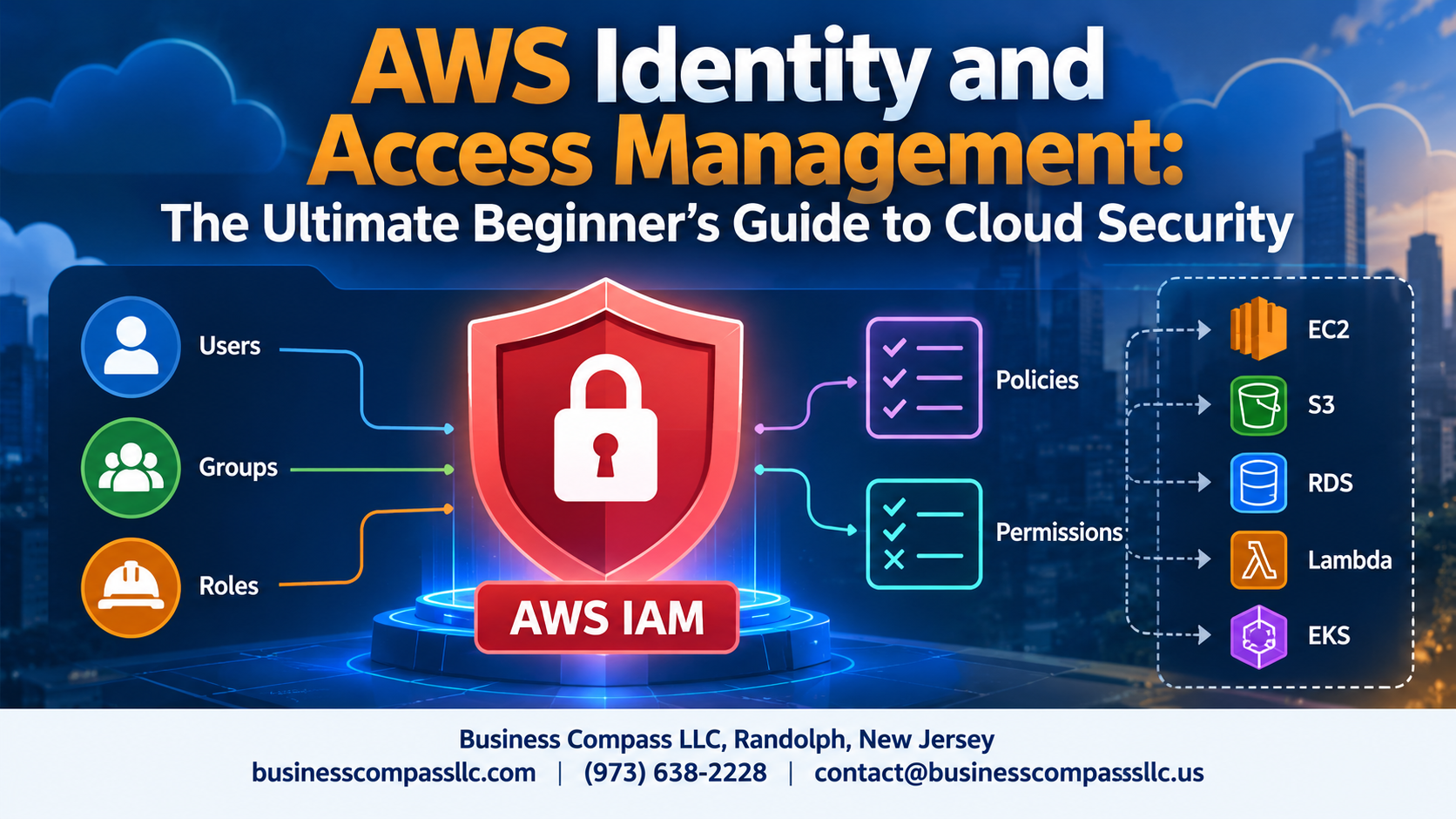
Users, Groups, Roles, and Policies — The Four Pillars of AWS IAM
AWS IAM revolves around four core building blocks:
- Users – Individual accounts for people or apps needing AWS access
- Groups – Collections of users sharing the same permissions
- Roles – Temporary access without hardcoded credentials
- Policies – JSON rules defining exactly what’s allowed or denied
How to Set Up Your First IAM User the Right Way

Creating a Secure Root Account and Locking It Down
Enable MFA on your root account immediately and never use it for daily tasks.
Step-by-Step Guide to Creating Your First IAM User
- Go to IAM Console → Users → Create User
- Enable console access and assign a strong password
Assigning the Right Permissions From Day One
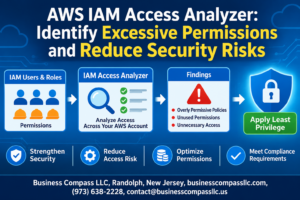
Start with least-privilege policies.
Mastering IAM Policies to Control Access Effectively

A. Managed vs. Inline Policies
- Managed: Reusable, standalone policies attachable to multiple users
- Inline: Embedded directly into one entity
B. Basic Policy Structure
JSON document with Effect, Action, Resource
C. Least Privilege
Grant only necessary permissions.
D. Policy Simulator
Test policies before deploying.
Strengthening Security With IAM Best Practices

Enabling Multi-Factor Authentication for All Users
Always turn on MFA — it adds a critical second verification layer beyond passwords.
Rotating Access Keys Regularly
Swap access keys every 90 days to block unauthorized access from leaked credentials.
Monitoring IAM Activity With AWS CloudTrail
CloudTrail logs every API call, helping you spot suspicious activity fast.
Common IAM Mistakes That Put Your Cloud at Risk

A. Overly Permissive Policies
Granting AdministratorAccess to everyone is a disaster waiting to happen.
B. Shared Credentials
One account, multiple users — nobody knows who did what.
C. Unused IAM Entities
Old accounts and keys quietly become attack vectors.
D. No MFA on Privileged Accounts
Skipping MFA on admin accounts is leaving your front door wide open.
Real-World IAM Use Cases to Accelerate Your Learning

Securing a Multi-Team Development Environment With IAM Roles
Create separate IAM roles per team — dev, QA, ops — each with scoped permissions. Developers get read/write on specific S3 buckets; ops manage EC2. No shared credentials needed.
Granting Third-Party Access Safely Using Cross-Account Roles
Skip handing out access keys. Create a cross-account IAM role, define a trust policy allowing the vendor’s AWS account, and they assume the role temporarily — clean and auditable.
Automating Permissions for EC2 and Lambda With IAM Roles
Attach IAM roles directly to EC2 instances or Lambda functions. Your code automatically gets temporary credentials, pulling from S3 or writing to DynamoDB without hardcoding sensitive keys anywhere.

Getting a handle on AWS IAM might feel overwhelming at first, but once you break it down, it’s really just about making sure the right people have access to the right things — nothing more, nothing less. From understanding the core components like users, groups, roles, and policies, to setting up your first IAM user and writing policies that actually make sense, every step you take brings you closer to running a cloud environment that’s both secure and well-organized. Avoiding common mistakes and learning from real-world examples makes the whole journey a lot smoother too.
The best thing you can do right now is open up your AWS console and start experimenting. Apply the least privilege principle from day one, enable multi-factor authentication, and review your permissions regularly. Small, consistent habits like these are what separate a secure AWS setup from one that’s one misconfiguration away from a serious problem. Start simple, stay curious, and build from there.