

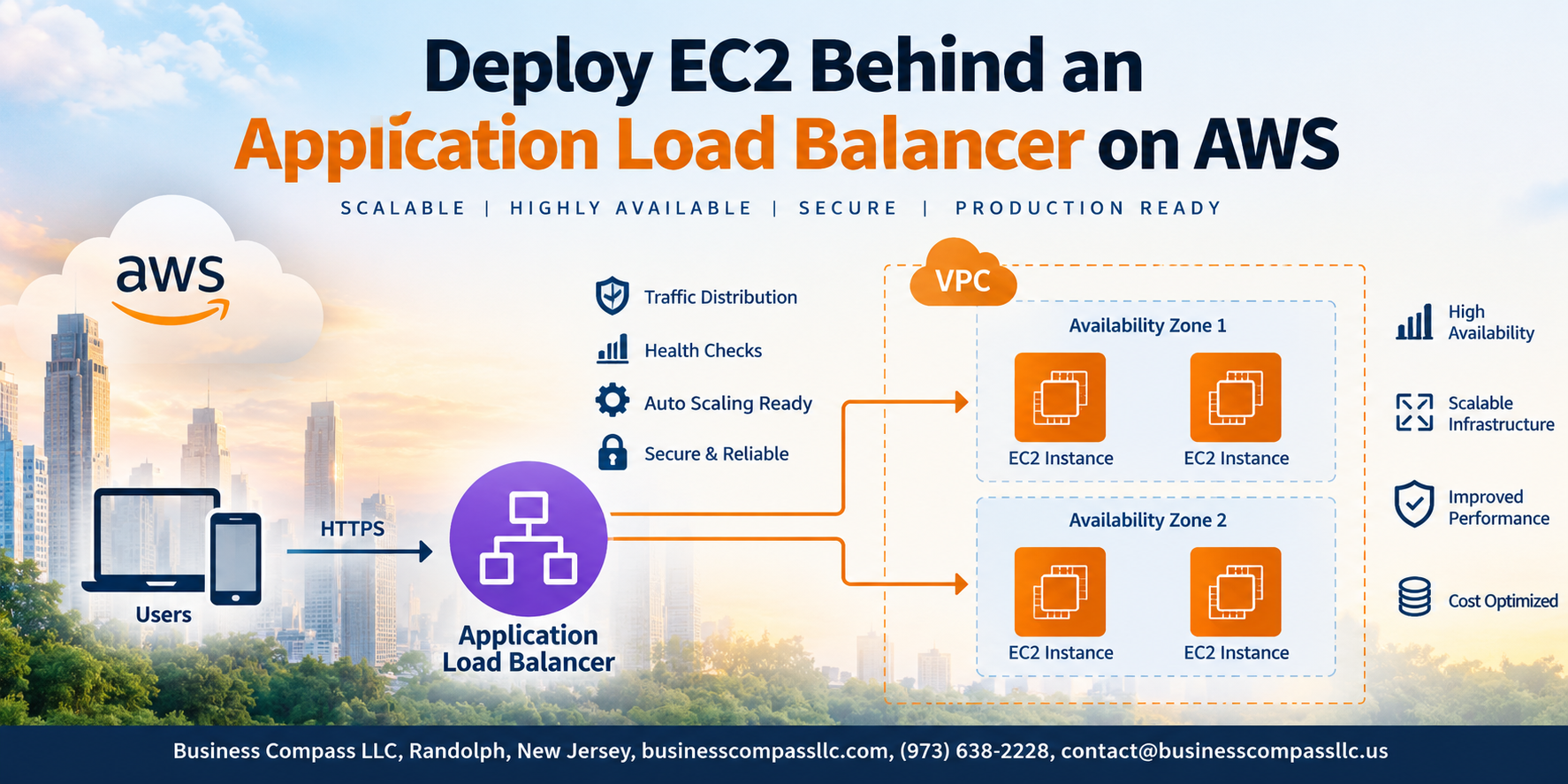
Deploy EC2 Behind an Application Load Balancer on AWS
If your app goes down every time traffic spikes, you already know the problem. Putting EC2 instances behind an AWS Application Load Balancer fixes that by spreading incoming requests across multiple servers automatically — so no single instance carries the full load.
This guide is for developers, cloud engineers, and AWS beginners who want a working, production-ready setup without the guesswork.
Here’s what we’ll walk through together:
- The core building blocks — EC2 instances, target groups, listeners, and how they all connect inside an AWS ALB EC2 architecture
- Step-by-step configuration — launching your EC2 instances, setting up the Application Load Balancer, and registering instances so traffic actually reaches them
- Security and optimization — locking down your setup with the right security groups, health checks, and AWS ALB security best practices so your app stays stable under real-world conditions
By the end, you’ll have a fully configured, high availability EC2 AWS setup running behind an Application Load Balancer — and you’ll understand exactly why each piece is there.
Let’s get into it.
Understanding the Core Components Before You Build
What EC2 Instances Do and Why They Need Load Balancing
EC2 instances run your application, but a single server creates a bottleneck. When traffic spikes, it crashes.
How Application Load Balancers Distribute Traffic Efficiently
An AWS Application Load Balancer setup routes requests across multiple EC2 instances using round-robin or least-connections, keeping response times fast.
Key Differences Between ALB, NLB, and Classic Load Balancers
- ALB — Layer 7, HTTP/HTTPS routing
- NLB — Layer 4, ultra-low latency
- Classic — Legacy, avoid for new deployments
How This Architecture Improves Availability and Scalability
Deploy EC2 behind ALB to eliminate single points of failure, enabling auto-scaling and high availability EC2 AWS architectures effortlessly.
Setting Up Your AWS Environment the Right Way

A. Choosing the Right Region and Availability Zones for Redundancy
Pick a region close to your users, then spread across at least two Availability Zones to keep things running if one zone goes down.
B. Configuring a VPC with Public and Private Subnets
- Public subnets: ALB lives here
- Private subnets: EC2 instances stay protected
C. Setting Up Internet Gateway and Route Tables
Attach an Internet Gateway to your VPC, then route public subnet traffic through it.
Launching EC2 Instances to Serve Your Application

Selecting the Right Instance Type and AMI
Pick t3.micro for light workloads or t3.medium for moderate traffic. Use Amazon Linux 2023 AMI for best compatibility.
Configuring Security Groups
Allow inbound HTTP/HTTPS only from the ALB security group, blocking direct public access to EC2 instances.
Automate Setup with User Data Scripts
#!/bin/bash
yum install -y httpd
systemctl start httpd
Creating and Configuring the Application Load Balancer

A. Defining Listeners and Rules
- HTTP/HTTPS listeners forward traffic based on path or host rules.
B. Target Groups
- Group EC2 instances by port and protocol for the EC2 instance target group.
C. Health Checks
- Set intervals, thresholds, and paths to route traffic only to healthy instances.
D. Cross-Zone Load Balancing
- Spreads requests evenly across all availability zones.
E. SSL Certificates
- Attach via ACM for HTTPS termination at the AWS Application Load Balancer setup level.
Registering EC2 Instances with the Load Balancer

Adding Instances to Target Groups for Traffic Routing
Register your EC2 instances by selecting them within your target group and clicking Include as pending.
Verifying Health Check Status to Confirm Successful Registration
Watch for the Healthy status in the target group console — this confirms your EC2 load balancing AWS setup works correctly.
Testing Load Distribution Across All Registered Instances
Refresh your ALB DNS endpoint repeatedly and check server response headers to confirm traffic rotates across instances.
Optimizing and Securing Your Load Balanced Architecture

Enabling Access Logs, Auto Scaling, WAF, and Cost Optimization
To get the most from your AWS ALB EC2 setup, enable ALB access logs in S3 for traffic visibility, attach an Auto Scaling group so instances grow with demand, layer AWS WAF onto your ALB to block common threats, and cut costs by mixing Reserved and Spot instances based on your workload patterns.

Getting your EC2 instances running behind an Application Load Balancer is one of those setups that genuinely transforms how your application handles traffic. From laying the groundwork in your AWS environment to launching EC2 instances, configuring the ALB, and locking everything down with proper security settings, each step plays a real role in building something that’s reliable and scalable.
The good news is that once this architecture is in place, your application is better equipped to handle traffic spikes, avoid single points of failure, and deliver a smoother experience to your users. If you haven’t already, go ahead and start with a small setup, test it thoroughly, and then scale from there. AWS gives you all the tools you need — it’s just a matter of putting them together the right way.