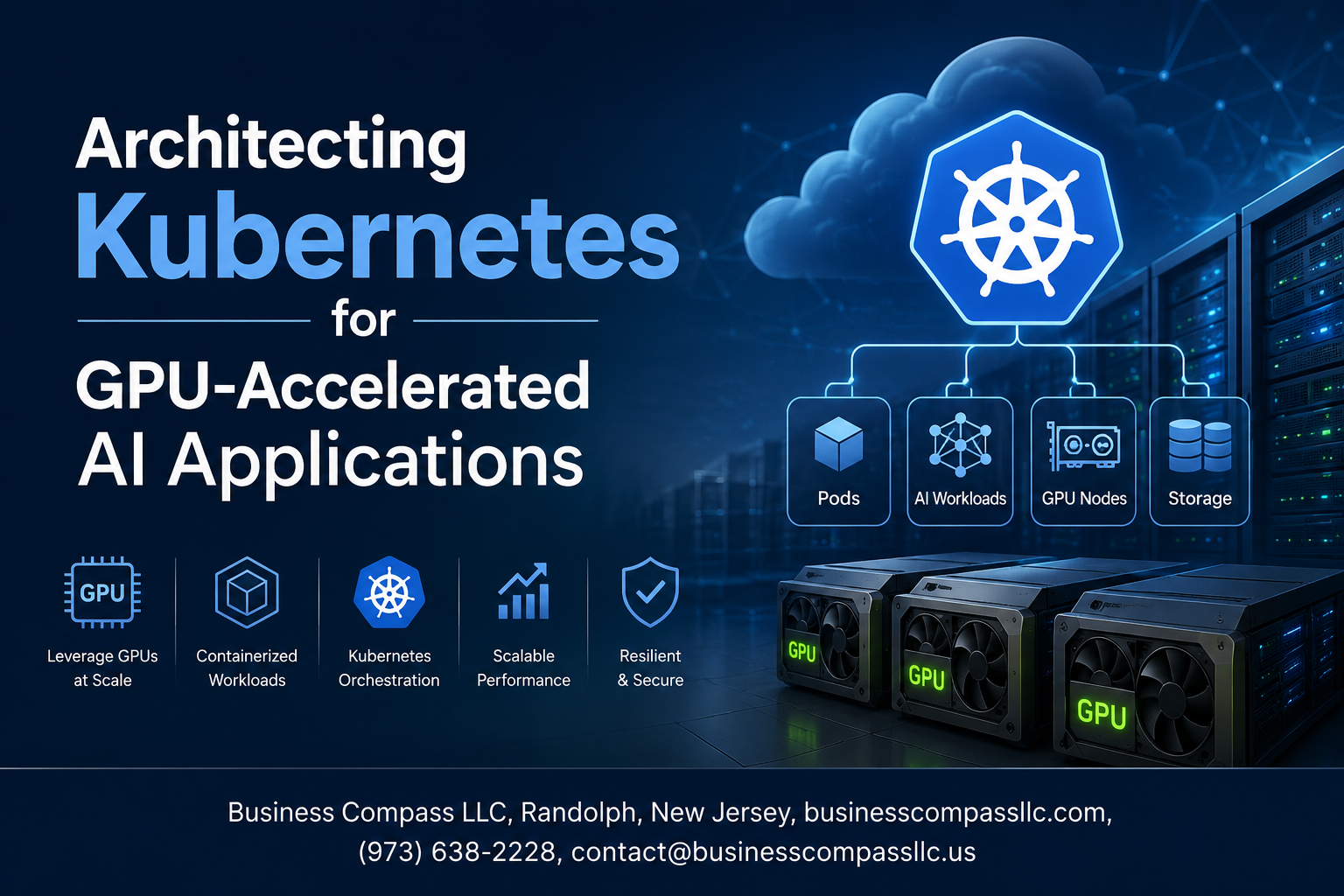
Architecting Kubernetes for GPU-Accelerated AI Applications
Running AI workloads at scale is hard. Running them efficiently on Kubernetes without wasting expensive GPU resources is even harder. If you’re a platform engineer, ML engineer, or DevOps architect trying to get serious about GPU cluster management for AI, this guide is built for you.
We’ll walk through the practical decisions that actually matter when setting up Kubernetes for machine learning — starting with how to structure GPU node pools so you’re not burning money on idle hardware. From there, we’ll get into NVIDIA GPU Operator setup, which takes a lot of the pain out of driver management and device plugins. We’ll also cover GPU resource scheduling in Kubernetes, including how to share GPUs across teams without letting one workload wreck everyone else’s jobs.
No fluff, no theory for theory’s sake — just the architecture decisions you need to make deep learning Kubernetes infrastructure actually work in production.
Understanding the GPU-Accelerated AI Workload Landscape

Key Differences Between CPU and GPU Workloads in Kubernetes
CPU workloads in Kubernetes handle tasks sequentially across a handful of cores, making them great for web servers, APIs, and general-purpose computing. GPU workloads flip that model entirely — they thrive on massive parallelism, running thousands of threads simultaneously across hundreds of cores, which is exactly what deep learning training and inference demand.
- CPU pods scale horizontally with relatively predictable resource requests
- GPU pods require device plugin support, node affinity rules, and careful scheduling to avoid fragmentation
- GPU workloads often have burst-heavy resource patterns, unlike steady-state CPU consumption
Common AI Frameworks That Benefit From GPU Acceleration
Most production AI pipelines run on frameworks that are purpose-built to exploit GPU parallelism through CUDA and cuDNN under the hood:
- PyTorch — dominant for research and increasingly for production inference
- TensorFlow — widely deployed for large-scale model training pipelines
- JAX — gaining traction for high-performance numerical computing
- RAPIDS — accelerates data preprocessing directly on GPU, cutting pipeline bottlenecks before training even starts
- Triton Inference Server — NVIDIA’s serving layer optimized for multi-model GPU deployments
Kubernetes for machine learning environments needs to support these frameworks without forcing teams to manage low-level driver compatibility manually.
Identifying Performance Bottlenecks Before You Architect
Before placing a single GPU node in your cluster, map where your actual slowdowns live:
- Data ingestion latency — GPUs sit idle if storage can’t feed them fast enough
- CPU preprocessing bottlenecks — transformations happening on CPU can starve GPU utilization
- Network bandwidth constraints — distributed training across nodes depends heavily on high-throughput interconnects like NVLink or InfiniBand
- Memory ceiling mismatches — models that exceed GPU VRAM spill to host memory, killing performance
Profiling tools like NVIDIA Nsight and PyTorch Profiler reveal these gaps before bad architectural decisions get baked into production.
Setting Up GPU Node Pools for Maximum Efficiency

A. Choosing the Right GPU Hardware for Your AI Workloads
Picking the right GPU for your Kubernetes cluster isn’t a one-size-fits-all decision. Different AI workloads have wildly different needs:
- Training large models: Go with high-memory GPUs like NVIDIA A100 (80GB) or H100 — these handle massive batch sizes and distributed training without constantly running out of VRAM.
- Inference serving: Smaller, cost-effective options like the T4 or A10G work great here, especially when you need to run many concurrent requests at lower latency.
- Mixed workloads: Consider a combination of GPU tiers within your GPU node pools in Kubernetes so teams can self-select the right hardware based on job type.
Key specs to evaluate before provisioning:
- VRAM capacity — model size dictates minimum memory requirements
- NVLink / NVSwitch support — critical for multi-GPU tensor parallelism
- PCIe vs. SXM form factor — SXM typically delivers higher bandwidth for large-scale deep learning Kubernetes architecture
- GPU generation — Ampere and Hopper architectures support FP8/BF16 precision, directly impacting training throughput
B. Configuring Node Labels and Taints to Isolate GPU Resources
Without proper node isolation, CPU-only workloads can accidentally land on expensive GPU nodes and waste your budget fast.
Labeling GPU nodes lets you target them precisely:
labels:
  accelerator: nvidia-tesla-a100
  gpu-memory: 80gb
  workload-type: training
Taints keep non-GPU workloads off these nodes entirely:
kubectl taint nodes <node-name> nvidia.com/gpu=present:NoSchedule
Then in your workload spec, add the matching toleration:
tolerations:
  - key: "nvidia.com/gpu"
    operator: "Equal"
    value: "present"
    effect: "NoSchedule"
Pair taints with nodeAffinity rules in your pod specs to route specific AI workloads — like distributed training jobs — to the right hardware tier. This keeps your GPU cluster management clean, predictable, and cost-accountable across teams.
C. Leveraging Autoscaling to Reduce Infrastructure Costs
Running GPU nodes 24/7 when they’re idle is one of the fastest ways to burn cloud budget. Kubernetes GPU acceleration shines when paired with smart autoscaling strategies.
Cluster Autoscaler is your first line of defense:
- Automatically provisions new GPU nodes when pending pods can’t be scheduled
- Scales down idle nodes after a configurable cool-down window
- Works well with cloud-managed node groups (GKE, EKS, AKS all support GPU node pool autoscaling natively)
KEDA (Kubernetes Event-Driven Autoscaling) takes it further:
- Scales GPU workloads based on queue depth — perfect for batch inference pipelines
- Integrates with message queues like SQS, Kafka, or RabbitMQ
- Lets you spin up GPU pods only when there’s actual work to process
Practical tips to cut costs:
- Set aggressive scale-down thresholds for inference node pools (idle after 10–15 minutes)
- Use spot/preemptible GPU instances for fault-tolerant training jobs — savings of 60–80% are realistic
- Tag node pools by priority so autoscaler knows which pools to shrink first
D. Managing Heterogeneous GPU Node Pools Effectively
Most real-world Kubernetes for machine learning deployments end up with a mix of GPU types — some nodes running A100s for training, others running T4s for inference, maybe some older V100s hanging around from a previous procurement cycle.
The challenge: scheduling the right workload to the right GPU without manual intervention every time.
How to handle it cleanly:
- Create separate node pools per GPU type — don’t mix A100s and T4s in the same pool. It makes autoscaling and cost attribution much cleaner.
- Use extended resources and device plugins — the NVIDIA device plugin exposes
nvidia.com/gpuas a schedulable resource, and you can layer custom labels on top to distinguish GPU models. - Resource quotas per namespace — if different teams own different GPU tiers, namespace-level quotas prevent one team from accidentally monopolizing all A100 capacity.
- Priority classes — assign higher priority to production inference workloads so they preempt lower-priority batch training jobs when GPU capacity is tight.
A sample node selector targeting a specific GPU model:
nodeSelector:
  accelerator: nvidia-tesla-t4
  workload-type: inference
This kind of structured approach to GPU node pools in Kubernetes means your platform scales cleanly as you add new hardware generations without rearchitecting the whole scheduling strategy from scratch.
Installing and Configuring the NVIDIA GPU Operator
Why the GPU Operator Simplifies Driver and Plugin Management
Managing GPU drivers manually across a Kubernetes cluster is a nightmare — different nodes, different driver versions, and constant compatibility headaches. The NVIDIA GPU Operator bundles everything into a single Kubernetes-native package, handling driver installation, the device plugin, container runtime configuration, and monitoring components automatically.
Key components the GPU Operator manages:
- NVIDIA drivers (kernel modules)
- NVIDIA Container Toolkit
- GPU device plugin for Kubernetes
- DCGM exporter for metrics
- MIG manager for multi-instance GPU support
Step-by-Step Deployment on a Production Kubernetes Cluster
Getting the NVIDIA GPU Operator running on a production cluster is straightforward with Helm:
helm repo add nvidia https://helm.ngc.nvidia.com/nvidia
helm repo update

helm install gpu-operator nvidia/gpu-operator \
  --namespace gpu-operator \
  --create-namespace \
  --set driver.enabled=true \
  --set toolkit.enabled=true
Key configuration tips:
- Set
driver.versionto pin a specific driver build - Enable
mig.strategy=mixedif your nodes run A100s with MIG partitioning - Use
nodeSelectorto target dedicated GPU node pools only
Validating GPU Availability Across All Nodes
After deployment, confirm every GPU node is properly recognized:
kubectl get nodes -o json | jq '.items[].status.capacity'
Look for nvidia.com/gpu in the capacity output. You can also run a quick validation pod:
kubectl run gpu-test --image=nvidia/cuda:12.0-base \
  --restart=Never \
  --limits='nvidia.com/gpu=1' \
  -- nvidia-smi
Healthy cluster signs to check:
- All GPU Operator pods show
Runningstatus in thegpu-operatornamespace nvidia.com/gpuresource appears on expected nodes- DCGM exporter pods are scraping metrics cleanly
Optimizing GPU Resource Allocation and Scheduling

Using Resource Requests and Limits to Prevent GPU Contention
Getting GPU resource requests and limits right in Kubernetes is one of those things that separates a well-running cluster from a chaotic one. When pods don’t declare explicit GPU requests, the scheduler has no idea what’s actually needed, and you end up with jobs starving each other out.
- Always set
resources.requests.nvidia.com/gpuandresources.limits.nvidia.com/gputo the same value — Kubernetes treats GPUs as non-overcommittable resources, so asymmetric values cause unexpected behavior - Avoid leaving GPU requests at zero for AI workloads; even lightweight inference jobs need a declared claim to land on the right node
- Use
LimitRangeobjects at the namespace level to enforce minimum GPU requests across teams, preventing accidental zero-GPU deployments that still consume node capacity through CPU pressure
resources:
  requests:
    nvidia.com/gpu: "1"
  limits:
    nvidia.com/gpu: "1"
Enabling GPU Time-Slicing to Maximize Utilization
GPU time-slicing is a game-changer for clusters running many smaller AI workloads that don’t need a full GPU. With the NVIDIA GPU Operator, you can configure time-slicing through a ConfigMap that tells the device plugin how many virtual slices to expose per physical GPU.
- Works well for inference workloads, lightweight fine-tuning jobs, and experimentation environments where researchers just need fast iteration cycles
- Set
replicasin the time-slicing config to define how many pods share one physical GPU — values between 4 and 8 work well for most NLP inference tasks - Keep in mind there’s no memory isolation between time-sliced consumers, so a memory-hungry pod can still crash its neighbors; pair this with proper memory profiling before rolling it out broadly
version: v1
sharing:
  timeSlicing:
    replicas: 4
Implementing MIG Partitioning for Multi-Tenant Workloads
MIG (Multi-Instance GPU) partitioning on A100 and H100 GPUs gives you actual hardware-level isolation between workloads — something time-slicing simply can’t offer. Each MIG instance gets dedicated memory and compute slices, which is exactly what you want in a multi-tenant GPU governance setup where teams need guaranteed performance.
- Choose MIG profiles based on workload size:
1g.5gbfor small inference jobs,3g.20gbfor mid-scale training,7g.40gbfor full-GPU workloads - The NVIDIA GPU Operator handles MIG configuration automatically when you label nodes with
nvidia.com/mig.config - Mixed MIG strategies across a node pool let you serve heterogeneous workloads without wasting capacity — combine profiles to match your actual job mix
kubectl label node <node-name> nvidia.com/mig.config=all-3g.20gb
Prioritizing Critical AI Jobs with Custom Scheduler Profiles
Kubernetes GPU resource scheduling gets much sharper when you pair PriorityClasses with custom scheduler profiles. Production inference endpoints and time-sensitive training runs should never compete on equal footing with experimental notebooks.
- Create at least three
PriorityClasstiers:gpu-critical(1000),gpu-standard(500),gpu-batch(100) - Use
preemptionPolicy: PreemptLowerPriorityon critical classes so production jobs can reclaim GPU nodes from lower-priority batch workloads automatically - Custom scheduler profiles with the
NodeResourcesFitplugin configured forMostAllocatedstrategy help pack GPU workloads tightly, reducing fragmentation across the node pool
apiVersion: scheduling.k8s.io/v1
kind: PriorityClass
metadata:
  name: gpu-critical
value: 1000
preemptionPolicy: PreemptLowerPriority
globalDefault: false
Avoiding Common Scheduling Pitfalls That Waste GPU Capacity
Even well-intentioned cluster configurations bleed GPU capacity in predictable ways. Catching these early saves a lot of money and frustration down the line.
- Forgetting node taints: GPU nodes without taints attract CPU-only workloads that park on the node and block GPU pod scheduling — always taint GPU nodes with
nvidia.com/gpu=present:NoScheduleand add matching tolerations to GPU workloads - Oversized resource requests: Teams requesting 4 GPUs for a job that only needs 1 is surprisingly common; enforce resource quotas per namespace and review actual GPU utilization data from your monitoring stack before approving large requests
- Completed pods holding GPU allocations: Jobs that finish but aren’t cleaned up keep their GPU resources claimed; set
ttlSecondsAfterFinishedon Jobs to auto-delete completed pods within minutes - Missing topology awareness: On multi-GPU nodes, pods that land on GPUs across different NVLink domains see severe bandwidth penalties; use the GPU Operator’s topology-aware scheduling feature or NUMA-aware scheduling policies to keep tightly coupled workloads on the same physical socket
Building a Resilient Storage Architecture for AI Pipelines

Selecting High-Throughput Storage Solutions for Large Datasets
AI pipelines running on Kubernetes for machine learning chew through data at a brutal pace, and your storage layer needs to keep up without becoming a bottleneck. When picking storage backends, focus on:
- NVMe-backed block storage for raw throughput when reading large model checkpoints
- Object storage (like S3-compatible MinIO) for staging massive training datasets cost-effectively
- Parallel file systems like GPFS or Lustre when you need sub-millisecond latency at scale
Match your storage class to the actual access pattern — sequential reads for training batches behave completely differently from random-access inference workloads.
Accelerating Data Loading with Distributed File Systems
Slow data loading stalls GPUs, which kills the economics of your GPU cluster management for AI. Distributed file systems solve this by spreading I/O across multiple nodes simultaneously. Popular options include:
- Rook-Ceph — runs natively inside Kubernetes, delivers block, file, and object interfaces
- JuiceFS — cloud-native, metadata-optimized, integrates cleanly with Kubernetes CSI
- WekaFS — purpose-built for AI workloads with aggressive parallelism
Pair these with data prefetching strategies inside your training code so GPUs stay fed while the next batch loads.
Managing Persistent Volumes for Stateful Training Workloads
Deep learning Kubernetes architecture demands careful persistent volume (PV) management because training jobs crash, nodes fail, and experiments resume. Key practices:
- Use StorageClasses with
WaitForFirstConsumerbinding mode to keep volumes topology-aware with GPU nodes - Set ReadWriteMany (RWX) access modes for shared dataset volumes across multiple pods
- Apply PVC retention policies carefully — accidentally deleting a 72-hour training checkpoint hurts
- Snapshot volumes regularly using the VolumeSnapshot API so you can roll back without restarting from epoch zero
Securing and Governing GPU Resources Across Teams

A. Enforcing Namespace-Level GPU Quotas with Resource Quotas
Multi-tenant GPU governance in Kubernetes starts with locking down how much compute each team can actually grab. Use ResourceQuota objects scoped to namespaces to cap GPU requests and limits:
apiVersion: v1
kind: ResourceQuota
metadata:
  name: gpu-quota
  namespace: team-ml
spec:
  hard:
    requests.nvidia.com/gpu: "4"
    limits.nvidia.com/gpu: "4"
- Pin both
requestsandlimitsto the same value so teams can’t sneak in uncapped usage - Create separate namespaces per team or project to keep quota boundaries clean
- Use
LimitRangealongside quotas to set per-pod GPU floors and ceilings
B. Implementing RBAC Policies to Control Workload Access
RBAC is your gatekeeper for who can schedule GPU workloads across the cluster. Tight role definitions stop accidental — or intentional — resource grabs.
- Create
Rolesthat allowcreateanddeleteonpodsonly within a team’s namespace - Bind service accounts to roles rather than giving permissions directly to users
- Restrict access to
nodeswith GPU labels so only platform admins can modify node taints and tolerations - Audit
ClusterRoleBindingsregularly — inherited broad permissions are a common blind spot in AI workload orchestration on Kubernetes
apiVersion: rbac.authorization.k8s.io/v1
kind: Role
metadata:
  namespace: team-ml
  name: gpu-workload-runner
rules:
- apiGroups: [""]
  resources: ["pods"]
  verbs: ["create", "get", "list", "delete"]
C. Auditing GPU Usage to Ensure Fair Resource Distribution
Knowing who is using what GPU capacity — and when — keeps multi-tenant GPU governance from becoming a free-for-all.
- Enable Kubernetes audit logging and filter events tied to GPU pod scheduling
- Use DCGM exporter metrics combined with namespace labels in Prometheus to break down GPU utilization by team
- Set up Grafana dashboards that surface per-namespace GPU hours consumed versus quota allocated
- Schedule weekly automated reports pulling from your monitoring stack so team leads can self-serve their own usage data
- Flag namespaces consistently running at zero utilization despite holding quota — reclaim that capacity for active workloads
D. Protecting Sensitive AI Model Data with Encryption and Network Policies
AI pipelines carry real risk — training data, model weights, and inference endpoints are all attractive targets. Defense needs to be layered.
- Apply
NetworkPolicyobjects to restrict pod-to-pod traffic, allowing only explicitly approved communication paths between data loaders, training jobs, and model servers - Encrypt persistent volumes storing model checkpoints using your cloud provider’s KMS integration or a tool like HashiCorp Vault
- Use Kubernetes Secrets (backed by external secret managers, not plain etcd) to handle API keys and data access credentials
- Enable mutual TLS between services in the AI pipeline using a service mesh like Istio or Linkerd
- Separate GPU node pools by sensitivity tier — keep research workloads on different nodes from production inference serving
apiVersion: networking.k8s.io/v1
kind: NetworkPolicy
metadata:
  name: restrict-gpu-pods
  namespace: team-ml
spec:
  podSelector:
    matchLabels:
      app: training-job
  policyTypes:
  - Ingress
  - Egress
  ingress:
  - from:
    - podSelector:
        matchLabels:
          role: data-loader
Monitoring GPU Performance and Maintaining Cluster Health

Deploying DCGM Exporter and Prometheus for Real-Time GPU Metrics
Getting solid GPU visibility in Kubernetes starts with deploying the NVIDIA Data Center GPU Manager (DCGM) Exporter alongside Prometheus. DCGM Exporter runs as a DaemonSet on your GPU nodes, scraping hardware-level metrics like SM utilization, memory bandwidth, temperature, and power draw directly from the GPU driver.
A typical deployment looks like this:
helm repo add gpu-helm-charts https://nvidia.github.io/dcgm-exporter/helm-charts
helm install dcgm-exporter gpu-helm-charts/dcgm-exporter \
  --namespace monitoring \
  --set serviceMonitor.enabled=true
Key metrics DCGM surfaces that you actually care about:
- DCGM_FI_DEV_GPU_UTIL – raw GPU compute utilization percentage
- DCGM_FI_DEV_FB_USED – framebuffer memory currently in use
- DCGM_FI_DEV_POWER_USAGE – live power consumption per GPU
- DCGM_FI_DEV_GPU_TEMP – thermal readings to catch overheating before it hurts jobs
- DCGM_FI_DEV_NVLINK_BANDWIDTH_TOTAL – NVLink throughput for multi-GPU workloads
Once Prometheus scrapes these metrics via the ServiceMonitor, you get a continuous time-series record of every GPU across your cluster — which becomes the foundation for everything else: dashboards, alerts, and capacity decisions.
Building Actionable Grafana Dashboards for AI Workload Visibility
Raw Prometheus metrics only become useful when you can actually read and act on them. A well-structured Grafana setup for GPU monitoring in Kubernetes should separate concerns across three dashboard tiers:
Cluster-Level Dashboard
- Total GPU count vs. allocated GPUs across all node pools
- Aggregate utilization heatmap across GPU node pools
- Namespace-level GPU consumption breakdown (critical for multi-tenant GPU governance in Kubernetes)
Node-Level Dashboard
- Per-node GPU utilization, temperature, and memory pressure
- NVLink and PCIe bandwidth trends
- Node-level power consumption vs. thermal limits
Pod/Job-Level Dashboard
- GPU utilization per training job or inference pod
- Memory fragmentation per pod (helps identify wasteful allocations)
- Job duration correlated with GPU efficiency scores
A practical tip: import NVIDIA’s pre-built Grafana dashboard (ID 12239) as a starting point and extend it with custom panels tied to your namespace labels. This saves hours of panel-building and gives you a solid baseline for AI workload orchestration visibility in Kubernetes.
Setting Up Alerts to Catch Performance Degradation Early
Waiting for a training job to fail before investigating GPU issues is the slow, painful path. A good alerting setup for deep learning Kubernetes architecture catches problems while there’s still time to act.
Here are alert rules worth configuring in Prometheus:
groups:
  - name: gpu-alerts
    rules:
      - alert: GPUHighTemperature
        expr: DCGM_FI_DEV_GPU_TEMP > 85
        for: 5m
        labels:
          severity: warning
        annotations:
          summary: "GPU temperature exceeding safe threshold on {{ $labels.instance }}"

      - alert: GPUMemoryNearCapacity
        expr: (DCGM_FI_DEV_FB_USED / DCGM_FI_DEV_FB_FREE) > 0.92
        for: 3m
        labels:
          severity: critical

      - alert: GPULowUtilizationOnAllocatedPod
        expr: DCGM_FI_DEV_GPU_UTIL < 10 and kube_pod_container_resource_requests{resource="nvidia.com/gpu"} > 0
        for: 15m
        labels:
          severity: info
        annotations:
          summary: "Allocated GPU sitting idle — possible misconfigured job"
The low-utilization alert is especially useful — it catches misconfigured jobs that grabbed a GPU but aren’t actually using it, which directly impacts GPU cluster management efficiency.
Continuously Tuning Cluster Configuration Based on Utilization Data
The monitoring stack pays its biggest dividends when you treat it as a feedback loop rather than just an observability tool. Real utilization data should actively drive configuration changes across your Kubernetes GPU acceleration setup.
Patterns to watch and act on:
- Consistent GPU underutilization across a node pool → Reconsider instance types or enable MIG partitioning to share GPUs across smaller workloads
- Repeated OOM kills on GPU pods → Raise memory request limits or look at model batching strategies
- Hot nodes with thermal throttling → Check rack placement and cooling, or redistribute workloads via node affinity rules
- Namespace GPU quotas consistently maxed out → Trigger a capacity review conversation with the team owning that namespace
A practical cadence that works well:
- Daily – Review job-level GPU efficiency scores, flag idle allocations
- Weekly – Audit namespace-level consumption vs. quotas
- Monthly – Review node pool sizing decisions and cluster autoscaler behavior against actual peak/off-peak patterns
- Quarterly – Reassess GPU instance type choices based on workload evolution
The goal is a cluster that gets more efficient over time, not just one that keeps running. Treating utilization data as a living input to configuration decisions is what separates well-run Kubernetes for machine learning infrastructure from clusters that just accumulate GPU debt.

Running GPU-accelerated AI workloads on Kubernetes is no small feat, but breaking it down into the right pieces makes it manageable. From setting up dedicated GPU node pools and configuring the NVIDIA GPU Operator, to fine-tuning resource allocation, building solid storage pipelines, and locking down access across teams, every layer plays a critical role in keeping your AI infrastructure running smoothly and efficiently.
The real payoff comes when all these pieces work together. A well-monitored, secure, and optimized Kubernetes cluster means your AI models train faster, your teams work without stepping on each other’s toes, and you’re not flying blind when something goes wrong. Start with the fundamentals, iterate as your workloads grow, and treat your GPU infrastructure as the strategic asset it truly is.