Remote SSH Access via AWS EC2: Access Your Home Network Securely
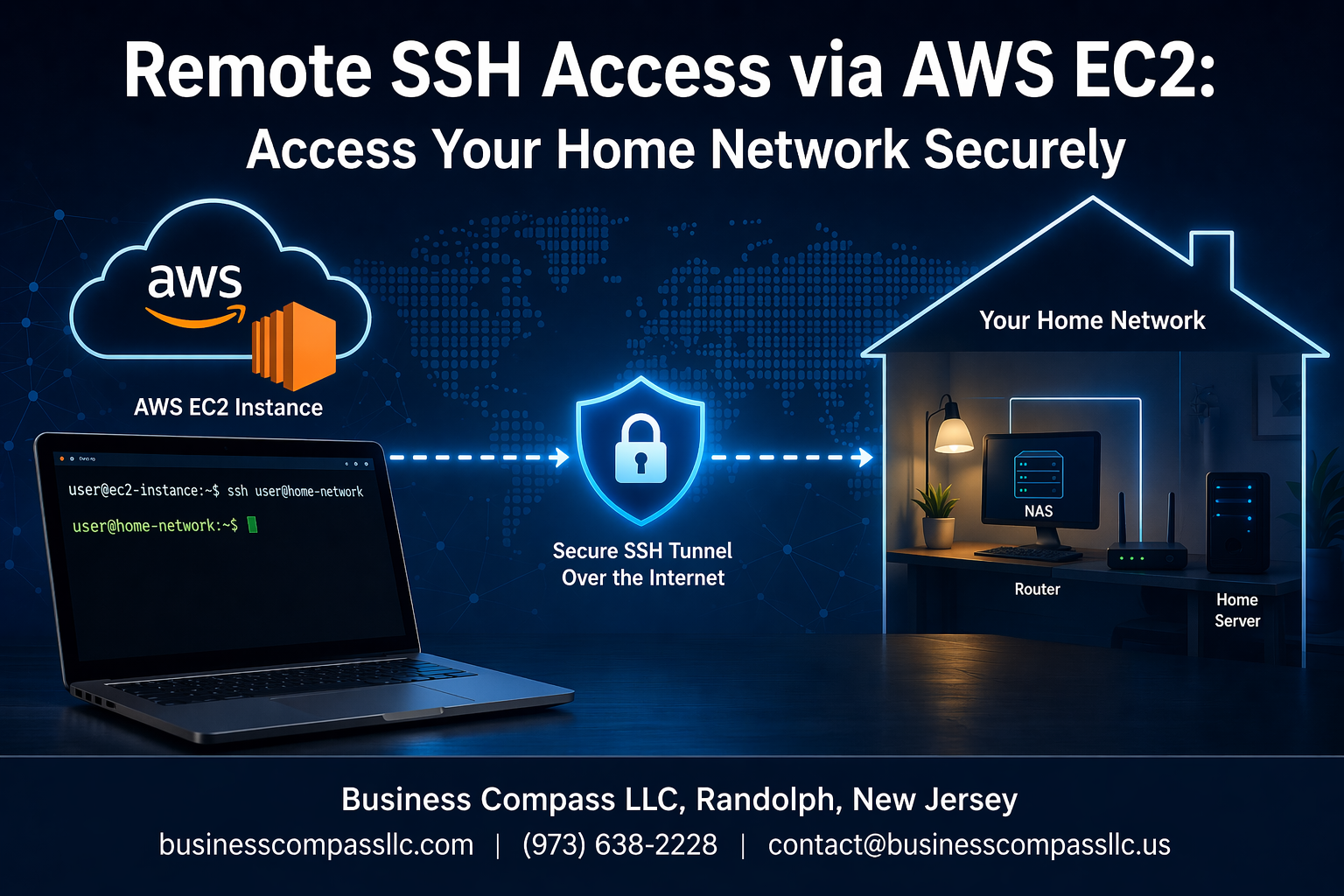
Need to access your home network from anywhere without exposing it directly to the internet? AWS EC2 SSH access offers a secure solution that acts as a bridge between your remote location and home setup. Instead of opening ports on your home router or setting up complex VPN configurations, you can create an SSH tunnel through a cloud-based EC2 instance.
This guide is perfect for developers, IT professionals, and tech-savvy individuals who want secure remote connection capabilities without the overhead of traditional VPN solutions. You’ll learn practical steps to protect your home network while maintaining reliable access from any location.
We’ll walk through setting up your AWS EC2 instance with proper security configurations, then show you how to establish SSH tunnel connection that routes your traffic safely. You’ll also discover advanced SSH port forwarding techniques and optimization strategies that make this home network VPN alternative both secure and efficient for daily use.
Understanding AWS EC2 for Remote Network Access
What is AWS EC2 and why it’s perfect for SSH tunneling
AWS EC2 provides virtual computing instances that serve as powerful gateways for remote SSH access to your home network. These cloud-based servers run continuously with reliable internet connections and static IP addresses, making them ideal for establishing secure SSH tunnels. The service’s global infrastructure means you can position your access point geographically close to your location, reducing latency while maintaining consistent connectivity to your home systems.
Key benefits of using EC2 as your remote access gateway
Using EC2 instances for SSH tunnel configuration delivers several advantages over traditional remote access methods. You get complete control over your security settings, can customize firewall rules, and benefit from AWS’s enterprise-grade infrastructure without managing physical hardware. The platform scales automatically, handles traffic spikes smoothly, and provides detailed logging for monitoring connection attempts and troubleshooting issues.
Cost-effective alternatives to traditional VPN solutions
EC2 instances often cost significantly less than commercial VPN services while offering superior customization options. Running a basic t2.micro instance for SSH port forwarding typically costs under $10 monthly, compared to premium VPN subscriptions that can exceed $100 annually. You avoid vendor lock-in, can implement custom security protocols, and maintain complete ownership of your remote network access infrastructure without recurring licensing fees.
Setting Up Your AWS EC2 Instance
Choosing the right EC2 instance type and region
The t3.micro instance type works perfectly for basic SSH tunneling needs and qualifies for AWS’s free tier, making it cost-effective for home network access. Select a region closest to your location to minimize latency – US East (N. Virginia) typically offers the lowest costs and fastest speeds for most users.
Configuring security groups for SSH access
Create a custom security group that allows inbound SSH traffic on port 22 from your IP address only. Add rules for any additional ports you’ll need for SSH port forwarding, like port 8080 for web services. Lock down access by specifying exact IP addresses rather than allowing traffic from anywhere (0.0.0.0/0).
Creating and managing SSH key pairs
Generate your SSH key pairs during EC2 instance setup and download the private key file immediately – AWS won’t let you download it again. Store the .pem file securely and set proper permissions (chmod 400) on Linux/Mac systems. Consider creating separate key pairs for different instances to improve security management.
Installing essential software on your EC2 instance
Update your EC2 instance immediately after launch with sudo yum update or sudo apt update depending on your AMI. Install essential tools like htop for monitoring, fail2ban for SSH protection, and any specific software needed for your remote access setup. Configure automatic security updates to keep your instance protected against vulnerabilities.
Establishing SSH Tunnel Connection

Configuring SSH client on your remote device
Setting up your SSH client starts with generating a key pair on your remote device. Use ssh-keygen -t rsa -b 4096 to create a secure RSA key, then copy the public key to your AWS EC2 instance using ssh-copy-id. Configure your local SSH client by editing the ~/.ssh/config file to include your EC2 instance details, including hostname, username, and private key path for streamlined connections.
Creating secure port forwarding rules
Port forwarding transforms your EC2 instance into a secure gateway for accessing home network resources. Local port forwarding uses -L localport:targethost:targetport to redirect traffic through your EC2 instance, while dynamic port forwarding with -D port creates a SOCKS proxy. These SSH tunnel configurations enable encrypted access to internal services like web servers or databases running on your home network.
Setting up reverse SSH tunnels for persistent access
Reverse SSH tunnels maintain persistent connections from your home network to the EC2 instance using ssh -R. Configure your home router or a dedicated device to establish an outbound connection with -R remoteport:localhost:localport, creating a pathway back to your network. Use autossh or systemd services to automatically restart connections if they drop, ensuring reliable remote network access through your AWS EC2 SSH access point.
Testing your connection and troubleshooting common issues
Test your SSH tunnel by connecting to the forwarded port and verifying access to home network resources. Common issues include security group misconfigurations blocking traffic, incorrect port forwarding syntax, or firewall rules preventing connections. Use ssh -v for verbose debugging output, check AWS security group settings allow your source IP, and verify your home network firewall permits the required ports for successful SSH tunnel configuration.
Securing Your Home Network Through EC2
Implementing Multi-Factor Authentication
Adding MFA to your AWS EC2 SSH access creates an extra security layer beyond traditional password authentication. Configure Google Authenticator or AWS MFA devices to generate time-based tokens that work alongside your SSH keys. This approach significantly reduces the risk of unauthorized access even if your private keys get compromised.
Setting Up Firewall Rules and Access Controls
Security groups act as virtual firewalls for your EC2 instance, controlling inbound and outbound traffic. Restrict SSH access to specific IP addresses or ranges rather than allowing connections from anywhere. Configure custom port numbers instead of default port 22, and implement fail2ban to automatically block IP addresses after multiple failed connection attempts.
Monitoring and Logging Connection Attempts
Enable CloudTrail logging to track all API calls and access attempts to your EC2 instance. Set up CloudWatch alarms that notify you of suspicious activity patterns, such as multiple failed login attempts or connections from unexpected geographic locations. Review SSH logs regularly using tools like rsyslog to identify potential security threats and maintain detailed audit trails for compliance purposes.
Advanced Configuration and Optimization
Automating SSH connections with scripts
Creating automated scripts for your AWS EC2 SSH access streamlines daily operations and reduces manual configuration errors. Bash scripts can handle authentication, establish SSH tunnels, and manage connection parameters automatically. Store credentials securely using SSH key authentication rather than passwords, and implement connection monitoring to restart tunnels if they fail.
Python scripts offer more sophisticated automation options, including dynamic port allocation and intelligent retry mechanisms. These scripts can check connection health, rotate through multiple EC2 instances for load balancing, and send notifications when connections are established or disrupted.
Managing multiple device connections simultaneously
SSH tunnel configuration supports concurrent connections from multiple devices through port forwarding and multiplexing. Configure your EC2 instance to handle multiple SSH sessions by adjusting the MaxSessions parameter in the SSH daemon configuration. Each device can connect through different local ports while sharing the same remote tunnel endpoint.
Connection pooling allows efficient resource management when handling numerous simultaneous connections. Implement connection limits and monitoring to prevent overwhelming your EC2 instance, while ensuring each device maintains stable remote network access through dedicated tunnel sessions.
Optimizing bandwidth and connection speed
Bandwidth optimization requires careful SSH tunnel configuration and compression settings. Enable SSH compression using the -C flag to reduce data transfer overhead, particularly beneficial for slower internet connections. Adjust TCP window sizes and buffer settings on your EC2 instance to accommodate varying network conditions and improve throughput performance.
Network latency affects SSH tunnel responsiveness, so choose EC2 regions closest to your physical location. Monitor connection quality using tools like iperf3 through your tunnel to identify bottlenecks and optimize transfer speeds for your specific use case.
Setting up failover and redundancy options
Redundancy planning involves deploying multiple EC2 instances across different availability zones to ensure continuous remote network access. Configure health checks that automatically switch to backup instances when primary connections fail. Load balancers can distribute traffic across multiple EC2 endpoints, providing seamless failover capabilities.
Implement connection monitoring scripts that detect tunnel failures and automatically reconnect to alternative EC2 instances. Store backup configuration files with different endpoint details, allowing quick manual switching when automated failover doesn’t activate properly during network disruptions.

Setting up remote SSH access through AWS EC2 opens up a world of secure connectivity to your home network from anywhere. We’ve walked through the essential steps from launching your EC2 instance to creating encrypted SSH tunnels that protect your data while giving you reliable access to your home systems. The combination of AWS’s robust infrastructure and SSH’s proven security protocols creates a powerful solution for remote network management.
The beauty of this approach lies in its flexibility and security. You can access your home servers, manage IoT devices, or work on personal projects without exposing your home network directly to the internet. Take the time to implement the security best practices we discussed, keep your configurations updated, and consider automating routine tasks to make your remote access experience even smoother. Your future self will thank you for investing in this secure, scalable solution.