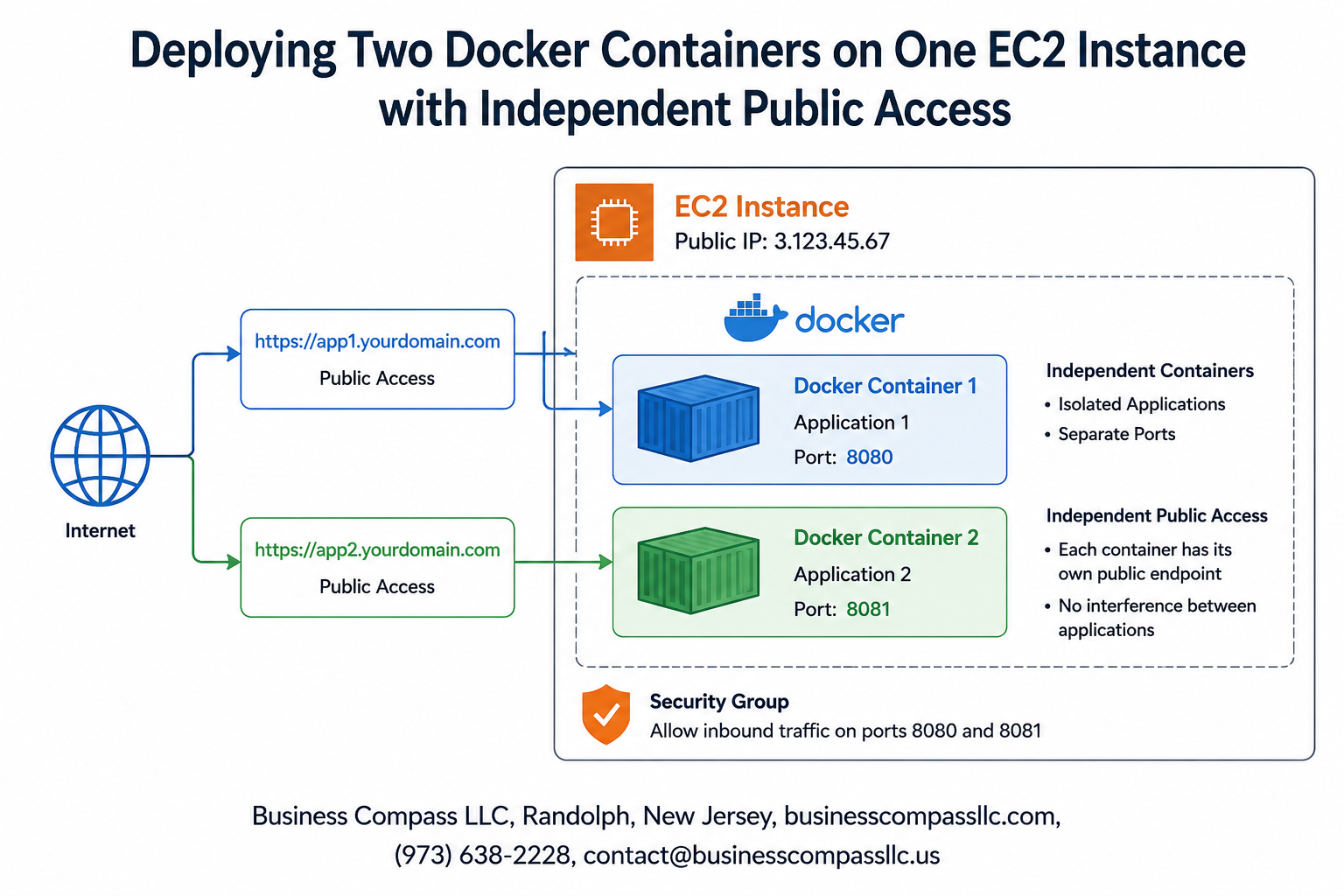
Running multiple applications on a single AWS EC2 instance can save costs while maintaining clean separation between services. This guide shows you how to deploy docker containers ec2 style, giving each container its own public access point without conflicts.
This tutorial is perfect for developers and DevOps engineers who want to host multiple web applications or services on one EC2 instance while keeping them completely independent. You’ll learn to set up multiple docker containers single ec2 instance configuration that scales efficiently.
We’ll walk through the complete process of building your docker container architecture, setting up nginx reverse proxy ec2 configuration for traffic routing, and implementing proper security measures. You’ll also discover how to troubleshoot docker ec2 deployment issues and follow ec2 docker security best practices to keep your applications safe and accessible.
Prerequisites and Environment Setup

AWS Account Configuration and EC2 Instance Selection
Set up your AWS account with proper billing alerts and IAM permissions for EC2 management. Choose a t3.medium or larger instance to handle multiple docker containers effectively. Select Amazon Linux 2 or Ubuntu 20.04 LTS for optimal Docker compatibility. Configure your key pair for SSH access and note the public IP address. The instance should have at least 2GB RAM and 20GB storage to accommodate both containers plus system overhead. When deploying docker containers on EC2, proper instance sizing prevents performance bottlenecks that could affect your applications’ public accessibility.
Docker Installation and Configuration on EC2
Connect to your EC2 instance via SSH and update the system packages. Install Docker using the official repository to ensure you get the latest stable version. Add your user to the docker group to avoid using sudo for every command. Start and enable the Docker service to run automatically on boot. Verify the installation by running a test container. Configure Docker daemon settings for optimal performance, including log rotation and storage driver selection. This foundation is essential for successfully running multiple docker containers on a single EC2 instance with independent access requirements.
Security Group Setup for Multiple Port Access
Create a new security group specifically for your Docker deployment with carefully planned inbound rules. Open ports 80 and 443 for web traffic, plus custom ports for your specific applications (like 3000, 8080, or 5000). Allow SSH access on port 22 from your IP address only. Avoid opening all ports to prevent security vulnerabilities. Configure separate rules for each container’s required ports to maintain granular control. This security group configuration enables independent public access for each docker container while maintaining proper network isolation and protection against unauthorized access attempts.
Essential Linux Commands for Container Management
Master these key commands for effective Docker container management on EC2. Use docker ps to view running containers and docker logs [container-name] for troubleshooting. The docker exec -it [container] bash command provides shell access for debugging. Monitor system resources with htop and df -h to track CPU, memory, and disk usage across containers. Use netstat -tulpn to check which ports are in use and identify potential conflicts. Set up log rotation with logrotate to prevent disk space issues. These commands streamline container operations and help maintain smooth deployment of multiple docker containers on your EC2 instance.
Docker Container Architecture Planning

Port Mapping Strategy for Independent Access
When deploying multiple Docker containers on a single EC2 instance, smart port mapping becomes your gateway to independent public access. Each container needs unique external ports to avoid conflicts – think Container A on port 8080 and Container B on port 8081. Map internal application ports (typically 80 or 3000) to distinct external ports using Docker’s -p flag. This approach ensures both applications remain accessible through different URLs like your-domain.com:8080 and your-domain.com:8081. Consider using a reverse proxy like Nginx to eliminate port numbers from URLs, creating cleaner access paths while maintaining container isolation and enabling seamless scaling.
Network Configuration for Container Isolation
Creating isolated networks prevents containers from interfering with each other while maintaining necessary communication channels. Docker’s custom bridge networks offer superior isolation compared to the default bridge. Create separate networks using docker network create app1-network and app2-network commands. This separation protects sensitive data, prevents port conflicts, and allows independent container restarts without affecting neighboring applications. Link containers to their respective networks during startup with the --network flag. For containers requiring inter-communication, establish controlled connections through specific network bridges rather than exposing unnecessary ports to the host system.
Resource Allocation and Performance Optimization
Proper resource allocation prevents one container from consuming all available EC2 resources and starving others. Set memory limits using --memory flags and CPU constraints with --cpus to ensure fair resource distribution. Monitor container performance with docker stats to identify resource bottlenecks. Allocate resources based on application requirements – web servers typically need less CPU but more memory, while data processing containers require CPU power. Consider using Docker Compose for complex resource management scenarios. Implement health checks to automatically restart failing containers and maintain optimal performance across your multi-container deployment on EC2.
Building and Configuring Your First Docker Container
Dockerfile Creation and Best Practices
Creating a Dockerfile for your first container starts with choosing the right base image. Alpine Linux provides a lightweight foundation, while Ubuntu offers broader package availability. Keep your Dockerfile layers minimal by combining RUN commands and removing unnecessary packages after installation. Use multi-stage builds to reduce final image size, and always specify exact versions for dependencies to ensure reproducible builds across different environments.
Container Build Process and Optimization
Build your Docker image using docker build -t myapp:v1.0 . from your project directory. Optimize build times by placing frequently changing files like source code at the bottom of your Dockerfile. Use .dockerignore to exclude unnecessary files from the build context. Enable Docker BuildKit for improved caching and parallel processing. Tag your images with meaningful version numbers to track deployments and enable easy rollbacks when needed.
Port Binding Configuration for Public Access
Configure port binding to expose your container to external traffic on your EC2 instance. Use -p 8080:80 to map container port 80 to host port 8080, enabling public access through your EC2’s public IP. Avoid binding directly to port 80 or 443 initially – use higher numbered ports for testing. This approach allows multiple containers to run simultaneously without port conflicts while maintaining independent public access through different port numbers.
Testing Container Functionality and Accessibility
Test your container locally before deploying to EC2 using docker run -p 8080:80 myapp:v1.0. Verify functionality by accessing http://localhost:8080 in your browser. Check container logs with docker logs container_name to debug any issues. Once deployed on EC2, test public accessibility using your instance’s public IP address and configured port. Use curl commands to verify API endpoints and ensure your security groups allow inbound traffic on the specified ports.
Deploying and Configuring Your Second Docker Container
Alternative Port Assignment for Conflict Prevention
Configure your second Docker container to use a different port mapping to avoid conflicts with your first container. If your initial container runs on port 8080:80, deploy the second container using port 8081:80 or any available port above 1024. Use the command docker run -d -p 8081:80 --name second-app your-second-image to establish independent port assignments. Check active ports with netstat -tulpn before deployment to ensure no conflicts exist. This approach allows multiple docker containers single ec2 instance deployment without service interruption.
Independent Container Build and Deployment
Create separate Dockerfiles and build contexts for each application to maintain clean separation between services. Build your second container using docker build -t second-app . from its dedicated directory structure. Deploy with environment variables specific to each service using docker run -d --env-file second-app.env -p 8081:80 second-app. This method ensures each container operates independently while sharing the same EC2 infrastructure, enabling efficient resource utilization for deploy docker containers ec2 scenarios.
Verification of Simultaneous Container Operations
Test both containers simultaneously by accessing their respective ports through your EC2 instance’s public IP address. Verify the first container responds at http://your-ec2-ip:8080 and the second at http://your-ec2-ip:8081. Monitor container health using docker ps -a and check logs with docker logs container-name for any startup issues. Use curl commands from within the EC2 instance to test internal connectivity between containers if needed. Successful verification confirms your multiple docker containers single ec2 instance setup functions correctly with independent public access.
Implementing Public Access and Domain Management
Elastic IP Assignment for Consistent Access
Assign an Elastic IP address to your EC2 instance to maintain consistent public access even after instance reboots. Navigate to the AWS EC2 console, select “Elastic IPs” from the sidebar, and click “Allocate Elastic IP address.” Once allocated, associate this IP with your running EC2 instance through the “Associate Elastic IP address” option. This ensures your docker container public access remains stable and prevents connection disruptions when the underlying infrastructure changes.
Load Balancer Configuration for Traffic Distribution
Create an Application Load Balancer (ALB) to route incoming traffic to your specific docker containers based on path or hostname rules. Set up target groups for each container, specifying the container ports (typically 8080 and 8081 for your setup). Configure listener rules that direct traffic to appropriate targets – for example, routing /app1/* to container 1 and /app2/* to container 2. This approach enables multiple docker containers single ec2 instance deployment with intelligent traffic management.
DNS Setup and Custom Domain Mapping
Configure Route 53 or your preferred DNS provider to map custom domains to your EC2 instance’s Elastic IP. Create A records pointing your domain names to the allocated IP address. For subdomain-based routing, set up CNAME records like app1.yourdomain.com and app2.yourdomain.com pointing to your main domain. This docker container domain mapping ec2 strategy provides professional, memorable URLs for accessing your containerized applications independently.
SSL Certificate Implementation for Secure Connections
Implement SSL certificates using AWS Certificate Manager (ACM) for secure HTTPS connections to your containerized applications. Request certificates for your custom domains through ACM, then attach them to your Application Load Balancer listeners. Configure your nginx reverse proxy to handle SSL termination or pass-through depending on your security requirements. Update security groups to allow HTTPS traffic on port 443 while maintaining proper ec2 docker security best practices.
Monitoring and Health Check Configuration
Set up CloudWatch monitoring and custom health checks for each docker container to track performance and availability. Configure ALB health checks pointing to specific endpoints like /health or /status within each container. Create CloudWatch alarms for key metrics including CPU usage, memory consumption, and response times. Implement automated scaling policies that can restart containers or launch additional EC2 instances based on predefined thresholds, ensuring robust aws ec2 multiple applications docker deployment.
Security Hardening and Best Practices
Container Security Scanning and Vulnerability Management
Scanning your Docker containers for vulnerabilities should become part of your regular deployment routine. Tools like Docker Scout, Trivy, and Snyk can identify outdated packages and known security flaws in your container images. Run these scans before pushing images to production and set up automated scanning in your CI/CD pipeline. Keep base images updated regularly and rebuild containers when security patches become available. Monitor container runtime behavior using tools like Falco to detect suspicious activities. Document all findings and track remediation efforts to maintain a clear security posture across your ec2 docker security best practices implementation.
Network Firewall Rules and Access Control
Configure AWS Security Groups to restrict inbound traffic to only necessary ports and trusted IP addresses. Block direct SSH access from public internet and implement a bastion host or VPN for administrative tasks. Use iptables rules on your EC2 instance to create additional network barriers between containers and external networks. Implement fail2ban to automatically block IP addresses showing malicious behavior patterns. Create separate security groups for different application tiers and apply the principle of least privilege. Regular audits of firewall rules help identify unnecessary open ports that could become attack vectors in your deploy docker containers ec2 setup.
Data Volume Encryption and Backup Strategies
Enable encryption at rest for all EBS volumes attached to your EC2 instance using AWS KMS keys. Configure Docker volumes with encryption drivers when handling sensitive data within containers. Implement automated backup schedules using AWS Backup or custom scripts that snapshot both EBS volumes and container data. Test backup restoration procedures regularly to verify data integrity and recovery processes. Store backup copies in different AWS regions for disaster recovery scenarios. Use versioned backups to maintain historical data states and implement lifecycle policies to manage storage costs while maintaining compliance requirements for your containerized applications.
Troubleshooting Common Deployment Issues

Port Conflict Resolution Techniques
When deploying multiple docker containers on a single EC2 instance, port conflicts become inevitable. Check active ports using netstat -tulpn and identify which services occupy specific ports. Map containers to different host ports using -p 8080:80 and -p 8081:80 syntax. Use Docker Compose to manage port assignments systematically and avoid hardcoding port numbers in application configurations.
Container Communication Problems and Solutions
Inter-container communication failures often stem from network isolation issues. Create custom Docker networks using docker network create app-network to enable seamless container-to-container communication. Configure containers to use container names as hostnames instead of localhost references. Verify network connectivity between containers using docker exec -it container_name ping other_container and check firewall rules that might block internal traffic.
Resource Limitation and Performance Issues
EC2 instances with limited resources can cause container performance degradation when running multiple applications simultaneously. Monitor resource usage with docker stats and implement memory limits using --memory=512m flags during container deployment. Scale down unnecessary services and optimize Docker images by removing unused dependencies. Consider upgrading EC2 instance types if containers consistently exceed available CPU or memory thresholds.
Network Connectivity Debugging Methods
Network connectivity problems often prevent external access to containerized applications on EC2 instances. Verify security group rules allow inbound traffic on required ports (80, 443, custom ports). Check if containers bind to correct network interfaces using 0.0.0.0 instead of 127.0.0.1. Test connectivity using curl from external machines and examine Docker bridge network configurations. Enable detailed logging in reverse proxy configurations to troubleshoot docker nginx reverse proxy ec2 routing issues effectively.

Running two Docker containers on a single EC2 instance with independent public access opens up exciting possibilities for cost-effective deployments. You’ve learned how to plan your container architecture, build and configure each container separately, and set up proper domain management for public accessibility. The security hardening steps and troubleshooting tips covered will help you maintain a robust and reliable deployment.
This setup gives you the flexibility to run multiple applications or services without the overhead of managing separate EC2 instances. Start with proper planning, take your time with the configuration steps, and don’t skip the security measures. Your containers will be running smoothly and serving users independently while sharing the same underlying infrastructure. Ready to put this knowledge into action? Fire up that EC2 instance and start deploying your containers today.