AWS DevOps Agent Operations Guide: Monitoring, Troubleshooting, and Recovery
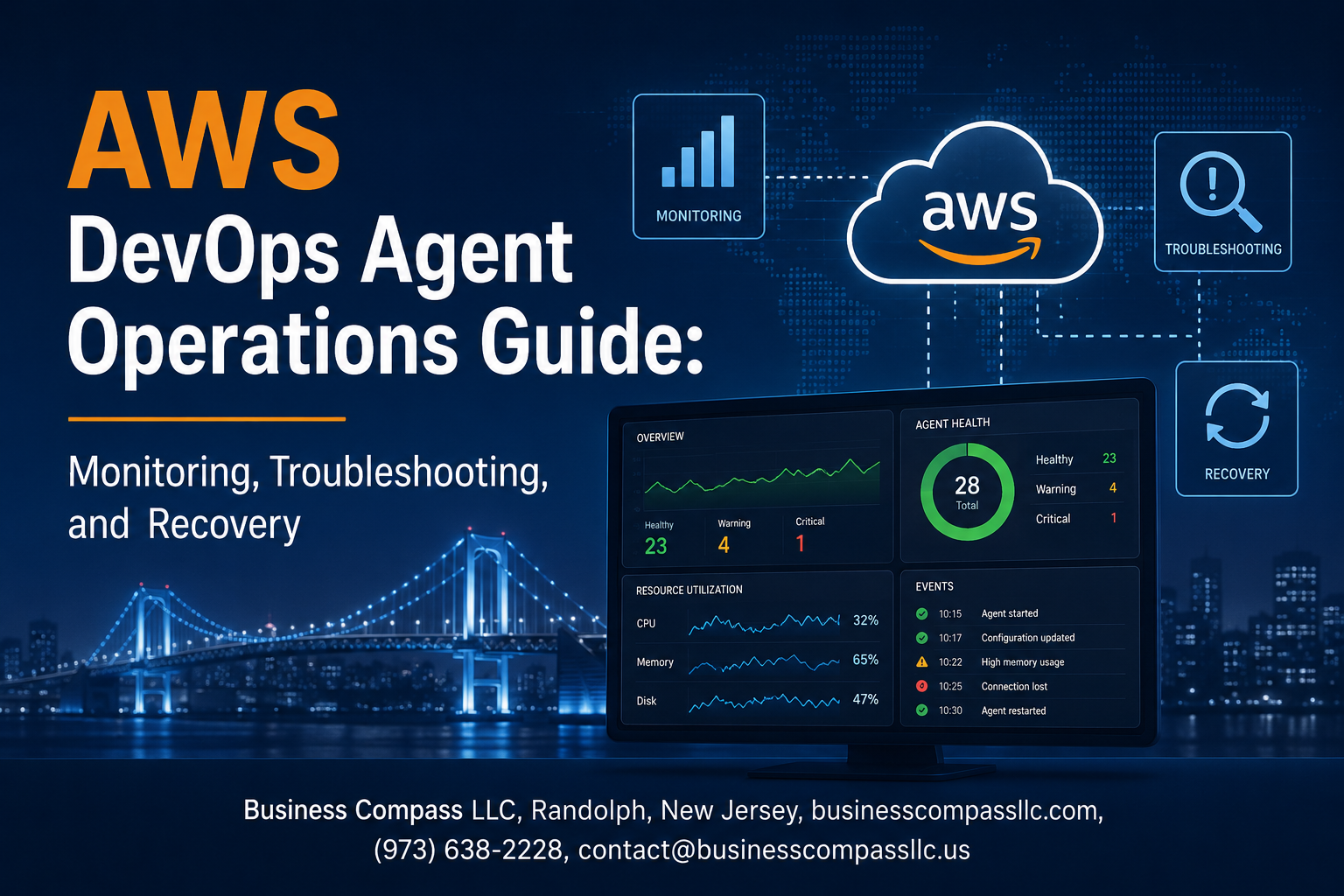
Running AWS DevOps agents at scale means dealing with unexpected failures, performance dips, and recovery headaches — often at the worst possible time. This guide is built for DevOps engineers, cloud architects, and platform teams who manage agent-based pipelines on AWS and need practical, no-fluff answers when things go sideways.
Here’s what we’ll walk through: how AWS DevOps agent architecture actually works under the hood, how to set up a solid AWS monitoring framework that catches problems before they become outages, and the DevOps agent troubleshooting techniques that get your pipelines back on track fast. We’ll also cover AWS agent recovery strategies and performance tuning so your agents stay stable long after the initial setup.
No theory overload — just the operational knowledge you need to keep things running smoothly.
Understanding the AWS DevOps Agent Architecture
Key Components That Power Agent Operations
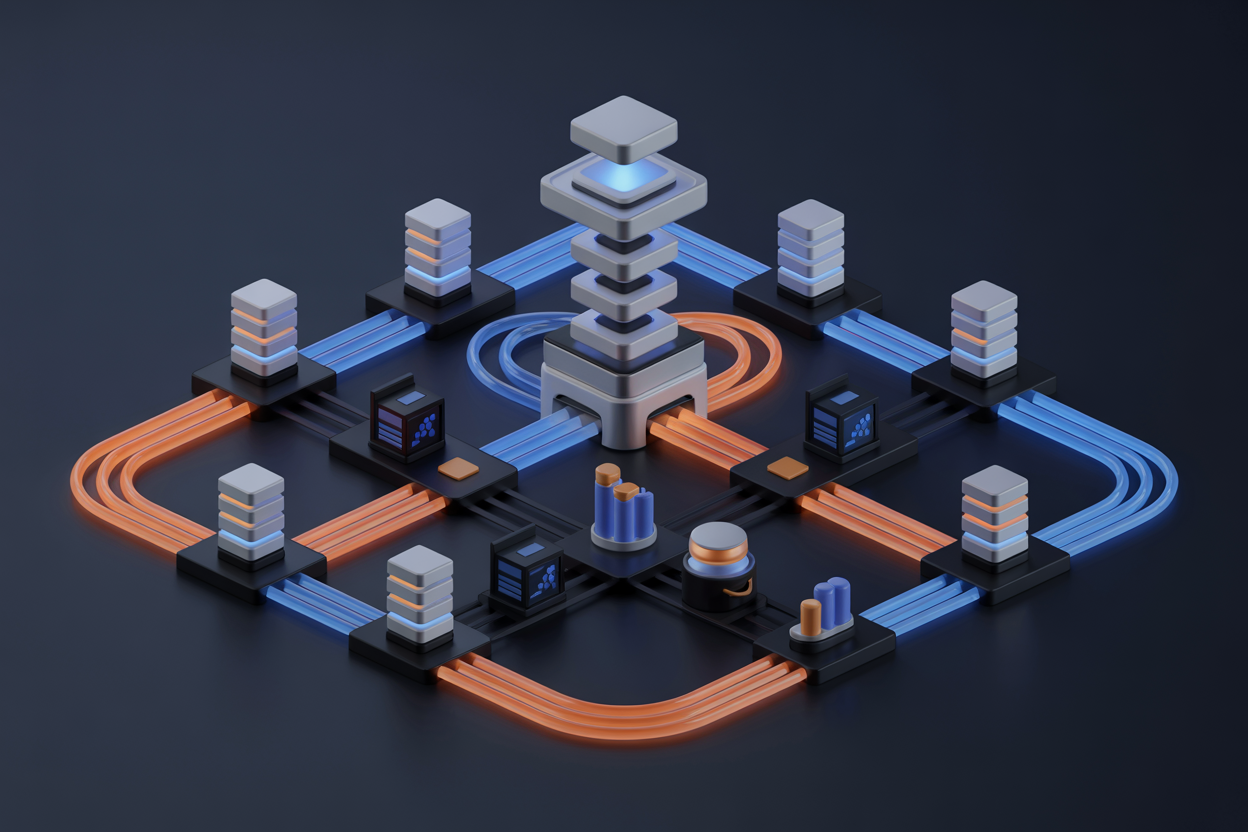
The AWS DevOps agent architecture sits on a few core building blocks: the agent binary running on your host, the agent configuration file, credential providers, and the task runner responsible for executing pipeline jobs. Each piece talks to the others constantly, and if one breaks, the whole chain stalls.
- Agent binary – the executable process that polls AWS CodePipeline or CodeBuild for pending jobs
- Configuration file – stores endpoint URLs, proxy settings, tags, and concurrency limits
- Credential provider chain – IAM roles, instance profiles, or environment variables that authenticate agent calls
- Task runner – spawns child processes, streams logs to CloudWatch, and reports job status back upstream
How Agents Communicate Within AWS Pipelines
Agents rely on long-polling HTTP calls to the AWS service endpoints. The agent sends a PollForJobs or PollForSourceChanges request, waits up to 30 seconds for a response, then either picks up a job or retries. All traffic goes outbound over HTTPS on port 443, which makes firewall rules straightforward but also means your AWS DevOps agent monitoring needs to watch for TLS handshake failures and timeout spikes.
- Heartbeat signals keep the agent registered as active
- Job acknowledgment calls prevent duplicate execution across multiple agents
- Log streaming sends real-time output to CloudWatch Logs without storing data locally
Critical Dependencies to Monitor for Stability
Getting AWS agent stability optimization right means watching the layers underneath the agent, not just the agent itself.
- Network connectivity to AWS service endpoints (
codepipeline.amazonaws.com,codebuild.amazonaws.com) - IAM role validity – expired temporary credentials silently kill jobs mid-run
- Disk space on the workspace volume where artifacts get downloaded and built
- System clock accuracy – clock drift beyond a few minutes breaks SigV4 request signing and causes mysterious 403 errors
- Memory and CPU headroom – agents running on undersized instances queue jobs instead of running them concurrently
Common Agent Deployment Models and Their Trade-offs
Picking the right deployment model shapes every other decision in your DevOps agent architecture setup.
| Model | Best For | Watch Out For |
|---|---|---|
| EC2 self-hosted | Full control, custom tooling | Manual patching, scaling lag |
| ECS on Fargate | Ephemeral, disposable agents | Cold start latency on large builds |
| CodeBuild managed | Zero infrastructure overhead | Limited customization, higher per-minute cost |
| On-premises hybrid | Air-gapped or compliance workloads | Network latency, VPN reliability |
Each model shifts operational burden differently. EC2 gives you the most flexibility but puts patching and scaling entirely on your team. Fargate trades that control for disposability, spinning up a fresh container per job so there’s no workspace pollution between runs.
Setting Up a Robust Monitoring Framework

Essential Metrics to Track Agent Health and Performance
Keeping a close eye on your AWS DevOps agent starts with knowing which numbers actually matter. Skip vanity metrics and focus on the ones that tell you something is about to break before it does.
- CPU and memory utilization — sustained spikes above 80% are a red flag
- Task queue depth — a growing backlog means your agent is falling behind
- Agent heartbeat intervals — missed heartbeats signal connectivity or process issues
- Error rates per pipeline run — track both transient and hard failures separately
- Network I/O throughput — helps catch bandwidth bottlenecks affecting artifact transfers
Configuring CloudWatch Alarms for Proactive Alerts
A solid AWS agent monitoring setup means CloudWatch alarms are doing the heavy lifting so your team isn’t staring at dashboards all day.
- Set threshold-based alarms on CPU, memory, and disk usage with at least a 5-minute evaluation period to reduce noise
- Use composite alarms to group related conditions — for example, high CPU combined with queue backlog triggers a single, meaningful alert
- Route alerts through SNS topics to Slack, PagerDuty, or email so the right person gets notified instantly
- Apply anomaly detection models instead of static thresholds where workloads fluctuate predictably
aws cloudwatch put-metric-alarm \
  --alarm-name "AgentCPUHigh" \
  --metric-name CPUUtilization \
  --namespace AWS/EC2 \
  --statistic Average \
  --period 300 \
  --threshold 80 \
  --comparison-operator GreaterThanThreshold \
  --evaluation-periods 2 \
  --alarm-actions <SNS_ARN>
Using AWS X-Ray to Gain End-to-End Visibility
When a pipeline run fails and the logs give you nothing useful, AWS X-Ray is the tool that fills the gap. It traces requests across every service your agent touches, making it easy to pinpoint exactly where things slowed down or broke.
- Enable X-Ray tracing on Lambda functions, API Gateway endpoints, and any microservices your agent interacts with
- Use service maps to visualize the full request path — you’ll quickly spot which downstream dependency is causing latency
- Add custom segments and annotations to agent-specific operations so you can filter traces by pipeline ID, agent version, or environment
- Set sampling rules carefully — trace 100% of errors but sample healthy requests at a lower rate to control costs
Building Dashboards That Surface Actionable Insights
Raw metrics mean nothing if your dashboard is cluttered with charts nobody reads. The goal is a single view that tells your team the agent’s health story at a glance.
- Group widgets by concern — availability, performance, and error rates should each have their own section
- Pin key performance indicators at the top: agent uptime percentage, current queue depth, and last successful run timestamp
- Use CloudWatch metric math to calculate derived values like error rate percentage rather than showing raw counts
- Color-code thresholds using alarm state widgets so green, yellow, and red mean something immediately actionable
- Share dashboards across teams with cross-account CloudWatch if your agents run in multiple AWS accounts
Automating Log Collection for Faster Analysis
Manual log hunting across EC2 instances or containers kills response time during an outage. Automating log collection as part of your AWS monitoring framework setup means logs are always in one place, indexed, and searchable before you even need them.
- Deploy the CloudWatch Logs agent or use CloudWatch Container Insights for containerized agents to stream logs automatically
- Standardize log formats using structured JSON logging so CloudWatch Logs Insights queries run fast and return clean results
- Create log metric filters to turn error patterns in logs into CloudWatch metrics — this bridges the gap between logs and alarms
- Set log retention policies per log group to manage storage costs without losing critical historical data
- Use CloudWatch Logs Insights with saved queries for the most common troubleshooting scenarios your team runs repeatedly
fields @timestamp, @message
| filter @message like /ERROR/
| stats count(*) as errorCount by bin(5m)
| sort errorCount desc
Identifying and Diagnosing Common Agent Failures

Recognizing Early Warning Signs Before Failures Escalate
Catching problems early is the difference between a quick fix and a full-blown outage. Keep an eye on these red flags that often show up before an AWS DevOps agent fully breaks down:
- Increased response latency — agents taking longer than usual to pick up jobs or report back
- Sporadic heartbeat failures — missing check-ins that happen once, then twice, then constantly
- Memory or CPU spikes — sudden resource jumps with no matching workload increase
- Job queue buildup — tasks piling up faster than agents are processing them
- Repeated authentication warnings — IAM role or credential errors that seem minor at first
Decoding Error Logs to Pinpoint Root Causes
DevOps agent failure diagnosis lives and dies by how well you read your logs. Don’t just ctrl+F for the word “error” — look at the sequence of events leading up to a failure.
- Check agent daemon logs (typically under
/var/log/aws/) for stack traces and timeout messages - Look for timestamp clustering — multiple errors firing within the same second often point to a single upstream cause
- Cross-reference agent logs with CloudWatch Logs to spot patterns across multiple agents simultaneously
- Pay attention to exit codes — code
1means general failure, while codes like137point to out-of-memory kills
Troubleshooting Network and Connectivity Issues
Network problems are one of the most common reasons behind troubleshooting AWS DevOps agent issues, and they can be sneaky. An agent might appear “running” while silently failing to reach its endpoints.
- Run
curlortelnetchecks against the agent’s required AWS service endpoints (CodeDeploy, SSM, S3) - Verify security group rules and NACLs aren’t blocking outbound traffic on ports 443 or 8080
- Check VPC DNS resolution — agents often fail silently when they can’t resolve AWS service hostnames
- Confirm NAT Gateway or VPC endpoint configurations if the agent runs in a private subnet
- Use VPC Flow Logs to catch dropped packets that don’t show up anywhere else
Proven Troubleshooting Techniques for Faster Resolution

A. Step-by-Step Approach to Isolating Agent Failures
When your AWS DevOps agent starts acting up, jumping straight into random fixes wastes time. A structured isolation approach cuts through the noise fast:
- Check agent status first — Run
systemctl status codedeploy-agentor the relevant agent service command to confirm whether the process is even running. - Review recent changes — Pinpoint deployments, config updates, or IAM policy changes made in the last 24 hours. Most failures trace back to something that changed.
- Narrow down the failure scope — Is it one agent on one instance, or multiple agents across a fleet? Scope tells you whether you’re dealing with a host-level issue or a broader infrastructure problem.
- Reproduce the failure in isolation — Trigger a test deployment or agent action on a single instance to confirm the behavior before touching production.
B. Leveraging AWS Systems Manager for Remote Diagnostics
AWS Systems Manager is genuinely one of the best tools for diagnosing agent issues without needing SSH access:
- Use Run Command to execute diagnostic scripts across multiple instances simultaneously — check logs, verify agent versions, and test connectivity all at once.
- Session Manager gives you a browser-based shell into any managed instance, which is perfect when SSH access is locked down by security policies.
- Pull Inventory data to confirm the agent version running on each instance matches what you expect.
- Set up State Manager associations to automatically re-install or restart agents that drift from the desired configuration.
This approach fits neatly into any DevOps agent troubleshooting guide because it scales across large fleets without manual intervention.
C. Using CloudTrail Audit Logs to Trace Operational Issues
CloudTrail is your paper trail when something breaks and nobody knows why. Here’s how to get the most out of it:
- Filter by event source — Search for
codedeploy.amazonaws.comorssm.amazonaws.comevents to narrow down API calls related to your agent operations. - Look for denied API calls —
AccessDeniederrors in CloudTrail almost always point to IAM permission gaps that block the agent from doing its job. - Cross-reference timestamps — Match the time of a failed deployment or agent disconnection with specific API calls logged in CloudTrail to build a clear timeline.
- Export logs to CloudWatch Logs Insights — Run queries like
filter errorCode = "AccessDenied"to surface patterns across thousands of events quickly.
CloudTrail audit logs are especially valuable for AWS DevOps agent monitoring because they capture what happened even when local agent logs are incomplete or missing.
D. Resolving Permission and IAM Configuration Conflicts
IAM issues are behind a surprising number of AWS agent failures, and they’re easy to miss if you’re not looking in the right place:
- Verify the instance profile — The EC2 instance running the agent must have an attached IAM role with the correct permissions. A missing or detached role breaks everything downstream.
- Check for policy conflicts — Explicit
Denystatements in SCPs (Service Control Policies) or resource-based policies override even correctly configured IAM roles. - Validate the trust relationship — The role’s trust policy must allow
ec2.amazonaws.comto assume it. This gets misconfigured more often than you’d expect. - Use IAM Policy Simulator — Test specific actions against the agent’s role before making live changes. This saves a lot of back-and-forth during active troubleshooting.
- Common permissions to audit:
s3:GetObjectfor pulling deployment artifactscodedeploy:*for deployment lifecycle actionsssm:UpdateInstanceInformationfor Systems Manager registration
Sorting out IAM conflicts early prevents recurring DevOps agent failure diagnosis cycles caused by the same underlying permission gaps.
Executing Reliable Agent Recovery Strategies

Automating Agent Restarts to Minimize Downtime
When an AWS DevOps agent goes down, every second counts. Setting up automated restarts using tools like AWS Systems Manager, systemd, or supervisor keeps your agents self-healing without needing someone to manually intervene at 2 AM.
Key steps to automate restarts:
- Configure
systemdservice units withRestart=alwaysand a shortRestartSecinterval - Use AWS CloudWatch alarms paired with Lambda functions to trigger EC2 instance recovery or ECS task replacements
- Set retry limits to avoid infinite crash loops masking deeper issues
Restoring Agent State from Snapshots and Backups
A solid AWS agent recovery strategy depends on how well you’ve preserved agent state before things break.
- Take regular EBS snapshots or back up agent configuration directories to S3
- Store environment variables, credentials, and pipeline context in AWS Secrets Manager or Parameter Store so restoring a fresh agent takes minutes, not hours
- Tag snapshots with pipeline run IDs to make rollback pinpoint accurate
Implementing Blue-Green Deployments for Seamless Failover
Blue-green deployments let you swap a broken agent environment for a healthy one without touching production traffic.
- Keep a warm standby agent pool (green) always ready alongside your active fleet (blue)
- Use AWS CodeDeploy or Route 53 weighted routing to shift workloads cleanly
- Tear down the failed environment only after confirming the green fleet is stable
Validating Full Recovery Before Resuming Production Workloads
Rushing back into production after a recovery is how incidents turn into outages.
- Run smoke tests and synthetic transactions against recovered agents before routing real workloads
- Check CloudWatch metrics, agent heartbeats, and queue depths to confirm normal behavior
- Validate IAM permissions, network connectivity, and dependency health as a checklist before sign-off
Optimizing Agent Performance for Long-Term Stability

Scaling Agents Dynamically to Handle Variable Workloads
AWS agent performance optimization starts with building auto-scaling policies that actually match your real traffic patterns. Use AWS Auto Scaling groups tied to CloudWatch metrics like CPU utilization, queue depth, and active build counts to spin agents up or down automatically.
- Set scale-out thresholds at 70% CPU to avoid bottlenecks before they hit
- Use lifecycle hooks to drain active jobs before terminating instances
- Separate agent pools by workload type — build agents, test agents, and deployment agents perform better when isolated
- Spot Instances work well for burst capacity, but always keep a baseline of On-Demand agents for critical pipelines
Applying Security Patches Without Disrupting Operations
Patching live agents without killing active jobs is a real balancing act, but it’s very doable with a rolling update strategy.
- Tag agents with patch status labels so your orchestration layer knows which ones are safe to update
- Use AWS Systems Manager Patch Manager to schedule patches during off-peak windows
- Apply patches to one agent pool at a time, keeping the rest available
- Test patches in a staging agent environment first — never push untested patches directly to production agents
- Automate rollback using golden AMIs so you can recover within minutes if a patch breaks something
Conducting Regular Health Audits to Prevent Recurring Issues
DevOps agent operations best practices always include scheduled health checks, not just reactive monitoring.
- Run weekly audits covering disk usage, memory trends, stale process counts, and network latency
- Use AWS Config rules to flag agents drifting from your approved baseline configuration
- Review CloudWatch Logs Insights queries weekly to catch slow-burn issues like gradual memory leaks
- Track agent uptime and job failure rates over 30-day rolling windows to spot patterns early
- Document every incident with root cause notes — recurring failures almost always share a common thread that’s easy to miss without written records

Keeping your AWS DevOps agents running smoothly comes down to a few core practices: knowing how your agent architecture works, having solid monitoring in place, and being ready to diagnose and fix problems before they snowball. Pair that with reliable recovery strategies and ongoing performance tuning, and you’ve got a setup that can handle real-world demands without constant firefighting.
The best time to act on any of this is before something breaks. Start by reviewing your current monitoring setup and identifying any blind spots. Tighten up your troubleshooting playbooks so your team isn’t scrambling when an agent goes down. Small, consistent improvements to how you manage and optimize your agents today will save you a lot of headaches down the road.