

Clicking through the AWS console to build a VPC, EC2 instances, a load balancer, and a database gets old fast. It’s slow, and it’s easy to miss a setting.
This Terraform AWS tutorial shows you how to deploy AWS infrastructure with Terraform instead. It’s for developers, DevOps engineers, and cloud beginners who know basic AWS terms and want a repeatable setup.
Here’s what we’ll cover:
- Building the network: Create a secure VPC and lock it down with Terraform security groups.
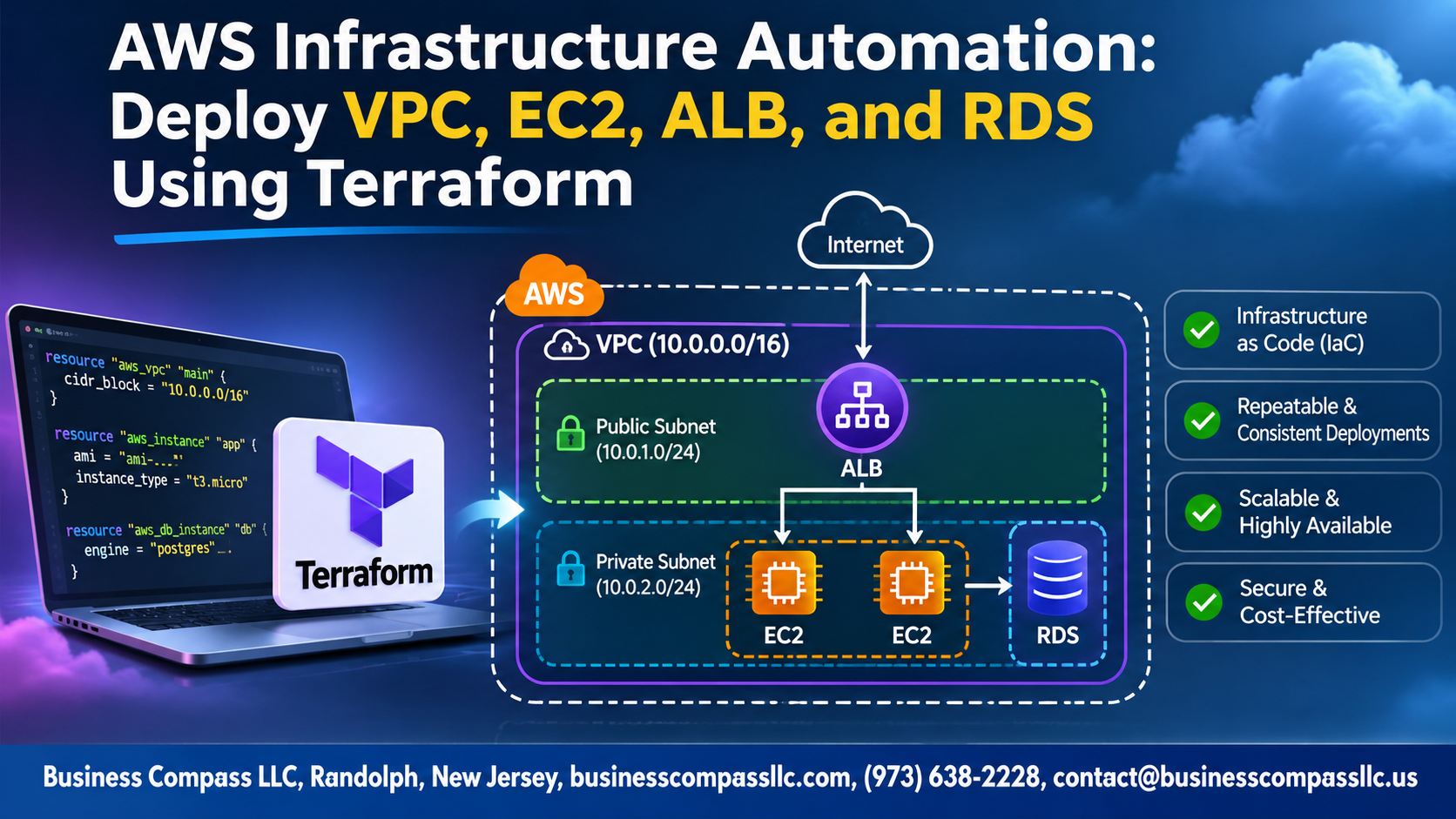
- Launching the app tier: Spin up EC2 instances and put a Terraform application load balancer in front of them.
- Adding the data layer: Set up a Terraform RDS database, then clean up your code with variables, outputs, and Terraform modules for AWS.
By the end, you’ll have a working Terraform VPC EC2 ALB RDS stack you can deploy, test, and reuse. That’s AWS infrastructure automation and infrastructure as code on AWS in action.
Prepare Your Terraform Environment for Faster Deployments

Install Terraform and Configure AWS Credentials Securely
Install Terraform, then run aws configure or use SSO profiles. Skip hardcoded keys.
Structure Your Project for Easy Maintenance
Split code into main.tf, variables.tf, outputs.tf, and modules/.
Set Up Remote State with S3 and DynamoDB Locking
Store state in a versioned S3 bucket, and use DynamoDB locking to prevent conflicting applies.
Build a Secure VPC Foundation

Define CIDR Blocks and Subnets Across Multiple Availability Zones
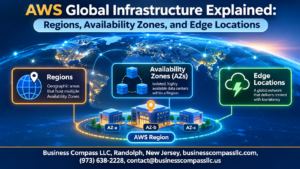
Start with a 10.0.0.0/16 VPC, then carve out public and private subnets in at least two Availability Zones using cidrsubnet(). Spreading subnets across AZs keeps your Terraform AWS setup running if one zone fails.
Connect Public Subnets with an Internet Gateway
Enable Private Subnet Internet Access with a NAT Gateway
Control Traffic with Route Tables
Lock Down Access with Security Groups

Allow Only Necessary Traffic to the Load Balancer
Open ports 80 and 443 to the internet on the ALB security group, nothing else.
Restrict EC2 Access to the ALB
Reference the ALB security group ID as the source for your app port, not a CIDR range.
Protect the Database by Permitting Only App-Tier Connections
Allow port 3306 or 5432 only from the EC2 security group.
Launch Scalable EC2 Instances

Select the Right AMI and Instance Type
Use a data "aws_ami" lookup for the latest Amazon Linux, and start with t3.micro.
Automate Server Setup with User Data Scripts
Install and start your app with user_data.
Attach IAM Roles for Secure AWS Access
Use an instance profile instead of hardcoded keys.
Scale Automatically with Launch Templates and Auto Scaling Groups
Pair a launch template with an Auto Scaling Group across private subnets.
Distribute Traffic Efficiently with an Application Load Balancer

A. Create the ALB and Target Groups
Use aws_lb in your public subnets, then add an aws_lb_target_group and attach your EC2 instances.
B. Configure Listeners and Routing Rules
Add an aws_lb_listener on port 80 that forwards traffic to your target group.
C. Set Up Health Checks for Higher Availability
Point the health check at /health so the ALB stops sending traffic to failing instances.
Deploy a Reliable RDS Database

A. Create DB Subnet Groups for Network Isolation
Put RDS in private subnets using aws_db_subnet_group, spanning at least two AZs.
B. Choose the Right Engine and Instance Class
Pick PostgreSQL or MySQL, then start small with db.t3.micro.
C. Enable Multi-AZ, Backups, and Encryption
Set multi_az, backup_retention_period, and storage_encrypted to true.
D. Manage Credentials Safely with Secrets Manager or Variables
Use Secrets Manager, or sensitive variables, never hardcoded passwords.
Make Your Code Reusable with Variables, Outputs, and Modules

Parameterize Configurations for Multiple Environments
Use variables and .tfvars files to swap CIDRs, instance types, and sizes per environment.
Expose Key Resource Details with Outputs
Output the ALB DNS name and RDS endpoint so you can find them fast.
Package Components into Reusable Modules
Wrap VPC, EC2, ALB, and RDS into modules to reuse across projects.
Deploy, Validate, and Maintain Your Infrastructure

Run Terraform Init, Plan, and Apply with Confidence
Run terraform init, then terraform plan -out=tfplan to preview changes, and terraform apply tfplan to deploy.
Verify the Stack by Testing the ALB Endpoint and Database Connectivity
Curl the ALB DNS output, then connect to RDS from an EC2 instance.
Optimize Costs and Clean Up with Terraform Destroy
Run terraform destroy when finished to avoid surprise bills.

You’ve now got a full AWS stack built from code: a secure VPC, locked-down security groups, EC2 instances, an Application Load Balancer, and an RDS database. Every piece lives in Terraform files you can read, review, and run again whenever you need. No more clicking through the console and hoping you remembered every setting.
The biggest wins come from the habits you build along the way. Use variables, outputs, and modules so your code is easy to reuse. Always validate and plan before you apply. Keep your infrastructure maintained as it grows. These small steps save you from late-night surprises and make your deployments faster every time.
So here’s your next move: take what you’ve learned and spin up this setup in a test account. Break it, tweak it, and rebuild it. Once you’re comfortable, turn your code into modules and share it with your team. The more you practice, the more automation starts to feel like second nature.