

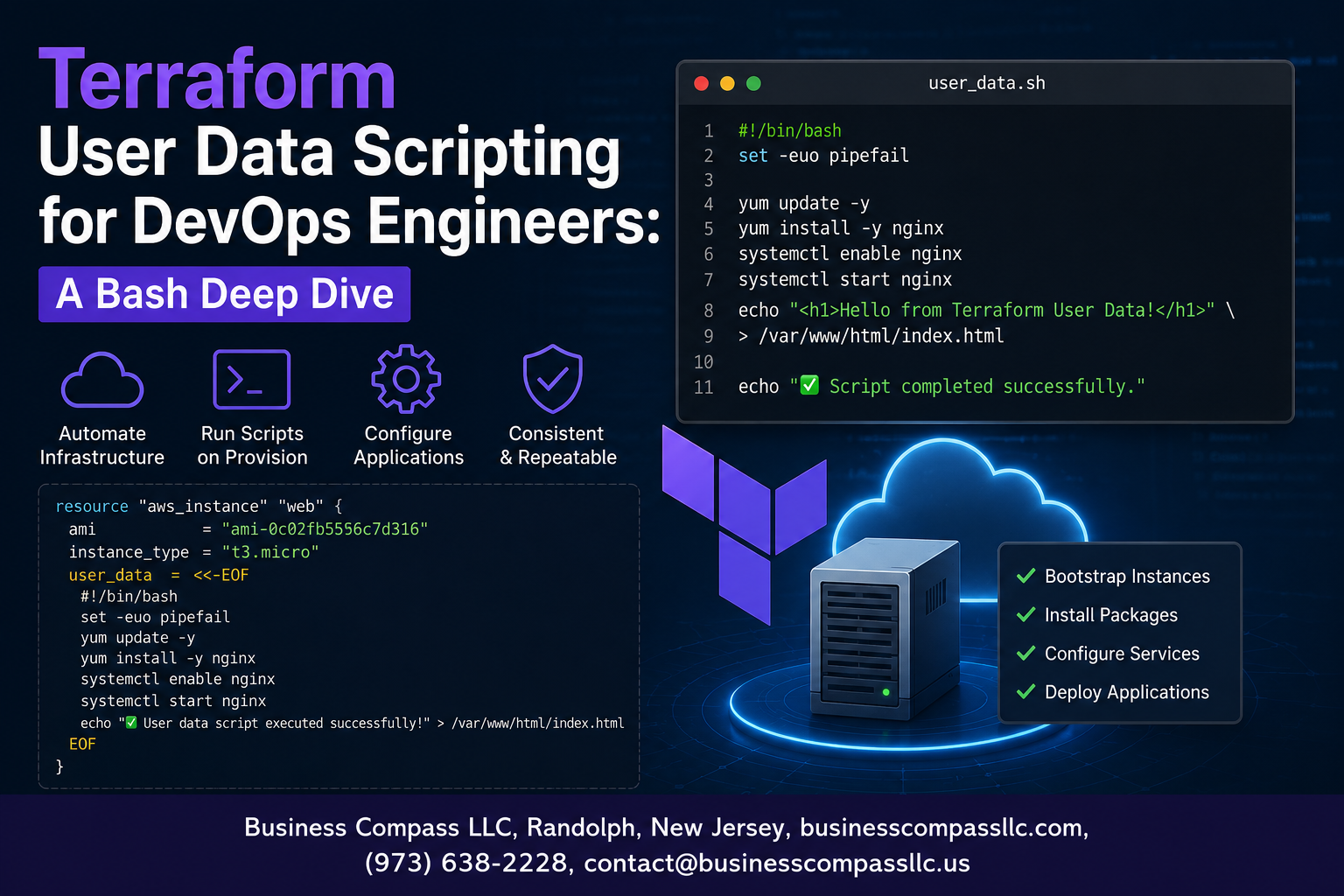
Stop Guessing Why Your EC2 Instance Isn’t Bootstrapping Correctly
If you’ve ever spun up an EC2 instance with Terraform and wondered why your app wasn’t running the way you expected, the answer is almost always in the user data script. Terraform user data scripting is one of those skills that separates a DevOps engineer who deploys infrastructure from one who owns it.
This guide is for DevOps engineers, cloud engineers, and platform teams who already know their way around Terraform basics and want to get serious about Bash scripting for DevOps automation. No hand-holding on the fundamentals — we’re going straight into the practical stuff.
Here’s what we’ll cover:
- How user data scripts actually work inside a Terraform resource block — including how Terraform passes your Bash script to EC2 at launch time and what happens under the hood
- Writing clean, production-ready Terraform scripts — from structuring your Bash logic to handling edge cases that only show up in real environments
- Testing and debugging user data scripts — because
cloud-initlogs don’t explain themselves, and you need a reliable process for catching problems before they hit production
By the end, you’ll have a repeatable approach to Terraform infrastructure automation that you can drop into any project without second-guessing your bootstrap logic.
Understanding User Data Scripting in Terraform

What User Data Scripts Do in Cloud Provisioning
User data scripts are essentially the first instructions your cloud instance runs the moment it boots up. Think of them as a startup checklist — installing packages, configuring services, setting environment variables, and pulling application code — all without you needing to SSH in manually.
- Automate software installation (Nginx, Docker, Node.js, etc.)
- Configure system settings and environment variables
- Bootstrap applications on first launch
- Register instances with monitoring or logging services
How Terraform Passes Scripts to Cloud Instances
Terraform hands off user data scripts to cloud providers like AWS through the user_data argument inside resource blocks. For Terraform EC2 user data, this looks like referencing an external .sh file using the file() function or embedding the script inline using the templatefile() function, which also lets you inject dynamic Terraform variables directly into your Bash logic.
file("scripts/init.sh")— loads a static scripttemplatefile("scripts/init.sh.tpl", { var = value })— injects dynamic values- Scripts run once at first boot via cloud-init on most Linux instances
- AWS, GCP, and Azure all support this pattern with minor syntax differences
Why Bash Is the Preferred Choice for DevOps Automation
Bash sits on virtually every Linux system by default, which makes it the go-to scripting language for DevOps automation with Terraform. You don’t need to install a runtime, manage dependencies, or worry about compatibility — it just works. Bash handles everything from package management with apt or yum to service control with systemctl, making it a practical, battle-tested tool for Terraform infrastructure automation at any scale.
- Pre-installed on all major Linux distributions
- Deep integration with system tools and package managers
- Easy to read, version control, and debug
- Widely understood across DevOps and SRE teams
Setting Up Your Terraform Environment for Bash Scripting

Required Terraform Version and Provider Configuration
Getting your Terraform environment dialed in before writing a single line of bash is the move that separates smooth deployments from painful debugging sessions. For Terraform user data scripting, you want to be running Terraform 1.3 or higher, which gives you access to improved templatefile() function handling and better state management.
Here’s a solid provider block to start with:
terraform {
  required_version = ">= 1.3.0"
  required_providers {
    aws = {
      source  = "hashicorp/aws"
      version = "~> 5.0"
    }
  }
}

provider "aws" {
  region = var.aws_region
}
Structuring Your Project Directory for Script Management
A clean directory structure makes your Terraform bash script tutorial actually reusable across teams:
project/
├── main.tf
├── variables.tf
├── outputs.tf
├── terraform.tfvars
└── scripts/
    ├── bootstrap.sh
    ├── install_packages.sh
    └── configure_app.sh
Keeping bash scripts in a dedicated /scripts folder keeps your .tf files readable and makes version control way cleaner.
Managing Credentials and Permissions Securely
Never hardcode AWS credentials. Lean on these approaches instead:
- IAM Instance Profiles — attach roles directly to EC2 instances
- Environment variables —
AWS_ACCESS_KEY_IDandAWS_SECRET_ACCESS_KEYset at the shell level - AWS Vault or 1Password CLI — inject secrets at runtime without touching your codebase
- Terraform Cloud workspace variables — encrypted and scoped per environment
Validating Your Environment Before Writing Scripts
Run these checks before touching any Terraform EC2 user data configuration:
terraform version— confirm you’re on the right versionaws sts get-caller-identity— verify your credentials are activeterraform fmtandterraform validate— catch syntax issues early- Check that your IAM role has
ec2:DescribeInstancesandssm:GetParameterpermissions if your scripts pull from Parameter Store
Writing Effective Bash Scripts for Terraform User Data

Crafting the Script Header and Shell Directives
Every solid Terraform user data script starts with a proper shebang line. Always open with #!/bin/bash to tell the system exactly which interpreter to run your script with. Pair that with set -euo pipefail right below it — this single line saves you from silent failures by making the script exit on errors, treating unset variables as errors, and catching failures in piped commands.
#!/bin/bash
set -euo pipefail
Handling Variables and Dynamic Values from Terraform
One of the most powerful patterns in Terraform bash scripting is passing dynamic values straight into your user data scripts using Terraform’s templatefile() function or heredoc syntax with <<-EOF. You can inject things like environment names, database endpoints, or S3 bucket names directly into the script at plan time.
user_data = templatefile("${path.module}/scripts/init.sh", {
  app_env        = var.environment
  db_endpoint    = aws_db_instance.main.endpoint
  s3_bucket_name = aws_s3_bucket.app.bucket
})
Inside your bash script, those values drop in as plain shell variables:
APP_ENV="${app_env}"
DB_ENDPOINT="${db_endpoint}"
S3_BUCKET="${s3_bucket_name}"
Installing Dependencies and Configuring Software on Boot
When your EC2 instance spins up, the user data script runs as root, so you have full control to install packages and drop config files wherever you need them. Always run package updates before installing anything — skipping this step on a fresh instance often causes version conflicts.
# Update system packages
apt-get update -y
apt-get upgrade -y

# Install required packages
apt-get install -y \
  nginx \
  curl \
  jq \
  awscli

# Configure nginx
cat > /etc/nginx/sites-available/default <<EOF
server {
    listen 80;
    server_name _;
    location / {
        proxy_pass http://localhost:3000;
    }
}
EOF

systemctl enable nginx
systemctl start nginx
Implementing Error Handling and Exit Codes for Reliability
Good error handling is what separates a production-ready Terraform bash script from something that quietly breaks at 2am. Beyond set -euo pipefail, wrap critical steps in functions with explicit error checks.
#!/bin/bash
set -euo pipefail

error_exit() {
  echo "ERROR: $1" >&2
  exit 1
}

install_app() {
  apt-get install -y myapp || error_exit "Failed to install myapp"
}

configure_app() {
  [[ -f /etc/myapp/config.yml ]] || error_exit "Config file missing after install"
}

install_app
configure_app
Key practices to follow:
- Always test return codes for commands that touch the network or filesystem
- Use
trapto clean up temp files if the script exits unexpectedly - Return meaningful exit codes so monitoring tools can catch failed bootstraps
trap 'error_exit "Script interrupted at line $LINENO"' ERR
Logging Script Execution for Easier Troubleshooting
Debugging a failed Terraform EC2 user data script without logs is a nightmare. Redirect all output to a log file from the start, and still pipe it to the console so cloud-init captures it too.
exec > >(tee /var/log/user-data.log | logger -t user-data -s 2>/dev/console) 2>&1

echo "=== Starting user data script at $(date) ==="
echo "Instance ID: $(curl -s http://169.254.169.254/latest/meta-data/instance-id)"
echo "Environment: ${APP_ENV}"
Useful logging habits to build into every script:
- Timestamp every major step — makes it easy to spot slow operations
- Log variable values early — confirms Terraform injected them correctly
- Mark script completion — a missing “done” line tells you exactly where it died
echo "=== Installing dependencies ==="
apt-get install -y nginx
echo "=== nginx installed successfully at $(date) ==="

# At the very end of the script
echo "=== User data script completed successfully at $(date) ==="
Integrating Bash Scripts into Terraform Resource Blocks

Using the user_data Argument in EC2 and Compute Resources
When spinning up an EC2 instance in Terraform, the user_data argument is your go-to for running bash scripts at launch. Drop it right inside your aws_instance resource block like this:
resource "aws_instance" "web_server" {
  ami           = "ami-0c55b159cbfafe1f0"
  instance_type = "t2.micro"

  user_data = <<-EOF
    #!/bin/bash
    yum update -y
    yum install -y nginx
    systemctl start nginx
    systemctl enable nginx
  EOF

  tags = {
    Name = "WebServer"
  }
}
Key things to keep in mind:
- The script runs as root on first boot — no need for
sudo - Changes to
user_dataafter initial launch won’t re-run automatically; you’d need to replace the instance - Cloud-init handles the execution, so always start with
#!/bin/bash
Passing Terraform Variables into Bash with templatefile
Hardcoding values into your bash scripts is a pain to maintain. The templatefile() function solves this cleanly by letting you inject Terraform variables directly into your script templates.
Create a file called user_data.sh.tpl:
#!/bin/bash
echo "Setting up environment: ${environment}"
echo "App version: ${app_version}" >> /var/log/setup.log
yum install -y ${package_name}
systemctl start ${service_name}
Then reference it in your Terraform config:
resource "aws_instance" "app_server" {
  ami           = var.ami_id
  instance_type = var.instance_type

  user_data = templatefile("${path.module}/user_data.sh.tpl", {
    environment  = var.environment
    app_version  = var.app_version
    package_name = "nginx"
    service_name = "nginx"
  })
}
Why this approach rocks for Terraform EC2 user data:
- Keeps your scripts clean and reusable across environments (dev, staging, prod)
- No string interpolation headaches inside HCL heredocs
- Easy to version control your
.tplfiles separately from your Terraform configs - Works perfectly with DevOps automation with Terraform pipelines where environment-specific configs change frequently
Encoding Scripts Correctly with base64encode
Some cloud providers and certain AWS services — like launch templates or Auto Scaling Groups — expect user data to arrive as a base64-encoded string. Terraform’s built-in base64encode() function handles this without any external tooling.
resource "aws_launch_template" "app_lt" {
  name_prefix   = "app-launch-template"
  image_id      = var.ami_id
  instance_type = "t3.medium"

  user_data = base64encode(templatefile("${path.module}/user_data.sh.tpl", {
    environment = var.environment
    app_version = var.app_version
  }))
}
You can also combine it inline for simpler scripts:
user_data = base64encode(<<-EOF
  #!/bin/bash
  apt-get update -y
  apt-get install -y docker.io
  systemctl start docker
EOF
)
Watch out for these common encoding pitfalls:
aws_instancehandles encoding automatically — wrapping withbase64encodehere causes double-encoding issuesaws_launch_templateneeds the encoded string explicitly- Always decode and inspect your script during bash script debugging in Terraform by running
echo "<encoded_string>" | base64 --decode - If your script contains special characters or Unicode, test the encoding locally before pushing to production
Testing and Debugging User Data Scripts

Running Scripts Locally Before Deployment
Before pushing any Terraform user data scripting to a live cloud instance, test your Bash scripts locally using tools like bash -n script.sh for syntax checks or shellcheck for deeper linting. Spin up a local VM with Vagrant to simulate the execution environment closely.
- Use
set -xin your script to print each command as it runs - Run
bash script.sh 2>&1 | tee output.logto capture every line of output - Validate environment variables and dependencies exist before the script reaches cloud execution
Accessing Cloud Instance Logs to Verify Execution
On AWS EC2, Terraform EC2 user data logs land in /var/log/cloud-init-output.log — this is your first stop when something breaks silently.
- SSH into the instance and run:
sudo cat /var/log/cloud-init-output.log - Check
/var/log/cloud-init.logfor lower-level initialization details - Use AWS Systems Manager Session Manager if SSH access isn’t available
Using Terraform Plan and Apply to Catch Configuration Errors
Running terraform plan catches obvious misconfigurations before anything touches real infrastructure. Pair it with TF_LOG=DEBUG to expose detailed provider-level activity during bash script debugging in Terraform.
- Always review the diff output carefully for unexpected resource replacements
- Use
terraform validatebefore running plan to catch syntax issues early
Iterating Safely Without Reprovisioning Entire Infrastructure
Reprovisioning an entire stack just to test a script tweak is painful and risky. Use Terraform infrastructure automation patterns like null_resource with triggers to rerun scripts without destroying core resources.
- Target specific resources:
terraform apply -target=aws_instance.web - Use
local-execprovisioners for lightweight iteration during development - Store script versions in S3 and reference them dynamically to avoid full replacements
Applying Best Practices for Production-Ready Scripts

Keeping Scripts Idempotent for Consistent Deployments
Writing production-ready Terraform user data scripting means your Bash scripts should run multiple times without breaking anything. Use checks like if ! command -v nginx &>/dev/null before installing packages, and guard file writes with conditional blocks to avoid duplicate configurations.
- Check if a service is already running before starting it
- Use
apt-get install -yflags that skip already-installed packages - Wrap configuration changes with existence checks using
[ -f /etc/myconfig ]
Storing Sensitive Data with Terraform Vault or SSM Parameter Store
Never hardcode passwords or API keys directly into your Bash scripts. Pull secrets at runtime using AWS SSM Parameter Store or HashiCorp Vault, keeping sensitive values out of your Git history and Terraform state files.
- Use
aws ssm get-parameter --with-decryptioninside your user data script - Reference Vault secrets using the
vault_generic_secretdata source - Rotate credentials without redeploying infrastructure
Versioning Scripts Alongside Infrastructure Code in Git
Treat your Bash scripts like first-class citizens in your repo. Keep them next to your .tf files, tag releases properly, and use pull requests for changes so your team can review automation logic the same way they review infrastructure changes.
- Store scripts in a
/scriptsdirectory within your Terraform module - Reference them using
file()ortemplatefile()functions - Use Git tags to track which script version deployed to which environment
Separating Concerns Between Terraform Logic and Bash Operations
Mixing heavy Bash logic inside Terraform resource blocks creates messy, hard-to-maintain code. Keep your Terraform EC2 user data blocks thin, pointing to external script files rather than embedding hundreds of lines of shell commands inline.
- Use
templatefile()to pass Terraform variables into standalone.shfiles - Avoid writing conditional infrastructure logic inside Bash when Terraform can handle it natively
- Keep Bash focused on OS-level tasks like package installs, service setup, and file configuration

Terraform user data scripting with Bash is one of those skills that really levels up your DevOps game. From setting up your environment correctly to writing clean, reliable Bash scripts and plugging them into your Terraform resource blocks, every step builds toward infrastructure that actually works the way you need it to. Throw in solid testing habits and debugging techniques, and you have a workflow that saves you from headaches down the road.
The best part? Once you start applying production-ready best practices, your scripts stop being quick fixes and start becoming dependable, repeatable automation. So go ahead and start small — pick one instance configuration, write a clean user data script, and get comfortable with the process. The more you practice, the faster and more confident you will get at spinning up infrastructure that just works right out of the gate.