Stop Flying Blind on AWS Security
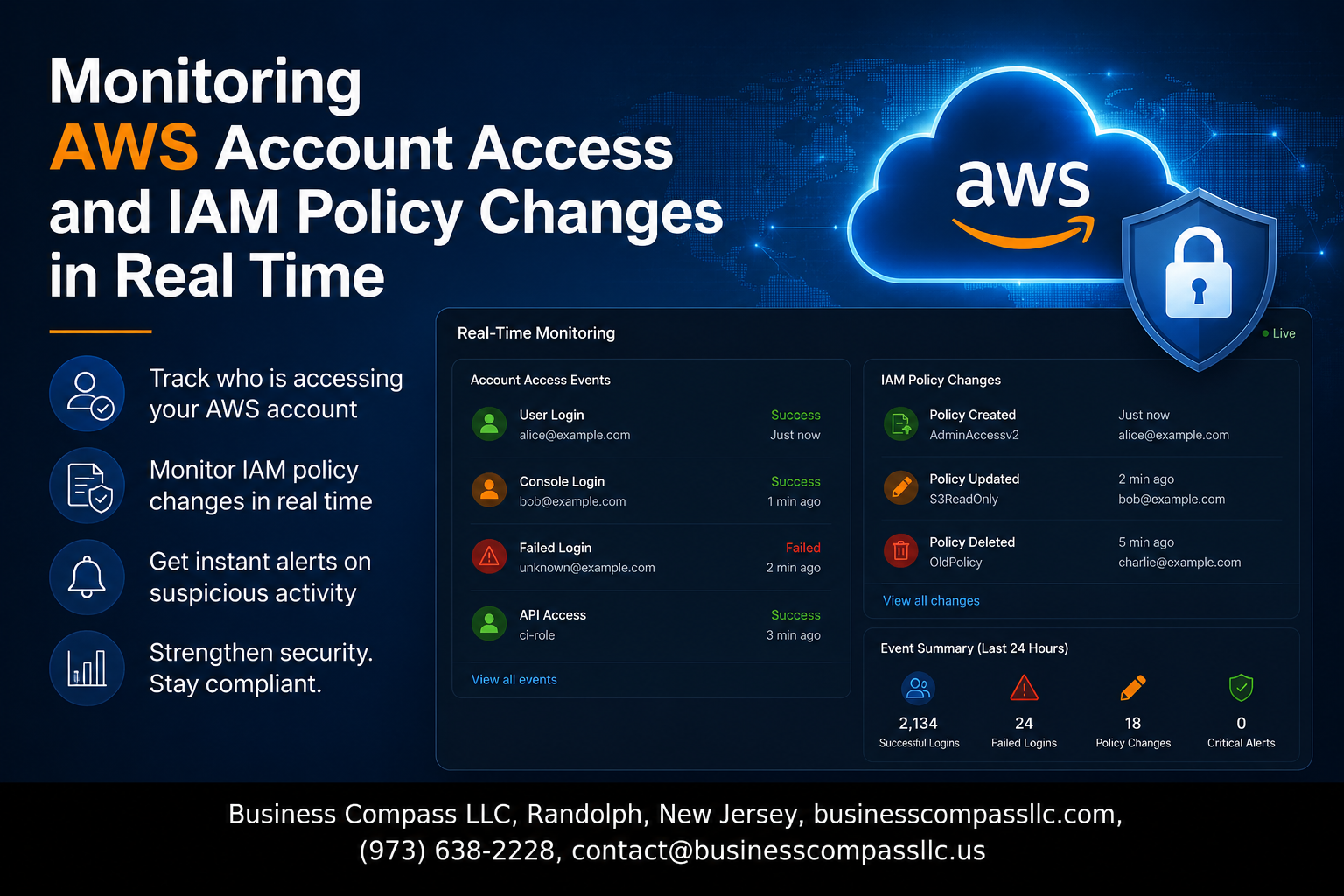
If someone makes an unauthorized IAM policy change in your AWS account right now, would you know about it? For most teams, the honest answer is “probably not fast enough.”
This guide is for cloud engineers, DevOps teams, and security engineers managing AWS environments who want to catch access issues before they turn into real problems — not hours later when reviewing logs.
Here’s what we’ll walk through: how to set up AWS CloudTrail for IAM monitoring so nothing slips through the cracks, how to build real-time AWS security alerts that fire the moment a high-risk IAM action happens, and how to pull everything together into a centralized strategy that works across multiple AWS accounts — not just one.
No fluff, just a practical playbook for tightening AWS account access monitoring and keeping your IAM policies under control.
Understanding the Risks of Unmonitored AWS Account Access
How Unauthorized Access Puts Your Cloud Infrastructure at Risk
When someone gains unauthorized access to your AWS account, the damage can spiral fast. Attackers can spin up expensive resources, exfiltrate sensitive data, or quietly plant backdoors that persist long after the initial breach. Without AWS account access monitoring, you might not even know something went wrong until your bill skyrockets or a customer reports a data leak.
- Credential theft through phishing, exposed access keys in public repositories, or brute-force attacks on weak passwords gives attackers a direct path into your environment
- Once inside, bad actors can escalate privileges, create new IAM users, or attach overly permissive policies to cover their tracks
- Lateral movement across services — from S3 to RDS to Lambda — becomes trivially easy when access goes unchecked
Common IAM Misconfigurations That Lead to Security Breaches
Most AWS breaches don’t happen because attackers are extraordinarily clever — they happen because IAM is hard to get right, and small mistakes compound over time.
- Overly broad wildcard permissions like
Action: "*"on production roles give way more access than any single service or user actually needs - Unused access keys sitting dormant for months become easy targets if credentials are ever leaked
- Missing MFA enforcement on privileged accounts leaves the door wide open for credential-based attacks
- Inline policies attached directly to users instead of roles make auditing a nightmare and create inconsistencies that are easy to miss
- Granting cross-account trust relationships without strict condition checks can expose your environment to third-party risk you never intended
These IAM misconfigurations are exactly the kind of issues that IAM security best practices are designed to prevent — but only if someone is actively watching for them.
Why Real-Time Visibility Is Critical for Cloud Security
The average time to detect a breach in cloud environments is still measured in days, sometimes weeks. That gap is where real damage happens. Real-time AWS security alerts and IAM policy change detection close that window dramatically, giving your team a chance to respond before an attacker can entrench themselves.
- Delayed detection means attackers have time to create persistent access methods, copy data, or delete logs to cover their tracks
- AWS real-time threat detection lets you catch suspicious behavior — like a new admin policy being attached at 2 AM — the moment it happens
- Compliance frameworks like SOC 2, PCI-DSS, and HIPAA increasingly expect near-instant detection and response capabilities, not weekly log reviews
- Real-time visibility also means you can distinguish between a legitimate change made by a developer and a potential compromise, reducing both risk and false alarm fatigue
Key AWS Services That Enable Real-Time Monitoring

Leveraging AWS CloudTrail to Track Account Activity
AWS CloudTrail is your go-to service for recording every API call made across your AWS environment, giving you a detailed history of account activity, including who did what, when, and from where. When it comes to CloudTrail IAM policy changes, the service captures events like CreatePolicy, AttachRolePolicy, and DeleteUser in near real-time, storing them in an S3 bucket or streaming them directly to CloudWatch Logs for immediate analysis. For solid AWS IAM monitoring, you should enable a multi-region trail so no activity slips through the cracks, and make sure log file integrity validation is turned on to prevent tampering.
Key CloudTrail settings to get right:
- Enable multi-region trails to capture global service events
- Turn on log file integrity validation
- Stream logs to CloudWatch Logs for real-time querying
- Enable S3 data events if you need object-level access monitoring
Using Amazon CloudWatch to Detect and Alert on Suspicious Events
CloudWatch acts as the alerting engine that sits on top of your CloudTrail logs, turning raw event data into actionable real-time AWS security alerts. By creating metric filters, you can watch for specific IAM-related API calls and trigger alarms the moment something suspicious happens — like a root account login or an unexpected policy attachment.
A practical set of metric filters worth setting up:
- Root account usage — filter on
userIdentity.type = Root - IAM policy changes — filter on
eventName = PutUserPolicy OR AttachRolePolicy - Console sign-ins without MFA — filter on
additionalEventData.MFAUsed = No - Failed authentication attempts — filter on
errorCode = AccessDenied
Each metric filter pairs with a CloudWatch Alarm, which can push notifications through SNS to email, Slack, or trigger a Lambda function for automated remediation. This is the backbone of any serious AWS account access monitoring setup.
How AWS Config Captures IAM Policy Changes Continuously
While CloudTrail records API calls as they happen, AWS Config takes a different angle — it continuously tracks the state of your IAM resources and flags any configuration drift. With IAM policy change detection, Config records every change to IAM users, roles, groups, and policies as configuration items, giving you a full timeline of how your IAM environment has evolved.
The most useful AWS Config managed rules for IAM include:
iam-policy-no-statements-with-admin-access— catches overly permissive policiesiam-root-access-key-check— verifies no active root access keys existiam-user-mfa-enabled— checks MFA is enforced on all usersiam-password-policy— validates your account password policy meets standards
When combined with AWS CloudTrail setup, Config gives you both the “what changed” (CloudTrail) and the “what does it look like now” (Config), which together create a much stronger picture of your security posture.
Strengthening Security Posture with AWS Security Hub
AWS Security Hub pulls findings from CloudTrail, Config, GuardDuty, and third-party tools into a single dashboard, giving security teams a centralized place to manage AWS real-time threat detection without jumping between services. It scores your environment against frameworks like CIS AWS Foundations Benchmark and AWS Foundational Security Best Practices, highlighting IAM-related gaps automatically.
Security Hub shines in multi-account AWS security monitoring scenarios because it can aggregate findings from dozens of accounts into a single administrator account, making it easy to spot patterns across your organization.
Top IAM-related controls Security Hub checks out of the box:
- IAM.1 — IAM policies should not allow full
*administrative privileges - IAM.4 — Hardware MFA should be enabled for the root user
- IAM.6 — Hardware MFA should be enabled for root accounts
- IAM.8 — Unused IAM user credentials should be removed
Pairing Security Hub with EventBridge rules lets you automate responses to critical findings, turning passive monitoring into active defense aligned with IAM security best practices.
Setting Up CloudTrail for Comprehensive IAM Monitoring

Enabling CloudTrail Across All Regions and Accounts
Getting AWS CloudTrail running across every region and account is the backbone of solid AWS IAM monitoring. A single-region trail leaves blind spots that attackers can easily exploit.
- Go to the CloudTrail console and create a multi-region trail
- Toggle “Apply trail to all regions” to capture API activity everywhere
- Enable CloudTrail for AWS Organizations to push logs from every member account into one place
- Make sure management events are set to capture both Read and Write operations — this is where IAM policy changes show up
Configuring Log File Validation to Ensure Data Integrity
Log file validation is a simple but powerful feature that creates a digitally signed digest file every hour, letting you confirm that no one has tampered with your logs after delivery.
- Turn on log file validation when creating or editing your trail
- Use the AWS CLI command
aws cloudtrail validate-logsto run integrity checks on demand - Treat any validation failure as an immediate security incident — it could mean someone altered evidence of a IAM policy change detection event
Storing and Protecting CloudTrail Logs in Amazon S3
Your logs are only as safe as the bucket holding them. A poorly configured S3 bucket can expose your entire AWS account access monitoring history.
- Create a dedicated S3 bucket strictly for CloudTrail logs
- Block all public access on the bucket — no exceptions
- Apply a bucket policy that only allows CloudTrail to write logs, and restricts deletions even for admins
- Turn on S3 Object Lock in compliance mode to prevent anyone from deleting logs before your retention period ends
- Enable SSE-KMS encryption using a customer-managed key for an extra layer of protection aligned with IAM security best practices
Creating Real-Time Alerts for IAM Policy Changes

Building CloudWatch Metric Filters to Detect IAM Events
Setting up CloudWatch Metric Filters is how you turn raw CloudTrail logs into actionable signals. You create a filter pattern that watches for specific API calls like CreatePolicy, AttachUserPolicy, DeleteRolePolicy, or PutGroupPolicy, then map those events to a custom metric that CloudWatch can track over time.
Here’s a quick example of a filter pattern that catches common IAM policy changes:
{ ($.eventName = CreatePolicy) || ($.eventName = DeletePolicy) || ($.eventName = AttachRolePolicy) || ($.eventName = DetachUserPolicy) }
Once your metric filter is live, you assign it a metric name (like IAMPolicyChangeCount) and a namespace (like Security/IAM), and CloudWatch starts counting every time that pattern fires. This gives you a numeric signal you can build alarms on top of, which is exactly what makes real-time AWS security alerts possible without digging through raw log files manually.
Configuring SNS Notifications for Immediate Security Alerts
After your CloudWatch alarm is set up, you wire it to an SNS topic so the right people get notified the moment something changes. The setup looks like this:
- Create an SNS topic — name it something obvious like
IAM-Policy-Change-Alerts - Subscribe your security team — add email addresses, SMS numbers, or even a Slack webhook via an HTTP/S endpoint
- Link the topic to your CloudWatch alarm — set the alarm action to publish to that SNS topic when the threshold is breached
For AWS IAM monitoring at scale, it helps to separate topics by severity. A policy deletion in a production account should hit a different topic (and probably wake someone up) compared to a routine policy attachment in a dev environment. Keeping those channels separate prevents your team from mentally tuning out alerts because everything sounds equally urgent.
Automating Responses to Policy Changes with AWS Lambda
SNS notifications are great for awareness, but pairing them with Lambda is where you get real defensive capability. When SNS triggers a Lambda function, you can automate responses like:
- Reverting unauthorized policy changes by calling IAM APIs to detach or delete the offending policy
- Isolating a compromised IAM role by removing its trust relationships automatically
- Posting detailed context to Slack or Teams with the affected principal, the change that was made, and the source IP
- Opening a ticket in your incident management system with pre-populated details from the CloudTrail event
The Lambda function receives the CloudWatch alarm state change event, pulls the original CloudTrail log from S3 or CloudWatch Logs Insights, parses the event details, and acts on them. This tight loop between CloudTrail IAM policy changes and automated remediation is the backbone of AWS real-time threat detection — getting from detection to response in seconds rather than hours.
Defining Alert Thresholds to Reduce Notification Fatigue
Bad thresholds kill monitoring programs faster than bad tooling. If every single IAM event fires an alert, your team will start ignoring them within a week. Here’s how to tune thresholds so alerts stay meaningful:
- Use a period + data points combination — instead of alarming on a single policy change, alarm when 3 or more changes happen within a 5-minute window, which is a stronger signal of something unusual
- Separate environments — a threshold of 1 in production can be appropriate, while dev might tolerate 10+ before alerting
- Time-of-day context — changes at 2 AM in a production account should alarm differently than the same change during a deployment window
- Suppress known-good patterns — if your CI/CD pipeline makes IAM changes routinely, create a filter that excludes those specific assumed-role ARNs from the metric
Following IAM security best practices means your alert system reflects the actual risk profile of your environment, not just raw event counts. A well-tuned threshold keeps your team focused on genuine IAM policy change detection signals instead of chasing noise.
Monitoring Privileged Access and High-Risk IAM Actions

Identifying and Tracking Root Account Usage in Real Time
AWS root account activity is one of the highest-risk signals you can monitor. When root logs in, something significant is happening — and you need to know about it instantly. Set up a CloudWatch metric filter on CloudTrail logs that catches any event where userIdentity.type = Root, then wire it to an SNS alert.
- Filter for
ConsoleLoginevents tied to the root user - Alert on any API call made by root, not just logins
- Cross-reference with MFA status — root logins without MFA should trigger immediate escalation
Detecting Unauthorized Privilege Escalation Attempts
AWS privileged access monitoring catches the subtle moves attackers make after getting a foothold. Watch for these specific IAM actions as red flags:
iam:AttachUserPolicyoriam:AttachRolePolicycalled by non-admin usersiam:CreateAccessKeybeing run against accounts other than the caller’s owniam:PassRolecombined with Lambda or EC2 service calls — a classic privilege escalation pathsts:AssumeRolecalls targeting high-privilege roles from unexpected sources
Setting up AWS Config rules alongside CloudTrail gives you both real-time alerts and a historical audit trail for IAM security best practices enforcement.
Auditing Changes to Critical IAM Roles and Policies
Track every mutation to your high-value IAM roles — the ones attached to production workloads, data pipelines, or admin access. Key events to monitor include:
UpdateAssumeRolePolicy— someone changing who can assume a powerful rolePutRolePolicyandDeleteRolePolicyfor inline policy modificationsDetachRolePolicyremoving security guardrails silently
Use CloudTrail IAM policy change detection combined with AWS Config’s managed rule iam-policy-no-statements-with-admin-access to flag overly permissive policies the moment they land.
Implementing a Centralized Monitoring Strategy Across Multiple AWS Accounts

Using AWS Organizations to Consolidate Security Monitoring
When you’re managing multi-account AWS security monitoring, AWS Organizations becomes your best friend. It lets you group accounts into organizational units (OUs) and apply security policies from a single management account, giving you one place to oversee everything instead of jumping between accounts constantly.
Key benefits include:
- Centralized visibility across all member accounts
- Delegated admin roles for security tooling like AWS Security Hub and GuardDuty
- Consistent policy enforcement without manual repetition
Aggregating Logs Centrally for Unified Visibility
Shipping CloudTrail IAM policy changes and access logs to a centralized S3 bucket in a dedicated security or logging account is a widely adopted pattern. This keeps logs tamper-resistant since member accounts can’t delete them, and it makes AWS account access monitoring much easier to run at scale.
A solid setup typically looks like:
- One dedicated logging account with a locked-down S3 bucket
- CloudTrail organization trail enabled from the management account
- Amazon Athena or a SIEM tool querying logs for IAM policy change detection
Applying Service Control Policies to Enforce Security Guardrails
Service Control Policies (SCPs) act like guardrails — they don’t grant permissions but they cap what anyone in a member account can do, even admins. You can block high-risk actions like disabling CloudTrail, deleting GuardDuty detectors, or modifying critical IAM roles across every account at once.
Common SCP guardrails to apply:
- Deny
cloudtrail:StopLoggingandcloudtrail:DeleteTrail - Restrict IAM changes outside approved automation pipelines
- Block leaving AWS Organizations without explicit approval
Streamlining Cross-Account Monitoring with Delegated Administration
Rather than doing everything from the management account, delegated administration lets you assign a dedicated security account to manage services like Security Hub, GuardDuty, and AWS Config across the org. This keeps your management account clean and reduces blast radius if something goes wrong.
Steps to get this working:
- Enable delegated admin for Security Hub and GuardDuty from the management account
- Aggregate findings centrally using Security Hub’s cross-account aggregation feature
- Set up real-time AWS security alerts using EventBridge rules that fire across all member accounts
Measuring the Effectiveness of Your Real-Time Monitoring Setup

Defining Key Metrics to Evaluate Monitoring Performance
Tracking the right numbers tells you whether your AWS IAM monitoring setup is actually working or just creating noise. Focus on metrics that reflect real security outcomes:
- Mean Time to Detect (MTTD): How quickly does your system catch an IAM policy change after it happens?
- Mean Time to Respond (MTTR): How long does it take your team to act on a real-time AWS security alert?
- False Positive Rate: A high rate means your alert rules need tightening — teams that chase too many false alarms start ignoring genuine threats.
- Alert Coverage Rate: What percentage of your defined high-risk IAM actions are covered by active alert rules?
- Unacknowledged Alert Count: Alerts sitting without a response signal gaps in your on-call or escalation process.
Conducting Regular Audits to Identify Monitoring Gaps
Even a well-built CloudTrail IAM policy changes detection setup can develop blind spots over time. Schedule quarterly audits that include:
- Reviewing CloudTrail log coverage across all regions and accounts
- Cross-checking your alert rules against the current list of AWS privileged access monitoring targets
- Simulating IAM changes manually to confirm alerts fire as expected
- Identifying newly created IAM roles or policies that fall outside existing monitoring scope
Continuously Improving Alert Rules Based on Emerging Threats
The threat landscape shifts constantly, so your IAM policy change detection rules need to keep pace. After each security incident or near-miss, ask what rule would have caught it earlier. Subscribe to AWS security bulletins and review new IAM security best practices as AWS releases service updates. Refine alert thresholds based on observed attacker behavior patterns, and retire rules that consistently generate irrelevant alerts — a clean, focused ruleset outperforms a bloated one every time.

Keeping a close eye on AWS account access and IAM policy changes is not just a best practice — it is what stands between your cloud environment and a potential security nightmare. From setting up CloudTrail to building real-time alerts, creating a solid monitoring strategy means you catch problems early, respond fast, and keep privileged access under control across every account you manage.
The good news is that AWS gives you the tools to make this happen without overcomplicating things. Start small if you need to — get CloudTrail running, set up a few key alerts, and build from there. The goal is a monitoring setup that works quietly in the background, flags what matters, and gives you the confidence that nothing important is slipping through the cracks. Take a look at your current setup today and identify one gap you can close this week.