

How to Configure GitHub Actions OIDC with AWS IAM: A Step-by-Step Guide
If you’re still using long-lived AWS access keys in your GitHub Actions workflows, you’re carrying unnecessary risk. GitHub Actions OIDC AWS integration lets your workflows request short-lived credentials directly from AWS IAM — no stored secrets needed.
This guide is for DevOps engineers, platform teams, and developers who want to set up secure AWS authentication for their CI/CD pipelines without the overhead of managing static credentials.
Here’s what we’ll walk through: how to configure OIDC AWS IAM trust policies so AWS knows to trust your GitHub repository, how to set up the AWS OIDC identity provider and IAM role with the right permissions, and how to lock down access using condition keys so only specific repositories or branches can assume that role.
By the end, you’ll have a working GitHub Actions AWS integration built on solid security fundamentals.
Understanding the Core Concepts Behind GitHub Actions OIDC and AWS IAM

What OIDC Is and Why It Eliminates the Need for Long-Lived AWS Credentials
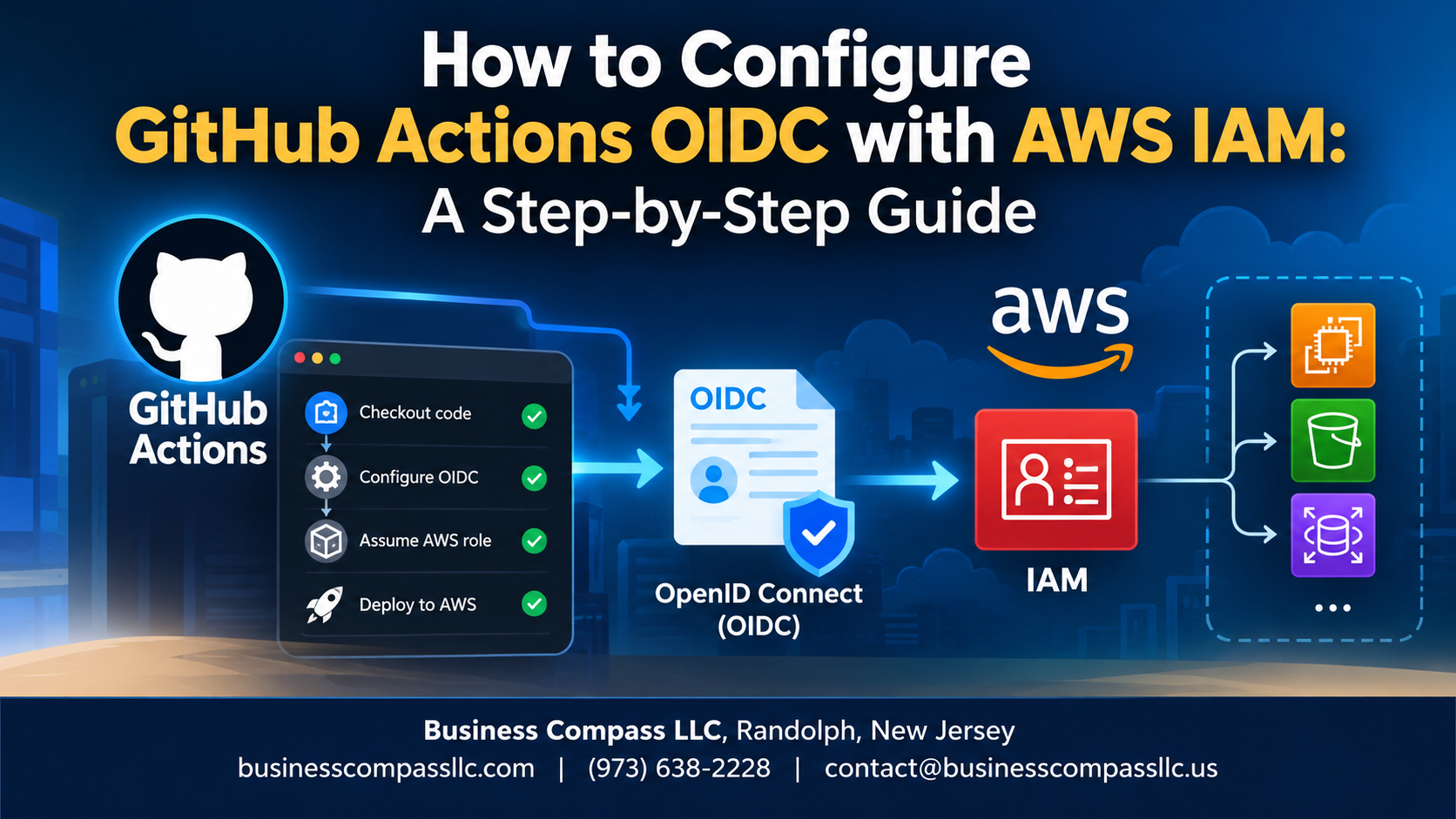
GitHub Actions OIDC AWS integration lets your workflows request short-lived tokens instead of storing static AWS access keys. When a job runs, GitHub mints a signed JWT; AWS verifies it against the registered identity provider, issues temporary credentials, and the token expires automatically—zero secrets to rotate or leak.
Setting Up the AWS Side for OIDC Integration

Creating an OIDC Identity Provider in AWS IAM
In AWS IAM, go to Identity Providers → Add Provider, select OpenID Connect, and enter https://token.actions.githubusercontent.com as the provider URL.
Defining the Correct Audience and Thumbprint
Set audience to sts.amazonaws.com; AWS auto-fetches the thumbprint.
Creating an IAM Role with a Trust Policy
Attach a trust policy referencing the OIDC provider, scoped to your repo.
Attaching Minimal IAM Permissions
Grant only what your workflow needs.
Configuring Your GitHub Actions Workflow to Use OIDC

A. Adding the Required Permissions Block
Add id-token: write and contents: read to your workflow permissions.
B. Using the Configure AWS Credentials Action
Use aws-actions/configure-aws-credentials@v4 to request the OIDC token automatically.
C. Passing Role ARN and Region
Specify role-to-assume and aws-region as action inputs.
D. Verifying Role Assumption
Check workflow logs for successful STS AssumeRoleWithWebIdentity calls.
E. Testing with AWS CLI
Run aws sts get-caller-identity to confirm correct role assumption.
Locking Down Access with Condition Keys in Your Trust Policy

Restricting Access to Specific Repositories Using Condition Keys
Use StringLike in your OIDC trust policy to pin access to exact repos:
"token.actions.githubusercontent.com:sub": "repo:your-org/your-repo:*"
Limiting Authentication to Specific Branches or Environments
ref:refs/heads/mainlocks to main branchenvironment:productiontargets specific GitHub environments
Using String Conditions to Prevent Unauthorized Role Assumption
Swap StringLike for StringEquals when possible—wildcards invite risk.
Troubleshooting Common OIDC Configuration Errors

Fixing Token Validation Failures Caused by Incorrect Thumbprints
- Double-check your OIDC provider thumbprint in AWS IAM matches GitHub’s current certificate.
Resolving Permission Denied Errors from Misconfigured Trust Policies
- Verify your trust policy includes the correct
subclaim matching your repo.
Diagnosing Workflow Failures Related to Missing Permission Scopes
- Add
id-token: writeunder workflow permissions.
Following Best Practices to Keep Your OIDC Setup Secure and Maintainable

Applying Least Privilege Principles to Every IAM Role
Grant only the permissions each workflow actually needs—nothing extra.
Using Environment-Specific Roles to Separate Dev, Staging, and Production Access
- Separate roles per environment tighten your GitHub Actions AWS integration boundaries.
Auditing Role Usage Regularly with AWS CloudTrail Logs
Track every assumed role to catch unexpected access fast.

Setting up GitHub Actions OIDC with AWS IAM might seem like a lot of moving parts at first, but once you understand how the trust relationship works, the rest starts to fall into place. From creating the identity provider in AWS to writing the right condition keys in your trust policy, each step builds on the last — and the payoff is a much cleaner, more secure CI/CD pipeline without hardcoded credentials sitting around waiting to cause problems.
Take the time to lock down your trust policy conditions, keep your IAM roles scoped to only what each workflow actually needs, and revisit your setup as your pipelines grow. A little maintenance goes a long way in keeping things secure. If you run into errors along the way, the troubleshooting tips covered here should help you get unstuck quickly. Now go ahead and make that first commit — your AWS credentials will thank you.