

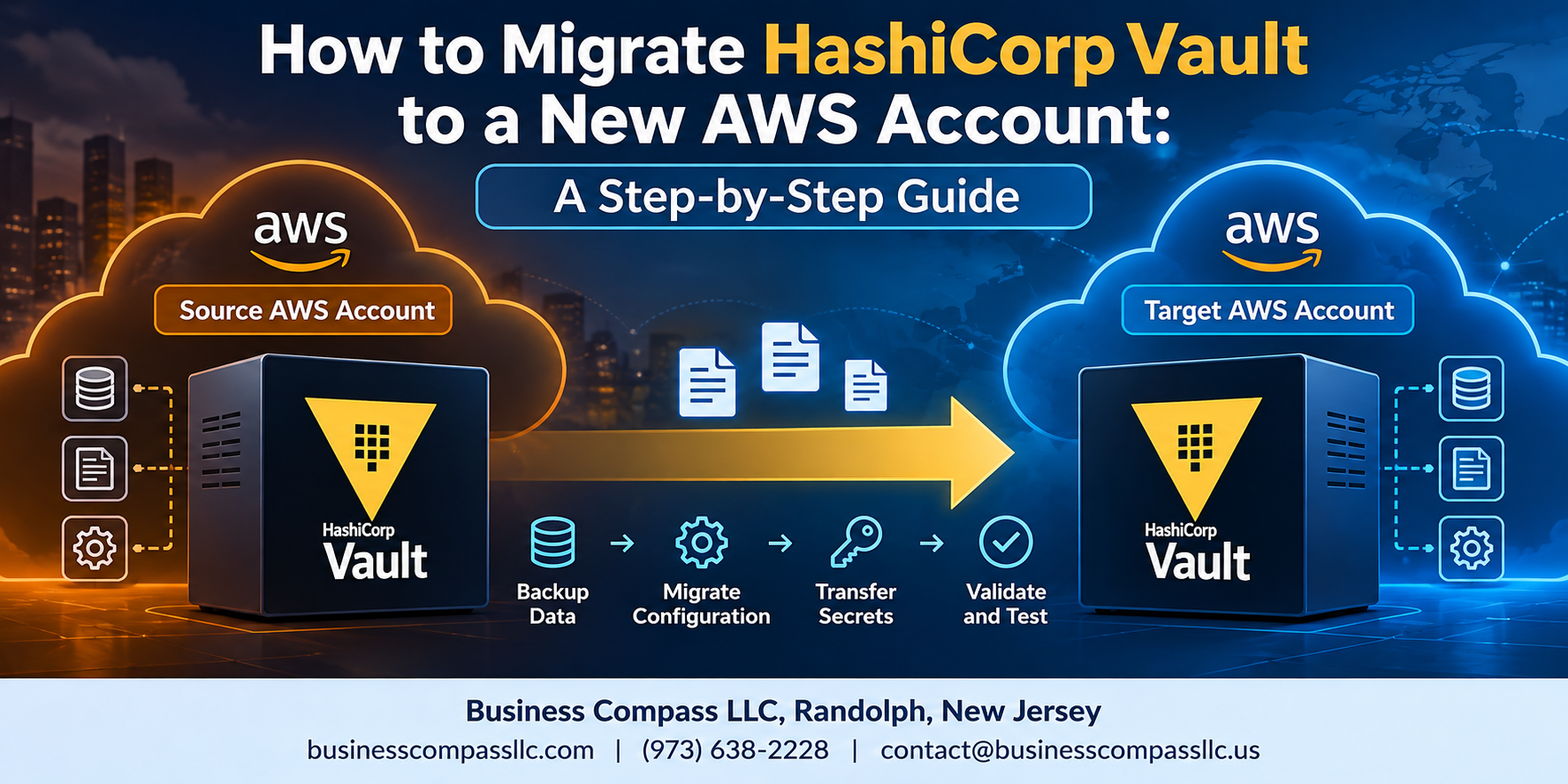
Migrating HashiCorp Vault to a New AWS Account Without Breaking Everything
Moving HashiCorp Vault to a new AWS account sounds straightforward until you’re mid-migration and realize you forgot to back up a secret backend or your apps are pointing at a dead endpoint. This guide is for DevOps engineers, cloud architects, and platform teams who need a clear, practical path through the Vault AWS account migration process without guessing what comes next.
Here’s what we’ll walk through together: how to back up your existing Vault data so nothing gets lost in transit, how to prepare your new AWS environment and migrate Vault configuration and secrets cleanly, and how to cut over traffic while keeping downtime as short as possible. By the end, you’ll also know how to lock down your new setup so it’s ready for a secure Vault production environment — not just functional, but hardened.
No fluff, no hand-waving. Just the actual steps.
Understanding the Prerequisites Before Starting the Migration
A. Assess Your Current Vault Setup and Version Compatibility
- Check your Vault version before starting your HashiCorp Vault migration — mismatched versions break restores.
B. Set Up the Target AWS Account with Proper IAM Permissions
- Attach policies for KMS, S3, and EC2 access.
C. Gather Credentials for Both Accounts
- Keep both accounts’ access keys ready.
D. Install Required CLI Tools
- Install Vault CLI, AWS CLI, and Terraform.
Back Up Your Existing Vault Data to Prevent Any Loss

A. Enable and Verify Vault Audit Logging Before Taking Snapshots
Enable audit logging via vault audit enable file file_path=/var/log/vault_audit.log to capture all requests before snapshotting.
B. Create a Full Snapshot of Your Vault Storage Backend
- Run
vault operator raft snapshot save backup.snapfor Raft-based backends.
C. Securely Store the Backup
Upload to a versioned, encrypted S3 bucket in your source AWS account.
Prepare the New AWS Environment for Vault Deployment

A. Provision EC2 or ECS Infrastructure
- Use Terraform or CloudFormation to spin up instances matching your existing Vault sizing.
B. Configure VPC, Security Groups, and Network Rules
- Lock down port 8200; allow only trusted CIDR ranges.
C. Set Up AWS KMS for Auto-Unseal
- Create a new KMS key; update Vault’s seal stanza.
D. Configure S3 or DynamoDB Storage Backend
- Create dedicated buckets/tables with versioning enabled.
Migrate Vault Configuration and Secrets to the New Account

A. Transfer the Vault Configuration Files
Copy your vault.hcl config to the new environment, updating storage backend endpoints and AWS region references.
B. Restore the Snapshot
Run vault operator raft snapshot restore against your new backend.
C–E. Auth, Secrets & Validation
- Reconfigure AWS auth roles pointing to the new account ID
- Re-enable secrets engines and reapply policies
- Run
vault kv getchecks to confirm secret accessibility
Redirect Traffic and Minimize Downtime During Cutover

A. Update DNS Records to Point to the New Vault Cluster
Switch your DNS records to the new Vault cluster’s load balancer, keeping TTL low beforehand for faster propagation.
B. Communicate the Maintenance Window to All Dependent Teams
Notify teams early, sharing exact cutover times.
C. Monitor Active Leases and Renew Tokens Where Necessary
Watch active leases closely and renew expiring tokens to avoid broken app connections during the Vault AWS account migration.
Validate and Harden the New Vault Deployment for Production

A. Run Health Checks to Confirm Vault Is Fully Operational
- Run
vault statusand check the Vault UI health endpoint.
B. Test Authentication Methods and Secret Access End-to-End
- Verify AWS IAM auth, token login, and secret reads work correctly.
C. Apply Security Best Practices and Tighten IAM Policies
- Restrict IAM roles, enable audit logging, and enforce least-privilege access for your secure Vault production setup.
D. Decommission the Old Vault Instance After Successful Verification
- Snapshot, then terminate old resources cleanly.

Migrating HashiCorp Vault to a new AWS account is no small task, but breaking it down into clear steps makes it manageable. From backing up your data and prepping the new environment to moving your secrets, redirecting traffic, and locking everything down for production — each phase plays a critical role in pulling off a smooth migration without losing data or disrupting your teams.
The most important thing to walk away with? Don’t rush it. Take the time to validate everything before you cut over, and double-check your hardening steps before going live. A little extra caution at the end can save you from a lot of headaches down the road. If you haven’t started your migration plan yet, now is a great time to get your checklist together and work through it step by step.