Setting up a high-performance Redis memory server on AWS EC2 doesn’t have to be complicated when you use Terraform to automate the entire process. This guide shows DevOps engineers, cloud architects, and backend developers how to deploy Redis on AWS EC2 with infrastructure-as-code practices that save time and reduce human error.
You’ll learn to create a robust Terraform Redis configuration that handles everything from EC2 instance provisioning to security group setup. We’ll walk through Redis memory optimization techniques that squeeze maximum performance from your AWS infrastructure, and cover Redis security best practices that protect your data in production environments.
By the end of this tutorial, you’ll have a complete Terraform AWS infrastructure setup that automatically deploys and configures Redis servers with proper monitoring and maintenance workflows built right in.
Set Up Your AWS Environment for Redis Deployment
Configure AWS CLI with proper credentials and permissions
Start by installing the AWS CLI and running aws configure to set up your access keys, secret keys, and default region. Create an IAM user specifically for your Redis deployment with EC2, VPC, and security group permissions. Your credentials should include policies for EC2FullAccess and VPCFullAccess to handle the infrastructure components needed for your Redis server setup.
Create dedicated VPC and security groups for Redis access
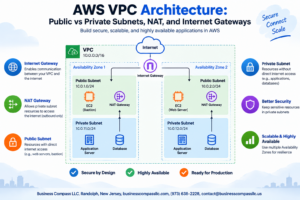
Design a custom VPC with public and private subnets to isolate your Redis infrastructure from other AWS resources. Configure security groups that allow Redis traffic on port 6379 only from specific IP ranges or application servers. This network segmentation provides an additional security layer for your deploy Redis on AWS EC2 implementation while maintaining proper access controls.
Select optimal EC2 instance type for memory-intensive workloads
Choose memory-optimized instances like r5.large or r5.xlarge for your Redis server deployment, as these provide high memory-to-vCPU ratios essential for caching workloads. Consider your expected data size and concurrent connections when sizing your instance. Memory-intensive applications benefit from these instance types’ enhanced networking performance and EBS optimization, which directly impacts your Redis performance tuning AWS configuration.
Install and Configure Terraform for Infrastructure Management
Download and install Terraform on your local machine
Installing Terraform requires downloading the appropriate binary for your operating system from HashiCorp’s official website. Once downloaded, extract the executable and add it to your system’s PATH environment variable for global access. Verify the installation by running terraform version in your terminal to confirm proper setup.
Set up Terraform provider configuration for AWS
Create a providers.tf file to define the AWS provider configuration for your Terraform AWS infrastructure deployment. Specify the required provider version, AWS region, and authentication method. Configure your AWS credentials using either environment variables, AWS CLI profiles, or IAM roles to enable secure communication between Terraform and AWS services.
Create project directory structure for organized deployment
Establish a clean directory structure for your Redis Terraform configuration by creating separate folders for modules, variables, and outputs. Organize your project with dedicated files like main.tf for resources, variables.tf for input parameters, and outputs.tf for return values. This structured approach simplifies maintenance and enables reusable infrastructure components for future deployments.
Initialize Terraform workspace with backend configuration
Run terraform init to initialize your workspace and download necessary provider plugins for EC2 Redis server setup. Configure a remote backend using S3 for state file storage and DynamoDB for state locking to prevent concurrent modifications. Set up workspace-specific configurations to manage multiple environments and ensure consistent deployment processes across development, staging, and production environments.
Design Terraform Configuration for Redis Infrastructure
Define EC2 instance specifications and AMI selection
Choosing the right EC2 instance type for your Redis deployment depends on your memory requirements and workload patterns. For Redis memory optimization, select memory-optimized instances like r5.large or r5.xlarge that provide high memory-to-vCPU ratios. Use Amazon Linux 2 AMI for better performance and security updates. The instance should have at least 4GB RAM for production Redis workloads, with SSD storage for persistence. Consider using enhanced networking for low-latency applications.
Configure security groups with Redis-specific port rules
Create a dedicated security group for your Redis infrastructure that restricts access to essential ports only. Allow inbound traffic on port 6379 (Redis default) from specific IP ranges or security groups containing your application servers. Block all other inbound traffic except SSH on port 22 from your management subnet. Configure outbound rules to allow necessary system updates and monitoring traffic. This Redis security configuration prevents unauthorized access while maintaining operational flexibility.
Set up key pairs for secure SSH access
Generate a new EC2 key pair specifically for your Redis servers to maintain security isolation from other infrastructure components. Store the private key securely and restrict file permissions to 600. Reference the key pair name in your Terraform EC2 configuration using the key_name parameter. Avoid reusing existing key pairs from other projects to minimize security risks. Consider implementing session manager for additional SSH security layers without exposing direct internet access.
Create IAM roles and policies for EC2 Redis operations
Design an IAM role with minimal required permissions for your Redis EC2 instances to follow the principle of least privilege. Create policies allowing CloudWatch metrics publishing, Systems Manager access for patch management, and S3 access for backup operations if needed. The role should include permissions for EBS volume management and network interface operations. Attach the role to your EC2 instances through an instance profile, enabling secure AWS service interactions without hardcoded credentials in your Redis Terraform configuration.
Deploy Redis Server Using Terraform Automation
Write Terraform scripts for EC2 instance provisioning
Creating robust Terraform scripts for EC2 instance provisioning requires defining the core infrastructure components. Start with a main.tf file that specifies the AWS provider and region configuration. Define an EC2 instance resource with appropriate instance types like t3.medium or t3.large for optimal Redis performance. Include essential parameters such as AMI ID, security group references, and key pair associations. Configure subnet placement within your VPC to ensure proper network isolation. Add tags for resource management and cost tracking across your Redis deployment infrastructure.
Configure user data scripts for automated Redis installation
User data scripts automate Redis installation and configuration during EC2 instance boot. Create a shell script that updates the system packages, installs Redis server, and configures basic settings like bind addresses and memory allocation. Include commands to start Redis service automatically and enable it on system boot. Set up proper file permissions and create necessary directories for Redis data storage. The script should also configure firewall rules to allow Redis traffic on port 6379 while maintaining security best practices for your AWS Redis deployment.
Execute terraform plan to validate infrastructure changes
Running terraform plan validates your Redis infrastructure configuration before deployment. This command analyzes your Terraform configuration files and compares them against the current state to identify required changes. Review the plan output carefully to verify EC2 instance specifications, security group rules, and network configurations match your requirements. The plan shows resource creation, modification, or destruction actions that Terraform will perform. Check for any potential issues with IAM permissions, resource naming conflicts, or dependency problems that could impact your Redis server deployment.
Apply Terraform configuration to create AWS resources
Execute terraform apply to provision your Redis infrastructure on AWS EC2. This command creates all defined resources including the EC2 instance, security groups, and associated networking components. Monitor the apply process for any errors or warnings that might indicate configuration issues. Terraform will display the execution plan and request confirmation before proceeding with resource creation. Once completed, verify the EC2 instance is running and accessible through the AWS console. The automated Redis installation should complete during the instance initialization process, making your Redis server ready for configuration and testing.
Configure Redis Memory Settings and Performance Optimization
Adjust Redis configuration file for optimal memory usage
Start by modifying /etc/redis/redis.conf to set maxmemory to 75% of your EC2 instance’s available RAM, leaving headroom for the operating system. Enable memory compression with hash-max-ziplist-entries 512 and hash-max-ziplist-value 64 to reduce memory footprint for small objects. Set tcp-keepalive 300 to prevent connection leaks and configure timeout 300 to automatically close idle client connections that consume memory unnecessarily.
Set up Redis persistence options for data durability
Configure RDB snapshots by setting save 900 1 for automatic backups every 15 minutes when at least one key changes. Enable AOF (Append Only File) with appendonly yes and appendfsync everysec for better durability with minimal performance impact. Set auto-aof-rewrite-percentage 100 and auto-aof-rewrite-min-size 64mb to automatically rewrite the AOF file when it doubles in size, preventing excessive disk usage on your EC2 instance.
Configure memory policies and eviction strategies
Set maxmemory-policy allkeys-lru to remove least recently used keys when memory limits are reached, perfect for caching workloads. For session storage, use volatile-lru to only evict keys with TTL set. Configure maxmemory-samples 5 to balance eviction accuracy with performance. Monitor evicted keys with Redis monitoring tools to ensure your memory policies align with application requirements and adjust the policy based on your specific use case.
Tune Redis parameters for your specific workload requirements
Optimize Redis performance tuning AWS by setting hz 10 for background tasks frequency and client-output-buffer-limit normal 0 0 0 to prevent client disconnections during large responses. Configure tcp-backlog 511 to handle more concurrent connections on EC2. Set databases 1 if using a single database to reduce memory overhead. Enable lazyfree-lazy-eviction yes for non-blocking key eviction and adjust io-threads 4 on multi-core EC2 instances for better throughput.
Implement Security Best Practices for Production Redis
Enable Redis authentication and access control
Setting up proper authentication prevents unauthorized access to your Redis deployment. Configure requirepass in your Redis configuration file to establish a strong password – use at least 32 characters with mixed case letters, numbers, and special characters. Enable Access Control Lists (ACLs) for granular user permissions, allowing you to create specific users with limited commands and keyspace access. Use Terraform to automate these security configurations by passing encrypted passwords through AWS Parameter Store or Secrets Manager.
Configure SSL/TLS encryption for data in transit
Redis doesn’t support SSL/TLS natively, so implement encryption using stunnel or a Redis proxy like Envoy. Configure your EC2 security groups to allow only encrypted connections on your chosen SSL port while blocking direct Redis port access. Set up certificate management through AWS Certificate Manager for automated certificate rotation. Your Terraform configuration should provision the necessary SSL certificates and configure the proxy settings to encrypt all client-server communications.
Set up proper firewall rules and network segmentation
Create restrictive security groups that allow Redis traffic only from authorized sources. Configure your Terraform Redis security best practices to limit port 6379 access to specific IP ranges or security groups containing your application servers. Deploy Redis in private subnets with no direct internet access, using NAT gateways for outbound connections. Implement VPC peering or transit gateways for cross-VPC communication while maintaining network isolation between environments.
Implement backup strategies and disaster recovery plans
Configure automated Redis backups using RDB snapshots and AOF persistence modes simultaneously for maximum data protection. Set up cross-region replication using Redis Sentinel or Cluster mode to ensure high availability. Use Terraform to automate backup schedules with AWS Lambda functions that trigger Redis BGSAVE commands and copy snapshots to S3 buckets with versioning enabled. Establish recovery time objectives (RTO) and recovery point objectives (RPO) that align with your business requirements, testing restore procedures regularly to validate your disaster recovery processes.
Monitor and Maintain Your Redis Deployment
Set up CloudWatch monitoring for Redis metrics
CloudWatch provides comprehensive monitoring for your Redis deployment on EC2, tracking essential metrics like memory usage, CPU utilization, and network throughput. Enable detailed monitoring by installing the CloudWatch agent on your EC2 instance and configure custom metrics to capture Redis-specific data such as connected clients, cache hit ratios, and keyspace statistics. Create custom dashboards that display real-time performance data, helping you identify bottlenecks and optimize your Redis memory optimization strategies. The monitoring setup integrates seamlessly with your Terraform AWS infrastructure, allowing automated metric collection without manual intervention.
Configure automated alerts for memory and performance thresholds
Smart alerting prevents Redis performance issues before they impact your application. Set up CloudWatch alarms that trigger when memory usage exceeds 80%, CPU utilization spikes above 70%, or connection counts approach your configured limits. Configure SNS notifications to alert your team via email or Slack when thresholds are breached. Create escalating alert policies that send warnings at 75% memory usage and critical alerts at 90%, giving you time to scale resources or clear cache data. These automated systems work perfectly with your Terraform EC2 automation setup, maintaining consistent monitoring across deployments.
Implement log management and troubleshooting procedures
Effective log management simplifies Redis troubleshooting and performance analysis. Configure Redis to output logs to specific files and use CloudWatch Logs agent to centralize log collection from your EC2 instances. Set up log rotation to prevent disk space issues and create custom log filters that highlight error patterns, slow queries, and connection issues. Establish clear troubleshooting procedures that include checking memory fragmentation, analyzing slow log entries, and monitoring client connection patterns. Document common Redis issues and their solutions, creating a knowledge base that speeds up incident response and helps maintain optimal performance for your AWS Redis deployment guide implementation.
Setting up Redis on EC2 with Terraform gives you a powerful, scalable memory solution that’s both reliable and cost-effective. You’ve learned how to automate the entire process, from configuring your AWS environment to optimizing Redis performance settings. The security practices and monitoring strategies covered here will keep your deployment running smoothly in production.
Ready to take your Redis deployment to the next level? Start by implementing the Terraform configurations discussed in this guide, then gradually add the security layers and monitoring tools. Your applications will benefit from faster data access, and you’ll have the peace of mind that comes with a properly automated and secured infrastructure. Don’t forget to regularly review your memory usage and performance metrics to ensure your Redis server continues meeting your growing demands.