Looking to host a static website on AWS? You’re in the right place. AWS static website hosting offers powerful, scalable solutions that can handle everything from personal blogs to high-traffic business sites. This guide is designed for developers, DevOps engineers, and technical decision-makers who want to deploy static websites efficiently using AWS services.
You’ll learn how to set up hosting using both S3 static website hosting and AWS Amplify hosting, with a detailed S3 vs Amplify comparison to help you choose the right approach. We’ll walk through implementing SSL certificates for secure HTTPS connections and show you how to build robust AWS CI/CD pipelines for automated deployments. You’ll also discover how to boost your site’s speed with AWS CloudFront CDN and smart caching strategies that improve user experience.
By the end, you’ll have the knowledge to deploy, secure, and optimize your static site on AWS with confidence.
Understanding AWS Static Website Hosting Options
Key differences between S3 and Amplify hosting
S3 static website hosting operates as a simple file storage service that serves HTML, CSS, and JavaScript files directly from buckets. You configure bucket policies, enable static website hosting, and upload your files manually or through automated scripts. AWS Amplify hosting, on the other hand, provides a complete development platform with built-in CI/CD pipelines, automatic deployments from Git repositories, and serverless backend integration. Amplify handles build processes, preview environments, and branch-based deployments automatically, while S3 requires manual configuration for these features.
Cost comparison and pricing models
S3 pricing follows a pay-per-use model based on storage consumed, requests made, and data transfer out. You pay separately for CloudFront CDN if needed, Route 53 for custom domains, and Certificate Manager for SSL certificates. Amplify pricing includes hosting costs that cover build minutes, storage, and data transfer in a bundled package. For simple static sites with low traffic, S3 proves more cost-effective at around $1-5 monthly. Amplify becomes economical for projects requiring frequent deployments and complex build processes, typically starting at $15-30 monthly for active development workflows.
Performance capabilities and limitations
Both platforms deliver excellent performance when properly configured. S3 with CloudFront achieves global edge caching with sub-100ms response times and unlimited scalability for traffic spikes. You control cache behaviors, compression settings, and geographic restrictions manually. Amplify automatically optimizes builds, enables instant cache invalidation, and provides performance monitoring dashboards. S3 requires manual optimization of images, minification, and compression, while Amplify handles these build-time optimizations automatically. Both support custom headers, redirects, and SPA routing, though Amplify simplifies configuration through its console interface.
When to choose each platform
Choose S3 static website hosting for simple sites with infrequent updates, tight budget constraints, or when you need granular control over caching and security configurations. S3 works best for documentation sites, landing pages, or projects where you manage deployments through existing CI/CD tools like Jenkins or GitHub Actions. Select AWS Amplify hosting for active development projects requiring frequent deployments, team collaboration, preview environments, or integration with serverless backends. Amplify excels for React, Angular, and Vue.js applications where automated builds, environment variables, and branch-based workflows streamline development processes significantly.
Setting Up S3 Static Website Hosting
Creating and configuring S3 buckets for web hosting
Start by creating a new S3 bucket with a name matching your domain (like example.com). Navigate to the AWS S3 console, click “Create bucket,” and choose a globally unique name. Set the region close to your target audience for better performance. Disable “Block all public access” since static websites need public read permissions. Keep versioning enabled for better file management and create the bucket with default encryption settings.
Uploading website files and setting permissions
Upload your HTML, CSS, JavaScript, and image files directly through the S3 console or use AWS CLI for bulk uploads. Set proper permissions by creating a bucket policy that allows public read access to all objects. Your bucket policy should include "Principal": "*" and "Action": "s3:GetObject" for the entire bucket contents. Make sure your main page is named index.html and create a custom error page like 404.html for better user experience.
Enabling static website hosting features
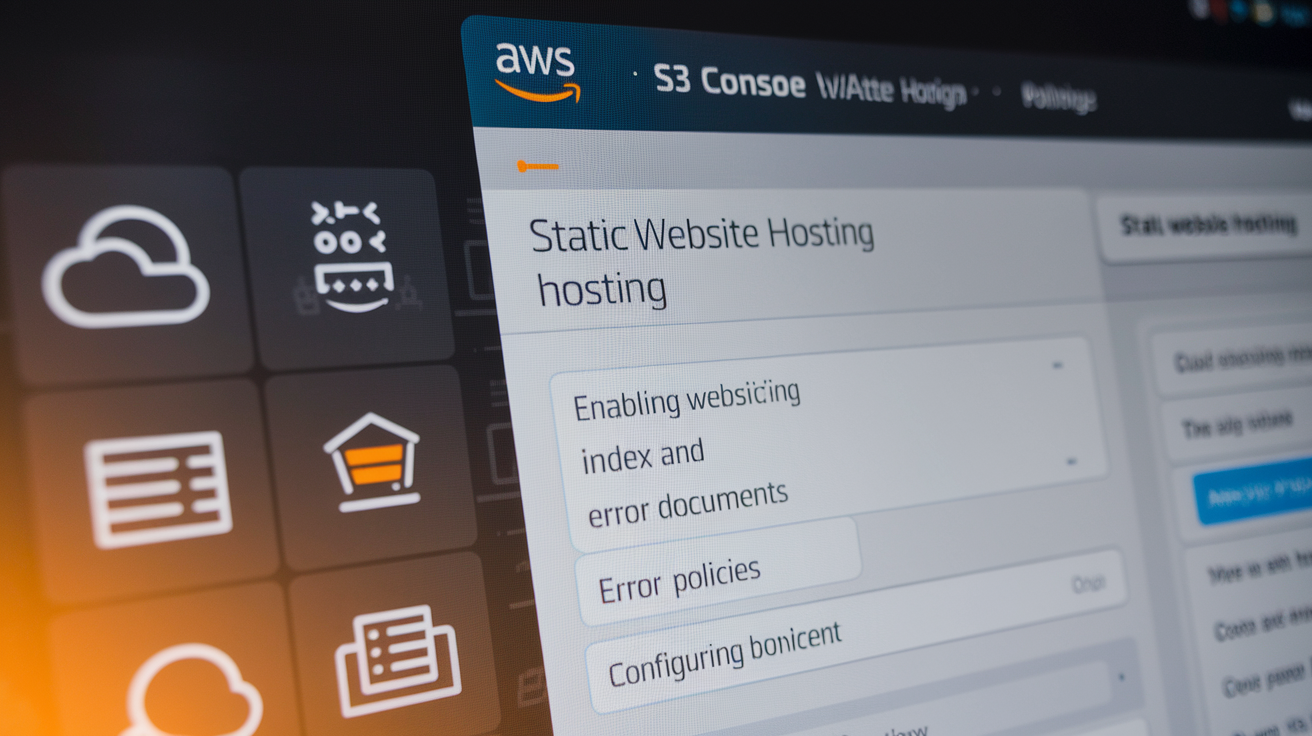
Access the bucket properties and scroll to “Static website hosting.” Enable the feature and specify index.html as your index document and 404.html as your error document. S3 will provide a unique endpoint URL like bucket-name.s3-website-region.amazonaws.com that serves your static content. Test this endpoint to confirm your website loads correctly before proceeding with custom domain configuration.
Configuring custom domain names
Set up a CNAME record in your DNS provider pointing your domain to the S3 website endpoint. For root domains, use Route 53 with an alias record for better performance. Create a hosted zone in Route 53 if you want complete DNS management through AWS. Your bucket name must exactly match your domain name for this setup to work properly. Consider using CloudFront distribution for HTTPS support and global content delivery.
Deploying with AWS Amplify
Connecting your Git repository to Amplify
AWS Amplify hosting simplifies static site deployment by connecting directly to your GitHub, GitLab, or Bitbucket repository. Navigate to the Amplify console, select “Host web app,” and choose your Git provider. Grant Amplify permission to access your repositories, then select the specific repository and branch you want to deploy. Amplify automatically detects common frameworks like React, Vue, or Angular and configures the initial build settings. This Git integration enables automatic deployments whenever you push changes to your connected branch, streamlining your development workflow.
Configuring build settings and environment variables
Amplify auto-detects your framework and generates a build specification file, but you can customize it for specific needs. Access the build settings through the Amplify console to modify commands, output directories, and artifact locations. Add environment variables for API keys, database connections, or configuration values through the console’s environment variables section. These variables remain secure and accessible during the build process. You can also upload a custom amplify.yml file to your repository root for version-controlled build configurations, giving you complete control over the build pipeline.
Setting up custom domains and subdomains
Add custom domains through the Domain management section in your Amplify app console. Enter your domain name and Amplify provides DNS configuration instructions, including CNAME records pointing to your app’s default domain. For subdomains, create additional CNAME entries in your DNS provider’s settings. Amplify automatically provisions SSL certificates through AWS Certificate Manager, securing your custom domain with HTTPS. Domain verification typically takes 24-48 hours to propagate globally. You can configure multiple domains and set up redirects between them, perfect for managing www and non-www versions of your site.
Implementing SSL Certificates and HTTPS
Using AWS Certificate Manager for free SSL certificates
AWS Certificate Manager (ACM) provides free SSL certificates for AWS services, eliminating the need for expensive third-party certificate authorities. Navigate to the ACM console and request a public certificate by entering your domain name and any subdomains. Choose DNS validation for automated verification – AWS will provide CNAME records to add to your domain’s DNS settings. Once validated, the certificate automatically renews before expiration, removing manual maintenance overhead.
Setting up CloudFront distribution for SSL support
CloudFront distribution acts as the bridge between your S3 static website and HTTPS connectivity. Create a new CloudFront distribution with your S3 bucket as the origin, then attach your ACM certificate in the SSL Certificate section. Configure the distribution to redirect HTTP to HTTPS and set the minimum SSL protocol version to TLSv1.2 for security compliance. The global edge network automatically serves your content with SSL encryption worldwide.
Configuring HTTPS redirects and security headers
Enforce HTTPS traffic by configuring viewer protocol policies within CloudFront to redirect HTTP requests automatically. Add security headers through CloudFront Functions or Lambda@Edge to enhance protection against common vulnerabilities. Essential headers include Strict-Transport-Security, X-Frame-Options, X-Content-Type-Options, and Content-Security-Policy. These headers prevent clickjacking attacks, MIME type sniffing, and cross-site scripting while ensuring browsers only connect via secure channels.
Validating SSL certificate installation
Test your SSL certificate implementation using browser developer tools and online SSL checkers like SSL Labs’ SSL Test. Verify the certificate chain shows your domain correctly, displays the green lock icon, and reports no mixed content warnings. Check that HTTP requests automatically redirect to HTTPS and confirm security headers appear in response headers. Monitor CloudWatch metrics for any SSL handshake errors or certificate-related issues that might affect user experience.
Optimizing Performance with Caching Strategies
CloudFront CDN Configuration and Cache Behaviors
AWS CloudFront serves as your global content delivery network, dramatically reducing load times for visitors worldwide. Configure origin settings to point to your S3 bucket or Amplify deployment, then establish cache behaviors based on file types. Static assets like images, CSS, and JavaScript should have longer cache durations, while HTML files need shorter TTL values to ensure content freshness. Set up multiple behaviors for different path patterns – /images/* can cache for 30 days while /*.html caches for just one hour.
Setting Appropriate Cache Headers and TTL Values
Cache control headers determine how long browsers and CDN edge locations store your content. Set Cache-Control: max-age=31536000 for static assets that rarely change, and Cache-Control: max-age=3600 for frequently updated content. Use ETag headers to enable conditional requests, allowing browsers to verify content freshness without downloading entire files. Configure CloudFront’s TTL settings to override origin headers when needed – minimum TTL of 0 for dynamic content and maximum TTL of one year for immutable assets.
Implementing Cache Invalidation Strategies
Smart invalidation prevents stale content while minimizing costs. Create targeted invalidation patterns like /css/* or /js/* instead of blanket /* invalidations. Use versioned file names (style-v1.2.css) to avoid invalidation costs entirely – users automatically fetch new versions when you update file names. Set up automated invalidation in your CI/CD pipeline using AWS CLI commands or CloudFormation templates. Consider using Lambda@Edge functions to add cache-busting query parameters for dynamic content sections.
Monitoring Cache Hit Ratios and Performance Metrics
CloudWatch provides essential metrics for tracking your caching effectiveness. Monitor cache hit ratio – aim for 85% or higher for optimal performance. Track origin requests to identify content that bypasses cache unexpectedly. Set up alarms for sudden drops in cache hit ratios, indicating potential configuration issues. Use CloudFront real-time logs to analyze viewer requests and identify optimization opportunities. Monitor 4xx and 5xx error rates to catch origin problems quickly, and track data transfer metrics to understand bandwidth usage patterns across different regions.
Building Automated CI/CD Pipelines
Setting up GitHub Actions for S3 deployment
Create a GitHub Actions workflow to automate S3 deployments by adding a .github/workflows/deploy.yml file to your repository. Configure AWS credentials using GitHub secrets (AWS_ACCESS_KEY_ID and AWS_SECRET_ACCESS_KEY) and install the AWS CLI. Use the aws s3 sync command to upload files and optionally invalidate CloudFront cache. This AWS CI/CD pipeline triggers on every push to your main branch, ensuring your static website stays updated.
Configuring automatic deployments with Amplify
AWS Amplify offers built-in CI/CD capabilities that automatically deploy your static site whenever you push code to your connected repository. Link your GitHub, GitLab, or Bitbucket repository through the Amplify console and Amplify will detect framework configurations automatically. Set custom build commands if needed and configure environment variables for different deployment stages. The platform handles build optimization and provides real-time deployment logs for easy troubleshooting.
Implementing testing and validation steps
Add testing stages to your deployment pipeline before pushing to production. Include linting, unit tests, and accessibility checks using tools like ESLint, Jest, and axe-core. For S3 deployments, validate HTML markup and check for broken links using automated tools. Set up smoke tests to verify critical functionality after deployment. Configure your CI/CD pipeline to block deployments if any validation step fails, protecting your live site from broken code.
Managing multiple environments and staging
Create separate S3 buckets or Amplify branches for development, staging, and production environments. Use different CloudFront distributions for each environment to maintain proper isolation. Configure branch-based deployments where feature branches deploy to development, main branch deploys to staging, and releases deploy to production. Implement environment-specific configuration files and secrets management to handle different API endpoints and feature flags across environments.
Rolling back deployments when issues occur
Prepare rollback strategies before deployment issues arise. For S3 hosting, maintain versioned backups of your site files and create scripts to quickly restore previous versions. Amplify provides built-in rollback functionality through the console – simply select a previous deployment and redeploy it. Set up monitoring alerts to detect issues early and automate rollback triggers when error rates spike. Keep deployment artifacts accessible for quick manual rollbacks when automated processes fail.
Monitoring and Troubleshooting Your Static Website
Setting up CloudWatch monitoring and alerts
Configure CloudWatch metrics for your AWS static website hosting to track performance indicators like request counts, error rates, and response times. Create custom alarms for critical thresholds such as 4xx/5xx errors exceeding acceptable limits or unusual traffic spikes. Set up notification channels through SNS to receive alerts via email or SMS when issues arise. For S3 static websites, monitor bucket-level metrics including GET requests, data transfer, and error rates. AWS Amplify hosting provides built-in monitoring dashboards with deployment status and performance metrics.
Analyzing website traffic and performance data
Access detailed analytics through CloudWatch Insights to examine visitor patterns, geographic distribution, and device types accessing your static site. Analyze CloudFront CDN performance metrics to identify cache hit ratios and edge location performance. Review S3 access logs to understand content delivery patterns and optimize frequently requested assets. Use AWS X-Ray tracing for complex applications to pinpoint bottlenecks in your AWS CI/CD pipeline deployments. Monitor SSL certificate AWS performance and renewal status to prevent security interruptions.
Common deployment issues and solutions
Address frequent S3 static website deployment problems like bucket policy misconfigurations that block public access or incorrect index document settings. Solve CloudFront distribution cache invalidation delays by implementing proper versioning strategies or cache-busting techniques. Debug Amplify hosting build failures by checking environment variables, dependency conflicts, and build specification syntax. Fix SSL certificate AWS validation issues by verifying domain ownership and DNS record configurations. Troubleshoot CI/CD pipeline failures through CloudFormation stack events and deployment logs to maintain reliable AWS static site performance.
AWS offers powerful tools to host static websites, whether you choose the straightforward S3 approach or the feature-rich Amplify platform. Both options give you solid performance, security through SSL certificates, and smart caching strategies that keep your site running smoothly. Setting up automated deployment pipelines saves you time and reduces errors, while proper monitoring helps you catch issues before they affect your users.
The choice between S3 and Amplify really comes down to your specific needs and technical comfort level. If you want simplicity and full control over your setup, S3 with CloudFront is hard to beat. But if you’re looking for a more comprehensive solution with built-in CI/CD and easier management, Amplify might be your best bet. Start with a small project to test the waters, then scale up as you get more comfortable with the AWS ecosystem. Your static website will thank you for the robust infrastructure and your users will enjoy the fast, secure experience.