Setting up secure communication between public and private EC2 instances can feel like solving a networking puzzle. This guide walks you through configuring AWS VPC EC2 communication from scratch, showing you exactly how to verify EC2 instance connectivity using proper route tables and security groups.
This tutorial is designed for AWS engineers, cloud architects, and DevOps professionals who need to establish reliable communication between EC2 instances across different subnets while maintaining security best practices.
You’ll learn how to configure VPC route tables to control traffic flow between your subnets, design security groups that allow specific communication while blocking unwanted access, and test your setup to confirm everything works correctly. We’ll also cover common troubleshooting steps when your EC2 instances communication testing doesn’t go as planned.
Set Up Your AWS VPC Infrastructure for EC2 Communication Testing
Create a Custom VPC with Appropriate CIDR Blocks
Building your AWS VPC networking setup starts with creating a custom Virtual Private Cloud that gives you complete control over your network environment. When setting up your VPC for EC2 communication testing, choose a CIDR block that provides enough IP addresses for your current needs plus future growth.
The most common approach is using a /16 CIDR block like 10.0.0.0/16, which gives you 65,536 IP addresses to work with. This range allows you to create multiple subnets across different availability zones while maintaining clear network segmentation. Avoid overlapping CIDR blocks if you plan to connect this VPC to other networks later through peering or VPN connections.
When creating your custom VPC through the AWS Management Console, navigate to the VPC service and select “Create VPC.” Choose the VPC-only option rather than the wizard to maintain full control over each component. Enable DNS hostnames and DNS resolution to ensure your EC2 instances can communicate properly using domain names.
Configure Public and Private Subnets in Different Availability Zones
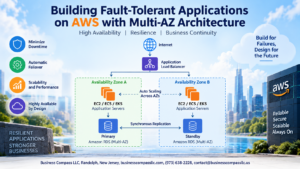
Your AWS VPC EC2 communication testing requires properly configured subnets that span multiple availability zones for redundancy and optimal performance. Create at least one public and one private subnet in separate AZs to simulate real-world scenarios where applications need both internet-facing and internal-only resources.
For the public subnet, use a smaller CIDR block like 10.0.1.0/24, which provides 256 IP addresses. Place this subnet in your primary availability zone (such as us-east-1a). The private subnet should use 10.0.2.0/24 in a different AZ like us-east-1b. This configuration ensures your EC2 instances communication testing covers cross-AZ scenarios.
Configure subnet settings carefully:
- Enable auto-assign public IPv4 addresses for public subnets
- Keep auto-assign disabled for private subnets
- Tag subnets clearly (Public-Subnet-1A, Private-Subnet-1B) for easy identification
- Plan additional subnets if you need database tiers or application layers
Attach an Internet Gateway to Enable External Connectivity
Your EC2 public private subnet connection requires an Internet Gateway to allow communication between public subnet resources and the internet. Create an Internet Gateway through the VPC console and attach it directly to your custom VPC. Unlike NAT Gateways, you can only attach one Internet Gateway per VPC, making this a straightforward one-to-one relationship.
After creating and attaching the Internet Gateway, verify the attachment status shows as “Attached” in the console. The Internet Gateway acts as a horizontally scaled, redundant, and highly available VPC component that allows communication between your VPC and the internet. Without this component, instances in your public subnet cannot receive traffic from or send traffic to the internet, even with proper route table configurations.
Remember that simply attaching an Internet Gateway doesn’t automatically enable internet access. You’ll need to update route tables and configure security groups properly to complete the connectivity chain for your AWS VPC networking setup.
Set up a NAT Gateway for Private Subnet Internet Access
Private subnet instances need outbound internet access for software updates, API calls, and downloading packages while remaining isolated from inbound internet traffic. A NAT Gateway provides this functionality by allowing outbound connections while blocking unsolicited inbound traffic.
Create your NAT Gateway in the public subnet since it needs internet connectivity to function properly. Choose the public subnet you configured earlier and allocate an Elastic IP address for the NAT Gateway. AWS manages NAT Gateways as fully managed services, handling scaling, redundancy, and maintenance automatically.
The setup process involves:
- Selecting your public subnet as the NAT Gateway location
- Allocating a new Elastic IP address or using an existing one
- Waiting for the NAT Gateway to reach “Available” status
- Planning for additional NAT Gateways in other AZs for high availability
NAT Gateway pricing includes hourly charges plus data processing fees, so consider your traffic patterns when planning your AWS subnet routing configuration. For development environments, you might start with a single NAT Gateway, but production workloads typically require multiple NAT Gateways across availability zones to eliminate single points of failure.
Once your NAT Gateway is running, your private subnet instances can access the internet for essential operations while maintaining the security benefits of private subnet isolation.
Configure Route Tables to Enable Proper Network Traffic Flow
Create and associate route tables with public subnets
Every VPC comes with a main route table by default, but creating dedicated route tables for public subnets gives you better control over your AWS VPC networking setup. Start by navigating to the VPC dashboard and selecting “Route Tables” from the sidebar.
Click “Create route table” and give it a descriptive name like “public-route-table”. Select your VPC from the dropdown menu and add tags if needed for organization. Once created, you’ll need to add a route that enables internet connectivity.
In the route table details, click on the “Routes” tab and select “Edit routes”. Add a new route with destination 0.0.0.0/0 (which represents all traffic) and target your Internet Gateway. This route tells AWS that any traffic not destined for your VPC’s local CIDR block should go through the Internet Gateway.
The final step involves associating this route table with your public subnets. Go to the “Subnet Associations” tab and click “Edit subnet associations”. Select all subnets that should have direct internet access – these are your public subnets. Remember that EC2 instances in these subnets can receive traffic directly from the internet if their security groups allow it.
Set up private subnet routing through NAT Gateway
Private subnets require a different approach for VPC route tables configuration since instances here shouldn’t receive direct inbound traffic from the internet. They still need outbound internet access for updates, downloads, and API calls though.
Create another route table called “private-route-table” following the same process as before. The key difference lies in the routing configuration. Instead of pointing to an Internet Gateway, private subnets route their traffic through a NAT Gateway or NAT Instance.
Add a route with destination 0.0.0.0/0 and target your NAT Gateway. The NAT Gateway acts as a middleman, allowing outbound connections while blocking unsolicited inbound traffic. This setup enables your private EC2 instances to download software updates and communicate with AWS services while maintaining security.
Associate this private route table with your private subnets using the subnet associations tab. Your private subnets will now route internet-bound traffic through the NAT Gateway, which sits in a public subnet and has its own route to the Internet Gateway.
Verify default routes point to correct gateways
Double-checking your route table configurations prevents connectivity headaches later when you’re testing EC2 public private subnet connection. Each route table should have a local route that’s automatically created – this handles traffic within your VPC’s CIDR block.
For public route tables, verify that the 0.0.0.0/0 route points to your Internet Gateway (starts with “igw-“). The status should show “Active” and the propagated column should be “No” since you manually added this route.
Private route tables should show their 0.0.0.0/0 route pointing to the NAT Gateway (starts with “nat-“). Check that your NAT Gateway is healthy and running in one of your public subnets. If you’re using a NAT Instance instead, make sure it’s configured properly with source/destination checking disabled.
Use the VPC dashboard to review subnet associations for each route table. Public subnets should never be associated with private route tables and vice versa. This mistake can break your AWS subnet routing configuration and leave instances unreachable.
Test your routing by launching temporary instances and checking their connectivity. A properly configured public instance should reach the internet directly, while private instances should route through your NAT Gateway for outbound connections only.
Launch EC2 Instances in Public and Private Subnets
Deploy a Public EC2 Instance with Auto-Assign Public IP Enabled
Setting up your public EC2 instance requires careful attention to the subnet configuration and IP assignment settings. When launching your instance, select the public subnet you created earlier in your VPC setup. The most critical step is enabling the “Auto-assign Public IP” option during the launch process.
Navigate to the EC2 console and click “Launch Instance.” Choose your desired AMI, then proceed to the network settings. Select your VPC and specifically choose the public subnet. Under the “Auto-assign Public IP” dropdown, select “Enable.” This ensures your instance receives both a private IP address within your subnet’s CIDR range and a public IP address for internet connectivity.
Your public instance will automatically receive a default route (0.0.0.0/0) pointing to the Internet Gateway through the route table associated with your public subnet. This configuration enables the instance to communicate with the internet and serve as a potential bastion host for accessing private instances.
Launch a Private EC2 Instance Without Public IP Assignment
Creating a private EC2 instance follows a similar process but with key differences in network configuration. Select your private subnet during the launch process and ensure the “Auto-assign Public IP” setting remains disabled or set to “Use subnet setting (Disable).”
Private instances receive only internal IP addresses within your VPC’s private subnet CIDR range. These instances cannot directly access the internet or be accessed from external networks. The route table for your private subnet should only contain routes for local VPC traffic and potentially routes to a NAT Gateway if internet access is required for software updates.
This isolation provides enhanced security for your backend systems, databases, and application servers that don’t need direct internet exposure. The private instance will communicate with other VPC resources through internal routing mechanisms.
Select Appropriate AMIs and Instance Types for Testing
For AWS VPC EC2 communication testing, choose lightweight AMIs that boot quickly and consume minimal resources. Amazon Linux 2 or Ubuntu Server LTS editions work excellently for connectivity testing scenarios. These AMIs come with essential networking tools pre-installed, including ping, telnet, curl, and SSH clients.
Consider t3.micro or t3.small instance types for your testing environment. These instance types provide sufficient computing power for network connectivity verification while remaining cost-effective. The t3 family offers burstable performance, which works well for intermittent testing workloads.
Ensure both instances use the same AMI family when possible to maintain consistency in your testing environment. This approach eliminates potential compatibility issues and simplifies troubleshooting procedures during EC2 instances communication testing.
Configure Key Pairs for Secure SSH Access
Create a new key pair specifically for your VPC testing environment or use an existing one. During the EC2 launch process, assign the same key pair to both your public and private instances. This shared key pair simplifies access management and enables you to SSH into both instances using the same private key.
Download and securely store your private key file (.pem format) on your local machine. Set appropriate file permissions using chmod 400 your-key.pem to ensure only you can read the private key file. This security measure prevents unauthorized access to your EC2 instances.
For the private instance, you’ll need to access it through the public instance (bastion host method) since it lacks direct internet connectivity. Copy your private key to the public instance or use SSH agent forwarding to securely connect to the private instance through the public one.
Design Security Groups for Controlled Access Between Instances
Create security group rules for public instance SSH access
Your public EC2 instance needs a security group that allows inbound SSH traffic from your specific IP address or trusted networks. Create a new security group specifically for public instances with these essential rules:
- Inbound SSH Rule: Add port 22 (TCP) access from your current public IP address (check whatismyip.com). Avoid using 0.0.0.0/0 unless absolutely necessary for testing purposes
- Outbound Rules: Keep the default rule allowing all outbound traffic (0.0.0.0/0 on all ports) to enable the instance to download updates and communicate with other AWS services
- ICMP Rules: Add inbound ICMP rules to allow ping requests for connectivity testing between your local machine and the public instance
Name your security group something descriptive like “PublicEC2-SSH-SG” to easily identify its purpose during AWS VPC EC2 communication testing.
Configure private instance security group for internal communication
Private instances require different AWS security groups EC2 configurations since they don’t need direct internet access. Create a dedicated security group for private instances focusing on internal VPC communication:
- SSH Access from Public Instance: Allow inbound SSH (port 22) specifically from the public instance’s security group rather than IP addresses. This creates dynamic rules that adapt if instance IPs change
- Internal VPC Communication: Add rules allowing traffic from other instances within your VPC using security group references instead of IP ranges
- No Direct Internet Access: Private instances shouldn’t have rules allowing inbound traffic from 0.0.0.0/0
Configure the private security group to reference the public instance’s security group ID in the source field. This approach ensures secure, controlled access while maintaining flexibility in your EC2 instances communication testing setup.
Set up port-specific rules for application traffic testing
Testing real-world scenarios requires opening specific ports for application traffic between your instances. Configure these port-specific rules based on your testing requirements:
- Web Traffic: Add HTTP (port 80) and HTTPS (port 443) rules if testing web applications
- Database Connections: Open database-specific ports like 3306 (MySQL), 5432 (PostgreSQL), or 1433 (SQL Server) for database connectivity testing
- Custom Application Ports: Add rules for any custom applications running on non-standard ports
- Bidirectional Communication: Some applications require both inbound and outbound rules on specific ports
Reference security groups by ID rather than IP addresses in your rules. This creates more maintainable configurations that automatically adapt when instances are replaced or scaled.
Implement least-privilege access principles
Security groups should follow the principle of least privilege to minimize attack surfaces while enabling necessary communication. Apply these best practices:
- Specific Source Rules: Always specify the most restrictive source possible – use security group IDs, specific IP addresses, or small CIDR blocks instead of broad ranges
- Port Minimization: Only open ports that are actually needed for your testing scenarios
- Regular Review: Periodically audit your security group rules to remove unnecessary access
- Separate Concerns: Create different security groups for different functions (web servers, databases, application servers) rather than one permissive group
Document your security group configurations and their purposes. This helps with troubleshoot EC2 connectivity issues and ensures team members understand the intended access patterns in your VPC networking setup.
Test Communication Pathways Between Your EC2 Instances
Verify SSH connectivity to public instance from internet
Testing SSH connectivity to your public EC2 instance serves as the foundation for all subsequent communication testing. Start by ensuring your public instance has a properly assigned Elastic IP address or public IPv4 address. From your local machine, attempt to connect using the SSH command with your private key file:
ssh -i your-key.pem ec2-user@public-instance-ip
If the connection fails, check that port 22 is open in your security group for your source IP address. The security group should have an inbound rule allowing SSH (port 22) from your specific IP range or 0.0.0.0/0 if you need broader access. Remember that AWS security groups are stateful, so you don’t need to configure outbound rules for return traffic.
Common connection issues include incorrect key permissions (chmod 400 your-key.pem), wrong username (varies by AMI type), or network ACLs blocking traffic. Verify your internet gateway is properly attached to your VPC and that your public subnet’s route table includes a route to 0.0.0.0/0 pointing to the internet gateway.
Establish SSH tunnel from public to private instance
Once you’ve confirmed connectivity to your public instance, use it as a bastion host to reach your private EC2 instance. This technique demonstrates how AWS VPC EC2 communication works in practice. From your public instance, SSH into the private instance using its private IP address:
ssh -i your-key.pem ec2-user@private-instance-private-ip
You’ll need to copy your private key to the public instance or use SSH agent forwarding for security. SSH agent forwarding is the preferred method:
ssh -A -i your-key.pem ec2-user@public-instance-ip
The -A flag enables agent forwarding, allowing you to use your local SSH keys without copying them to the bastion host. From the public instance, you can then connect to the private instance without needing the key file on the intermediate server.
For more complex scenarios, set up an SSH tunnel from your local machine that routes through the public instance:
ssh -i your-key.pem -L 2222:private-instance-ip:22 ec2-user@public-instance-ip
This creates a local tunnel where connecting to localhost:2222 routes traffic to the private instance’s SSH port through the public instance.
Conduct ping tests to confirm network reachability
Network reachability testing using ping commands validates your EC2 instances communication testing setup at the ICMP level. From your public instance, test connectivity to the private instance:
ping private-instance-private-ip
Successful ping responses confirm that your VPC route tables configuration correctly routes traffic between subnets and that security groups allow ICMP traffic. If pings fail, check that your security groups include inbound rules for ICMP (All ICMP – IPv4) from the source subnet or security group.
Test connectivity in both directions – from public to private and from private to public (using private IP addresses). The private instance should be able to ping the public instance’s private IP address, demonstrating bidirectional communication within the VPC.
Don’t forget to test DNS resolution by pinging domain names from your instances. This verifies that your VPC’s DNS settings are correctly configured and that instances can resolve external hostnames for internet access through the NAT gateway.
Test specific application ports and protocols
Beyond basic connectivity, verify that your AWS security groups EC2 configuration allows application-specific traffic. Use telnet or netcat to test specific ports:
telnet target-instance-ip 80
nc -zv target-instance-ip 443
These commands test whether web traffic (port 80) and HTTPS traffic (port 443) can reach their destinations. For database connections, test common database ports like 3306 (MySQL), 5432 (PostgreSQL), or 1521 (Oracle).
Set up a simple web server on one instance and test connectivity from another:
# On the target instance
python3 -m http.server 8080

# From the source instance
curl http://target-private-ip:8080
This practical test demonstrates how applications communicate across your VPC networking setup. Monitor the results to verify EC2 instance connectivity for your specific use case.
For UDP traffic, use netcat with the -u flag to test protocols like DNS (port 53) or NTP (port 123). Remember that security group rules must explicitly allow each protocol and port combination you want to test.
Troubleshoot Common Connectivity Issues and Optimize Performance
Diagnose security group misconfigurations
Security group misconfigurations rank among the most frequent culprits behind EC2 connectivity issues. Start by examining both inbound and outbound rules for your public and private instances. Your private EC2 instances might not be receiving traffic because the security group lacks the necessary inbound rules from the public subnet’s CIDR block or specific security group IDs.
Check that your public instance’s security group allows inbound traffic on the required ports (SSH on port 22, HTTP on port 80, or custom application ports). For private instances, verify that inbound rules permit traffic from the public instance’s security group rather than allowing traffic from 0.0.0.0/0, which creates unnecessary security exposure.
Common mistakes include:
- Forgetting to add outbound rules for custom ports
- Mixing up source and destination configurations
- Using outdated IP ranges after subnet modifications
- Overlooking protocol specifications (TCP vs UDP)
Test your AWS security groups EC2 configuration by temporarily adding more permissive rules, then gradually restricting access once connectivity works. Remember that security group changes take effect immediately without requiring instance restarts.
Resolve route table and subnet association problems
Route table misconfigurations can completely break EC2 instances communication testing between your public and private subnets. Begin by verifying that your public subnet associates with a route table containing a route to the Internet Gateway (0.0.0.0/0 → igw-xxxxx). Your private subnet should associate with a different route table that routes internet traffic through the NAT Gateway.
Examine the VPC route tables configuration using the AWS console or CLI commands. Look for these critical routes:
- Public subnet: Local VPC CIDR + Internet Gateway route
- Private subnet: Local VPC CIDR + NAT Gateway route for external access
- Cross-subnet communication: Automatic local routes within the VPC
Double-check subnet associations in the route table’s “Subnet Associations” tab. Multiple subnets can share route tables, but mixing public and private subnet routing requirements will cause connectivity failures.
If routes appear correct but traffic isn’t flowing, verify that route propagation is disabled for conflicting routes and that custom routes have higher priority than automatically propagated ones.
Fix NAT Gateway and Internet Gateway connectivity issues
NAT Gateway problems frequently disrupt verify EC2 instance connectivity workflows, especially for private instances requiring internet access. Start by confirming your NAT Gateway exists in the public subnet and has an associated Elastic IP address. A NAT Gateway without proper placement or IP allocation cannot route traffic effectively.
Verify Internet Gateway attachment to your VPC and check that only one IGW attaches per VPC. Detached or improperly configured Internet Gateways prevent public instances from reaching the internet entirely.
Key troubleshooting steps include:
- Confirming NAT Gateway health status in the AWS console
- Testing internet connectivity from private instances using ping or curl commands
- Verifying Elastic IP allocation and proper assignment
- Checking that NAT Gateway appears in the correct route table entries
For performance optimization, monitor NAT Gateway bandwidth utilization and consider upgrading to higher bandwidth options if you notice bottlenecks. Place NAT Gateways in multiple Availability Zones for redundancy and improved performance across your AWS VPC networking setup.
Replace failed NAT Gateways promptly, as they don’t automatically failover. Update route tables to point to replacement NAT Gateways to restore private subnet internet access.
Setting up communication between public and private EC2 instances might seem complex at first, but breaking it down into these manageable steps makes the process much clearer. By creating a proper VPC infrastructure, configuring route tables correctly, and designing security groups with the right rules, you’re building a solid foundation for secure and reliable instance communication. The key is taking your time with each component and testing thoroughly as you go.
Don’t skip the testing and troubleshooting phase – this is where you’ll catch any configuration issues before they become bigger problems. Start with basic ping tests and gradually work your way up to more complex application-level communication. Remember that most connectivity issues come down to security group rules or routing problems, so those should be your first stops when something isn’t working. Once you’ve got this setup working smoothly, you’ll have a reusable template for future AWS projects that need similar network architectures.