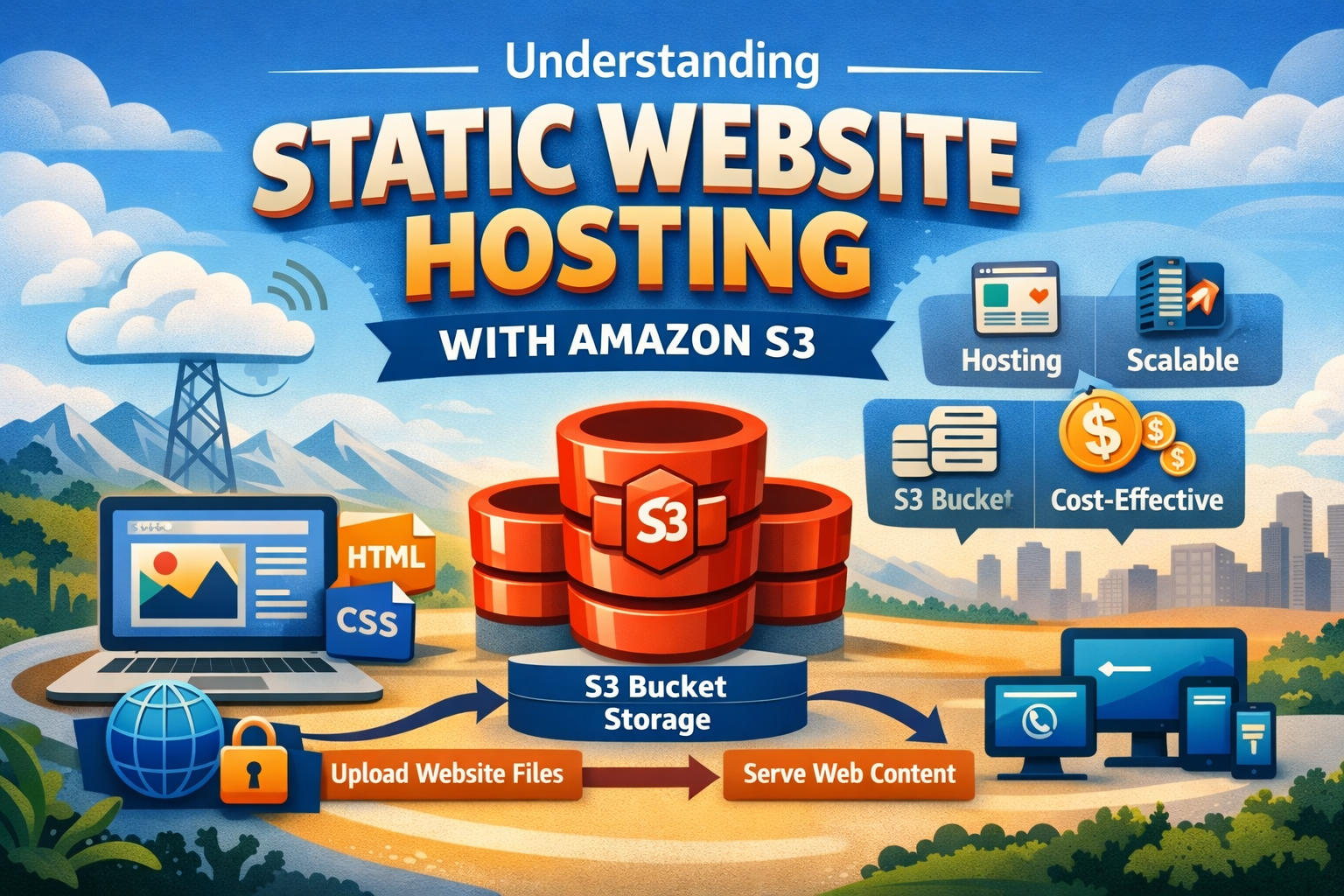
Amazon S3 static website hosting offers web developers and business owners a simple way to deploy fast, reliable websites without managing servers. This comprehensive guide walks you through everything needed to get your static site live on AWS.
Who this guide is for: Developers, freelancers, and small business owners who want to host static websites like portfolios, landing pages, or documentation sites on a scalable platform.
We’ll start by explaining what makes S3 perfect for static sites and cover the essential requirements you need before getting started. Then we’ll dive into the complete step-by-step S3 website hosting setup process, walking you through bucket configuration and DNS settings. Finally, we’ll show you how to optimize your site’s performance and security while keeping S3 website hosting costs under control through smart monitoring and cost management strategies.
What is Amazon S3 and Why Use It for Static Website Hosting

Overview of Amazon S3 Storage Service Capabilities
Amazon S3 (Simple Storage Service) stands as one of AWS’s flagship cloud storage solutions, designed to store and retrieve any amount of data from anywhere on the web. At its core, S3 operates on an object storage model where files are stored as objects within containers called buckets. Each object can range from 0 bytes to 5 terabytes, making it incredibly versatile for various storage needs.
The service offers multiple storage classes optimized for different use cases, from frequently accessed data to long-term archival. S3 provides built-in versioning, lifecycle management, and cross-region replication capabilities. The platform’s RESTful API allows seamless integration with applications and services, while its web-based management console offers an intuitive interface for non-technical users.
S3’s infrastructure spans multiple Availability Zones within AWS regions worldwide, ensuring high availability and durability. The service promises 99.999999999% (11 9’s) durability for objects stored across multiple facilities, making data loss virtually impossible.
Key Advantages of S3 for Hosting Static Websites
Amazon S3 static website hosting transforms your S3 bucket into a web server capable of serving HTML, CSS, JavaScript, and other static assets directly to visitors’ browsers. This approach eliminates the need for traditional web servers, databases, or server-side processing.
The primary advantages include:
- Infinite Scalability: S3 automatically scales to handle traffic spikes without configuration changes or capacity planning
- Zero Server Management: No need to patch, update, or maintain web servers or operating systems
- High Availability: Built-in redundancy across multiple data centers ensures your site stays online
- Version Control: Built-in versioning tracks changes to your website files automatically
- Custom Error Pages: Configure custom 404 and other error pages for better user experience
- Index Document Support: Set default index documents for directories and subdirectories
S3’s event notifications can trigger AWS Lambda functions for dynamic functionality, while integration with other AWS services creates powerful serverless architectures.
Cost-effectiveness Compared to Traditional Web Hosting
S3 website hosting costs typically run significantly lower than traditional hosting solutions, especially for sites with variable traffic patterns. Traditional hosting often requires fixed monthly fees regardless of actual usage, while S3 operates on a pay-as-you-use model.
Cost comparison breakdown:
Traditional Hosting Expenses:
- Monthly server rental fees ($10-200+ per month)
- Domain registration and SSL certificates
- Backup and security services
- Technical support and maintenance
- Bandwidth overage charges
S3 Pricing Structure:
- Storage: $0.023 per GB for first 50 TB monthly
- Data transfer: First 1 GB free monthly, then $0.09 per GB
- PUT requests: $0.0005 per 1,000 requests
- GET requests: $0.0004 per 1,000 requests
For a typical small business website receiving 10,000 monthly visitors, S3 costs often range from $1-5 per month, representing savings of 80-95% compared to traditional hosting.
Global Content Delivery and Reliability Benefits
S3’s integration with Amazon CloudFront CDN creates a powerful global content delivery network that caches your static website content across 400+ edge locations worldwide. This AWS static site deployment strategy dramatically improves loading times for international visitors.
Performance Benefits:
- Edge caching reduces latency by serving content from locations closest to users
- Automatic compression reduces file sizes and transfer times
- HTTP/2 support improves connection efficiency
- Origin Shield provides additional caching layer for popular content
Reliability Features:
- 99.9% uptime SLA backed by service credits
- Automatic failover between Availability Zones
- DDoS protection through AWS Shield Standard
- Real-time monitoring and alerting capabilities
The combination of S3’s durability and CloudFront’s global reach ensures your website remains accessible even during regional outages or traffic surges. This level of reliability typically requires expensive enterprise hosting solutions but comes standard with Amazon S3 hosting guide implementations.
Regional data replication means your website content exists in multiple physical locations simultaneously, providing natural disaster recovery without additional configuration.
Essential Requirements for S3 Static Website Hosting
Types of files and content supported by S3
Amazon S3 static website hosting works perfectly with standard web files that don’t require server-side processing. You can host HTML files, CSS stylesheets, JavaScript files, images (JPEG, PNG, GIF, WebP), videos, fonts, and other static assets without any issues. The beauty of S3 hosting lies in its ability to serve these files directly to visitors’ browsers at lightning speed.
Your website structure should include an index document (typically index.html) that serves as your homepage, plus any additional HTML pages for different sections of your site. CSS files handle styling, while JavaScript files can add interactivity and dynamic behavior on the client side. Images and media files are handled efficiently, with S3 automatically serving the appropriate file types with correct MIME headers.
However, S3 won’t run server-side languages like PHP, Python, Ruby, or Node.js. If your website needs database connections, user authentication, or form processing, you’ll need to pair S3 with other AWS services like Lambda functions or API Gateway, or consider alternative hosting solutions for those dynamic components.
AWS account setup and access requirements
Setting up AWS S3 website hosting starts with creating an AWS account if you don’t already have one. You’ll need a valid email address, phone number for verification, and a payment method on file. AWS offers a free tier that includes 5GB of S3 storage, which covers most small to medium websites for the first 12 months.
Once your account is active, you’ll need appropriate permissions to create and configure S3 buckets. If you’re using the root account, you have full access. For better security practices, create an IAM user with specific S3 permissions including s3:CreateBucket, s3:PutObject, s3:GetObject, and s3:PutBucketWebsite permissions.
Access to the AWS Management Console or AWS CLI tools is essential for the initial setup process. The web console provides a user-friendly interface for beginners, while the CLI offers more automation possibilities for advanced users. You’ll also want to secure your account with multi-factor authentication and consider setting up billing alerts to monitor your AWS usage.
Domain name and DNS configuration needs
While you can access your S3-hosted website through the default AWS URL, using a custom domain name creates a professional appearance and better user experience. You’ll need to own a domain name through any registrar like Route 53, GoDaddy, Namecheap, or others.
The S3 bucket name must exactly match your domain name for custom domain hosting to work properly. If your domain is “example.com”, your bucket should be named “example.com”. For subdomains like “www.example.com“, you’ll need a separate bucket with that exact name.
DNS configuration involves setting up CNAME records that point your domain to the S3 website endpoint. The specific endpoint format varies by AWS region, typically following the pattern bucket-name.s3-website-region.amazonaws.com. If you’re using AWS Route 53 as your DNS provider, you can create alias records that offer better performance and are often more cost-effective than CNAME records.
For HTTPS support with custom domains, you’ll need to set up CloudFront distribution since S3 static website hosting doesn’t support SSL certificates directly. This adds a content delivery network layer that improves global performance while enabling secure connections.
Step-by-Step S3 Website Hosting Setup Process

Creating and configuring your S3 bucket
Getting started with Amazon S3 static website hosting begins with creating your bucket. Head to the AWS Management Console and navigate to the S3 service. Click “Create bucket” and choose a unique name that matches your domain if possible – this makes DNS configuration easier later.
Pick the AWS region closest to your target audience for better performance. Under “Object Ownership,” select “ACLs enabled” since you’ll need to manage public access permissions. Most other default settings work fine, but make sure to uncheck “Block all public access” as your website files need to be publicly accessible.
After creating the bucket, you’ll configure several key properties. The bucket name becomes part of your website URL, so choose something memorable and professional. AWS requires bucket names to be globally unique across all users, so you might need to get creative with your naming.
Uploading website files and setting permissions
Once your bucket is ready, upload your website files through the AWS console or command line tools. Drag and drop works perfectly for smaller sites. Your files should include an index.html file at minimum, plus any CSS, JavaScript, images, and other assets your site needs.
Setting proper permissions is crucial for AWS S3 website setup. After uploading, select all your files and choose “Actions” > “Make public using ACL.” This grants read access to everyone on the internet. You can also set permissions individually by selecting files and modifying their ACL settings.
For better security control, consider using bucket policies instead of ACLs. Create a bucket policy that allows public read access to all objects while keeping write permissions restricted. This approach gives you more granular control over who can access what.
Enabling static website hosting feature
Navigate to your bucket’s “Properties” tab and scroll down to “Static website hosting.” Click “Edit” and select “Enable.” You’ll see two hosting options: “Host a static website” or “Redirect requests for an object.” Choose the first option for standard S3 bucket website configuration.
The hosting feature transforms your bucket into a web server endpoint. AWS generates a unique website URL that follows the format: bucket-name.s3-website-region.amazonaws.com. This becomes your live website address until you set up a custom domain.
Configuring index and error document settings
Specify your index document – typically “index.html” – which AWS serves when visitors access your root domain. This file loads automatically when someone visits your site without specifying a particular page.
Set up an error document for better user experience. Create a custom 404.html page and specify it as your error document. When visitors try accessing non-existent pages, they’ll see your custom error page instead of a generic AWS message.
You can also configure subdirectory indexing by specifying index documents for folders. This allows URLs like yoursite.com/blog/ to automatically serve yoursite.com/blog/index.html.
Testing your live website functionality
After completing the setup, test your website using the AWS-provided endpoint URL. Check that your index page loads correctly and all links, images, and styles work as expected. Test navigation between different pages to ensure proper file paths.
Verify your error page by visiting a non-existent URL like yoursite.com/nonexistent-page. Your custom 404 page should appear. Also test different file types – images, PDFs, downloadable files – to confirm everything serves properly.
Use browser developer tools to check for any console errors or missing resources. Test your site on different devices and browsers to ensure compatibility. The AWS S3 static website hosting tutorial process isn’t complete until you’ve verified everything works smoothly across various scenarios.
Optimizing Performance and Security for S3 Websites

Implementing CloudFront CDN for faster loading speeds
CloudFront transforms your S3 static website hosting experience by dramatically reducing loading times for visitors worldwide. This content delivery network (CDN) caches your website files at edge locations across the globe, meaning users access content from the server closest to them rather than your original S3 bucket.
Setting up CloudFront with your S3 website requires creating a distribution that points to your S3 bucket as the origin. Configure the distribution to use your S3 website endpoint rather than the bucket itself, ensuring proper handling of index documents and error pages. The process typically takes 15-20 minutes for global deployment.
Key performance benefits include:
- Reduced latency: Files load from nearby edge locations
- Better bandwidth: CloudFront automatically optimizes data transfer
- Caching control: Set custom cache headers for different file types
- Compression: Automatic gzip compression reduces file sizes by up to 70%
Configure appropriate cache behaviors for different content types. Static assets like images, CSS, and JavaScript can have longer cache durations (24-48 hours), while HTML files might need shorter periods (1-2 hours) if you update content frequently.
Setting up SSL certificates for secure connections
SSL certificates protect your visitors’ data and boost search engine rankings. AWS Certificate Manager (ACM) provides free SSL certificates that integrate seamlessly with CloudFront, making S3 hosting performance optimization both secure and cost-effective.
Request an SSL certificate through ACM for your custom domain. The certificate must be requested in the us-east-1 region when using CloudFront, regardless of where your S3 bucket resides. ACM handles automatic renewal, eliminating the hassle of certificate management.
After obtaining your certificate, configure your CloudFront distribution to use HTTPS:
- Set “Redirect HTTP to HTTPS” to force secure connections
- Choose “Security Policy” that supports modern browsers
- Update your DNS records to point to the CloudFront distribution
The combination of CloudFront and SSL provides enterprise-level security for your Amazon S3 static website hosting while maintaining optimal performance. Your website will display the secure padlock icon, building visitor trust and meeting modern web security standards.
Configuring proper access controls and bucket policies
Amazon S3 website security requires careful attention to access controls and bucket policies. While your website files need public read access, proper configuration prevents unauthorized uploads, deletions, or modifications to your content.
Start with a restrictive bucket policy that grants only necessary permissions:
{
  "Version": "2012-10-17",
  "Statement": [
    {
      "Sid": "PublicReadGetObject",
      "Effect": "Allow",
      "Principal": "*",
      "Action": "s3:GetObject",
      "Resource": "arn:aws:s3:::your-bucket-name/*"
    }
  ]
}
Block all public access settings except for “Block public access to buckets and objects granted through new public bucket or access point policies.” This prevents accidental exposure while maintaining website functionality.
Implement CloudFront Origin Access Control (OAC) to restrict direct S3 access, forcing all traffic through your CDN. This approach provides additional security layers and ensures consistent performance monitoring for your static website AWS tutorial implementation.
Consider enabling S3 access logging to track website requests and identify potential security issues. Combine this with CloudTrail for comprehensive API monitoring, creating a robust security foundation for your AWS S3 website setup.
Regular security audits should include reviewing bucket policies, monitoring access patterns, and updating SSL certificates. These practices maintain the security standards expected in professional S3 hosting performance optimization strategies.
Managing Costs and Monitoring Your S3 Website

Understanding S3 pricing structure and optimization strategies
Amazon S3 operates on a pay-as-you-go model with several cost components that directly impact your S3 website hosting costs. Storage costs vary by region and storage class, with standard storage typically costing around $0.023 per GB per month. Request charges apply for GET, PUT, POST, and DELETE operations, while data transfer costs kick in when visitors download content from your site.
For Amazon S3 static website hosting, the biggest cost drivers are usually data transfer and request charges rather than storage. A typical static website might generate thousands of GET requests daily, each costing fractions of a penny but adding up over time. Data transfer charges apply when users access your site from different geographic locations, with the first 1GB free each month.
Smart optimization starts with choosing the right storage class. Standard storage works well for frequently accessed files, while Standard-IA (Infrequent Access) costs less for assets that don’t change often. Consider these strategies:
- Enable S3 Transfer Acceleration for global audiences
- Compress CSS, JavaScript, and HTML files before uploading
- Use appropriate MIME types to enable browser caching
- Store large media files in separate buckets with different storage classes
- Monitor which files generate the most requests and optimize accordingly
Regional selection also impacts costs significantly. US East (N. Virginia) typically offers the lowest rates, but choosing a region closer to your primary audience can reduce data transfer charges and improve performance.
Setting up usage monitoring and billing alerts
AWS provides several tools to track your S3 hosting performance optimization and costs. The AWS Cost Explorer offers detailed breakdowns of your S3 spending across different cost categories like storage, requests, and data transfer. Set up custom cost reports that filter specifically for your website hosting buckets to isolate hosting expenses from other AWS services.
CloudWatch metrics automatically track key S3 statistics including:
- Number of requests (GET, PUT, DELETE)
- Data transfer volumes
- Error rates and response times
- Storage utilization across different classes
Create CloudWatch alarms that trigger when your monthly costs exceed specific thresholds. Start with conservative limits and adjust based on your actual usage patterns. Email notifications work well for immediate alerts, while SNS topics can integrate with Slack or other messaging platforms for team notifications.
AWS Budgets provides more sophisticated cost management with forecasting capabilities. Set up monthly budgets for your S3 website hosting with alerts at 50%, 80%, and 100% of your planned spending. The forecasting feature helps predict monthly costs based on current usage trends, allowing proactive adjustments before overspending occurs.
Consider enabling detailed billing reports that break down costs by bucket, allowing you to identify which parts of your website generate the highest expenses. This granular data proves invaluable for optimization decisions.
Implementing lifecycle policies for cost management
S3 lifecycle policies automate cost optimization by transitioning objects to cheaper storage classes or deleting them entirely based on age or access patterns. For static website AWS tutorial content, these policies can significantly reduce long-term storage costs without manual intervention.
A typical lifecycle policy for static websites might transition CSS and JavaScript files to Standard-IA after 30 days, since these files rarely change once deployed. Images and media files could move to Standard-IA after 60 days, then to Glacier after one year if they’re archive materials like old blog images or documentation.
Set up policies that delete temporary files automatically. Many deployment processes create backup files or version artifacts that accumulate over time. Configure rules to delete objects with specific prefixes (like “tmp/” or “backup/”) after predetermined periods.
Versioning adds another layer of cost management opportunities. While versioning protects against accidental deletions, old versions consume storage indefinitely without lifecycle policies. Create rules that delete non-current versions after 90 days, or transition them to cheaper storage classes if you need longer retention for compliance reasons.
Multi-part upload cleanup rules prevent incomplete uploads from consuming storage space. Failed uploads sometimes leave partial files that continue generating storage charges. Lifecycle policies can automatically clean up these incomplete uploads after seven days.
Monitor lifecycle policy effectiveness through S3 analytics, which shows how objects transition between storage classes and the associated cost savings. Adjust transition timelines based on actual access patterns rather than assumptions about file usage.

Setting up a static website with Amazon S3 doesn’t have to be complicated. We’ve covered everything from the basics of S3 and why it’s perfect for static sites, to the essential requirements you need to get started. The step-by-step setup process shows you exactly how to configure your bucket, upload your files, and get your website live on the internet.
The real value comes from understanding how to optimize your site’s performance and security while keeping costs under control. By implementing the monitoring strategies and cost management tips we discussed, you’ll have a reliable, fast-loading website that won’t break the bank. Start with the basic setup, then gradually add the performance and security enhancements as your site grows. Your visitors will appreciate the speed, and you’ll love the simplicity of managing a static site on S3.