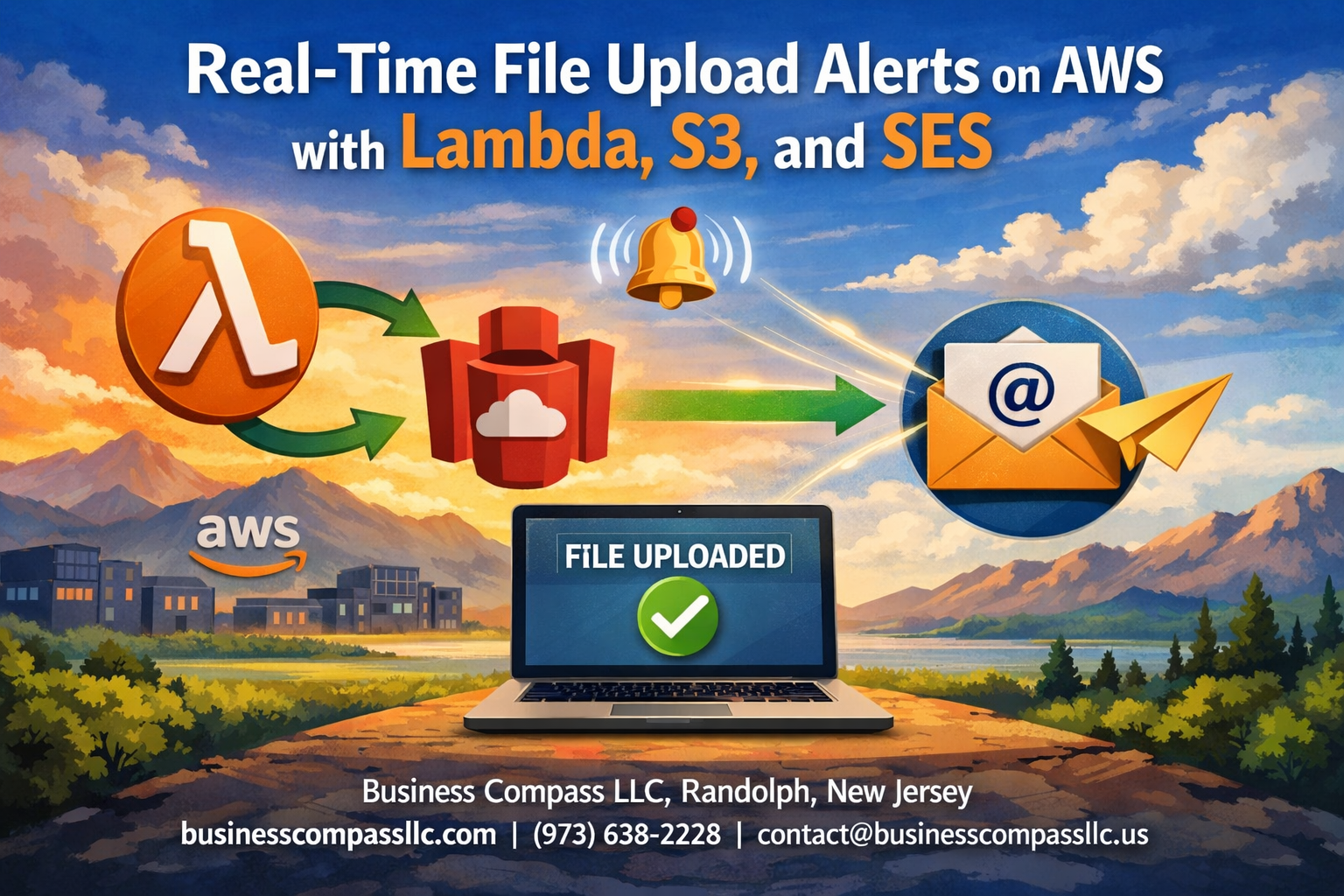
File uploads happen constantly in modern applications, but knowing when they occur shouldn’t require constant monitoring. Real-Time File Upload Alerts on AWS with Lambda, S3, and SES creates an automated notification system that instantly tells you when files land in your storage buckets.
This guide targets AWS developers, DevOps engineers, and system administrators who need immediate visibility into file upload activities across their infrastructure. You’ll build a serverless solution that triggers email alerts the moment files hit your S3 buckets.
We’ll walk through setting up S3 bucket event triggers that automatically fire when files arrive, then build a Lambda function that processes these events and formats alert messages. You’ll also learn how to configure SES for professional email notifications and connect all components into a seamless, automated workflow that scales with your needs.
Understanding the Architecture Components for File Upload Notifications

AWS S3 as Your File Storage Foundation
Amazon S3 serves as the central hub where your file uploads trigger the entire notification system. When users upload files to your S3 bucket, it automatically generates events that can be configured to trigger downstream processes. S3’s event notification feature supports various event types including object creation, deletion, and restoration, giving you granular control over which actions should initiate your alert system.
Lambda Functions for Event-Driven Processing
AWS Lambda acts as the brain of your notification system, processing S3 events without requiring server management. Your Lambda function receives the S3 event data, extracts relevant file information like object key, bucket name, and upload timestamp, then formats this data for email delivery. Lambda’s serverless architecture means you only pay for actual execution time, making it cost-effective for sporadic file upload scenarios.
SES Integration for Email Delivery
Simple Email Service handles the reliable delivery of your file upload notifications to designated recipients. SES supports both simple text emails and rich HTML formatting, allowing you to create professional-looking alerts with file details, download links, and custom branding. The service includes bounce and complaint handling, ensuring your notification system maintains good email reputation and deliverability rates.
IAM Roles and Permissions Setup
Proper IAM configuration creates secure communication channels between all components without exposing unnecessary privileges. Your Lambda function needs specific permissions to read S3 event data and send emails through SES, while S3 requires permission to invoke your Lambda function. Creating least-privilege IAM roles ensures each service can perform its designated tasks while maintaining security boundaries and preventing unauthorized access to your AWS resources.
Setting Up S3 Bucket with Event Triggers

Creating and Configuring Your S3 Bucket
Start by creating a new S3 bucket through the AWS Management Console or CLI with a unique, descriptive name that reflects your project’s purpose. Set appropriate permissions by blocking public access unless your use case specifically requires it, and enable versioning to track file changes over time. Configure bucket policies to restrict access to authorized users only, and consider enabling server-side encryption for sensitive data uploads.
Enabling S3 Event Notifications
Navigate to your bucket’s Properties tab and scroll down to the Event Notifications section. Click “Create event notification” to configure triggers that will fire when specific actions occur in your bucket. You’ll need to provide a notification name, select the destination type (Lambda function in this case), and specify which Lambda function should handle the events. Make sure your Lambda function has the necessary execution role with S3 permissions before connecting it as the notification destination.
Defining Upload Event Types and Filters
Choose “All object create events” or select specific events like s3:ObjectCreated:Put and s3:ObjectCreated:Post to capture different upload methods. Set up prefix and suffix filters to target specific file types or folder structures – for example, filter by .pdf suffix to only monitor PDF uploads or use a prefix like uploads/ to watch a particular directory. Test your configuration by uploading a sample file to verify that events trigger correctly and reach your Lambda function with the expected payload structure.
Building the Lambda Function for Alert Processing

Creating Your Lambda Function from Scratch
Start by creating a new Lambda function in the AWS console using Python 3.9 or Node.js runtime. Set up proper execution roles with permissions for S3, SES, and CloudWatch logging. Configure memory allocation between 256-512 MB for optimal performance, and set the timeout to 30 seconds to handle email sending delays.
Writing Code to Parse S3 Event Data
Extract essential file information from the S3 event payload including bucket name, object key, file size, and upload timestamp. Parse the event records array since S3 can send multiple events in a single trigger:
def lambda_handler(event, context):
    for record in event['Records']:
        bucket = record['s3']['bucket']['name']
        key = record['s3']['object']['key']
        size = record['s3']['object']['size']
        event_time = record['eventTime']
Formatting Alert Messages with File Details
Create structured email content with file metadata, upload location, and relevant timestamps. Include file size in human-readable format and generate pre-signed URLs for temporary access. Design HTML templates for professional-looking notifications that display file details clearly and provide direct download links when appropriate.
Error Handling and Retry Logic
Implement comprehensive error handling for SES failures, S3 access issues, and malformed events. Use exponential backoff for temporary failures and dead letter queues for persistent errors. Log detailed error messages to CloudWatch for debugging and monitoring purposes.
Testing Your Lambda Function Locally
Use AWS SAM CLI or LocalStack to simulate S3 events locally. Create test event payloads that match real S3 trigger structures. Validate email formatting, error scenarios, and performance metrics before deploying to production environments.
Configuring SES for Professional Email Alerts
Setting Up SES Domain and Email Verification
Before sending professional alerts, you need to verify your domain or email addresses in the SES console. Domain verification gives you the best sender reputation and allows unlimited email sending from any address within your domain. Start by adding DNS records provided by AWS to prove domain ownership.
For testing purposes, verified individual email addresses work fine, but production environments require domain verification. The verification process typically takes 24-72 hours, so plan accordingly when setting up your file upload notification system.
Creating Email Templates for File Notifications
Email templates in SES standardize your file upload notifications and make them look professional. Create templates with placeholders for dynamic content like file names, upload timestamps, and user details. Templates support both HTML and plain text formats for better compatibility across email clients.
Store template information as variables in your Lambda function, including subject lines, sender names, and formatting rules. This approach keeps your code clean and makes updating email content easier without redeploying Lambda functions.
Managing Sender Reputation and Delivery Rates
SES starts new accounts in sandbox mode with strict sending limits and recipient restrictions. Request production access through the AWS console to send emails to unverified addresses and increase your daily sending quotas. Monitor bounce rates, complaint rates, and delivery metrics through CloudWatch.
Keep bounce rates below 5% and complaint rates under 0.1% to maintain good sender reputation. Set up bounce and complaint handling by configuring SNS topics that automatically remove problematic email addresses from your notification lists.
Connecting All Components for Seamless Integration

Linking S3 Events to Lambda Triggers
Setting up the connection between S3 bucket events and Lambda functions requires configuring the trigger mechanism through the AWS console or Infrastructure as Code tools. Navigate to your Lambda function’s configuration panel and add an S3 trigger, specifying the exact bucket name and event types like s3:ObjectCreated:*. Define prefix or suffix filters to target specific file types or directories, ensuring your Lambda function only processes relevant uploads.
Integrating Lambda with SES API Calls
Your Lambda function needs proper IAM permissions to interact with SES services for sending email notifications. Import the AWS SDK and configure the SES client within your function code, specifying the correct region where your SES service is configured. Use the sendEmail API method to craft professional notifications containing file metadata, upload timestamps, and custom messaging based on your business requirements.
Environment Variables and Configuration Management
Store sensitive configuration data like email addresses, SES regions, and notification templates as Lambda environment variables rather than hardcoding them. This approach enables easy updates without code changes and maintains security best practices. Create variables for sender email, recipient lists, subject templates, and any custom notification preferences your application requires.
Monitoring and Logging Setup
CloudWatch automatically captures Lambda execution logs, but you should implement custom logging statements throughout your function for better troubleshooting. Set up CloudWatch alarms to monitor function errors, execution duration, and invocation counts. Enable detailed monitoring for your S3 bucket and create custom metrics to track upload patterns and notification success rates.
Advanced Customization and Optimization Strategies

Filtering Alerts Based on File Types and Sizes
Your Lambda function can filter notifications using S3 object metadata to target specific file types and sizes. Configure conditional logic that checks file extensions against a whitelist array and evaluates object size using the contentLength property. This prevents spam from unwanted uploads like temporary files or thumbnails while focusing on critical business documents.
Adding Multiple Recipients and Distribution Lists
SES supports multiple recipient configurations through destination objects that include ToAddresses, CcAddresses, and BccAddresses arrays. Store recipient lists in environment variables or DynamoDB tables for dynamic management. You can create role-based distribution lists where different file types trigger alerts to specific teams – sending financial reports to accounting while routing design assets to creative teams.
Implementing Rate Limiting for High-Volume Uploads
Rate limiting prevents notification floods during bulk uploads by implementing time-window tracking in DynamoDB or Lambda memory. Create a counter that tracks emails sent per minute and suppresses additional notifications when thresholds are exceeded. Consider batching multiple uploads into digest emails that summarize activity rather than sending individual alerts for each file.
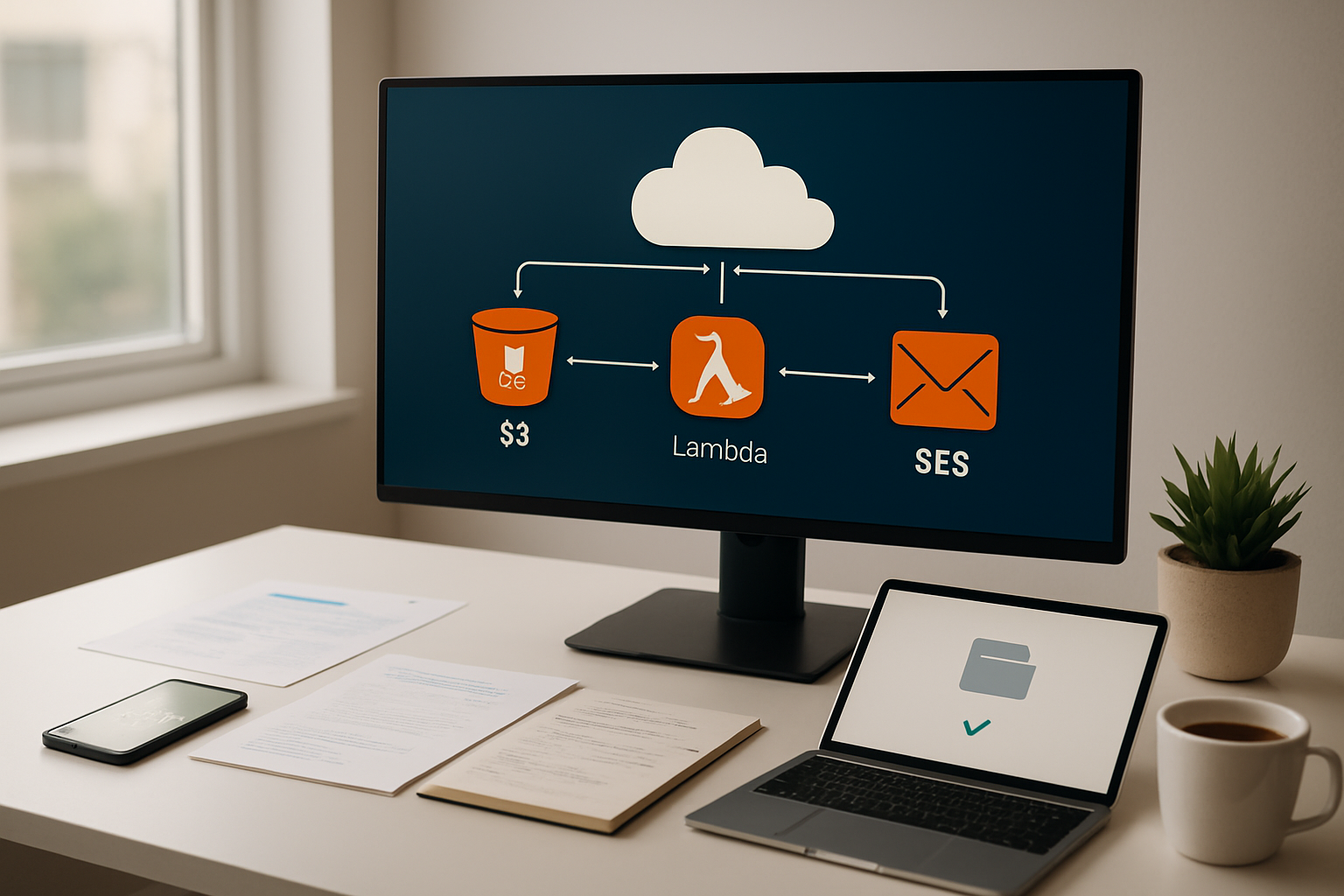
Building a real-time file upload alert system using AWS services creates a powerful foundation for monitoring your data flows. By combining S3 event triggers with Lambda functions and SES email notifications, you get instant visibility into file activities without constantly checking your storage buckets manually. The architecture we’ve covered gives you the flexibility to customize alerts based on your specific needs while keeping costs low through serverless technology.
Start implementing this solution piece by piece, beginning with the basic S3-to-Lambda connection before adding email functionality. Once you have the core system running, you can enhance it with custom filters, detailed metadata extraction, or even integrate it with other AWS services like SNS for multi-channel notifications. Your team will appreciate having immediate awareness of critical file uploads, and you’ll have built a scalable system that grows with your organization’s needs.