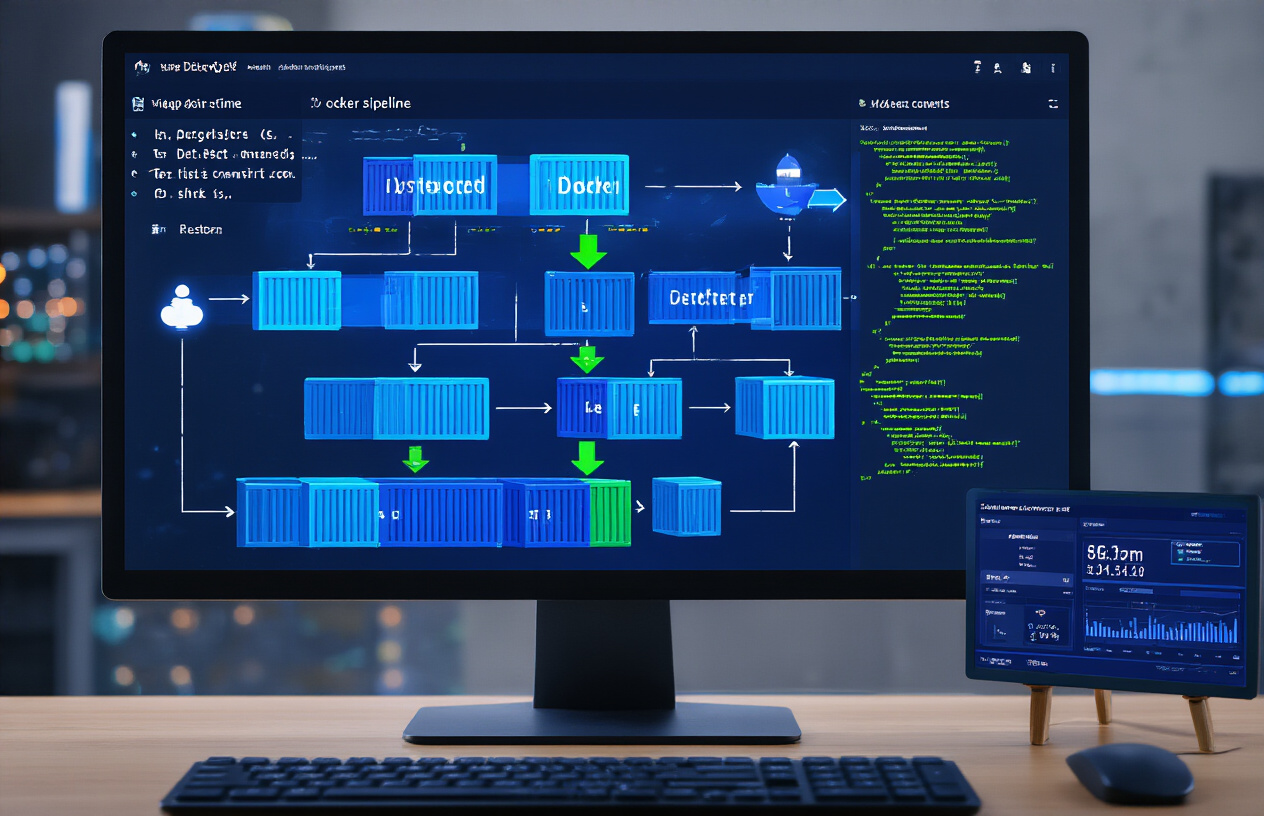
Jenkins has become the go-to CI/CD tool for development teams who want to automate their software delivery process from code commit to production deployment. This comprehensive Jenkins CI/CD tutorial is designed for developers, DevOps engineers, and IT professionals who need to streamline their build and deployment workflows.
If you’re tired of manual deployments and inconsistent builds, Jenkins pipeline automation can transform how your team delivers software. This guide walks you through everything from basic setup to advanced optimization techniques.
We’ll start with Jenkins setup and configuration fundamentals, showing you how to get your environment ready for continuous integration Jenkins workflows. You’ll learn the essential configurations that set the foundation for reliable automation.
Next, we’ll dive into creating automated CI/CD pipelines that handle everything from code compilation to automated testing Jenkins processes. We’ll cover pipeline syntax, best practices, and how to build robust workflows that catch issues early.
Finally, we’ll explore performance optimization and monitoring strategies to keep your Jenkins workflows running smoothly at scale. You’ll discover how to identify bottlenecks, optimize build times, and maintain peak performance as your projects grow.
By the end of this Jenkins workflow automation guide, you’ll have the skills to implement a complete DevOps Jenkins tool setup that reduces deployment time and increases code quality.
Understanding Jenkins and Its Core Benefits
What Jenkins is and why it revolutionizes software development
Jenkins is an open-source automation server that transforms how development teams handle continuous integration Jenkins workflows. This powerful DevOps Jenkins tool acts as the central hub for your entire software delivery pipeline, automatically triggering builds, tests, and deployments whenever code changes occur. Think of Jenkins as your tireless digital assistant that never sleeps, constantly watching your code repository and springing into action the moment developers push new commits. What makes Jenkins truly revolutionary is its ability to catch bugs early in the development cycle, when they’re cheap and easy to fix, rather than discovering them in production where they can cost thousands of dollars and damage your reputation.
Key advantages of implementing Jenkins in your workflow
Jenkins workflow automation brings several game-changing benefits to development teams. First, it creates consistency across all environments by ensuring every build follows the exact same process, eliminating the “it works on my machine” problem that has plagued developers for decades. Jenkins also provides instant feedback to developers, sending notifications within minutes when their code breaks the build, allowing for rapid fixes before issues snowball. The tool’s extensive plugin ecosystem, with over 1,800 available plugins, means you can integrate practically any tool in your tech stack. Jenkins CI/CD tutorial implementations show that teams typically see 50-80% faster delivery cycles, as manual processes that once took hours now complete in minutes. Jenkins also maintains detailed logs and reports, giving you complete visibility into your development pipeline’s health and performance.
How Jenkins reduces deployment time and human errors
Jenkins pipeline automation dramatically cuts deployment time by eliminating manual handoffs and reducing human intervention points where errors commonly occur. Traditional deployment processes often involve multiple team members manually copying files, updating configurations, and running scripts – each step creating opportunities for mistakes. Jenkins automates these repetitive tasks, running them the same way every single time with mathematical precision. Automated testing Jenkins integration catches defects before they reach production, while Jenkins build deployment processes ensure consistent environments from development through production. Teams using Jenkins report deployment times dropping from hours or days to minutes, with error rates falling by 70-90%. The tool’s rollback capabilities also provide safety nets, allowing teams to quickly revert changes if issues arise, giving developers confidence to deploy more frequently and deliver value to users faster.
Setting Up Jenkins for Maximum Efficiency
System Requirements and Installation Process
Your Jenkins setup needs Java 8 or 11, at least 256MB RAM (though 1GB+ is better for real projects), and 1GB disk space minimum. Download the Jenkins WAR file or use package managers like apt, yum, or brew for your operating system. The installation wizard walks you through initial admin password setup and basic configuration. Docker containers offer another quick deployment option for development environments.
Essential Plugins That Enhance Jenkins Functionality
Start with Pipeline, Git, and Blue Ocean plugins for modern CI/CD workflows. Add Docker Pipeline for containerized builds, SonarQube Scanner for code quality checks, and Slack Notification for team alerts. The Pipeline Stage View plugin provides excellent visual feedback on build progress. Credentials Binding plugin securely manages API keys and passwords across your pipelines.
Configuring Jenkins for Optimal Performance
Increase JVM heap size to match your workload – start with 2-4GB for moderate usage. Configure executor numbers based on CPU cores and concurrent build requirements. Set up build node pools to distribute workload across multiple machines. Enable garbage collection logging and monitor memory usage patterns. Adjust workspace cleanup policies to prevent disk space issues during heavy build cycles.
Security Best Practices for Jenkins Setup
Enable security realm authentication and create user accounts with specific permissions rather than using admin for everything. Install and configure the Matrix Authorization Strategy plugin for granular access control. Set up HTTPS with proper SSL certificates and disable unnecessary protocols. Use the Credentials plugin to store sensitive information securely. Regular security updates and plugin maintenance prevent vulnerabilities from compromising your Jenkins setup and CI/CD pipeline automation.
Creating Your First Jenkins Pipeline
Understanding Jenkins job types and their use cases
Jenkins offers three primary job types for different automation scenarios. Freestyle projects work perfectly for simple, straightforward builds with basic shell commands or batch scripts. Pipeline jobs shine when you need complex workflows with multiple stages, parallel execution, and sophisticated error handling. Multibranch pipelines automatically create separate pipeline jobs for each branch in your repository, making them ideal for teams working with feature branches and pull requests.
Building automated pipelines with Jenkinsfile
Creating a Jenkinsfile transforms your CI/CD pipeline creation into code that lives alongside your application. This declarative approach starts with defining your pipeline structure using stages like build, test, and deploy. Write your pipeline using Groovy syntax within the pipeline block, specifying agents, environment variables, and post-build actions. The beauty of Jenkinsfile lies in version control – every change gets tracked, reviewed, and rolled back if needed. Your Jenkins pipeline automation becomes reproducible across different environments, ensuring consistency from development to production.
Integrating version control systems seamlessly
Modern Jenkins CI/CD tutorial practices demand tight integration with Git, SVN, or other version control systems. Configure webhooks in your repository to trigger builds automatically when developers push code changes. Set up branch-specific triggers to run different pipeline stages based on the target branch – maybe quick tests for feature branches and full deployment pipelines for the main branch. This continuous integration Jenkins approach catches issues early and keeps your team’s workflow smooth. Poll SCM settings provide backup triggering when webhooks fail, ensuring your automation never misses critical updates.
Automating Build Processes with Jenkins
Configuring automatic builds triggered by code commits
Setting up webhook triggers connects your version control system directly to Jenkins, launching builds instantly when developers push code changes. Configure GitHub, GitLab, or Bitbucket webhooks in your repository settings, pointing to your Jenkins server’s webhook URL. In Jenkins, enable “GitHub hook trigger for GITScm polling” or similar options in your job configuration. This real-time approach eliminates polling delays and reduces server load while ensuring immediate feedback on code quality.
Setting up multi-branch pipelines for complex projects
Multi-branch pipelines automatically discover and build every branch in your repository, creating separate build environments for feature development, testing, and production. Create a new “Multibranch Pipeline” job in Jenkins, specify your repository URL, and define branch discovery strategies. Jenkins scans for Jenkinsfiles in each branch, creating individual pipeline instances. This approach supports parallel development workflows, allowing teams to work on different features simultaneously without build conflicts.
Implementing parallel builds to accelerate development
Parallel execution dramatically reduces build times by running independent tasks simultaneously across multiple Jenkins agents. Use the parallel block in your Jenkinsfile to define concurrent stages like unit tests, integration tests, and code analysis. Configure multiple build agents with different capabilities – some for compilation, others for testing or deployment. Load balancing distributes work efficiently, while resource allocation ensures optimal performance across your Jenkins infrastructure.
Managing build artifacts and dependencies effectively
Artifact management preserves build outputs for deployment while dependency caching speeds up subsequent builds. Configure artifact archiving in post-build actions to store compiled binaries, test reports, and deployment packages. Set up dependency proxies like Nexus or Artifactory to cache external libraries locally. Use Jenkins workspace cleanup policies to prevent disk space issues, while implementing artifact retention policies that balance storage costs with rollback requirements for production deployments.
Implementing Comprehensive Testing Automation
Integrating unit tests into your Jenkins pipeline
Unit testing forms the backbone of any robust Jenkins CI/CD tutorial implementation. Configure your pipeline to automatically execute unit tests during the build phase by adding test commands to your Jenkinsfile. Popular frameworks like JUnit for Java, pytest for Python, or Jest for JavaScript integrate seamlessly with Jenkins pipeline automation. Set up your pipeline to fail builds when tests don’t pass, ensuring code quality from the start. Use the post block in your pipeline to archive test results and generate reports regardless of test outcomes.
Running automated integration and regression tests
Integration tests verify that different components work together correctly within your continuous integration Jenkins workflow. Schedule these tests to run after successful unit tests, typically in a dedicated testing environment that mirrors production. Regression tests catch bugs in previously working functionality and should run against your entire application suite. Configure separate pipeline stages for different test types, allowing parallel execution to speed up your Jenkins build deployment process. Use Docker containers to create consistent testing environments and implement test data management strategies to ensure reliable results.
Generating detailed test reports and coverage metrics
Test reporting transforms raw test data into actionable insights for your development team. Jenkins automatically collects test results from popular frameworks and presents them through intuitive dashboards and trend analysis. Install plugins like JaCoCo for Java coverage, Coverage.py for Python, or Istanbul for JavaScript to track code coverage metrics. Configure automated testing Jenkins pipelines to fail builds when coverage drops below defined thresholds. Set up email notifications and Slack integrations to alert team members about test failures, and use Jenkins’ built-in graphs to monitor testing trends over time, helping identify patterns in code quality and test effectiveness.
Streamlining Deployment with Jenkins
Configuring Automated Deployment to Staging Environments
Set up your Jenkins pipeline automation to automatically push code changes to staging environments after successful builds and tests. Configure deployment scripts using Jenkins pipeline syntax to connect with your staging servers through SSH, Docker containers, or cloud platforms. Create environment-specific configuration files that Jenkins can automatically apply during deployment, ensuring your staging environment mirrors production settings while maintaining separate databases and API endpoints.
Implementing Blue-Green Deployment Strategies
Blue-green deployments eliminate downtime by running two identical production environments simultaneously. Configure Jenkins to deploy new versions to the inactive environment (green) while users access the current version (blue). Your Jenkins CI/CD pipeline should include health checks and automated testing on the green environment before switching traffic. Use load balancers or DNS switching to route users to the new deployment, keeping the previous version ready for instant rollback if needed.
Setting Up Production Deployment with Approval Gates
Production deployments require human oversight even in automated systems. Configure manual approval steps in your Jenkins workflow automation using input parameters and pipeline stages. Set up notification systems that alert deployment managers when builds are ready for production release. Create role-based permissions ensuring only authorized personnel can approve production deployments, and implement time-based restrictions to prevent deployments during peak business hours or maintenance windows.
Rolling Back Deployments When Issues Arise
Quick rollback capabilities save your application when deployments go wrong. Design your Jenkins deployment pipeline to tag successful deployments and maintain deployment history with easy rollback triggers. Configure automated monitoring that can trigger rollbacks when error rates spike or performance degrades. Store previous application versions in accessible repositories and create one-click rollback jobs that can restore the last known good state within minutes, minimizing user impact during incidents.
Monitoring and Optimizing Jenkins Performance
Tracking build performance and identifying bottlenecks
Monitor build duration metrics through Jenkins’ built-in performance analytics to spot slow-running jobs and resource constraints. Check the Build Time Trend plugin to visualize performance patterns across multiple builds and identify which stages consume excessive time. Review system logs regularly to catch memory leaks, CPU spikes, or disk space issues that impact Jenkins performance optimization. Use the Performance plugin to analyze test execution times and pinpoint specific bottlenecks in your CI/CD pipeline creation workflow.
Setting up notifications and alerts for failed builds
Configure email notifications through Jenkins’ built-in mailer plugin to alert team members when builds break or tests fail. Set up Slack integration using the Slack Notification plugin for real-time alerts in your development channels. Create custom notification rules based on build status, branch names, or specific job types to avoid notification fatigue. Enable dashboard widgets and RSS feeds so developers can quickly check build status without constantly monitoring the Jenkins interface for critical pipeline failures.
Scaling Jenkins with distributed builds across multiple agents
Deploy multiple Jenkins agents across different machines to distribute build workloads and reduce queue times significantly. Configure agent labels to route specific jobs to machines with appropriate resources, like GPU-enabled servers for machine learning tasks or Windows agents for .NET applications. Use Docker containers as dynamic agents that spin up on-demand for builds and automatically terminate when complete. Implement agent pools with different capacities to handle peak build times while maintaining cost efficiency for your DevOps Jenkins tool infrastructure.
Jenkins transforms software development by automating everything from code builds to production deployments. The tool’s pipeline capabilities, combined with its extensive plugin ecosystem, make it possible to create robust CI/CD workflows that catch issues early and deliver code faster. Setting up proper automation for builds, tests, and deployments saves countless hours while reducing human error and improving code quality.
The real power of Jenkins lies in its ability to grow with your team’s needs. Start with basic automation and gradually add more sophisticated monitoring and optimization as your projects expand. Take the time to set up your first pipeline properly, invest in comprehensive testing automation, and keep an eye on performance metrics. Your development team will thank you for the smoother, more reliable deployment process that Jenkins brings to the table.