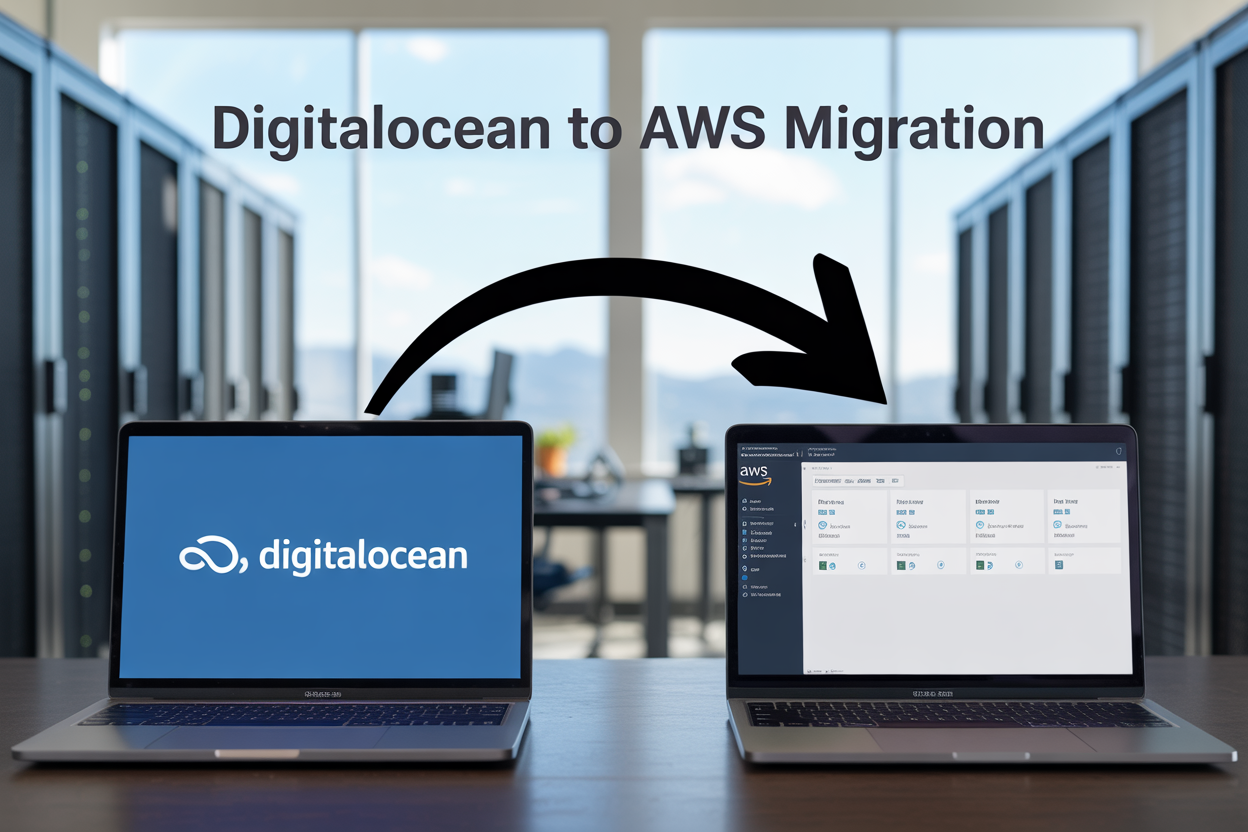
Moving your applications from DigitalOcean to AWS doesn’t have to be a nightmare. This comprehensive cloud migration guide walks you through every step of the DigitalOcean to AWS migration process, helping you avoid common pitfalls and minimize downtime.
This playbook is designed for developers, DevOps engineers, and IT teams who need to migrate applications AWS without breaking existing functionality. You’ll get practical, tested strategies that work for everything from simple web apps to complex multi-tier applications.
We’ll cover the essential groundwork you need before starting your migration, including how to assess your current infrastructure and plan your AWS environment setup. You’ll also learn proven techniques for database migration from DigitalOcean to AWS, including data transfer methods and connection string updates. Finally, we’ll show you how to migrate your application servers and computing resources while maintaining performance and security standards.
By the end of this application migration playbook, you’ll have a clear roadmap for moving to AWS with confidence and minimal business disruption.
Pre-Migration Planning and Assessment

Audit Your Current DigitalOcean Infrastructure and Dependencies
Start by taking a complete inventory of everything running in your DigitalOcean environment. Document each droplet, database, load balancer, and storage volume you’re currently using. Don’t forget about smaller components like floating IPs, firewalls, and VPC configurations.
Create a spreadsheet or use a tool like Terraform to catalog your resources. For each service, note the specifications, operating system, installed software, and current usage patterns. Pay special attention to any custom configurations or non-standard setups that might complicate your DigitalOcean to AWS migration.
Map out all the connections between your services. Which applications talk to which databases? How does traffic flow through your load balancers? Understanding these dependencies now saves you from nasty surprises later when services can’t communicate after migration.
Check for any DigitalOcean-specific features you’ve implemented, like their managed Kubernetes service or App Platform deployments. These will need special consideration since AWS handles similar services differently.
Map DigitalOcean Services to AWS Equivalents
The good news is that AWS has counterparts for almost every DigitalOcean service, though they often work differently under the hood. Your basic droplets will become EC2 instances, but choosing the right instance type requires understanding your current resource usage.
| DigitalOcean Service | AWS Equivalent | Key Differences |
|---|---|---|
| Droplets | EC2 Instances | More instance types and pricing options |
| Managed Databases | RDS/Aurora | Additional database engines and features |
| Spaces | S3 | More storage classes and lifecycle policies |
| Load Balancers | Application/Network Load Balancer | More configuration options |
| VPC | VPC | Similar functionality, different interface |
DigitalOcean’s managed database service maps to AWS RDS, but AWS offers more database engines and advanced features like Aurora for MySQL and PostgreSQL. Your Spaces object storage will move to S3, which provides more storage classes for cost optimization.
Load balancer migration needs careful planning since AWS offers both Application Load Balancers and Network Load Balancers with different capabilities than DigitalOcean’s offering.
Calculate Migration Costs and Timeline Requirements
AWS migration best practices always include realistic cost planning before you start moving anything. AWS pricing is more complex than DigitalOcean’s straightforward model, but it often provides better value for larger workloads.
Start by using AWS’s pricing calculator to estimate monthly costs for equivalent resources. Don’t just match specs directly – AWS’s burstable instances like t3.micro might cost less than your current droplets while providing similar performance for variable workloads.
Factor in data transfer costs, which can be significant during migration. Moving large databases or file storage will incur charges, especially if you’re transferring data out of DigitalOcean and into AWS.
Timeline planning depends on your application complexity and downtime tolerance. Simple web applications might migrate in a weekend, while complex multi-service architectures could take weeks. Plan for:
- Database migration time (proportional to data size)
- DNS propagation delays (24-48 hours)
- Testing and validation periods
- Rollback windows if something goes wrong
Create a Detailed Migration Strategy Document
Your cloud migration guide should be a living document that everyone on your team can reference. Start with a high-level migration order – typically databases first, then application servers, followed by supporting services.
Document your rollback plan before you need it. What’s your plan if the database migration fails halfway through? How will you handle DNS rollback if users can’t access the new environment? Having these answers ready reduces stress when problems arise.
Create checklists for each migration phase. Include specific commands, configuration files, and verification steps. Your future self will thank you when you’re working at 2 AM trying to remember which security groups need which ports open.
Include communication plans for your users and stakeholders. When will you announce maintenance windows? How will you notify users about potential service disruptions? Clear communication prevents support tickets and maintains user trust during the application migration playbook execution.
Set up monitoring and alerting in AWS before you migrate anything. You want to catch performance issues immediately, not discover them when users start complaining about slow response times.
Setting Up Your AWS Environment for Migration
Configure AWS Account and Initial Security Settings
Before starting your DigitalOcean to AWS migration, you’ll need to secure your AWS environment with proper configurations. Start by enabling multi-factor authentication (MFA) on your root account – this adds an extra layer of protection that’s essential for cloud migration security.
Set up AWS CloudTrail immediately to track all API calls and user activities during the migration process. This creates an audit trail that helps you monitor who’s doing what and when, which becomes invaluable if issues arise later. Navigate to the CloudTrail console and create a new trail that covers all regions, storing logs in a dedicated S3 bucket.
Enable AWS Config to monitor resource configurations and detect any unauthorized changes during migration. This service automatically tracks configuration changes and sends alerts when resources deviate from your established baselines.
Configure billing alerts and set up cost monitoring through AWS Budgets. Cloud migration costs can spiral quickly, and you want early warnings before expenses exceed your planned budget. Create alerts at 50%, 80%, and 100% of your estimated migration costs.
Install the AWS CLI and configure your credentials using aws configure. This command-line tool will be your best friend throughout the migration process, allowing you to automate many tasks and troubleshoot issues more efficiently.
Establish VPC Network Architecture Matching Your Current Setup
Creating a Virtual Private Cloud (VPC) that mirrors your existing DigitalOcean network topology ensures minimal application disruption during migration. Start by documenting your current network structure, including subnet configurations, firewall rules, and load balancer setups.
Design your VPC with multiple Availability Zones for high availability – something DigitalOcean doesn’t offer in the same way. Create at least two public and two private subnets across different AZs. This setup provides redundancy that can actually improve your application’s reliability compared to your current DigitalOcean configuration.
Configure your subnet CIDR blocks to avoid conflicts with your existing network ranges. If your DigitalOcean droplets use 10.0.0.0/16, consider using a different range like 172.31.0.0/16 for your AWS VPC. This prevents IP conflicts during the transition period when both environments might need to communicate.
Set up an Internet Gateway for public subnet access and NAT Gateways for private subnet outbound connectivity. Position NAT Gateways in each availability zone to ensure redundancy – a single point of failure here could disrupt your entire migration.
Create route tables that direct traffic appropriately between subnets. Public subnets should route to the Internet Gateway, while private subnets route through NAT Gateways. Test connectivity thoroughly before moving any production workloads.
Consider setting up VPC peering or AWS Direct Connect if you need secure communication between your DigitalOcean and AWS environments during the migration phase.
Set Up IAM Roles and Permissions for Migration Tasks
Identity and Access Management (IAM) configuration determines who can access what during your AWS migration. Create dedicated IAM roles for different migration tasks rather than using broad permissions that could create security vulnerabilities.
Establish a migration-specific IAM group with users who need temporary elevated permissions for the migration project. This group should have permissions for EC2, RDS, S3, and other services you’ll use, but remove these permissions once migration completes.
Create service-linked roles for AWS services that will handle migration tasks. For database migration, set up roles that allow AWS Database Migration Service (DMS) to access both source and target databases. These roles need specific permissions to read from external sources and write to AWS resources.
Use AWS Systems Manager Session Manager instead of traditional SSH keys for server access during migration. This approach provides better security auditing and eliminates the need to manage SSH key pairs across your migration team.
Configure cross-account roles if you’re migrating multiple DigitalOcean projects to separate AWS accounts. This setup allows centralized management while maintaining security boundaries between different environments or business units.
Implement the principle of least privilege by creating granular policies that grant only the minimum permissions needed for each migration task. For example, database migration roles shouldn’t have EC2 termination permissions, and compute migration roles shouldn’t access sensitive S3 buckets containing backup data.
Set up temporary credentials using AWS Security Token Service (STS) for scripts and automation tools. These credentials automatically expire, reducing the risk of long-lived credentials being compromised during the migration window.
Database Migration from DigitalOcean to AWS

Export and Backup Your DigitalOcean Database Content
Before starting your DigitalOcean to AWS migration, create comprehensive backups of your existing databases. DigitalOcean Managed Databases provide automated backups, but you’ll need manual exports for the transfer process.
For PostgreSQL databases, use pg_dump to create a complete database export:
pg_dump -h your-db-host -U username -d database_name > backup_file.sql
MySQL users should employ mysqldump with similar syntax:
mysqldump -h your-db-host -u username -p database_name > backup_file.sql
Always include schema, data, and stored procedures in your backup. Test the backup integrity by restoring it to a temporary database instance before proceeding with the AWS database migration.
Document your current database configuration, including version numbers, character sets, and custom parameters. This information proves critical when configuring your AWS RDS instance to match your existing setup.
Configure AWS RDS Instance with Optimal Settings
Setting up your AWS RDS instance requires careful attention to performance and compatibility requirements. Choose the appropriate database engine that matches your DigitalOcean setup exactly – version mismatches can cause compatibility issues during migration.
| Configuration Parameter | Consideration |
|---|---|
| Instance Class | Match CPU and memory to current workload |
| Storage Type | Use gp3 for balanced performance and cost |
| Multi-AZ Deployment | Enable for production environments |
| Parameter Groups | Customize for your application needs |
Select your VPC and subnet groups carefully to ensure proper network connectivity. Enable automated backups and set appropriate backup retention periods. Configure security groups to allow access from your application servers while maintaining security best practices.
Choose storage that exceeds your current database size by at least 20% to accommodate growth and temporary operations during migration. Enable encryption at rest if your data requires additional security measures.
Transfer Database Data Using AWS Database Migration Service
AWS Database Migration Service (DMS) streamlines the cloud migration guide process by handling the heavy lifting of data transfer. Create a replication instance sized appropriately for your data volume and migration timeline.
Set up source and target endpoints in DMS:
- Source endpoint: Your DigitalOcean database connection details
- Target endpoint: Your newly created RDS instance
Configure migration tasks based on your requirements:
- Full load: Transfers existing data completely
- Full load and CDC: Continues replicating changes during migration
- CDC only: For ongoing replication scenarios
Test connectivity between endpoints before starting the migration task. DMS provides detailed monitoring and error reporting, allowing you to track progress and troubleshoot issues quickly.
For large databases, consider using DMS with Amazon S3 as an intermediate storage layer to improve transfer speeds and reduce downtime.
Verify Data Integrity and Performance Post-Migration
Data verification forms the most critical step in any migrate applications AWS process. Compare row counts between source and target databases using automated scripts:
-- PostgreSQL row count verification
SELECT schemaname, tablename, n_tup_ins - n_tup_del as row_count
FROM pg_stat_user_tables;
Run checksum comparisons on critical tables to ensure data integrity. Execute your application’s test suite against the new database to validate functionality and performance.
Monitor key performance metrics during the first 24-48 hours after migration:
- Query response times
- Connection pool utilization
- CPU and memory usage
- I/O performance
Compare these metrics against your DigitalOcean baseline to identify potential optimization opportunities. Update your application’s database connection strings and configuration files to point to the new RDS endpoint.
Schedule regular automated backups and configure CloudWatch alarms for proactive monitoring of your newly migrated database infrastructure.
Application Server and Computing Resource Migration

Create AMI Images from DigitalOcean Droplets
Your DigitalOcean to AWS migration journey starts with creating machine images that capture your current droplet configurations. Since you can’t directly export droplets as AMIs, you’ll need to create a snapshot of your running instances and transfer the data to AWS.
First, power down your DigitalOcean droplet to ensure data consistency during the snapshot process. Navigate to your DigitalOcean dashboard, select your droplet, and create a snapshot. This process typically takes 15-30 minutes depending on your droplet size and current load.
While DigitalOcean snapshots can’t be directly imported into AWS, you can use several approaches:
- Manual recreation: Document your current server configuration, installed packages, and custom settings to replicate on AWS
- Configuration management tools: Use Ansible, Terraform, or similar tools to codify your infrastructure
- File-level transfer: Create a fresh EC2 instance and transfer your application files directly
The most reliable approach involves setting up a new EC2 instance with the same operating system version and manually transferring your application data and configurations.
Launch EC2 Instances with Proper Sizing and Configuration
Choosing the right EC2 instance type for your cloud migration guide requires understanding your current resource usage patterns. Review your DigitalOcean monitoring data to identify CPU, memory, and storage requirements over the past month.
AWS offers a broader range of instance types compared to DigitalOcean’s standardized droplets. Here’s how to match your current setup:
| DigitalOcean Droplet | Recommended EC2 Instance |
|---|---|
| 1GB RAM, 1 vCPU | t3.micro or t3.small |
| 2GB RAM, 1 vCPU | t3.small |
| 4GB RAM, 2 vCPUs | t3.medium |
| 8GB RAM, 4 vCPUs | t3.large |
When launching your EC2 instance, configure these essential settings:
- Security Groups: Create rules that mirror your current DigitalOcean firewall settings
- Key Pairs: Generate new SSH key pairs or import your existing public keys
- Storage: Choose between EBS gp3 volumes for general use or io2 for high-performance requirements
- VPC placement: Deploy instances in the VPC you configured during the setup phase
Start with slightly oversized instances during migration, then optimize based on actual usage patterns after your applications are running smoothly.
Transfer Application Files and Configure Environment Variables
Moving your application files from DigitalOcean to AWS requires a systematic approach to ensure nothing gets lost in the process. The most efficient method depends on your application size and downtime tolerance.
For applications under 10GB, use rsync or scp to transfer files directly:
rsync -avz -e ssh /path/to/local/files/ user@aws-instance:/path/to/destination/
For larger applications or when you need to minimize downtime:
- Set up AWS Storage Gateway or use S3 as an intermediary
- Compress your application directory:
tar -czf app_backup.tar.gz /var/www/myapp - Upload to S3:
aws s3 cp app_backup.tar.gz s3://your-migration-bucket/ - Download and extract on your EC2 instance
Don’t forget to transfer your environment variables and configuration files. Create a checklist of files to migrate:
- Application source code
- Configuration files (
/etc/nginx/,/etc/apache2/) - SSL certificates
- Log files (if needed for troubleshooting)
- Cron jobs and scheduled tasks
- Database connection strings
- API keys and secrets
Set up environment variables on your new EC2 instance by editing /etc/environment or creating application-specific environment files. Consider using AWS Systems Manager Parameter Store for sensitive configuration data instead of storing secrets directly on the server.
Update Application Configuration for AWS Services
Your migrate applications AWS process requires updating configuration files to work with AWS-specific services and networking. This step often involves more changes than you might expect, especially if your application was tightly coupled to DigitalOcean’s infrastructure.
Database connections need immediate attention. Update your application’s database configuration to point to your new AWS RDS instance or EC2-hosted database. Change connection strings from DigitalOcean’s private networking format to AWS VPC internal addresses.
Load balancer configurations require updates if you’re moving from DigitalOcean’s load balancers to AWS Application Load Balancer or Network Load Balancer. Update health check endpoints and modify any hardcoded IP addresses or domain names.
File storage paths need adjustment if you’re migrating from DigitalOcean Spaces to S3. Update your application code to use AWS SDK methods instead of DigitalOcean’s API calls. This includes changing:
- File upload endpoints
- CDN URLs (from DigitalOcean CDN to CloudFront)
- Backup script destinations
- Log aggregation endpoints
Monitoring and logging integrations also need updates. Replace any DigitalOcean monitoring agents with CloudWatch agents, and update log shipping configurations to send data to CloudWatch Logs instead of DigitalOcean’s logging service.
Test Application Functionality in AWS Environment
Testing your application thoroughly in the AWS environment prevents nasty surprises after you switch over production traffic. Create a comprehensive testing checklist that covers all critical functionality.
Start with basic connectivity tests. Verify that your application starts successfully, connects to the database, and serves static content. Test all user-facing features systematically, paying special attention to:
- User registration and login processes
- Payment processing workflows
- File upload and download functionality
- Email sending capabilities
- Third-party API integrations
Performance testing reveals how your application behaves under AWS infrastructure. Run load tests to compare response times with your DigitalOcean setup. Use tools like Apache Bench, JMeter, or AWS’s own load testing solutions to simulate realistic traffic patterns.
Security testing ensures your AWS migration best practices include proper access controls. Verify that security groups properly restrict access, SSL certificates work correctly, and sensitive data remains encrypted. Test backup and recovery procedures to confirm your disaster recovery plan works in the new environment.
Document any issues you discover during testing, along with their solutions. This documentation becomes invaluable when you encounter similar problems during the actual migration or when training team members on the new infrastructure.
Create automated health checks that continuously monitor your application’s critical functions. Set up CloudWatch alarms for key metrics like response time, error rates, and resource utilization to catch problems before they impact users.
DNS and Domain Configuration Updates
Update DNS Records to Point to AWS Resources
Your DNS records need to change direction once your applications are running on AWS infrastructure. This step is critical for your DigitalOcean to AWS migration because visitors will still be trying to reach your old DigitalOcean IP addresses.
Start by identifying all the DNS records currently pointing to your DigitalOcean resources. You’ll typically find A records pointing to your droplet IP addresses, CNAME records for subdomains, and MX records for email services. Create a comprehensive list of these records before making any changes.
Update your A records to point to your new AWS Elastic IP addresses or Application Load Balancer DNS names. If you’re using an Application Load Balancer, you’ll create CNAME records instead of A records for subdomains. For your root domain, you’ll need to use an ALIAS record if your DNS provider supports it, or point the A record to the load balancer’s IP addresses.
Consider lowering your TTL (Time to Live) values to 300 seconds or less before the migration. This change ensures DNS updates propagate quickly when you switch from DigitalOcean to AWS. Remember to increase the TTL back to normal values after the migration completes.
Test your DNS changes thoroughly using tools like dig or nslookup to verify that records resolve correctly to your AWS resources.
Configure AWS Route 53 for Optimal Performance
Route 53 offers advanced DNS features that can improve your application’s performance and reliability compared to basic DNS providers. Migrating your DNS to Route 53 gives you better integration with other AWS services and enhanced routing capabilities.
Create a hosted zone in Route 53 for your domain. This process involves setting up the zone and updating your domain registrar to use Route 53’s name servers. The hosted zone will contain all your DNS records and routing policies.
Set up health checks for your critical endpoints. Route 53 can automatically route traffic away from unhealthy resources to healthy ones. Configure health checks to monitor your EC2 instances, load balancers, or specific URLs. These checks run from multiple AWS regions, providing comprehensive monitoring coverage.
Implement routing policies based on your application’s needs:
- Simple routing for basic DNS resolution
- Weighted routing for gradual traffic shifting during your cloud migration guide
- Latency-based routing to direct users to the closest AWS region
- Geolocation routing for region-specific content delivery
- Failover routing for disaster recovery scenarios
Configure alias records for AWS resources like CloudFront distributions, Elastic Load Balancers, and S3 buckets. Alias records provide better performance than CNAME records and don’t incur DNS query charges.
Implement SSL Certificate Management with AWS Certificate Manager
SSL certificates are essential for modern web applications, and AWS Certificate Manager (ACM) simplifies certificate management during your application migration playbook. ACM provides free SSL certificates and handles automatic renewal.
Request SSL certificates through ACM for all your domains and subdomains. You can request wildcard certificates (*.yourdomain.com) to cover all subdomains, or request individual certificates for specific domains. ACM supports both domain validation and extended validation certificates.
Validate certificate ownership using either DNS validation or email validation. DNS validation is preferred because it allows for automatic renewal without manual intervention. If you’re using Route 53, ACM can automatically create the required DNS records for validation.
Integrate your SSL certificates with AWS services:
| Service | SSL Integration |
|---|---|
| Application Load Balancer | Attach certificates directly to listeners |
| CloudFront | Associate certificates with distributions |
| API Gateway | Use certificates for custom domain names |
| Elastic Beanstalk | Configure SSL termination at load balancer |
Configure your load balancers to redirect HTTP traffic to HTTPS automatically. This setup ensures all traffic uses encrypted connections without requiring application code changes.
Set up certificate monitoring and renewal notifications. While ACM handles automatic renewal, monitoring ensures you’re aware of any renewal issues. Create CloudWatch alarms or SNS notifications to alert you about certificate expiration dates.
Import existing certificates if you have valid SSL certificates from your DigitalOcean setup. ACM can manage externally issued certificates, though these won’t auto-renew and require manual replacement before expiration.
Post-Migration Optimization and Monitoring

Implement AWS CloudWatch for Comprehensive Monitoring
Setting up CloudWatch right after your DigitalOcean to AWS migration gives you complete visibility into your applications’ performance. Start by creating custom dashboards that track your most critical metrics – CPU usage, memory consumption, disk I/O, and network traffic. CloudWatch automatically collects basic EC2 metrics, but you’ll want to install the CloudWatch agent on your instances for detailed system-level monitoring.
Create CloudWatch alarms for key thresholds like CPU usage above 80% for more than 5 minutes, or when available memory drops below 20%. These alarms can trigger SNS notifications to alert your team or automatically scale resources. For applications migrated from DigitalOcean, pay special attention to response times and error rates during the first few weeks.
Configure log groups for your application logs, web server logs, and system logs. CloudWatch Logs Insights lets you query and analyze log data quickly, which proves invaluable when troubleshooting issues that might surface after migration. Set up log retention policies to manage costs while keeping critical data accessible.
Optimize Costs Using AWS Cost Management Tools
AWS provides powerful cost management tools that help you optimize spending after migrating from DigitalOcean. Start with AWS Cost Explorer to analyze your spending patterns and identify the biggest cost drivers. Look for unused or underutilized resources that might have been overlooked during migration.
Enable AWS Budgets to set spending alerts before costs spiral out of control. Create separate budgets for different services like EC2, RDS, and S3 to track where money goes each month. Set up automated alerts at 50%, 75%, and 90% of your budget thresholds.
Use AWS Trusted Advisor recommendations to find immediate cost savings opportunities. Common recommendations include rightsizing EC2 instances, identifying idle load balancers, and suggesting Reserved Instance purchases for predictable workloads.
| Cost Optimization Strategy | Potential Savings | Implementation Effort |
|---|---|---|
| Reserved Instances | 30-60% | Low |
| Spot Instances | 50-90% | Medium |
| Auto Scaling | 20-40% | Medium |
| Storage Tiering | 25-50% | Low |
Configure Auto-Scaling and Load Balancing for Better Performance
Auto-scaling ensures your applications handle traffic spikes gracefully while minimizing costs during low-traffic periods. Create Auto Scaling Groups (ASGs) for your EC2 instances with policies based on CPU utilization, memory usage, or custom metrics like request count per instance.
Start with target tracking scaling policies – they’re easier to configure and work well for most applications. Set a target CPU utilization of 70% and let AWS handle the scaling decisions. For more complex scenarios, use step scaling policies that add or remove specific numbers of instances based on alarm thresholds.
Application Load Balancers distribute traffic across multiple instances and provide health checks to ensure traffic only goes to healthy instances. Configure health check paths that verify your application’s core functionality, not just server availability. Set reasonable timeout and interval values – typically 5-second timeouts with 30-second intervals work well for web applications.
Enable connection draining to gracefully handle instance terminations during scale-in events. This prevents users from experiencing connection errors when instances are removed from service.
Establish Backup and Disaster Recovery Procedures
Your backup strategy should protect against both data loss and regional outages. Start by enabling automated snapshots for your EBS volumes and RDS databases. Schedule daily snapshots with retention periods that match your recovery point objectives – typically 7-30 days for most applications.
Create cross-region backup copies for critical data to protect against regional disasters. Use AWS Backup to centrally manage and automate backup policies across multiple services. This service handles the complexity of coordinating backups across EC2, RDS, EFS, and other AWS services.
Document your disaster recovery procedures with specific recovery time objectives (RTO) and recovery point objectives (RPO). Test these procedures regularly by performing restore operations in a separate environment. Many organizations discover gaps in their disaster recovery plans only during actual emergencies.
Set up AWS CloudFormation templates or Terraform configurations to quickly recreate your infrastructure in another region if needed. Store these templates in version control and test them periodically to ensure they work correctly.
Consider implementing a multi-region architecture for mission-critical applications. Use Route 53 health checks to automatically failover DNS traffic to a secondary region when your primary region becomes unavailable.
Moving your applications from DigitalOcean to AWS doesn’t have to be overwhelming when you break it down into manageable steps. From planning your migration strategy to setting up your new AWS environment, transferring databases, moving compute resources, updating DNS settings, and fine-tuning everything afterward – each phase builds on the previous one to ensure a smooth transition. Taking time upfront to assess your current setup and map out your AWS architecture will save you countless headaches down the road.
The real key to success lies in testing everything thoroughly before making the final switch and having a solid rollback plan ready just in case. Once you’ve completed the migration, don’t forget to monitor your new AWS environment closely and optimize your resources to get the best performance and cost efficiency. Start with your least critical applications first to get comfortable with the process, then work your way up to your mission-critical systems. With careful planning and patience, you’ll have your applications running smoothly on AWS in no time.