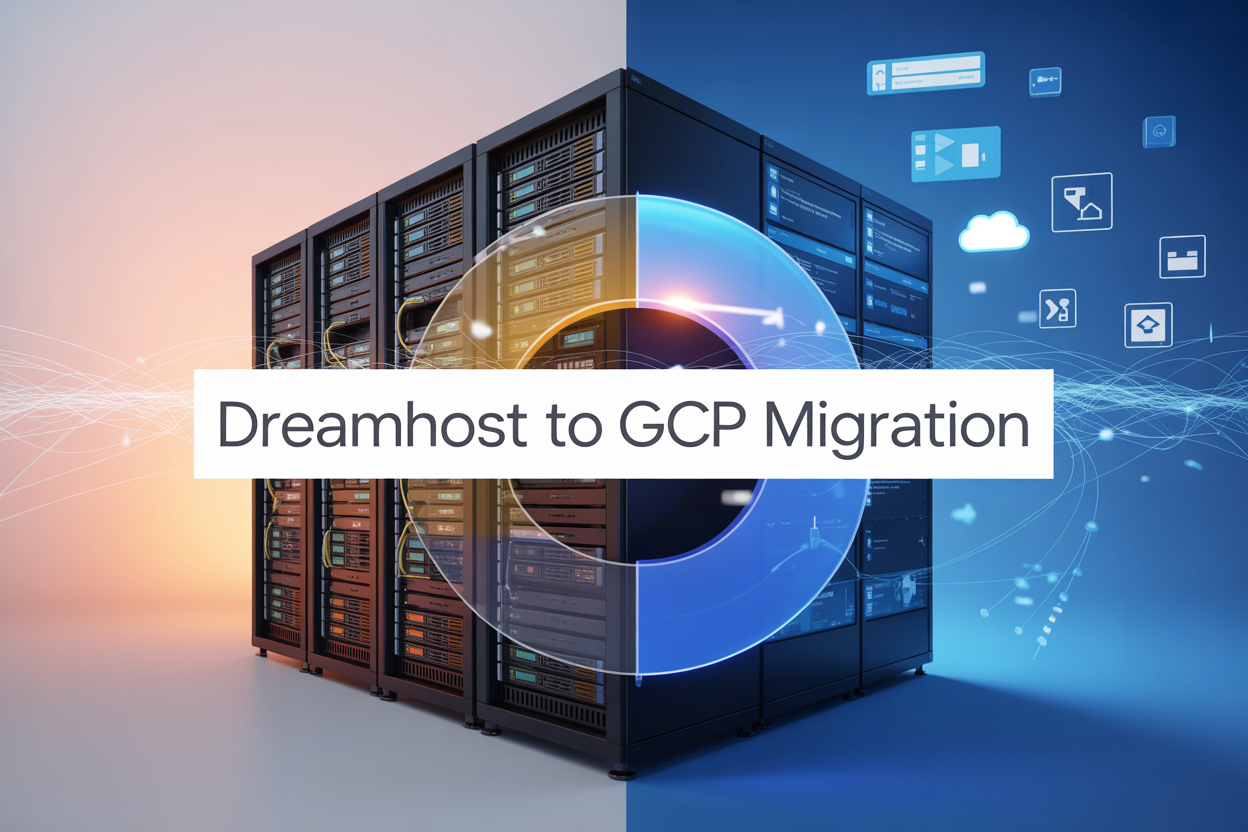
Moving your website from DreamHost to Google Cloud Platform opens up powerful scaling options and advanced cloud features that traditional shared hosting can’t match. This DreamHost to GCP migration guide walks you through each step of transforming your current hosting setup into a modern, scalable cloud infrastructure.
Who This Guide Is For:
Small to medium business owners, developers, and system administrators ready to migrate DreamHost to Google Cloud for better performance, reliability, and growth potential.
You’ll learn how to assess your current DreamHost setup and design the right Google Cloud architecture for your needs. We’ll cover the complete database migration Google Cloud process, including moving your files and configuring your new environment. Plus, you’ll discover proven strategies for cloud infrastructure optimization to get the most from your investment.
By the end of this web hosting migration tutorial, you’ll have your website running smoothly on GCP with improved speed, security, and the ability to handle traffic spikes without breaking a sweat.
Assess Your Current DreamHost Environment

Audit your existing website files and databases
Before jumping into your DreamHost to GCP migration, you need to know exactly what you’re working with. Start by creating a complete inventory of all your website files, including HTML pages, PHP scripts, images, videos, and any custom applications. Use FTP or SSH access to download everything from your DreamHost account – don’t rely on backups that might be outdated.
Pay special attention to your databases. Most websites run on MySQL or PostgreSQL, and each database can contain multiple tables with varying amounts of data. Document the size of each database, note any custom configurations, and identify which applications connect to which databases. This information becomes crucial when planning your Google Cloud Platform migration strategy.
Create a detailed list of all file types and their locations. You might discover forgotten subdirectories, staging environments, or development files that you forgot about. These hidden elements can cause problems later if not properly accounted for during the migration process.
Document your current hosting configuration and resources
Your DreamHost account contains specific server configurations that your website relies on to function properly. Take screenshots of your control panel settings, including PHP versions, SSL certificates, email configurations, and any custom server settings you’ve implemented over time.
Record your current resource allocations – how much storage space you’re using, bandwidth consumption patterns, and memory limits. DreamHost shared hosting environments have different limitations compared to Google Cloud Platform’s scalable infrastructure, so understanding these baseline requirements helps you choose appropriate GCP services.
Document any cron jobs, scheduled backups, or automated scripts running on your current hosting. These background processes often get overlooked but are essential for website functionality. Note their frequency, purpose, and any specific server requirements they need to operate correctly.
Identify dependencies and third-party integrations
Modern websites rarely operate in isolation. Your site probably connects to external services like payment processors, email marketing platforms, analytics tools, or social media APIs. Create a comprehensive list of every third-party integration your website uses.
Check for hardcoded server paths, IP addresses, or domain-specific configurations that might break during migration. Many applications store absolute file paths or database connection strings that reference your current DreamHost environment. These will need updating once you move to Google Cloud Platform.
Review any CDN services, DNS configurations, or email routing rules currently in place. Some of these services might need reconfiguration or replacement when moving to GCP’s infrastructure.
Evaluate your current traffic patterns and performance metrics
Understanding how your website currently performs gives you benchmarks for measuring migration success. Use Google Analytics, server logs, or DreamHost’s built-in statistics to analyze your traffic patterns over the past few months.
Look at peak traffic times, average page load speeds, and any performance bottlenecks you’ve experienced. This data helps you right-size your Google Cloud resources and avoid over-provisioning or under-provisioning your new infrastructure.
Document any recurring performance issues, downtime patterns, or resource limitations you’ve encountered with DreamHost. These pain points often become selling points for the migration project and help justify the move to a more scalable cloud platform.
Monitor your current bandwidth usage, storage growth trends, and seasonal traffic variations. This historical data proves invaluable when configuring auto-scaling policies and cost optimization strategies in your new GCP environment.
Plan Your Google Cloud Platform Architecture

Choose the optimal GCP services for your specific needs
When migrating from DreamHost to Google Cloud Platform, selecting the right services makes all the difference between a smooth transition and a costly mistake. Your current DreamHost setup likely runs on shared hosting or VPS, but GCP offers specialized services that can dramatically improve your site’s performance and reliability.
Compute Engine serves as the backbone for most DreamHost to GCP migrations. If you’re running WordPress or a standard web application, a single VM instance with 2-4 vCPUs and 4-8GB RAM typically handles what shared hosting previously managed. For high-traffic sites, consider implementing load balancing with multiple instances.
Cloud SQL replaces your DreamHost MySQL database with enterprise-grade managed database services. This eliminates manual database maintenance while providing automatic backups, point-in-time recovery, and seamless scaling. The migration process becomes simpler since you can export your existing database directly to Cloud SQL.
Cloud Storage handles static assets like images, CSS, and JavaScript files more efficiently than traditional hosting. This reduces load on your compute instances and speeds up content delivery globally through Google’s CDN network.
For WordPress users, Google Kubernetes Engine (GKE) might seem complex, but it offers unmatched scalability for growing websites. However, start with Compute Engine if you’re new to containerization.
Cloud CDN accelerates your website globally, something DreamHost’s basic hosting can’t match. Your visitors experience faster load times regardless of their geographic location.
Design your cloud infrastructure for scalability and cost-efficiency
Smart infrastructure design prevents both performance bottlenecks and budget surprises during your DreamHost migration. Start with a simple architecture and build complexity as your needs grow.
Single-zone deployment works well for small to medium websites. Place your Compute Engine instance, Cloud SQL database, and Cloud Storage bucket in the same zone to minimize latency and data transfer costs. Choose a zone close to your primary audience – us-central1-a for North American traffic or europe-west1-b for European users.
Multi-zone setup provides better reliability without significant cost increases. Deploy your web server in one zone and database in another within the same region. This protects against zone-specific outages while keeping data transfer costs minimal.
Auto-scaling configuration helps manage traffic spikes that would crash traditional hosting. Configure your instance groups to automatically add servers when CPU usage exceeds 60% and remove them when it drops below 30%. This ensures you only pay for resources you actually need.
Storage optimization significantly impacts your monthly bill. Use Cloud Storage’s nearline or coldline tiers for backups and infrequently accessed content. Keep only active website files on standard storage. This simple change can reduce storage costs by 50-80%.
Network design affects both performance and costs. Use private IP addresses for internal communication between services to avoid external IP charges. Implement Cloud NAT for outbound internet access instead of assigning public IPs to every instance.
Budget around $50-150 monthly for a typical small business website migration from DreamHost, compared to $10-30 on shared hosting. The increased cost brings enterprise-level features, better performance, and unlimited scalability.
Map your migration timeline with minimal downtime strategy
A well-planned migration timeline prevents the panic and downtime that plague rushed cloud migrations. Most DreamHost to GCP migrations complete successfully within 2-4 weeks when properly structured.
Week 1: Infrastructure preparation
- Set up your GCP account and billing
- Create project structure and enable necessary APIs
- Configure initial Compute Engine instances and Cloud SQL databases
- Test connectivity between services
- Install monitoring and logging tools
Week 2: Content migration and testing
- Transfer website files to your GCP environment
- Import databases to Cloud SQL
- Configure domain settings and DNS records (but don’t switch yet)
- Run comprehensive functionality tests
- Set up SSL certificates and security configurations
Week 3: Performance optimization and final testing
- Fine-tune server configurations
- Implement caching strategies
- Test backup and disaster recovery procedures
- Conduct load testing to ensure performance meets expectations
- Create rollback procedures
Week 4: Go-live and monitoring
- Schedule the DNS cutover during low-traffic hours
- Monitor all systems closely for the first 48 hours
- Address any immediate issues
- Document any configuration changes needed
Minimizing downtime requires careful DNS management. Start by lowering your domain’s TTL (Time To Live) to 300 seconds several days before migration. This allows faster DNS propagation when you switch to GCP. Use Google Cloud DNS for better control and faster updates.
Blue-green deployment strategy eliminates downtime entirely. Keep your DreamHost site running while building the complete GCP environment. When ready, simply update DNS records to point to Google Cloud. If issues arise, quickly revert DNS settings to restore the original site.
Database synchronization presents the biggest downtime risk. Use database replication tools or schedule the migration during your lowest traffic period, typically early morning hours in your target timezone. Most database transfers complete within 30 minutes for sites under 1GB.
Prepare Your Migration Environment

Set up your Google Cloud Platform account and billing
Getting your GCP account ready is your first step in this DreamHost to GCP migration journey. Start by visiting the Google Cloud Console and creating your account if you don’t already have one. Google offers a generous $300 credit for new users, which gives you plenty of room to experiment and test your migration without immediate cost concerns.
Setting up billing is crucial before you begin any real work. Navigate to the billing section and add a payment method. Even with free credits, Google requires a valid payment method to prevent service interruptions. Create a dedicated billing account for your migration project to keep costs organized and trackable.
Enable the essential APIs you’ll need right away: Compute Engine API, Cloud SQL API, Cloud Storage API, and Cloud DNS API. These form the backbone of most web hosting migrations from DreamHost to Google Cloud Platform.
Consider setting up billing alerts to monitor your spending throughout the migration process. Set alerts at 25%, 50%, 75%, and 90% of your intended budget to avoid unexpected charges.
Configure essential GCP services and networking
Your network foundation determines how smoothly your migrated websites will perform. Start by creating a Virtual Private Cloud (VPC) network that will house all your resources. The default network works for testing, but creating a custom VPC gives you better control over IP ranges and security.
Set up subnets in multiple regions for better redundancy and performance. If your DreamHost sites serve global traffic, consider regions like us-central1, europe-west1, and asia-southeast1 for optimal coverage.
Configure Cloud SQL instances that match your current database requirements. If you’re running MySQL on DreamHost, set up Cloud SQL for MySQL with similar specifications. Start with a slightly higher tier than your current usage to handle migration overhead.
Create Compute Engine instances for your web servers. Choose machine types that exceed your current DreamHost specifications by 20-30% during migration to handle the extra load from data transfers and testing.
Set up Cloud Storage buckets for static assets, backups, and temporary migration files. Use regional storage for frequently accessed content and nearline storage for backup data.
Configure Cloud DNS to handle your domain management. This allows you to gradually shift traffic during the migration process without disrupting user access.
Establish security protocols and access controls
Security should be your top priority when setting up your migration environment. Start by enabling two-factor authentication on all Google Cloud accounts involved in the migration process.
Create dedicated service accounts for different migration tasks instead of using personal accounts. Set up one service account for database operations, another for compute instances, and a third for storage operations. This approach follows the principle of least privilege and makes troubleshooting easier.
Configure Identity and Access Management (IAM) roles carefully. Your migration team members should have only the permissions they need for their specific tasks. Use predefined roles like Compute Admin, Cloud SQL Admin, or Storage Admin rather than the overly broad Project Owner role.
Set up firewall rules that mirror your current DreamHost security settings but take advantage of GCP’s more granular controls. Create rules that allow only necessary traffic and block everything else by default.
Enable audit logging to track all activities during your DreamHost migration guide process. This creates a paper trail that’s invaluable for troubleshooting and security compliance.
Consider using Google Cloud’s Security Command Center to monitor your environment for potential issues during the migration.
Create backup systems for your existing DreamHost data
Before touching any live data, create comprehensive backups of everything on your DreamHost account. This includes databases, website files, email data, and configuration settings.
Use DreamHost’s built-in backup tools first, but don’t rely on them exclusively. Download full database dumps using phpMyAdmin or command-line tools. For large databases, consider using mysqldump with compression to reduce transfer times.
Create local backups of all website files using FTP or SSH. Organize these backups by site and date to make restoration easier if needed. Compress large file collections to speed up both backup and restore processes.
Set up automated backup scripts that run multiple times during your migration window. This ensures you have recent backups if something goes wrong during the actual migration process.
Test your backup restoration process before starting the migration. Create a test environment and restore your backups to verify they’re complete and functional. Nothing’s worse than discovering backup corruption during an emergency restoration.
Upload your backup files to Google Cloud Storage as soon as they’re created. This gives you redundant storage and faster access from your GCP environment during the migration process.
Document your backup procedures and file locations clearly. Your team needs to know exactly where everything is stored and how to access it quickly during the migration process.
Execute the Website and Database Migration
Transfer your website files using efficient migration tools
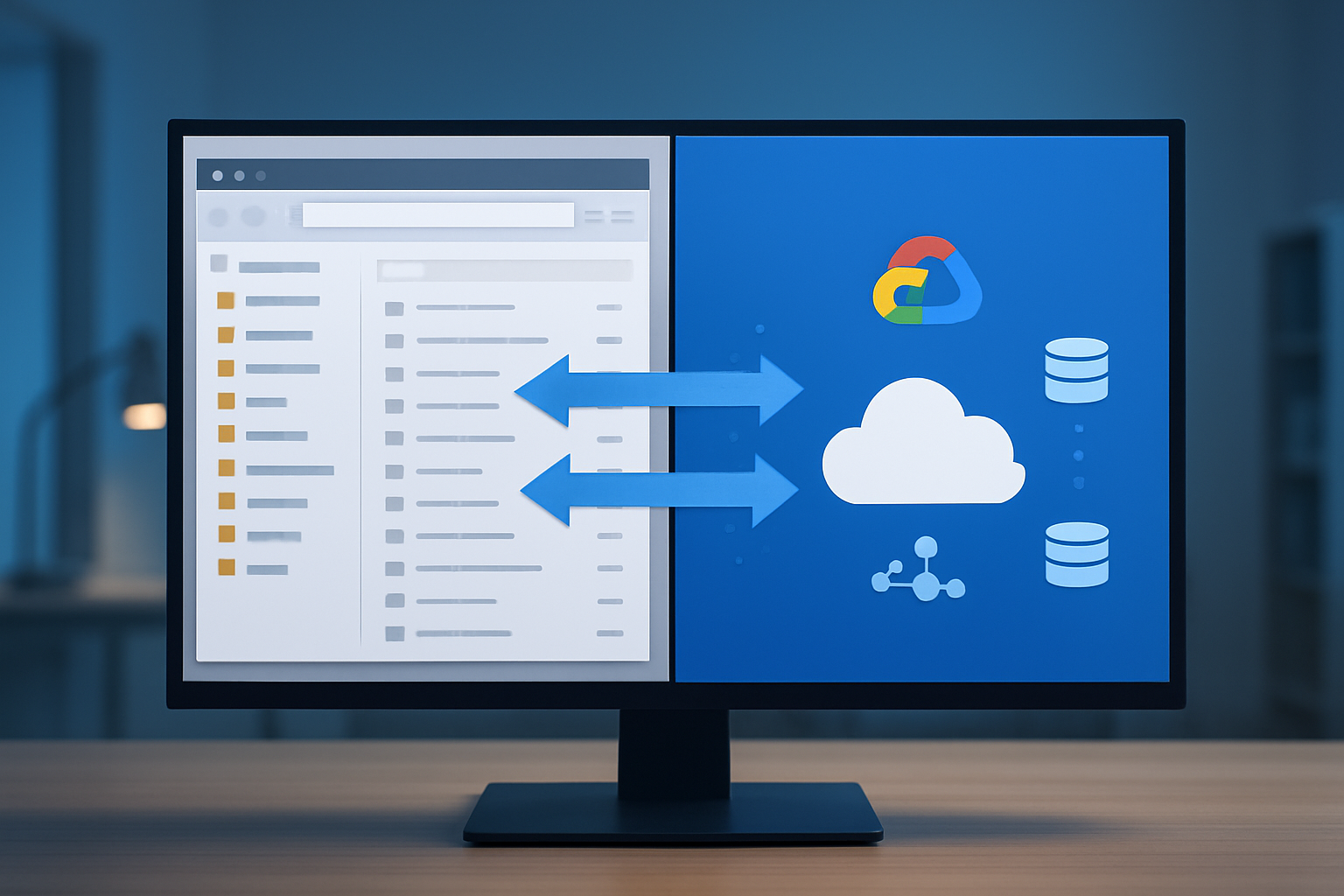
Moving your website files from DreamHost to Google Cloud Platform requires the right tools and approach to ensure everything transfers smoothly. Start by creating a complete backup of your DreamHost files through cPanel or FTP access. Google Cloud Storage Transfer Service works perfectly for large-scale migrations, allowing you to schedule transfers and monitor progress in real-time.
For smaller websites, tools like gsutil command-line utility provide excellent control over the transfer process. You can use rsync to synchronize files between your DreamHost server and a Google Compute Engine instance, which maintains file permissions and timestamps. Consider using Cloud Storage as an intermediate staging area before deploying to your final GCP infrastructure.
When dealing with WordPress sites or other CMS platforms, plugins like UpdraftPlus can streamline the DreamHost to GCP migration by creating compressed backups that upload directly to Google Cloud Storage. Always verify file integrity after transfer using checksums or file comparison tools.
Migrate your databases with zero data loss techniques
Database migration represents the most critical phase of your DreamHost to Google Cloud transition. Start by creating a complete database dump using mysqldump for MySQL databases or appropriate tools for other database systems. Google Cloud SQL Import feature accepts standard SQL dump files, making the migration straightforward.
For zero downtime migrations, implement a master-slave replication setup where your DreamHost database acts as the master and Cloud SQL as the slave. This approach allows real-time data synchronization during the migration window. Once replication catches up, you can switch traffic to the Google Cloud database with minimal disruption.
Consider using Database Migration Service for complex migrations involving large datasets or custom configurations. This managed service handles schema conversion, data validation, and continuous replication automatically. Always test database connectivity and query performance after migration to ensure optimal functionality.
Configure DNS settings for seamless domain transition
DNS configuration plays a crucial role in ensuring users can access your migrated website without interruption. Lower your DNS TTL values to 300 seconds at least 24 hours before migration to enable faster propagation of changes. This step reduces the time users might experience cached DNS entries pointing to your old DreamHost servers.
Update your domain’s nameservers to point to Google Cloud DNS or configure A records to point directly to your new GCP infrastructure. If using Google Cloud Load Balancer, create the appropriate DNS entries for your load balancer’s IP address. For SSL certificates, ensure your new Google-managed certificates are properly configured before switching DNS.
Implement a gradual DNS transition by initially directing a small percentage of traffic to your GCP environment while monitoring performance and functionality. This approach allows you to identify and resolve issues before full migration. Keep your DreamHost environment running during the initial DNS transition period as a safety net.
Test functionality across all migrated components
Comprehensive testing ensures your DreamHost to Google Cloud migration maintains full website functionality. Create a systematic testing checklist covering all website features, including forms, user authentication, payment processing, and third-party integrations. Test from multiple geographic locations to verify global accessibility and performance.
Performance testing becomes especially important when moving to Google Cloud Platform’s infrastructure. Use tools like Google PageSpeed Insights, GTmetrix, or Pingdom to benchmark loading times and identify optimization opportunities. Compare these metrics against your DreamHost performance baseline to ensure improvement or parity.
Database functionality requires thorough testing of all CRUD operations, stored procedures, and data integrity constraints. Run your application’s test suite if available, or manually verify critical user journeys and business processes. Monitor error logs closely during the initial post-migration period to catch any issues that might not surface during initial testing phases.
Set up Google Cloud Monitoring to track application performance, database queries, and server resource utilization. This monitoring provides early warning signs of potential issues and helps optimize your new cloud infrastructure for peak performance.
Optimize Your New Cloud Infrastructure

Fine-tune performance settings for faster loading speeds
After completing your DreamHost to GCP migration, optimizing performance becomes your next critical step. Start by configuring Cloud CDN to cache static content at Google’s global edge locations, dramatically reducing page load times for visitors worldwide. Enable gzip compression on your Compute Engine instances to reduce file sizes by up to 90%.
Database performance tuning makes a huge difference in overall site speed. If you’re using Cloud SQL, adjust connection pooling settings and optimize your queries. Consider implementing Redis or Memcached through Cloud Memorystore for frequently accessed data caching.
Configure your load balancer with appropriate health checks and session affinity settings. Enable HTTP/2 protocol support and implement proper caching headers for static assets like images, CSS, and JavaScript files. Use Google’s PageSpeed Insights to identify specific performance bottlenecks and address them systematically.
Implement cost optimization strategies to reduce monthly expenses
Google Cloud Platform offers numerous cost optimization opportunities that weren’t available with traditional shared hosting. Start by rightsizing your Compute Engine instances – many migrations initially over-provision resources. Use the Rightsizing Recommendations tool to identify instances running below capacity.
Implement preemptible instances for non-critical workloads, offering up to 80% cost savings. Set up committed use discounts for predictable workloads, providing substantial savings for one or three-year commitments. Configure lifecycle policies for Cloud Storage to automatically move older files to cheaper storage classes.
Monitor your billing dashboard regularly and set up budget alerts to prevent unexpected charges. Use labels to track costs by project, department, or environment. Consider using Cloud Functions for lightweight operations instead of keeping full instances running continuously.
Set up monitoring and alerting systems for proactive management
Cloud Monitoring provides comprehensive visibility into your GCP infrastructure that surpasses basic shared hosting monitoring. Create custom dashboards displaying key metrics like CPU utilization, memory usage, disk space, and application response times.
Configure intelligent alerting policies for critical thresholds – CPU usage above 80%, available disk space below 10%, or database connection pool exhaustion. Set up uptime checks to monitor website availability from multiple global locations, ensuring you’re notified immediately of any outages.
Implement log aggregation through Cloud Logging to centralize application and system logs. Create log-based metrics and alerts for specific error patterns or security events. Use Error Reporting to automatically detect and group application errors, making debugging much more efficient than traditional hosting environments.
Configure auto-scaling to handle traffic fluctuations
One major advantage of cloud migration is the ability to automatically scale resources based on demand. Set up managed instance groups with auto-scaling policies based on CPU utilization, load balancer serving capacity, or custom metrics like active user sessions.
Configure horizontal pod autoscaling if you’re using Google Kubernetes Engine, automatically adjusting the number of application replicas based on resource consumption. Set minimum and maximum instance limits to prevent both under-provisioning and runaway costs.
For database scaling, consider Cloud SQL read replicas for read-heavy workloads. Implement connection pooling to handle traffic spikes without overwhelming your database connections. Test your auto-scaling configuration during low-traffic periods to ensure it responds appropriately to load changes.
Establish automated backup and disaster recovery procedures
Moving beyond basic shared hosting backups, GCP enables sophisticated disaster recovery strategies. Configure automated snapshots for persistent disks on a schedule that matches your data protection requirements – daily for critical data, weekly for less critical systems.
Set up cross-region replication for databases using Cloud SQL’s built-in features or implement custom replication for other data stores. Create backup retention policies that balance data protection needs with storage costs. Test your backup restoration process regularly to ensure data integrity.
Implement infrastructure as code using Terraform or Cloud Deployment Manager, enabling rapid environment recreation in case of major failures. Document your disaster recovery procedures and establish recovery time objectives (RTO) and recovery point objectives (RPO) that align with your business requirements.
Troubleshoot Common Migration Challenges

Resolve domain propagation and DNS configuration issues
DNS problems are the most common roadblock during your DreamHost to GCP migration. When you update your domain’s nameservers to point to Google Cloud DNS, changes don’t happen instantly across the internet. This propagation process typically takes 24-48 hours, but can sometimes extend up to 72 hours.
Check your DNS records before making the switch. Your old DreamHost DNS settings might include records you forgot about – like MX records for email, CNAME records for subdomains, or TXT records for domain verification. Missing these during migration will break email delivery and other services.
Use Google Cloud DNS to recreate all your existing DNS records. Copy your A records, CNAME records, MX records, and any custom configurations from your DreamHost control panel. Pay special attention to TTL (Time To Live) values – lower TTL settings speed up future DNS changes.
Test your DNS configuration using tools like dig or nslookup before switching nameservers. Query your domain from different locations to ensure records resolve correctly. Online DNS checker tools help verify your configuration from multiple global locations.
If your site appears broken after the switch, clear your local DNS cache and browser cache. Your computer might still be using old DNS information. Flush DNS on Windows with ipconfig /flushdns or on Mac/Linux with sudo dnsflushcache or sudo systemctl flush-dns.
Fix application compatibility problems in the cloud environment
Moving from DreamHost’s shared hosting to GCP often reveals hidden application dependencies. Your website might rely on specific PHP versions, Apache modules, or server configurations that aren’t available by default in your new cloud environment.
Check your application’s system requirements first. Review PHP version compatibility, required extensions, and any custom .htaccess rules. Google Cloud Run and App Engine have different limitations compared to traditional shared hosting. Some applications need specific file permissions or directory structures that require adjustment.
Database compatibility issues surface frequently during migration. MySQL versions might differ between DreamHost and Cloud SQL. Check for deprecated functions, different default settings, or charset/collation mismatches. Your application’s database connection strings need updating to work with Cloud SQL’s connection format.
File upload and storage paths often break after migration. Applications hardcoded to use specific server paths won’t work in containerized environments. Update file upload directories, temporary file locations, and any absolute path references in your code.
WordPress sites commonly face plugin compatibility issues. Some plugins designed for traditional hosting don’t work well in cloud environments. Caching plugins, file manager plugins, and backup plugins often need replacement with cloud-native alternatives or proper configuration.
Test your application thoroughly in a staging environment before going live. Create a replica of your production setup on GCP and run through all your website’s functionality – forms, user registration, payment processing, and file uploads.
Address performance bottlenecks and optimization opportunities
Your DreamHost to Google Cloud migration opens doors for significant performance improvements, but also introduces new optimization challenges. Cloud environments behave differently from traditional shared hosting, requiring adjusted performance strategies.
Database performance often needs immediate attention after migration. Cloud SQL instances start with default configurations that might not match your application’s needs. Increase memory allocation, adjust connection pool sizes, and enable query caching based on your traffic patterns. Monitor slow query logs to identify optimization opportunities.
Static asset delivery represents your biggest quick win. Implement Google Cloud CDN to serve images, CSS, and JavaScript files from edge locations worldwide. This alone can reduce page load times by 30-50% compared to serving everything from your origin server.
Application-level caching becomes more important in cloud environments. Redis or Memcached instances on Google Cloud can dramatically improve response times for database-heavy applications. WordPress sites benefit enormously from object caching plugins configured to use these services.
Auto-scaling configurations need fine-tuning based on your traffic patterns. Default settings might scale too aggressively or too slowly, causing either unnecessary costs or performance issues during traffic spikes. Monitor your application’s resource usage and adjust scaling triggers accordingly.
Network optimization matters more in cloud setups. Enable HTTP/2, implement compression for text-based assets, and optimize your images for web delivery. Google Cloud’s load balancers can handle SSL termination and compression, reducing server load.
Monitor your application’s performance metrics continuously. Google Cloud Monitoring provides detailed insights into response times, error rates, and resource utilization. Set up alerts for performance degradation and establish baseline metrics to measure improvement over time.

Moving from DreamHost to Google Cloud Platform doesn’t have to be overwhelming when you break it down into manageable steps. By carefully assessing your current setup, planning your cloud architecture, and preparing your migration environment properly, you’re setting yourself up for success. The actual migration of your website and database becomes much smoother when you’ve done the groundwork upfront.
Once you’re running on GCP, the real benefits begin to shine through. Your website will have access to powerful cloud infrastructure that can scale with your needs, better performance optimization tools, and enterprise-grade security features. Don’t forget to keep an eye on those common migration hiccups we covered – they’re easily fixable when you know what to look for. Take your time with each phase, test everything thoroughly, and soon you’ll wonder why you waited so long to make the switch to modern cloud hosting.