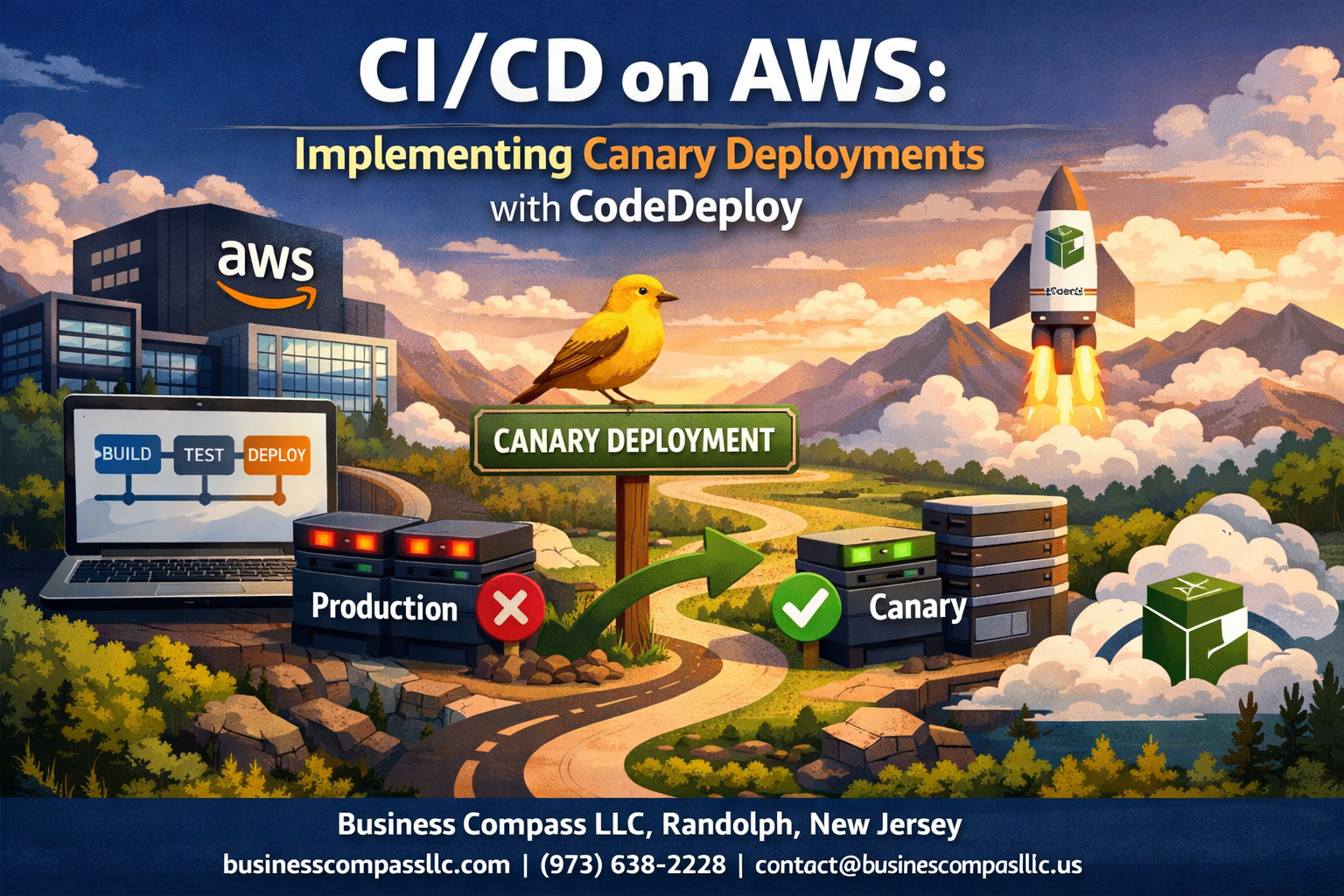
Canary deployments let you roll out new software features to a small group of users before hitting everyone else—think of it as a safety net that catches bugs before they crash your entire system. This AWS CodeDeploy canary deployment guide is perfect for DevOps engineers, cloud architects, and development teams who want to build bulletproof CI/CD pipelines that minimize risk and downtime.
We’ll walk through AWS CodeDeploy setup guide essentials, showing you how to configure canary deployment strategies that automatically route traffic between your old and new application versions. You’ll learn hands-on techniques for canary release monitoring that help you spot issues early, plus practical CodeDeploy troubleshooting tips to handle the bumps you’ll inevitably hit along the way. By the end, you’ll have a solid grasp of continuous deployment AWS best practices that keep your releases smooth and your users happy.
Understanding Canary Deployments and Their Strategic Advantages

Minimize Risk Through Gradual Traffic Shifting
Canary deployments act like a safety valve for your production environment. By routing just 10-20% of traffic to your new version initially, you catch potential issues before they impact your entire user base. AWS CodeDeploy canary deployment automatically manages this traffic distribution, allowing you to validate changes with real users while keeping the majority on the stable version.
Reduce Downtime with Automated Rollback Capabilities
When something goes wrong during a canary release, CodeDeploy’s automated rollback kicks in immediately. The system monitors key metrics and triggers rollbacks based on predefined thresholds, returning traffic to the previous stable version within minutes. This CI/CD canary release strategy ensures your application stays available even when deployments encounter unexpected issues.
Gain Real-Time Performance Insights Before Full Release
Canary deployments provide invaluable data about how your new code performs under actual production load. You’ll see response times, error rates, and user behavior patterns before committing to a full rollout. This real-world testing reveals performance bottlenecks and compatibility issues that staging environments often miss.
Increase Customer Confidence with Safer Release Cycles
Customers trust applications that maintain consistent uptime and performance. Canary deployment configuration reduces the blast radius of potential issues, creating predictable release cycles that build user confidence. Your deployment strategies become more transparent and reliable, leading to stronger customer relationships and reduced support tickets during releases.
AWS CodeDeploy Architecture for Canary Release Strategy
Leverage Blue/Green Infrastructure for Seamless Transitions
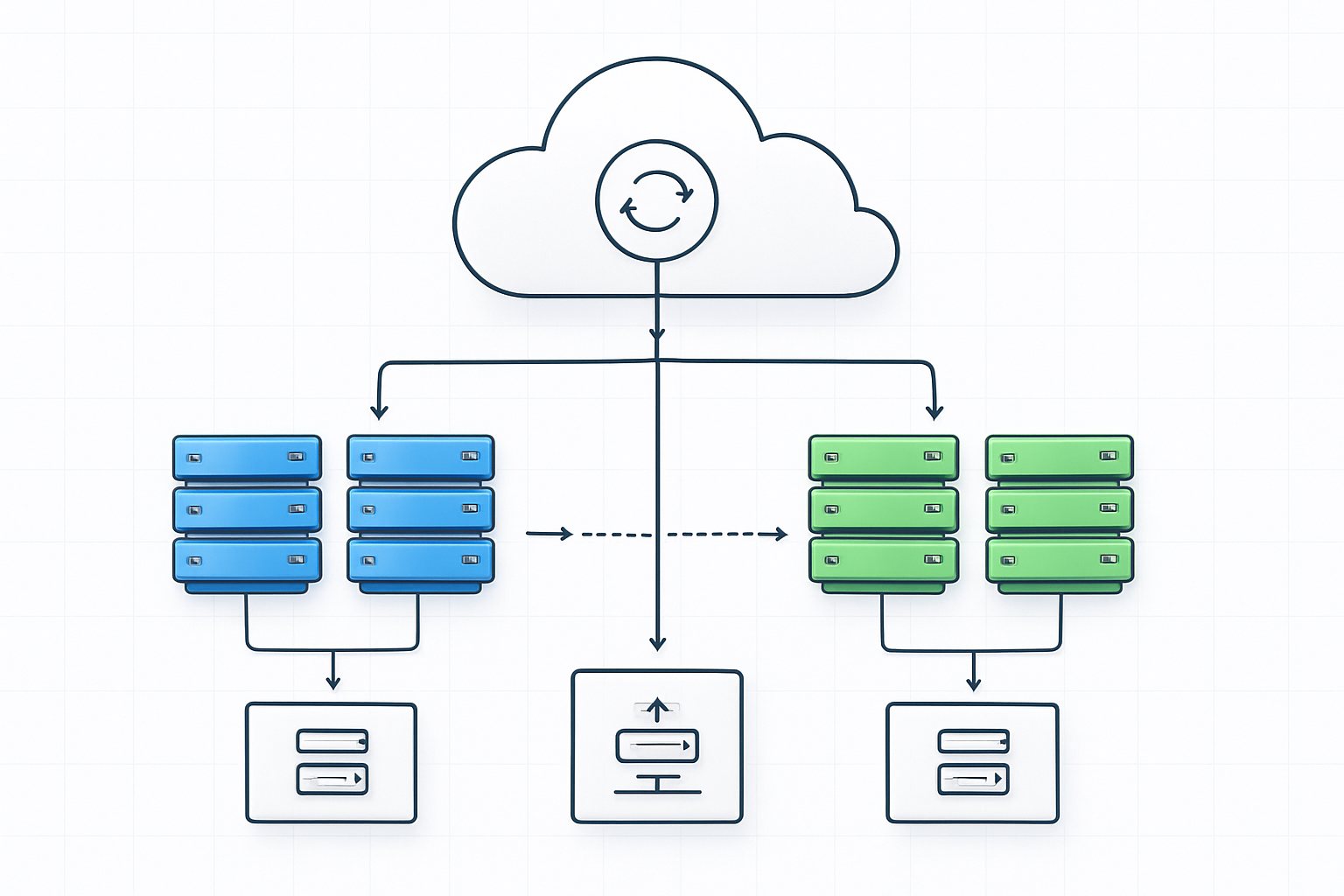
Blue/green deployments provide the foundation for effective canary release strategies within AWS CodeDeploy. This architecture maintains two identical production environments where the blue environment serves live traffic while the green environment hosts your new application version. When implementing canary deployment configuration, CodeDeploy automatically provisions the green environment and gradually shifts traffic from blue to green based on your defined parameters.
The seamless transition capability allows you to minimize downtime and quickly rollback if issues arise. AWS CodeDeploy canary deployment leverages Auto Scaling Groups and Target Groups to manage this infrastructure automatically, ensuring your canary release monitoring can track performance across both environments without manual intervention.
Configure Application Load Balancers for Traffic Management
Application Load Balancers serve as the traffic control mechanism for your CI/CD canary release strategy. CodeDeploy integrates directly with ALB target groups to split traffic between your stable and canary versions according to predefined weights. You can start with a small percentage like 10% for the canary version and gradually increase based on performance metrics.
The load balancer configuration supports weighted routing policies that enable precise traffic distribution. This setup allows real users to test your new deployment while the majority continues using the stable version, making it a cornerstone of effective AWS deployment strategies.
Integrate CloudWatch Metrics for Automated Decision Making
CloudWatch metrics integration enables automated decision-making during canary deployments by monitoring key performance indicators like error rates, response times, and custom application metrics. AWS CodeDeploy setup guide recommends configuring alarms that trigger automatic rollbacks when metrics exceed defined thresholds, protecting your production environment from problematic releases.
The integration allows you to define success criteria for your canary deployment, such as maintaining error rates below 1% and response times under 200ms. When these conditions are met, CodeDeploy can automatically promote the canary version to full production traffic, completing your continuous deployment AWS pipeline.
Setting Up Your AWS Environment for Canary Success
Create IAM Roles with Proper CodeDeploy Permissions
Your AWS CodeDeploy canary deployment success starts with properly configured IAM roles. Create a service role for CodeDeploy with the AWSCodeDeployRole policy attached, enabling it to manage EC2 instances and Auto Scaling groups. For EC2 instances, establish an instance profile with CloudWatchAgentServerPolicy and S3 access permissions. These roles form the security foundation for your canary release strategy, ensuring CodeDeploy can orchestrate deployments while maintaining least-privilege access.
Configure EC2 Instances with CodeDeploy Agent Installation
Install the CodeDeploy agent on your target EC2 instances to enable automated deployment workflows. Download and install the agent using the AWS CLI or Systems Manager. Configure the agent with proper IAM credentials and verify connectivity to the CodeDeploy service. Tag your instances appropriately for deployment targeting – use consistent naming conventions like Environment:Production and DeploymentGroup:Canary to streamline your AWS deployment strategies.
Establish Target Groups for Production and Canary Environments
Create separate Application Load Balancer target groups for production and canary traffic distribution. Configure health checks with appropriate thresholds – typically 2 healthy checks within 10 seconds for faster canary validation. Set up weighted routing rules to control traffic flow between environments. Your canary target group should initially receive minimal traffic (5-10%) while production handles the majority, allowing safe testing of new deployments.
Set Up CloudWatch Alarms for Performance Monitoring
Configure CloudWatch alarms to monitor key performance indicators during canary deployments. Track metrics like CPU utilization, response time, error rates, and custom application metrics. Set alarm thresholds that trigger automatic rollbacks if canary performance degrades. Create composite alarms combining multiple metrics for comprehensive monitoring. These alarms integrate directly with CodeDeploy’s automatic rollback features, providing robust canary release monitoring capabilities.
Create S3 Buckets for Application Artifact Storage
Establish dedicated S3 buckets for storing your deployment artifacts and CodeDeploy configurations. Enable versioning to track artifact history and implement lifecycle policies for cost optimization. Configure bucket policies restricting access to your CodeDeploy service role and development teams. Structure your bucket with clear naming conventions like company-codedeploy-artifacts/application-name/version to maintain organization as your continuous deployment AWS pipeline scales.
Creating Effective Canary Deployment Configurations

Define Traffic Splitting Percentages for Gradual Rollout
AWS CodeDeploy canary deployment configurations start with smart traffic distribution. Begin with a conservative 10% traffic split to your new version, allowing you to catch issues early without affecting most users. Popular patterns include 10/90, 25/75, and 50/50 splits, depending on your risk tolerance and application criticality. You can customize these percentages based on your specific needs and gradually increase traffic to the new version as confidence builds.
Set Monitoring Duration for Adequate Testing Periods
The monitoring duration determines how long CodeDeploy waits before proceeding with the next deployment phase. Set this period between 5-60 minutes based on your application’s behavior patterns and typical user interaction cycles. Shorter durations work for simple applications with immediate feedback, while complex systems need longer observation periods to detect performance degradation or subtle bugs that might not surface immediately.
Configure Automatic Rollback Triggers Based on Metrics
CloudWatch metrics power your automatic rollback triggers in canary deployment configuration. Set thresholds for key performance indicators like error rates above 5%, response times exceeding baseline by 50%, or CPU utilization spikes. Configure multiple trigger conditions including HTTP 4xx/5xx errors, custom application metrics, and health check failures. These triggers act as safety nets, automatically reverting to the stable version when problems arise.
Establish Success Criteria for Promotion to Full Deployment
Success criteria define when your canary release gets promoted to full deployment. Monitor application-specific metrics like conversion rates, transaction success rates, and user engagement alongside infrastructure metrics. Set clear benchmarks such as error rates below 1%, response times within 10% of baseline, and zero critical alerts during the monitoring window. Document these criteria in your CodeDeploy configuration to ensure consistent deployment decisions across your team.
Implementing CodeDeploy Canary Workflows Step-by-Step
Build Application Revision Packages with AppSpec Files
Creating a proper application revision package starts with crafting a detailed AppSpec file that defines your AWS CodeDeploy canary deployment strategy. The AppSpec.yml file specifies deployment hooks, file locations, and permissions while configuring your canary deployment configuration parameters. Include lifecycle event hooks like ApplicationStart, ApplicationStop, and ValidateService to control deployment phases. Package your application code alongside the AppSpec file into a compressed archive, ensuring all dependencies and configuration files are included for seamless deployment across your target environments.
Deploy Initial Canary Version to Limited Traffic Percentage
Launch your canary release monitoring by deploying to a small percentage of your production traffic, typically starting with 10-20% allocation. Configure CodeDeploy to route this limited traffic to your new application version while maintaining the majority on the stable release. Set up Application Load Balancer target groups to manage traffic distribution automatically. Monitor deployment progress through the CodeDeploy console, tracking metrics like deployment duration, success rates, and any immediate error signals that might indicate problems with your new version.
Monitor Key Performance Indicators During Canary Phase
Track critical metrics including response times, error rates, CPU utilization, and memory consumption during your AWS canary deployment tutorial phase. Set up CloudWatch alarms to automatically detect performance degradation or increased error rates compared to your baseline metrics. Monitor business-specific KPIs like conversion rates, transaction success rates, and user engagement metrics. Create dashboards showing side-by-side comparisons between canary and production versions. Real-time monitoring helps identify issues before they impact the broader user base, making your continuous deployment AWS strategy more reliable.
Execute Automatic Promotion or Rollback Based on Results
Configure automated decision-making rules that promote successful canaries to full deployment or trigger immediate rollbacks when issues arise. Set threshold values for key metrics – if error rates exceed 2% or response times increase by more than 200ms, automatic rollback activates. Use CodeDeploy’s built-in rollback capabilities combined with CloudWatch alarms for seamless automation. Define promotion criteria such as maintaining stable performance for 30 minutes with less than 1% error rate. This CodeDeploy troubleshooting approach minimizes manual intervention while protecting production environments from problematic releases.
Optimizing Performance Through Advanced Monitoring and Alerts

Track Application Response Times and Error Rates
Monitoring your canary deployment configuration requires tracking key performance indicators that reveal how your application performs under real-world conditions. Focus on response times, error rates, and throughput metrics to determine if your new code version meets production standards. CloudWatch automatically captures these metrics from your AWS CodeDeploy canary deployment, allowing you to compare performance between the canary and stable versions in real-time.
Monitor Infrastructure Metrics for Resource Utilization
Infrastructure monitoring provides critical insights into CPU usage, memory consumption, and network performance during your canary release monitoring. Track these metrics across both environments to identify resource bottlenecks before they impact users. CodeDeploy integrates seamlessly with CloudWatch to surface infrastructure data, helping you optimize resource allocation and prevent performance degradation during deployments.
Set Up Custom CloudWatch Dashboards for Real-Time Visibility
Custom CloudWatch dashboards centralize all your canary deployment metrics in one view, displaying application performance alongside infrastructure health. Create widgets that show error rates, response times, and deployment status to get instant visibility into your continuous deployment AWS pipeline. These dashboards enable quick decision-making during critical deployment phases and help teams spot issues before they escalate.
Configure SNS Notifications for Deployment Status Updates
SNS notifications keep your team informed about deployment progress and any issues that arise during canary releases. Set up alerts for deployment failures, performance threshold breaches, and successful completions to maintain awareness across your development and operations teams. Configure different notification channels based on severity levels, sending critical alerts to on-call engineers while routing status updates to broader team channels.
Troubleshooting Common Canary Deployment Challenges

Resolve CodeDeploy Agent Configuration Issues
Agent installation problems typically stem from incorrect IAM roles or network connectivity issues. Check that your EC2 instances have the proper CodeDeploy agent service role attached and verify the agent is running with sudo service codedeploy-agent status. Network security groups must allow outbound HTTPS traffic to CodeDeploy endpoints, and instances need internet access or VPC endpoints configured.
Fix Load Balancer Health Check Failures
Health check failures during AWS CodeDeploy canary deployment often occur when your application takes longer to start than the configured grace period. Adjust your target group’s health check timeout and unhealthy threshold settings to accommodate application startup time. Review your application logs to identify slow initialization processes that might cause premature health check failures during the canary release strategy.
Address IAM Permission Problems for Smooth Operations
Missing IAM permissions frequently cause deployment failures in CodeDeploy troubleshooting scenarios. Your CodeDeploy service role needs permissions for EC2, Auto Scaling, and Elastic Load Balancing operations. EC2 instances require the CodeDeployRole policy, while your CI/CD pipeline user needs CodeDeploy deployment permissions. Verify cross-account access if deploying across multiple AWS accounts in your canary deployment configuration.

Canary deployments with AWS CodeDeploy offer a smart way to roll out changes while keeping your applications stable and your users happy. By gradually shifting traffic from your old version to the new one, you can catch issues early and roll back quickly if something goes wrong. The combination of CodeDeploy’s built-in canary configurations, CloudWatch monitoring, and automated rollback features gives you the confidence to deploy more frequently without the fear of breaking everything.
Getting started might seem complex at first, but once you have your environment set up and understand the workflow, canary deployments become a powerful tool in your deployment toolkit. Start small with simple canary configurations, monitor everything closely, and don’t be afraid to iterate on your approach. Your future self will thank you when you catch that critical bug affecting only 10% of your traffic instead of your entire user base.