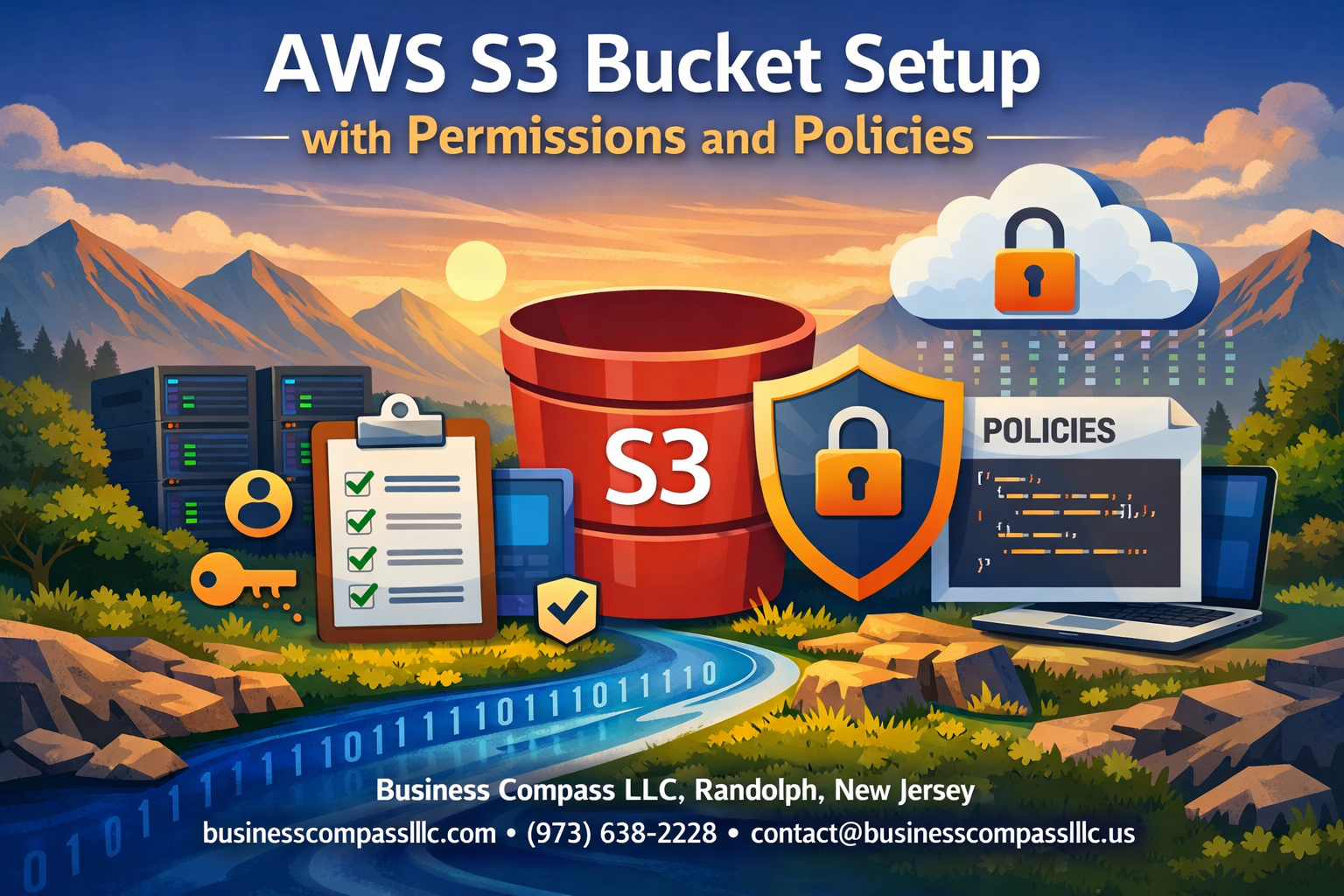
Setting up your first AWS S3 bucket might seem straightforward, but getting the permissions and policies right can make or break your cloud storage strategy. This comprehensive AWS S3 bucket setup guide is designed for developers, system administrators, and cloud engineers who need to create secure, properly configured S3 buckets from scratch.
Getting S3 bucket permissions wrong can expose your data or lock out legitimate users entirely. That’s why we’ll walk you through the complete process, from basic S3 bucket creation guide steps to advanced S3 security configuration techniques that protect your resources in production environments.
You’ll learn how to create your first S3 bucket with optimal settings that balance accessibility and security. We’ll cover essential S3 access control configuration methods, including how to set up proper bucket-level permissions and user access controls that actually work. Finally, we’ll dive into designing effective IAM policies for S3 that give users exactly the access they need—nothing more, nothing less—plus troubleshooting tips for those frustrating permission errors that always seem to pop up at the worst times.
Create Your First S3 Bucket with Optimal Configuration
Choose the perfect bucket name and region for maximum performance
Your S3 bucket name acts as both an identifier and a critical component in your AWS infrastructure. Bucket names must be globally unique across all AWS accounts, so getting creative while staying professional is key. Start with your organization’s name or abbreviation, followed by the purpose and environment – something like “mycompany-web-assets-prod” or “acme-data-backups-staging”.
Keep names between 3-63 characters using only lowercase letters, numbers, and hyphens. Avoid periods in bucket names since they can cause SSL certificate issues with virtual-hosted-style requests. Don’t use IP address formats or start names with “xn--” as these create compatibility problems.
Region selection directly impacts performance, costs, and compliance. Choose the region closest to your users or applications for the lowest latency. If you’re serving a global audience, consider multiple buckets in different regions with CloudFront for content delivery. For compliance-sensitive data, ensure the region meets your regulatory requirements – EU data might need to stay in eu-west-1 or eu-central-1.
Cost varies between regions, with US East (N. Virginia) typically being the cheapest for storage and data transfer. However, the performance gains from proximity often outweigh the small cost differences, especially for frequently accessed data.
Configure versioning and encryption settings for data protection
Versioning protects against accidental deletions and overwrites by keeping multiple versions of each object. Enable versioning during bucket creation or immediately after, as you can’t recover previous versions of objects uploaded before versioning was enabled. This AWS S3 bucket setup feature becomes crucial when multiple users or applications modify the same files.
When versioning is active, each object upload creates a new version while preserving previous ones. You’ll pay for storage of all versions, so implement lifecycle policies to automatically delete old versions after a specified time period. Set up MFA Delete for additional protection – this requires multi-factor authentication to permanently delete versions or disable versioning.
For encryption, you have several options depending on your security requirements. Server-Side Encryption with S3-Managed Keys (SSE-S3) provides automatic encryption with minimal setup – S3 handles all key management transparently. SSE-KMS gives you more control using AWS Key Management Service, allowing key rotation, access logging, and granular permissions. For maximum control, use SSE-C where you provide and manage your own encryption keys.
Default encryption ensures all new objects are automatically encrypted, even if the upload request doesn’t specify encryption. Enable this at the bucket level to enforce your security standards without relying on application-level configuration.
Set up logging and monitoring to track bucket activity
AWS CloudTrail automatically captures API calls for S3 management operations like bucket creation, policy changes, and permission modifications. However, for comprehensive S3 bucket monitoring, you need additional logging mechanisms to track data-level events.
Server Access Logging provides detailed records of requests made to your bucket, including the requester’s IP address, request time, action performed, response status, and error codes. Enable this by specifying a target bucket where logs will be stored – use a separate bucket to avoid circular logging issues. These logs help with security auditing, usage analysis, and troubleshooting access problems.
CloudWatch metrics give you real-time insights into bucket performance and usage patterns. Key metrics include NumberOfObjects, BucketSizeBytes, and request metrics like AllRequests, GetRequests, and PutRequests. Set up alarms for unusual activity patterns – sudden spikes in delete operations might indicate a security issue or misconfigured application.
EventBridge (formerly CloudWatch Events) can trigger automated responses to S3 events. Configure notifications for object creation, deletion, or restoration events to integrate with your existing workflows or security monitoring systems.
For production environments, enable AWS Config to track configuration changes over time. This service monitors your S3 bucket policy tutorial implementations and alerts you when configurations drift from your security baselines, helping maintain consistent S3 security configuration across your infrastructure.
Master Essential S3 Bucket Permissions and Access Controls

Configure bucket-level permissions for secure resource management
Bucket-level permissions control who can perform actions on your entire S3 bucket, including creating, deleting, or modifying objects within it. The primary way to manage these permissions is through bucket policies, which are JSON documents that define access rules.
Start by accessing your bucket’s permissions tab in the AWS console. The bucket policy editor allows you to create detailed access controls. A basic bucket policy includes four key elements: Version, Statement, Effect, and Principal. The Principal identifies who gets access (users, roles, or accounts), while the Effect determines whether to allow or deny the specified actions.
For production environments, always begin with the principle of least privilege. Grant only the minimum permissions necessary for users to complete their tasks. For example, if someone only needs to read objects, don’t give them write or delete permissions.
Common bucket-level permissions include:
- s3:ListBucket – Allows viewing bucket contents
- s3:GetBucketLocation – Enables determining bucket region
- s3:GetBucketVersioning – Permits checking versioning status
- s3:PutBucketPolicy – Grants ability to modify bucket policies
When working with AWS S3 bucket permissions, consider using resource wildcards carefully. The asterisk (*) can grant broad access that might compromise security if used incorrectly.
Set up object-level permissions for granular access control
Object-level permissions provide fine-grained control over individual files within your S3 bucket. These permissions work differently from bucket-level controls and require specific S3 IAM policies to function properly.
The most common object-level permissions include:
- s3:GetObject – Download specific objects
- s3:PutObject – Upload new objects
- s3:DeleteObject – Remove objects
- s3:GetObjectVersion – Access specific object versions
You can restrict access to specific folders or file types using resource ARNs (Amazon Resource Names). For instance, to limit access to only files in a “documents” folder, your resource ARN would look like: arn:aws:s3:::your-bucket-name/documents/*
Object-level access control configuration becomes particularly useful when multiple teams share a bucket but need access to different directories. Create separate IAM policies for each team that specify their allowed object prefixes.
Access Control Lists (ACLs) provide another layer of object-level security, though bucket policies are generally preferred for their flexibility. ACLs work best for simple scenarios where you need to grant specific permissions to individual objects quickly.
Implement cross-account access for collaborative workflows
Cross-account access enables users from different AWS accounts to work with your S3 resources securely. This setup is essential for organizations working with partners, contractors, or managing multiple AWS accounts.
To establish cross-account access, you’ll need the account ID of the external AWS account. Create a bucket policy that includes this account ID in the Principal field. The external account can then create IAM roles or users with permissions to assume access to your bucket.
Here’s the basic structure for cross-account S3 bucket setup:
- Create a bucket policy that specifies the external account ID
- Define specific actions the external account can perform
- Set resource limitations to control which objects or prefixes they can access
- Establish conditions like IP address restrictions or time-based access
The external account must create corresponding IAM policies that reference your bucket’s ARN. This creates a two-way trust relationship where both accounts explicitly allow the access.
Security best practices for cross-account access include using temporary credentials through AWS STS (Security Token Service) and implementing condition keys for additional restrictions. Consider requiring MFA (Multi-Factor Authentication) for sensitive operations.
Enable public access settings safely for web hosting scenarios
Public access settings require careful consideration since they can expose your S3 bucket to the entire internet. AWS S3 security configuration includes several safeguards to prevent accidental public exposure.
By default, S3 blocks all public access through four different settings:
- Block new public ACLs and uploading public objects
- Remove public access granted through existing public ACLs
- Block new public bucket policies
- Block public and cross-account access if bucket has public policies
For web hosting scenarios, you’ll need to modify these settings strategically. Start by disabling only the specific blocks required for your use case. Most static websites need “Block new public bucket policies” and “Block public and cross-account access” disabled.
Create a bucket policy that allows public read access to your website content:
{
  "Version": "2012-10-17",
  "Statement": [
    {
      "Sid": "PublicReadGetObject",
      "Effect": "Allow",
      "Principal": "*",
      "Action": "s3:GetObject",
      "Resource": "arn:aws:s3:::your-bucket-name/*"
    }
  ]
}
Monitor your public buckets regularly using AWS Config rules and CloudTrail logs. Set up CloudWatch alarms to notify you of unusual access patterns or potential security issues. Never make buckets public unless absolutely necessary, and always review the security implications before enabling public access.
Design Powerful IAM Policies for S3 Resource Management

Create User-Based Policies for Individual Access Requirements
User-based S3 IAM policies give you precise control over what individual users can do with your S3 buckets. When building these policies, start by identifying specific actions each user needs – whether they’re uploading files, downloading data, or managing bucket configurations.
Here’s a practical example for a user who needs read-only access to specific folders:
{
    "Version": "2012-10-17",
    "Statement": [
        {
            "Effect": "Allow",
            "Action": [
                "s3:GetObject",
                "s3:ListBucket"
            ],
            "Resource": [
                "arn:aws:s3:::your-bucket-name/user-folder/*",
                "arn:aws:s3:::your-bucket-name"
            ]
        }
    ]
}
For users requiring upload capabilities, add s3:PutObject and s3:PutObjectAcl actions. Remember to include specific path restrictions to prevent unauthorized access to sensitive areas. Time-based conditions can add extra security layers, limiting access to business hours or specific date ranges.
Build Role-Based Policies for Application and Service Integration
Role-based S3 policies shine when applications need programmatic access to S3 resources. EC2 instances, Lambda functions, and other AWS services can assume these roles without hardcoded credentials, creating a more secure architecture.
A typical application role might need comprehensive bucket access:
{
    "Version": "2012-10-17",
    "Statement": [
        {
            "Effect": "Allow",
            "Action": [
                "s3:GetObject",
                "s3:PutObject",
                "s3:DeleteObject",
                "s3:ListBucket"
            ],
            "Resource": [
                "arn:aws:s3:::app-data-bucket/*",
                "arn:aws:s3:::app-data-bucket"
            ]
        }
    ]
}
Cross-account access requires trust relationships in your role policies. When setting up service integration, include the necessary service principals in your trust policy. For Lambda functions processing S3 events, combine S3 permissions with CloudWatch Logs access for complete functionality.
Implement Group Policies for Team-Based Access Management
Group policies simplify managing multiple users with similar access requirements. Create groups based on job functions – developers, analysts, or administrators – and attach appropriate S3 policies to each group.
Development teams often need different access levels:
Developer Group Policy:
- Full access to development buckets
- Read-only access to staging environments
- No access to production data
Analytics Team Policy:
- Read access to data lakes
- Write access to processed data folders
- Cross-region replication permissions for backup
When users join or change roles, simply add or remove them from groups rather than modifying individual policies. This approach reduces administrative overhead and maintains consistent security standards across your organization.
Group policies work best when combined with bucket-level policies. Use IAM groups for user management and bucket policies for resource-specific rules. This layered approach gives you flexibility while maintaining security boundaries that make sense for your S3 security configuration and access control requirements.
Apply Advanced Security Best Practices for Production Environments

Enable MFA delete protection for critical data safeguarding
When dealing with production environments, accidental data deletion can spell disaster for your business. MFA delete protection adds an extra security layer that requires multi-factor authentication before anyone can permanently delete objects or turn off versioning on your S3 bucket.
Setting up MFA delete protection means that even if someone gains access to your AWS credentials, they won’t be able to delete critical data without the MFA device. This feature works exclusively through the AWS CLI or API – you can’t enable it through the console.
To enable MFA delete protection, you’ll need:
- The bucket owner’s root account credentials
- An active MFA device associated with the root account
- AWS CLI configured with appropriate permissions
Here’s how to enable it:
aws s3api put-bucket-versioning \
  --bucket your-production-bucket \
  --versioning-configuration Status=Enabled,MFADelete=Enabled \
  --mfa "arn:aws:iam::123456789012:mfa/root-account-mfa-device XXXXXX"
Remember that MFA delete protection only works when versioning is enabled on your bucket. Once activated, deleting object versions or changing the versioning state requires MFA authentication, providing robust protection against both accidental and malicious deletions.
Configure CORS settings for secure cross-origin requests
Cross-Origin Resource Sharing (CORS) configuration becomes crucial when your web applications need to access S3 resources from different domains. Without proper CORS settings, browsers block these requests, breaking functionality and potentially exposing security vulnerabilities.
A well-configured CORS policy specifies exactly which domains can access your bucket, what HTTP methods they can use, and which headers are allowed. This granular control prevents unauthorized cross-origin requests while maintaining legitimate functionality.
Here’s a production-ready CORS configuration example:
[
    ": ["Authorization", "Content-Length", "Content-Type"],
        "AllowedMethods": ["GET", "PUT", "POST"],
        "AllowedOrigins": ["https://yourdomain.com", "https://www.yourdomain.com"],
        "ExposeHeaders": ["ETag"],
        "MaxAgeSeconds": 3600
    }
]
Key CORS security considerations:
- Never use wildcard (*) for AllowedOrigins in production
- Limit AllowedMethods to only what your application needs
- Set appropriate MaxAgeSeconds to balance performance and security
- Regularly audit and update CORS rules as your application evolves
Set up bucket notifications for real-time security monitoring
Bucket notifications provide real-time awareness of activities happening in your S3 buckets, enabling immediate response to suspicious activities or unauthorized access attempts. This proactive monitoring approach helps detect security incidents before they escalate.
S3 bucket notifications can trigger various AWS services when specific events occur:
- SNS topics for immediate email or SMS alerts
- SQS queues for reliable message processing
- Lambda functions for automated incident response
Common security-focused notification events include:
s3:ObjectCreated:*– Monitor unauthorized uploadss3:ObjectRemoved:*– Track unexpected deletionss3:ObjectRestore:*– Watch for data restoration activitiess3:Replication:*– Monitor replication status changes
Here’s a Lambda-based notification setup for security monitoring:
{
    "LambdaConfiguration": {
        "Id": "SecurityMonitoring",
        "LambdaFunctionArn": "arn:aws:lambda:us-east-1:123456789012:function:S3SecurityMonitor",
        "Events": ["s3:ObjectCreated:*", "s3:ObjectRemoved:*"],
        "Filter": {
            "Key": {
                "FilterRules": [
                    {
                        "Name": "prefix",
                        "Value": "sensitive-data/"
                    }
                ]
            }
        }
    }
}
Your monitoring Lambda function can analyze events, check against security policies, and automatically respond to threats by blocking IP addresses or sending alerts to security teams.
Implement lifecycle policies to optimize storage costs and compliance
Lifecycle policies automate data management while ensuring compliance with retention requirements and cost optimization goals. These policies automatically transition objects between storage classes and delete them when they’re no longer needed, reducing manual overhead and storage costs.
A comprehensive lifecycle policy addresses multiple business needs:
- Cost optimization through intelligent storage class transitions
- Compliance requirements with automatic retention and deletion
- Data governance with consistent lifecycle management across environments
Here’s a production lifecycle policy example:
{
    "Rules": [
        ": "ProductionDataLifecycle",
            "Status": "Enabled",
            "Filter": {
                "Prefix": "application-logs/"
            },
            "Transitions": [
                {
                    "Days": 30,
                    "StorageClass": "STANDARD_IA"
                },
                {
                    "Days": 90,
                    "StorageClass": "GLACIER"
                },
                {
                    "Days": 365,
                    "StorageClass": "DEEP_ARCHIVE"
                }
            ],
            "Expiration": {
                "Days": 2555
            },
            "NoncurrentVersionTransitions": [
                {
                    "NoncurrentDays": 7,
                    "StorageClass": "STANDARD_IA"
                }
            ],
            "NoncurrentVersionExpiration": {
                "NoncurrentDays": 30
            }
        }
    ]
}
Best practices for lifecycle policies:
- Analyze access patterns before setting transition timelines
- Consider compliance requirements when setting expiration dates
- Use prefixes to apply different policies to different data types
- Regular monitoring ensures policies work as expected
- Test lifecycle policies in non-production environments first
Smart lifecycle management can reduce S3 storage costs by 60-80% while maintaining data accessibility and compliance requirements.
Troubleshoot Common Permission Issues and Access Errors

Resolve access denied errors with systematic debugging approaches
Access denied errors in S3 can drive you crazy, but there’s a methodical way to track down the culprit. Start by checking the most obvious suspects first – your IAM user permissions and the bucket policy. Nine times out of ten, one of these is blocking your access.
When you hit an access denied wall, grab the error details from CloudTrail logs. These logs show exactly which permission check failed and why. Look for the errorCode field – it tells you whether the issue stems from IAM policies, bucket policies, or ACLs.
Check your IAM policy first. Make sure your user or role has the right S3 actions for what you’re trying to do:
s3:GetObjectfor downloading filess3:PutObjectfor uploadings3:ListBucketfor viewing bucket contentss3:DeleteObjectfor removing files
The resource ARN matters too. If your policy specifies arn:aws:s3:::my-bucket/* but you’re trying to list the bucket itself, you’ll get denied. You need arn:aws:s3:::my-bucket for bucket-level operations.
Next, examine the bucket policy. Sometimes you’ll have the right IAM permissions, but the bucket policy explicitly denies access. Look for Deny statements that might be too broad or conflicting with your intended access patterns.
Don’t forget about bucket ownership controls and ACLs. If someone enabled “Bucket owner enforced” settings, ACLs get disabled entirely. This catches many people off guard when migrating from older S3 setups.
Fix policy conflicts between bucket policies and IAM permissions
Policy conflicts happen when your IAM permissions say “yes” but your bucket policy says “no” – and guess what? Deny always wins in AWS. This creates frustrating scenarios where everything looks correct but access still fails.
Start by understanding the evaluation order. AWS checks IAM policies, resource policies (like bucket policies), and permission boundaries in sequence. Any explicit deny at any level blocks the request completely, regardless of allows elsewhere.
Common conflict scenarios pop up when organizations use bucket policies for cross-account access. Your IAM policy might grant full S3 access, but the bucket policy only allows specific external accounts. If your account isn’t listed, you’re blocked even as the bucket owner.
Here’s a debugging strategy that works:
- Export your IAM policy and bucket policy side by side
- Look for overlapping resource ARNs with different permissions
- Check for broad deny statements in bucket policies
- Verify condition blocks aren’t too restrictive
Watch out for condition mismatches. Your IAM policy might require MFA authentication while your bucket policy denies requests with MFA. Or vice versa – your bucket policy expects HTTPS connections but your IAM policy doesn’t enforce it.
Use the IAM Policy Simulator to test specific scenarios. Input your user credentials, the exact S3 action, and resource ARN. The simulator shows you which policies apply and where conflicts occur.
Address cross-region access challenges for global applications
Cross-region S3 access throws curveballs that catch even experienced developers. The biggest headache? Regional S3 endpoints and how they handle authentication differently.
When your application runs in us-east-1 but needs to access an S3 bucket in eu-west-1, use the bucket-specific regional endpoint: s3.eu-west-1.amazonaws.com. The global endpoint s3.amazonaws.com can cause authentication failures for buckets outside us-east-1.
Regional IAM policies need careful attention too. If your IAM policy restricts access by region using condition keys like aws:RequestedRegion, make sure it includes all regions where your S3 buckets live. A policy that only allows us-east-1 will block access to European buckets.
VPC endpoints add another layer of complexity for cross-region scenarios. VPC endpoints are regional resources – your us-east-1 VPC endpoint won’t help you access S3 buckets in other regions. You’ll need separate VPC endpoints in each region or allow internet gateway routing for cross-region requests.
Consider these cross-region troubleshooting steps:
- Verify you’re using the correct regional endpoint
- Check IAM policy region restrictions
- Test with AWS CLI using
--regionflag explicitly - Review VPC routing for cross-region traffic
- Monitor CloudTrail in the bucket’s region for detailed error logs
Time zone differences in logs can confuse debugging too. CloudTrail timestamps use UTC, but your application logs might use local time. Always convert to UTC when correlating events across regions.

Setting up your AWS S3 bucket correctly from the start saves you countless headaches down the road. We’ve walked through creating your first bucket with the right configuration, setting up proper permissions and access controls, and crafting IAM policies that actually make sense for your needs. These aren’t just technical checkboxes to tick off – they’re the foundation that keeps your data secure and your applications running smoothly.
The security best practices and troubleshooting tips we covered will help you avoid the most common pitfalls that trip up even experienced developers. Start with the basics, test your permissions thoroughly, and don’t be afraid to iterate on your policies as your requirements grow. Your future self will thank you for taking the time to get S3 security right from day one.