Moving your applications from DigitalOcean to GCP can feel overwhelming, but with the right approach, it becomes a straightforward process that unlocks better scalability and advanced cloud services. This comprehensive guide walks you through each step of the migration journey, helping you avoid common pitfalls and make smart decisions along the way.
This playbook is designed for developers, DevOps engineers, and IT teams who need to migrate their applications to Google Cloud Platform while minimizing downtime and maintaining performance. Whether you’re running a single web application or managing multiple services, you’ll find actionable strategies that work for projects of any size.
We’ll cover how to assess your current DigitalOcean setup and map it to the right GCP services, ensuring you choose the most cost-effective and performant options for your needs. You’ll also learn proven techniques for executing the actual migration process with minimal disruption to your users. Finally, we’ll show you how to optimize your new Google Cloud environment for peak performance while implementing smart cost controls that keep your budget in check.
Assess Your Current DigitalOcean Infrastructure and Requirements

Inventory Your Applications and Dependencies
Start by creating a comprehensive list of all applications running on your DigitalOcean infrastructure. Document each application’s purpose, technology stack, and dependencies. Pay special attention to databases, third-party services, and any custom integrations you’ve built over time.
Map out the connections between your applications. Many DigitalOcean to GCP migration projects hit roadblocks when teams discover hidden dependencies between seemingly unrelated services. Use tools like Application Performance Monitoring (APM) solutions or dependency mapping software to visualize these relationships.
Create a detailed inventory that includes:
- Application names and versions
- Programming languages and frameworks
- Database types and versions
- External APIs and webhooks
- File storage locations and types
- Background jobs and scheduled tasks
- Load balancers and proxy configurations
Evaluate Resource Usage and Performance Metrics
Collect at least 30 days of performance data from your DigitalOcean droplets and managed services. This baseline becomes your reference point for sizing GCP resources appropriately during your cloud migration guide implementation.
Focus on these key metrics:
- CPU utilization patterns throughout different times of day
- Memory usage peaks and averages
- Storage IOPS and bandwidth requirements
- Network traffic patterns and bandwidth consumption
- Database query performance and connection counts
DigitalOcean’s monitoring tools provide valuable insights, but consider supplementing with third-party monitoring solutions for more granular data. Understanding your resource usage helps prevent over-provisioning or under-provisioning when you migrate applications to Google Cloud.
Document Network Configurations and Security Settings
Your network setup likely evolved organically as your DigitalOcean infrastructure grew. Before starting your GCP migration step by step process, document every network configuration detail to avoid connectivity issues later.
Capture these network elements:
- VPC configurations and subnet divisions
- Firewall rules and port configurations
- Load balancer settings and SSL certificates
- DNS configurations and domain routing
- Private networking setups between services
- Any custom routing rules or network policies
Security settings require equal attention. Document user access controls, API keys, SSH key configurations, and any compliance requirements your applications must meet. This documentation becomes your blueprint for recreating secure environments in Google Cloud Platform.
Identify Potential Migration Challenges
Every DigitalOcean GCP transfer presents unique challenges based on your specific setup. Identifying these early prevents surprises during the actual migration process.
Common challenges include:
- Applications with hardcoded IP addresses or hostnames
- Legacy systems that don’t support newer cloud-native services
- Stateful applications requiring careful data migration planning
- Custom monitoring or logging configurations
- Third-party integrations that need endpoint updates
- Compliance requirements that affect GCP region selection
Review your applications for any DigitalOcean-specific features or managed services that don’t have direct GCP equivalents. Plan alternative approaches for these services as part of your cloud migration best practices strategy. Consider creating a risk matrix that ranks potential issues by impact and probability, helping you prioritize preparation efforts.
Plan Your GCP Architecture and Resource Mapping
Select Equivalent GCP Services for Your Applications
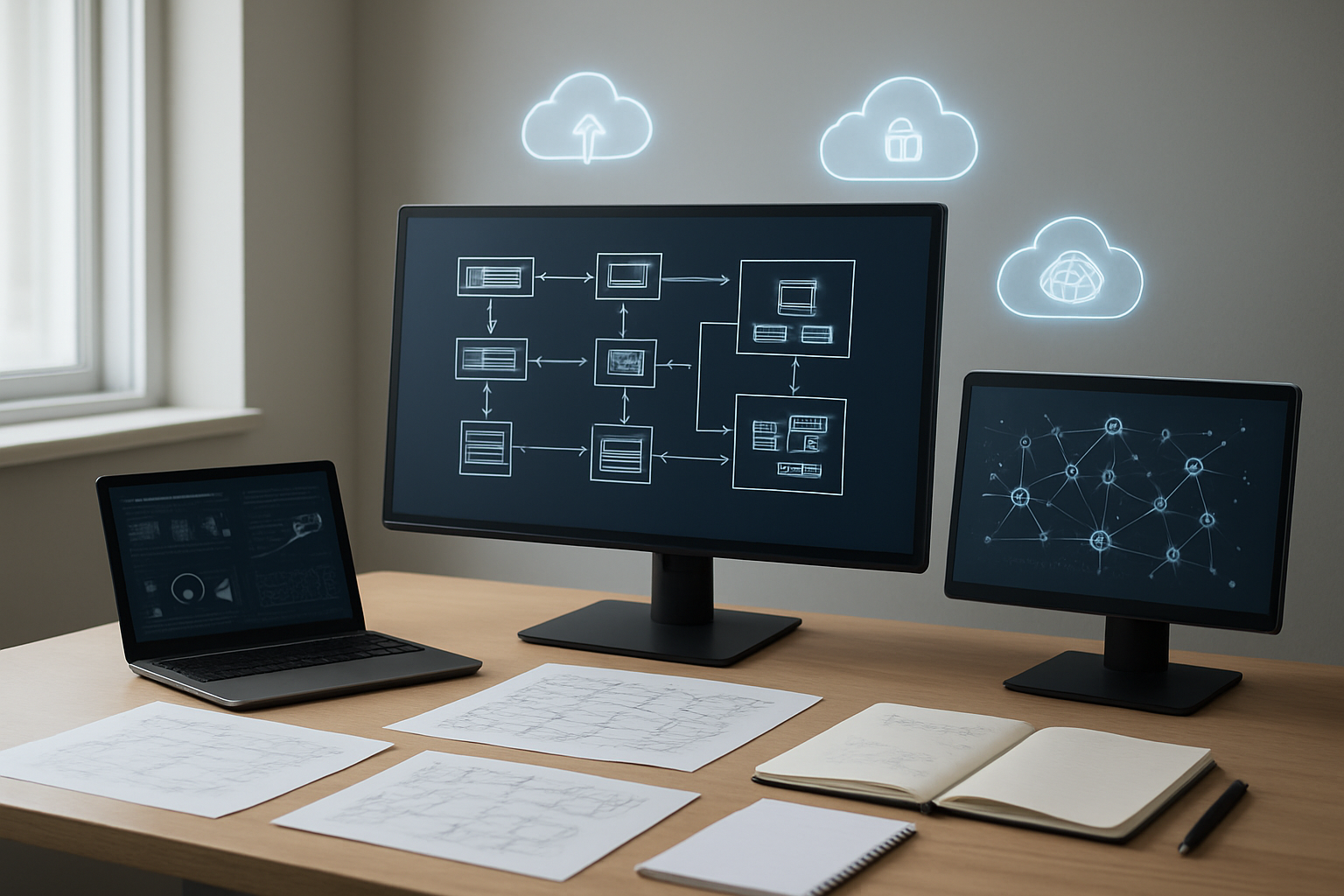
Finding the right Google Cloud equivalents for your DigitalOcean services forms the foundation of your migration strategy. Start by creating a comprehensive inventory of your current services and mapping them to their GCP counterparts.
Compute Services Mapping:
- DigitalOcean Droplets translate directly to Google Compute Engine instances
- App Platform applications can migrate to Google Cloud Run for containerized workloads or App Engine for traditional web applications
- Kubernetes clusters move seamlessly to Google Kubernetes Engine (GKE)
Database and Storage Equivalents:
- Managed PostgreSQL databases map to Cloud SQL for PostgreSQL
- MySQL instances transition to Cloud SQL for MySQL
- MongoDB deployments can utilize Cloud Firestore or MongoDB Atlas on GCP
- Block Storage volumes become Persistent Disks
- Spaces Object Storage transforms into Cloud Storage buckets
Networking and Additional Services:
- Load Balancers convert to Cloud Load Balancing
- Floating IPs become External IP addresses
- Firewalls translate to VPC firewall rules
- Monitoring services map to Cloud Monitoring and Cloud Logging
Consider service-level differences during your DigitalOcean to GCP migration. Google Cloud often provides more granular configuration options and advanced features that might benefit your applications. Document these mappings in a migration spreadsheet to track progress and ensure nothing gets overlooked.
Design Your VPC Network and Subnet Structure
Creating a robust VPC network structure sets the stage for secure and scalable applications in Google Cloud. Unlike DigitalOcean’s simpler networking model, GCP offers sophisticated VPC capabilities that require thoughtful planning.
VPC Network Design Principles:
Start with a single VPC network unless you have specific isolation requirements. GCP VPCs are global resources, meaning subnets can span multiple regions while maintaining connectivity. This differs significantly from DigitalOcean’s region-specific networking approach.
Subnet Planning Strategy:
Design your subnet structure around your application tiers and environments:
- Create separate subnets for web, application, and database layers
- Allocate dedicated subnets for development, staging, and production environments
- Plan IP address ranges carefully to avoid conflicts and allow for future growth
- Consider using /24 or /20 CIDR blocks for most subnets
Regional Distribution:
Place subnets in regions closest to your users and applications. If your DigitalOcean infrastructure spans multiple regions, replicate this structure in GCP while taking advantage of Google’s global network backbone for inter-region connectivity.
Security Considerations:
Implement network segmentation from day one. Use private subnets for backend services and databases, with public subnets only for load balancers and jump hosts. Plan for Cloud NAT gateways to provide internet access for private instances without exposing them directly.
Choose Appropriate Compute Engine Instance Types
Selecting the right Compute Engine instance types requires understanding both your current resource utilization and Google Cloud’s extensive machine type offerings. This decision significantly impacts both performance and costs in your cloud migration guide.
Performance Analysis:
Begin by analyzing your DigitalOcean Droplet performance metrics over the past 30-90 days. Look at CPU utilization patterns, memory usage, disk I/O, and network throughput. This data helps identify whether your current instances are right-sized or need adjustments.
Machine Type Categories:
Google Cloud offers several machine type families:
- E2 instances: Cost-optimized for general workloads, ideal for web servers and development environments
- N2 instances: Balanced performance for most production applications
- C2 instances: Compute-optimized for CPU-intensive tasks
- M2 instances: Memory-optimized for databases and in-memory analytics
- Custom machine types: Tailored configurations when standard types don’t fit
Migration Mapping Strategy:
Start with similar or slightly larger instance types than your current DigitalOcean setup. You can always resize instances later based on actual performance data. Consider that GCP instances often provide better network performance and additional features like live migration.
Cost Optimization Opportunities:
Take advantage of GCP’s sustained use discounts, committed use discounts, and preemptible instances where appropriate. These options can significantly reduce costs compared to your current DigitalOcean spending while maintaining or improving performance.
Plan Storage Solutions and Database Migrations
Storage and database migration planning requires careful attention to data consistency, performance requirements, and migration downtime. Your approach varies significantly depending on your database types and storage patterns.
Storage Migration Strategy:
Evaluate your current DigitalOcean storage usage and map it to appropriate GCP solutions:
- Persistent Disks: Replace Block Storage volumes with Standard or SSD persistent disks
- Cloud Storage: Migrate Spaces Object Storage to Cloud Storage buckets with appropriate storage classes
- Local SSD: Use for high-performance, temporary storage needs
Database Migration Approaches:
Choose your database migration method based on your specific requirements:
For Managed Databases:
- Use Database Migration Service for PostgreSQL and MySQL migrations
- Plan for minimal downtime using continuous data replication
- Test migration procedures thoroughly in a staging environment
For Self-Managed Databases:
- Consider migrating to Cloud SQL for reduced management overhead
- Evaluate Cloud Spanner for globally distributed applications requiring horizontal scaling
- Plan for Firestore if moving from document-based databases
Data Transfer Planning:
Large datasets require careful transfer planning to minimize migration time and costs. Consider using Cloud Storage Transfer Service for bulk data migration, or Google Transfer Appliance for massive datasets. Plan your data transfer during off-peak hours to reduce impact on your applications.
Test database performance after migration and optimize configurations for GCP’s infrastructure. Google Cloud’s database services often provide different performance characteristics than DigitalOcean’s offerings, requiring configuration adjustments to achieve optimal results.
Set Up Your Google Cloud Platform Environment
Create Your GCP Project and Configure Billing
Setting up your Google Cloud Platform environment starts with creating a new project, which serves as the foundation for your DigitalOcean to GCP migration. Navigate to the Google Cloud Console and click “New Project” to begin. Choose a meaningful project name that reflects your application or organization, as this will help with future management and identification.
During project creation, you’ll need to configure billing to access Google Cloud services. Link your project to a billing account by selecting an existing account or creating a new one. Google Cloud requires valid payment information, but offers $300 in free credits for new users, which can significantly offset initial migration costs.
Enable the necessary APIs for your migration, including:
- Compute Engine API for virtual machines
- Cloud Storage API for file transfers
- Cloud SQL API if migrating databases
- Container Registry API for Docker containers
- Cloud DNS API for domain management
Set up billing alerts to monitor costs during your cloud migration guide implementation. Configure budget alerts at 50%, 80%, and 100% of your estimated monthly spending to avoid unexpected charges during the migration process.
Establish IAM Roles and Security Policies
Identity and Access Management (IAM) configuration is critical when you migrate applications to Google Cloud. Start by creating service accounts for different components of your application stack. Avoid using your personal Google account for automated processes or application access.
Create specific roles for your migration team:
- Project Owner: For senior administrators managing the overall migration
- Compute Admin: For team members handling VM migrations
- Storage Admin: For managing data transfers from DigitalOcean
- Network Admin: For configuring VPC and firewall rules
Implement the principle of least privilege by granting minimal permissions required for each role. You can always expand permissions later as needed. For service accounts running your applications, create custom roles that include only the specific permissions your apps require.
Enable two-factor authentication for all human users and consider implementing Google Cloud’s organization policies to enforce security standards across your project. Set up audit logging to track all administrative actions during your Google Cloud migration playbook execution.
Configure Networking and Firewall Rules
Your network configuration directly impacts application performance and security during the DigitalOcean GCP transfer. Create a Virtual Private Cloud (VPC) network that matches your current DigitalOcean networking topology. Google Cloud’s default network works for simple setups, but custom VPC networks provide better control and security.
Design your subnet structure based on your application architecture:
- Create separate subnets for web servers, application servers, and databases
- Use different subnets for production, staging, and development environments
- Plan IP ranges that won’t conflict with your existing DigitalOcean setup during the transition period
Configure firewall rules to replicate your current DigitalOcean security groups. Start with restrictive rules and open only necessary ports:
- Allow HTTP (80) and HTTPS (443) traffic for web servers
- Restrict SSH (22) access to specific IP ranges or VPN connections
- Create internal firewall rules for communication between application tiers
- Block all unnecessary inbound traffic by default
Set up Cloud NAT if your applications need outbound internet access without public IP addresses. This provides better security and cost control compared to assigning public IPs to every instance.
Consider implementing Google Cloud Armor for DDoS protection and web application firewall capabilities, especially if you’re migrating public-facing applications. Configure load balancers during this phase if your current DigitalOcean setup uses multiple servers for redundancy.
Prepare Your Applications for Migration

Update Application Configurations for GCP Compatibility
Before moving your applications from DigitalOcean to Google Cloud Platform, you’ll need to adjust various configuration files to work with GCP’s services and naming conventions. Start by reviewing your application’s environment variables, connection strings, and API endpoints that reference DigitalOcean-specific services.
Database connection strings require special attention during this DigitalOcean to GCP migration. Replace DigitalOcean’s managed database endpoints with Google Cloud SQL connection parameters. Update your application’s configuration files to include the new instance connection names, which follow GCP’s project-id:region:instance-name format.
Review your DNS settings and load balancer configurations. GCP uses different naming conventions for network resources, so update your application code to reference the correct Google Cloud Load Balancing endpoints. If you’re using DigitalOcean Spaces for object storage, reconfigure your applications to connect to Google Cloud Storage buckets instead.
Check your logging configurations to ensure they point to Google Cloud Logging rather than DigitalOcean’s logging services. Update any monitoring endpoints to work with Google Cloud Operations Suite. Don’t forget to modify firewall rules and security group references to align with GCP’s VPC firewall naming structure.
Export Databases and Application Data
Creating comprehensive database exports forms the backbone of any successful cloud migration guide. Begin by identifying all databases across your DigitalOcean infrastructure, including primary databases, read replicas, and any backup databases you might have overlooked.
For PostgreSQL databases, use pg_dump to create logical backups that include both schema and data. The command pg_dump -h your-db-host -U username -d database_name > backup_file.sql creates a complete export that’s compatible with Google Cloud SQL. For MySQL databases, utilize mysqldump with similar syntax to generate migration-ready backup files.
When dealing with large databases, consider using streaming exports to avoid timeout issues. PostgreSQL’s pg_dump supports the --format=custom option, which creates compressed, parallel-restorable backups perfect for large-scale migrations. For MongoDB instances, use mongodump to create BSON exports that maintain data integrity during the transfer process.
Don’t overlook application-specific data stored outside traditional databases. Export user-uploaded files, configuration files, logs, and any cached data that your applications depend on. Create a comprehensive inventory of all data sources, including Redis caches, Elasticsearch indexes, and file storage locations.
Create Backup Strategies for Rollback Protection
Building robust rollback protection ensures your migrate applications to Google Cloud process includes safety nets. Create multiple backup layers at different stages of the migration to minimize risk and provide recovery options if issues arise.
Take complete snapshots of your DigitalOcean droplets before making any changes. These snapshots serve as your primary rollback point if the migration encounters unexpected problems. Schedule these backups during low-traffic periods to minimize performance impact on your running applications.
Implement application-level backups that capture your current configurations, deployed code versions, and environment settings. Use version control systems to tag your current application state, making it easy to revert code changes if needed. Document all configuration changes in a migration log that includes timestamps and detailed descriptions.
Create incremental backup schedules during the migration window. Set up automated backups every few hours during active migration work, providing multiple restoration points. Test your backup restoration process before starting the actual migration to ensure your rollback procedures work correctly.
Establish clear rollback triggers and decision points. Define specific performance metrics, error rates, or user experience indicators that would prompt a rollback to DigitalOcean. Having predetermined criteria removes guesswork during high-stress migration moments.
Test Applications in Staging Environment
Setting up a comprehensive staging environment on GCP mirrors your production setup and validates your cloud migration best practices before affecting live traffic. Create a scaled-down version of your production environment that includes all critical components and dependencies.
Deploy your updated applications to the GCP staging environment using the same deployment processes you’ll use for production. This testing phase reveals configuration issues, performance bottlenecks, and integration problems before they impact your users. Run your complete application test suite against the staging environment to verify functionality remains intact.
Load test your applications in the GCP staging environment using tools like Apache JMeter or Google Cloud Load Testing. Compare performance metrics between your DigitalOcean production environment and GCP staging to identify potential performance regressions. Pay special attention to database query performance, API response times, and static asset loading speeds.
Validate all external integrations work correctly in the new environment. Test payment processors, email services, third-party APIs, and any webhooks your applications depend on. Verify that SSL certificates, domain configurations, and CDN setups function properly in the GCP environment.
Execute end-to-end user workflows to ensure the complete user experience works seamlessly. Test user registration, login processes, data updates, and any critical business functions your applications provide. Document any issues discovered during testing and resolve them before proceeding with production migration.
Execute the Migration Process
Migrate Static Assets and Files to Cloud Storage
Moving your static assets from DigitalOcean to GCP migration starts with Google Cloud Storage. First, create storage buckets that match your current directory structure. Use the gsutil command-line tool to transfer files efficiently:
gsutil -m cp -r /path/to/static/files gs://your-bucket-name/
For large file transfers, enable parallel uploads with the -m flag. Set appropriate permissions on your buckets – public read access for assets like images and CSS files, while keeping sensitive files private. Configure lifecycle policies to automatically archive or delete old files, saving on storage costs.
Consider using Cloud CDN alongside Cloud Storage for global content delivery. This setup reduces latency for users worldwide and decreases bandwidth costs from your origin servers.
Transfer Databases to Cloud SQL or Compute Engine
Database migration requires careful planning to minimize downtime. For MySQL or PostgreSQL databases, Cloud SQL offers a managed solution. Create a Cloud SQL instance with specifications matching or exceeding your current DigitalOcean database.
Export your existing database using mysqldump or pg_dump:
mysqldump -h your-do-host -u username -p database_name > backup.sql
Import the backup to Cloud SQL using the console or command line. For minimal downtime, set up read replicas first, then perform a final sync during your maintenance window.
If you need more control, deploy databases on Compute Engine instances. This approach works well for NoSQL databases or custom database configurations not supported by Cloud SQL.
Deploy Applications to Compute Engine Instances
Create Compute Engine instances that match your application requirements. Use custom machine types to optimize performance and cost. Install necessary dependencies and configure your application environment.
For containerized applications, consider Google Kubernetes Engine (GKE) instead of traditional VMs. Deploy your applications using:
gcloud compute instances create your-app-server \
    --image-family=ubuntu-2004-lts \
    --image-project=ubuntu-os-cloud \
    --machine-type=e2-medium
Set up startup scripts to automatically configure your applications on boot. Use instance templates and managed instance groups for applications requiring auto-scaling.
Configure Load Balancers and SSL Certificates
Google Cloud Load Balancing distributes traffic across your instances. Create an HTTP(S) load balancer for web applications. Configure health checks to ensure traffic only reaches healthy instances.
For SSL certificates, use Google-managed certificates for automatic renewal:
gcloud compute ssl-certificates create your-ssl-cert \
    --domains=yourdomain.com,www.yourdomain.com \
    --global
Set up backend services pointing to your instance groups. Configure URL maps to route requests to appropriate backends based on paths or hostnames. Enable Cloud Armor for DDoS protection and web application firewall capabilities.
Update DNS Records and Domain Settings
The final step in your DigitalOcean to GCP migration involves updating DNS records to point to your new GCP infrastructure. Lower your TTL values 24-48 hours before migration to speed up DNS propagation.
Update A records to point to your load balancer’s IP address. For applications using Cloud CDN, update CNAME records accordingly. Test your new setup thoroughly before making DNS changes live.
Consider using Cloud DNS for better integration with other Google Cloud services. Gradually shift traffic using weighted DNS records if you need a phased migration approach. Monitor DNS propagation using tools like dig or online DNS checkers to ensure worldwide updates complete successfully.
Optimize Performance and Monitor Your New GCP Setup
Fine-tune Instance Sizes and Auto-scaling Policies
Right-sizing your compute resources becomes critical after completing your DigitalOcean to GCP migration. GCP offers a much wider range of machine types compared to DigitalOcean’s more limited droplet sizes, giving you precise control over CPU, memory, and storage configurations.
Start by analyzing your application’s actual resource consumption using Google Cloud Monitoring. Many applications that ran on oversized DigitalOcean droplets can operate efficiently on smaller GCP instances, especially with custom machine types that let you specify exact vCPU and memory ratios. For example, a memory-intensive application might benefit from a high-memory machine type rather than a balanced configuration.
Auto-scaling policies require careful configuration to handle traffic spikes effectively. Set up managed instance groups with health checks that monitor your application endpoints rather than just basic ping responses. Configure scaling policies based on multiple metrics like CPU utilization, memory usage, and custom application metrics. Start conservative with scaling thresholds around 70% CPU utilization for scale-out and 30% for scale-in, then adjust based on your application’s behavior.
Preemptible instances can dramatically reduce costs for fault-tolerant workloads. Mix preemptible and regular instances in your auto-scaling groups, keeping critical components on regular instances while using preemptible instances for batch processing or stateless web servers.
Implement Monitoring and Alerting Systems
Google Cloud Monitoring provides comprehensive visibility into your migrated applications that surpasses most DigitalOcean monitoring solutions. The key is setting up meaningful alerts that notify you of real issues without creating alert fatigue.
Create custom dashboards that display the metrics most relevant to your business. Include application-level metrics like response times, error rates, and throughput alongside infrastructure metrics. Set up uptime checks for your critical endpoints and configure alerting policies that escalate based on severity and duration.
Log aggregation through Cloud Logging centralizes all your application and system logs. Set up log-based metrics to track specific error patterns or business events. For applications previously using simple file-based logging on DigitalOcean, this centralized approach provides much better troubleshooting capabilities.
Implement distributed tracing with Cloud Trace for complex microservices architectures. This helps identify performance bottlenecks that might not be apparent from basic monitoring metrics. The insights gained often reveal optimization opportunities that weren’t visible in your previous DigitalOcean setup.
Consider integrating third-party monitoring tools if your team already has expertise with specific platforms. GCP’s monitoring APIs make it easy to export metrics to external systems while still maintaining native Google Cloud monitoring capabilities.
Conduct Performance Testing and Benchmarking
Performance testing validates that your cloud migration best practices have been properly implemented and your applications perform as expected in the new GCP environment. The different network architecture and instance types in GCP compared to DigitalOcean often result in performance characteristics that require validation.
Start with baseline performance tests using the same load patterns you experienced on DigitalOcean. Tools like Apache JMeter or Artillery can simulate realistic user traffic patterns. Compare response times, throughput, and error rates against your previous DigitalOcean performance metrics to ensure you haven’t introduced any regressions.
Database performance often shows the most significant differences after migration. Run database benchmarks that test read and write operations under various load conditions. Cloud SQL instances might perform differently than your previous DigitalOcean database droplets, especially regarding connection pooling and query optimization.
Network latency testing becomes especially important if you’re serving users across different geographic regions. GCP’s global load balancing and CDN capabilities might improve performance for distributed user bases, but you need to verify these improvements with real-world testing.
Load testing should include failure scenarios to validate your auto-scaling policies and disaster recovery procedures. Gradually increase load beyond normal operating conditions to understand how your applications behave under stress and where bottlenecks occur in your new GCP infrastructure.
Secure Your Applications and Implement Cost Controls

Configure Advanced Security Features and Access Controls
Your Google Cloud migration journey doesn’t end with getting your applications up and running. Security should be your top priority as you’ve moved sensitive workloads to a new environment. Start by enabling multi-factor authentication (MFA) across all user accounts and service accounts. This simple step dramatically reduces the risk of unauthorized access.
Set up Identity and Access Management (IAM) with granular permissions. Create custom roles that follow the principle of least privilege, giving users only the minimum access needed for their specific tasks. Use Google Cloud’s predefined roles as starting points, then customize them based on your organization’s requirements.
Enable Cloud Security Command Center to get a centralized view of your security posture. This tool continuously monitors your resources and identifies potential vulnerabilities, misconfigurations, and threats. Configure security policies for your Compute Engine instances, including firewall rules that restrict traffic to only necessary ports and IP ranges.
Implement network security by creating Virtual Private Cloud (VPC) networks with proper subnets. Use private Google Access to allow your instances to reach Google services without external IP addresses. Enable VPC Flow Logs to monitor network traffic patterns and detect unusual activity.
Don’t forget about data encryption. Google Cloud encrypts data at rest by default, but you should also configure encryption in transit for all communications between your applications and external services.
Set Up Budget Alerts and Cost Optimization Strategies
Cloud costs can spiral out of control quickly if you’re not monitoring them closely. Google Cloud’s billing system works differently from DigitalOcean’s more straightforward pricing model, so you need proper cost controls in place from day one.
Create budget alerts at multiple thresholds – typically at 50%, 75%, and 90% of your expected monthly spend. Set up notifications to go to your finance team and technical leads so everyone stays informed about spending trends. Use Google Cloud’s billing exports to BigQuery for detailed cost analysis and custom reporting.
Right-size your resources by monitoring actual usage patterns. Many organizations over-provision during migration out of caution. Use Google Cloud’s rightsizing recommendations to identify underutilized instances and resize them appropriately. Enable sustained use discounts and committed use discounts for predictable workloads.
Implement automatic scaling policies for your applications. Use Cloud Monitoring to track key metrics like CPU usage, memory consumption, and request rates. Configure your load balancers and auto-scaling groups to scale down during low-traffic periods and scale up during peak times.
Consider using preemptible instances for non-critical workloads and batch processing jobs. These instances cost up to 80% less than regular instances but can be terminated by Google with short notice. They’re perfect for development environments and fault-tolerant applications.
Implement Automated Backup and Disaster Recovery
Your disaster recovery strategy needs to account for the different infrastructure and services available in Google Cloud. Start by identifying your Recovery Time Objectives (RTO) and Recovery Point Objectives (RPO) for each application and database.
Set up automated backups for your Compute Engine instances using persistent disk snapshots. Schedule these snapshots daily for critical systems and weekly for less important resources. Use Google Cloud’s snapshot scheduling feature to automate this process and set retention policies that balance storage costs with recovery needs.
For databases, configure automated backups with point-in-time recovery capabilities. Cloud SQL provides automated daily backups and binary logging for MySQL and PostgreSQL instances. If you’re using custom database setups on Compute Engine, implement your own backup scripts using Cloud Storage as the destination.
Create a multi-region backup strategy by replicating critical data across different Google Cloud regions. Use Cloud Storage’s regional and multi-regional storage classes based on your recovery requirements and cost constraints. Cross-region replication ensures your backups remain accessible even if an entire region experiences an outage.
Document and test your disaster recovery procedures regularly. Create runbooks that detail step-by-step recovery processes for different failure scenarios. Schedule quarterly disaster recovery drills to ensure your team can execute these procedures under pressure and identify areas for improvement.
Consider using Google Cloud’s infrastructure automation tools like Deployment Manager or Terraform to define your infrastructure as code. This approach makes it easier to recreate your entire environment in a different region if needed, supporting your cloud migration best practices and overall resilience strategy.
Moving your applications from DigitalOcean to GCP doesn’t have to be overwhelming when you break it down into manageable steps. By taking time to assess your current setup, mapping out your new GCP architecture, and carefully preparing your applications before the actual migration, you set yourself up for success. The key is staying organized and testing each phase before moving to the next one.
Once your migration is complete, the real work begins with optimization and monitoring. GCP offers powerful tools for performance tuning and cost management that can actually improve your application’s efficiency while potentially reducing your monthly bills. Start your migration planning today, and remember that taking it slow and steady will save you headaches down the road. Your applications will thank you for the upgrade to Google’s robust cloud infrastructure.