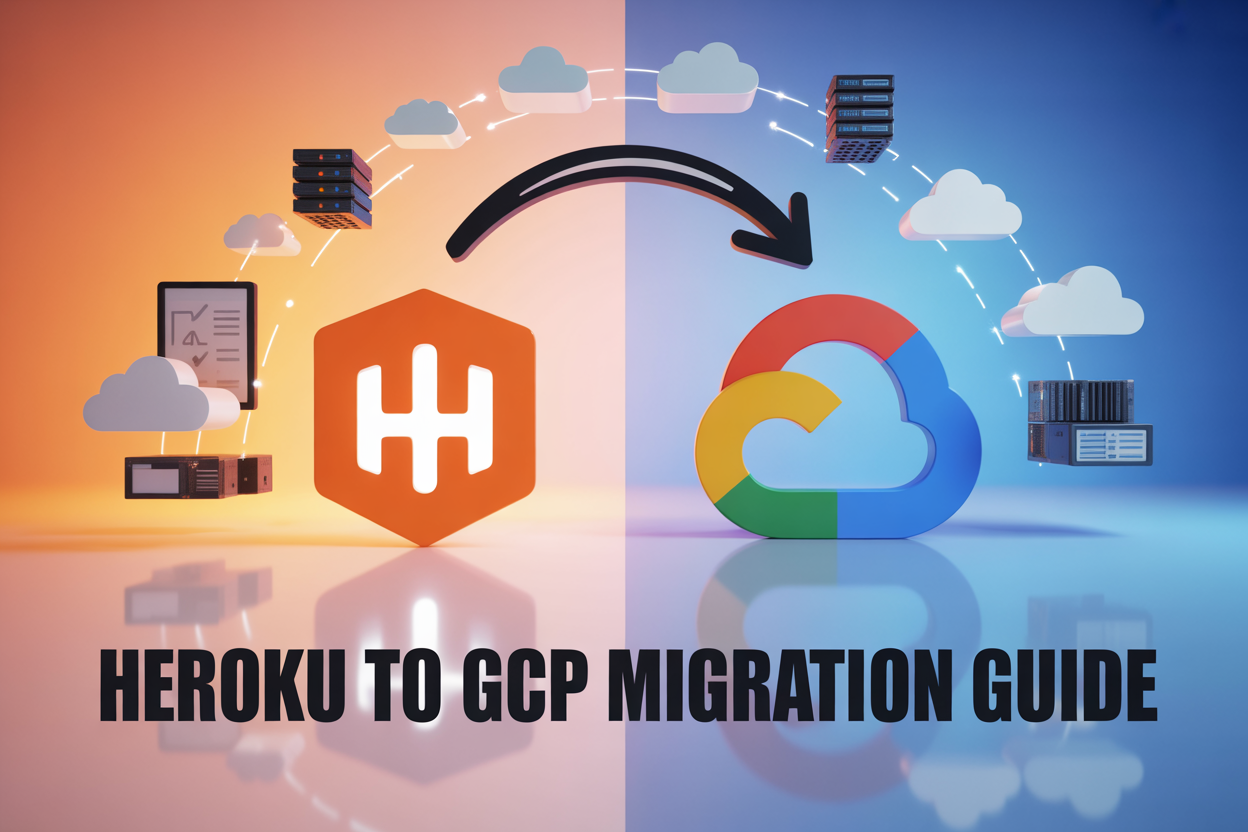
Heroku’s recent pricing changes and service limitations have pushed many developers to explore alternatives. If you’re ready to migrate from Heroku to GCP, you’re not alone—thousands of development teams are making this transition to gain better control, scalability, and cost efficiency.
This comprehensive GCP migration guide is designed for developers, DevOps engineers, and technical teams who currently run applications on Heroku and want to move to Google Cloud Platform. Whether you’re managing a simple web app or complex microservices architecture, this guide walks you through the entire Heroku to Google Cloud Platform migration process.
We’ll cover the essential groundwork for cloud platform migration, including how to assess your current setup and choose the right Google Cloud services that match your application’s needs. You’ll also get a detailed walkthrough of the step-by-step migration process, from setting up your GCP environment to executing the actual move with minimal downtime. Finally, we’ll share proven cloud migration best practices for testing, validation, and post-migration optimization to ensure your application runs smoothly on its new platform.
By the end of this guide, you’ll have a clear roadmap for successfully moving your applications from Heroku’s platform as a service migration constraints to GCP’s flexible cloud infrastructure migration options.
Understanding the Key Differences Between Heroku and GCP
Platform-as-a-Service vs Infrastructure-as-a-Service Models
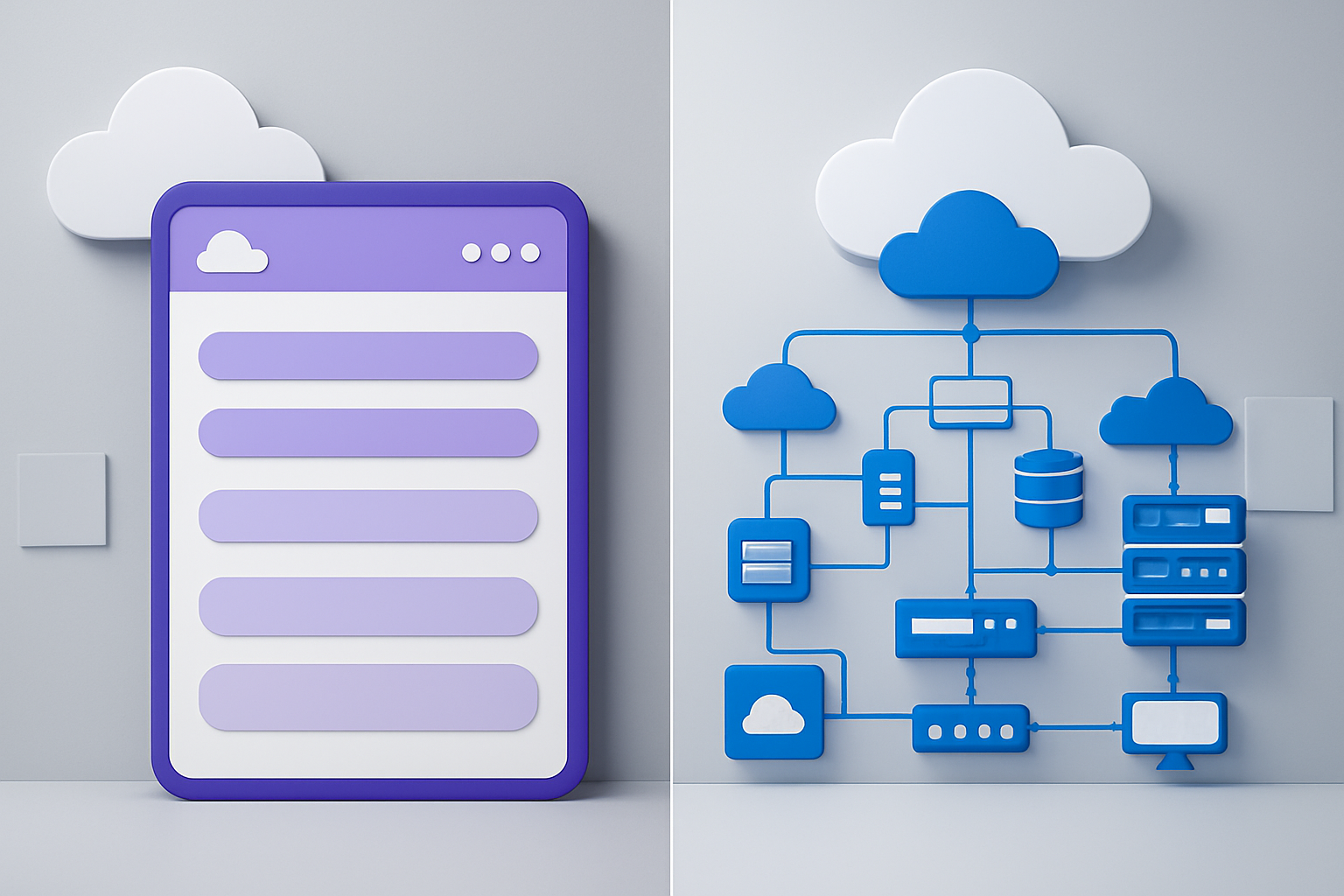
When you migrate from Heroku to GCP, you’re essentially moving from a Platform-as-a-Service (PaaS) model to an Infrastructure-as-a-Service (IaaS) approach. Heroku handles most infrastructure concerns automatically – you push your code, and the platform manages servers, load balancing, and scaling decisions. This simplicity comes with trade-offs in flexibility and cost efficiency.
Google Cloud Platform offers multiple service models, ranging from fully managed services like Cloud Run and App Engine (similar to Heroku’s PaaS approach) to Compute Engine instances where you control the entire infrastructure stack. App Engine Standard provides the closest experience to Heroku, while Compute Engine gives you complete control over virtual machines.
The key difference lies in responsibility distribution. With Heroku, you focus purely on application code while the platform manages everything else. On GCP, you can choose your level of infrastructure involvement – from serverless options like Cloud Functions to bare-metal configurations with Compute Engine.
Cost Structure Comparison and Long-term Savings
Heroku’s pricing model centers around dynos – standardized containers that run your application. While convenient, this approach becomes expensive as your application grows. A single Heroku dyno costs significantly more than equivalent resources on GCP, especially for production workloads requiring multiple dynos and add-ons.
GCP follows a pay-as-you-use model with several cost advantages:
- Sustained use discounts automatically apply when instances run for significant portions of the month
- Committed use discounts offer up to 70% savings for predictable workloads
- Preemptible instances provide up to 80% cost reduction for fault-tolerant applications
- Custom machine types let you optimize CPU and memory ratios instead of paying for predefined configurations
Database costs show dramatic differences too. Heroku Postgres starts around $9/month for basic plans, while Cloud SQL offers more storage and better performance at comparable prices, with the flexibility to scale resources independently.
Many organizations see 40-60% cost reductions after migrating from Heroku to GCP, particularly applications with consistent traffic patterns or those requiring specialized infrastructure configurations.
Scalability and Performance Capabilities
Heroku’s horizontal scaling involves adding more dynos, which works well for stateless applications but becomes costly and complex for resource-intensive workloads. Vertical scaling options are limited to predefined dyno types, and you can’t optimize for specific performance characteristics.
GCP provides multiple scalability approaches:
- Auto-scaling groups in Compute Engine automatically adjust instance counts based on CPU, memory, or custom metrics
- Cloud Run scales to zero when idle and handles thousands of concurrent requests per instance
- Global load balancing distributes traffic across multiple regions without additional configuration
- Custom machine types allow precise resource allocation, avoiding over-provisioning
Performance benefits include access to Google’s global network infrastructure, SSD persistent disks with consistent IOPS, and specialized hardware like GPUs and TPUs for machine learning workloads. GCP’s network performance typically exceeds Heroku’s capabilities, especially for applications requiring low latency or high throughput.
Control and Customization Options
Heroku’s opinionated approach limits customization opportunities. You work within predefined buildpacks, accept standard runtime configurations, and have minimal control over the underlying infrastructure. While this simplifies deployment, it restricts optimization for specific use cases.
GCP offers granular control over every infrastructure component:
- Operating system choice including various Linux distributions and Windows Server
- Network configuration with custom VPCs, firewall rules, and private connectivity options
- Storage options ranging from standard persistent disks to high-performance local SSDs
- Security policies including custom IAM roles, encryption keys, and compliance controls
This flexibility enables performance optimizations impossible on Heroku, such as configuring kernel parameters, installing custom software packages, or implementing specialized monitoring solutions. You can also integrate with other GCP services like BigQuery for analytics or Cloud AI for machine learning without external API limitations.
The trade-off involves increased operational complexity, but modern Infrastructure as Code tools and GCP’s managed services help bridge this gap while maintaining the customization benefits that drive many Heroku to Google Cloud Platform migrations.
Pre-Migration Planning and Assessment

Auditing Your Current Heroku Application Architecture
Start by documenting every component of your current Heroku setup. Create a comprehensive inventory of your dynos, worker processes, and background jobs. Note which dyno types you’re using – web, worker, or one-off dynos – and their current resource allocation. Map out your application’s request flow, from incoming traffic through your load balancers to your various services.
Document your Heroku add-ons and their specific configurations. This includes databases (PostgreSQL, Redis), monitoring tools (New Relic, Datadog), logging services (Papertrail, Loggly), and any email services (SendGrid). Each add-on likely has specific settings and connection strings that you’ll need to replicate in GCP.
Pay special attention to how your application handles scaling. Does it auto-scale based on metrics? What are your current scaling triggers and thresholds? Understanding these patterns helps you design equivalent scaling policies in Google Cloud Platform migration scenarios.
Identifying Dependencies and Third-party Integrations
List every external service your application connects to. This goes beyond Heroku add-ons to include APIs, webhooks, payment processors, authentication providers, and CDNs. For each dependency, document the connection method, authentication mechanism, and data flow direction.
Check for hardcoded Heroku-specific URLs or configurations in your codebase. Look for references to Heroku’s internal networking, environment variable patterns, or dyno-specific behaviors. These will need updates during your migrate from Heroku to GCP process.
Review your DNS configurations and custom domains. Document which services handle your DNS routing and SSL certificate management. Heroku’s automatic SSL and domain management differs significantly from GCP’s approach.
Examine your deployment pipeline and CI/CD integrations. If you’re using Heroku’s GitHub integration, review how this connects to your testing and deployment workflows. You’ll need to establish equivalent automation in GCP.
Calculating Resource Requirements and Budget Planning
Analyze your current Heroku usage patterns to estimate GCP resource needs. Heroku’s dyno model doesn’t directly translate to GCP’s compute options, so you’ll need to calculate equivalent CPU, memory, and storage requirements.
Review your Heroku metrics dashboard to understand peak usage patterns. Look at response times, memory consumption, and concurrent user loads. This data helps you size Compute Engine instances or determine appropriate Cloud Run configurations.
Compare pricing models between platforms. Heroku’s fixed dyno pricing differs from GCP’s pay-as-you-use model. Factor in costs for compute, storage, networking, and managed services. Don’t forget to include costs for monitoring, logging, and security tools that might be built into Heroku but require separate services in GCP.
Consider the hidden costs of migration. Account for development time, testing phases, and potential downtime. Budget for training your team on new GCP tools and services.
Creating a Migration Timeline and Risk Assessment
Break your cloud platform migration into phases based on your application’s complexity. Start with non-critical services or staging environments to validate your migration approach. Plan your production migration during low-traffic periods to minimize user impact.
Identify potential failure points throughout the migration process. Database migrations carry the highest risk, especially for applications with large datasets. Plan for rollback scenarios if issues arise during the switch.
Set up parallel environments early in your timeline. Running both Heroku and GCP environments simultaneously allows you to test thoroughly and switch traffic gradually. This approach reduces risk but increases temporary costs.
Create specific milestones with success criteria for each migration phase. Define what “successful migration” means for each component – whether that’s matching performance benchmarks, maintaining uptime SLAs, or preserving all data integrity.
Plan communication strategies for stakeholders and users. Determine when and how you’ll notify users about potential service interruptions or changes. Having clear communication plans reduces confusion and maintains trust during the transition.
Choosing the Right GCP Services for Your Application

Google App Engine vs Google Kubernetes Engine vs Compute Engine
When migrating from Heroku to GCP, choosing the right compute service is crucial for your application’s success. Each option offers different levels of abstraction and control.
Google App Engine (GAE) provides the closest experience to Heroku’s platform-as-a-service model. With GAE Standard, your code runs in a serverless environment with automatic scaling and zero server management. The Flexible environment offers more customization while maintaining managed infrastructure. GAE handles load balancing, health checks, and scaling automatically, making it perfect for web applications with variable traffic patterns.
Google Kubernetes Engine (GKE) offers container orchestration with enterprise-grade features. If your Heroku app already uses Docker containers, GKE provides seamless migration paths. You gain fine-grained control over resource allocation, networking, and deployment strategies while Google manages the underlying Kubernetes control plane. GKE excels for microservices architectures and applications requiring custom runtime environments.
Compute Engine delivers maximum control with virtual machines that you manage entirely. This option suits applications with specific OS requirements, legacy dependencies, or need for custom networking configurations. While requiring more operational overhead, Compute Engine provides the flexibility to replicate your exact Heroku setup while adding enterprise features like custom machine types and persistent SSDs.
Consider your team’s expertise, application architecture, and operational requirements when choosing between these services during your Heroku to Google Cloud Platform migration.
Database Migration Options: Cloud SQL, Firestore, and BigQuery
Your database choice significantly impacts application performance and operational complexity during your migrate from Heroku to GCP journey.
Cloud SQL serves as the natural replacement for Heroku Postgres or MySQL databases. This fully managed relational database service supports PostgreSQL, MySQL, and SQL Server with minimal configuration changes. Cloud SQL automatically handles backups, patches, and high availability setups. The service integrates seamlessly with your existing SQL schemas and provides familiar connection patterns for your application code.
Firestore represents Google’s NoSQL document database solution, ideal for applications requiring real-time synchronization and offline support. If your Heroku app uses MongoDB or similar document stores, Firestore offers superior scalability and global distribution. The database automatically scales reads and writes across multiple regions while maintaining ACID transactions for complex operations.
BigQuery functions as your data warehouse solution for analytics workloads. While not typically a direct replacement for operational databases, BigQuery handles massive datasets and complex analytical queries that would overwhelm traditional databases. Applications processing large amounts of data benefit from BigQuery’s columnar storage and distributed query engine.
Many successful cloud platform migrations use a hybrid approach, keeping operational data in Cloud SQL while moving analytics to BigQuery. This strategy maintains application compatibility while unlocking advanced data processing capabilities unavailable in Heroku’s ecosystem.
Storage Solutions: Cloud Storage vs Persistent Disks
Storage architecture decisions during your GCP migration guide implementation affect both performance and costs significantly.
Cloud Storage replaces Heroku’s ephemeral file system for persistent file storage needs. This object storage service offers multiple storage classes optimized for different access patterns. Standard storage works well for frequently accessed files like user uploads, while Nearline and Coldline storage reduce costs for backup and archival data. Cloud Storage integrates with Content Delivery Networks automatically, improving global file access speeds without additional configuration.
The service provides versioning, lifecycle management, and fine-grained access controls that surpass Heroku’s basic file handling capabilities. Your application can serve files directly from Cloud Storage or use signed URLs for secure, time-limited access to private content.
Persistent Disks attach to Compute Engine or GKE instances, providing block storage similar to traditional hard drives. These disks persist beyond instance lifecycles and support snapshots for backup purposes. SSD persistent disks offer high IOPS for database workloads, while standard persistent disks provide cost-effective storage for less demanding applications.
Regional persistent disks automatically replicate data across zones within a region, ensuring high availability without manual intervention. This feature eliminates single points of failure common in traditional hosting environments.
Choose Cloud Storage for web assets, user uploads, and static content distribution. Use persistent disks for database files, application logs, and any storage requiring POSIX filesystem semantics during your cloud infrastructure migration.
Setting Up Your GCP Environment
Creating and Configuring Your GCP Project
Start by heading to the Google Cloud Console and creating a new project for your Heroku to Google Cloud Platform migration. Click “New Project,” choose a meaningful name that reflects your application, and select the appropriate billing account. The project name becomes your unique identifier across GCP services, so pick something clear and consistent with your naming conventions.
Enable the essential APIs immediately to avoid delays later. Navigate to the APIs & Services dashboard and activate the Compute Engine API, Cloud SQL API, Cloud Storage API, and Container Registry API. If you’re planning to use Kubernetes Engine or Cloud Run, enable those APIs as well. Each service activation takes a few moments, but doing this upfront streamlines the rest of your setup.
Set up billing alerts to prevent unexpected charges during migration testing. Go to Billing > Budgets & Alerts and create a budget with multiple threshold notifications at 50%, 75%, and 90% of your expected usage. This early warning system helps you catch any configuration issues that might lead to runaway costs.
Configure the Cloud SDK on your local machine to interact with your new project. Download and install the Google Cloud CLI, then run gcloud init to authenticate and set your default project. This command-line access becomes essential for deployment scripts and automated processes during your GCP migration guide implementation.
Establishing Proper IAM Roles and Security Policies
IAM configuration forms the backbone of your cloud infrastructure migration security. Create dedicated service accounts for different components of your application rather than using the default Compute Engine service account. Each service account should follow the principle of least privilege, receiving only the specific permissions required for its function.
Set up role-based access for your team members based on their responsibilities. Developers typically need Editor roles with specific resource constraints, while operations teams might require broader administrative access. Create custom roles for unique scenarios where predefined roles grant too many or too few permissions.
Implement organization-level policies if your company uses Google Workspace. These policies enforce security standards across all projects, including restrictions on external IP addresses, required encryption standards, and approved machine types. Contact your IT administrator to understand existing organizational constraints that might affect your migration.
Enable audit logging for all administrative actions and data access. Go to IAM & Admin > Audit Logs and configure logging for Admin Read, Data Read, and Data Write activities. These logs become invaluable for troubleshooting access issues and maintaining compliance during your cloud platform migration.
Configure multi-factor authentication for all accounts with administrative access. Even service accounts benefit from additional security layers through key rotation policies and IP address restrictions where applicable.
Network Configuration and VPC Setup
Design your VPC architecture before creating any resources. Most applications benefit from a custom VPC rather than the default network because it provides better control over IP ranges and firewall rules. Create separate subnets for different tiers of your application – web servers, application servers, and databases should exist in different subnets with appropriate firewall rules between them.
Plan your IP address ranges carefully to avoid conflicts with on-premises networks or other cloud environments. Use private IP ranges (10.0.0.0/8, 172.16.0.0/12, or 192.168.0.0/16) and leave room for growth. A common pattern involves using /24 subnets for each application tier, giving you 254 available IP addresses per subnet.
Configure firewall rules that follow security best practices. Start with deny-all rules, then add specific allow rules for required traffic flows. Web-facing applications need ingress rules for HTTP/HTTPS traffic, while internal services should only accept traffic from authorized source ranges. Tag your resources consistently to make firewall rule management easier.
Set up Cloud NAT if your private instances need internet access for software updates or external API calls. This managed service provides outbound internet connectivity without exposing your instances to inbound traffic from the internet. Configure NAT with appropriate IP address allocation and logging settings.
Consider implementing Private Google Access to allow instances without external IP addresses to reach Google Cloud APIs and services. This feature lets your private instances communicate with services like Cloud Storage and Cloud SQL without traversing the public internet.
Monitoring and Logging Infrastructure Setup
Google Cloud Operations Suite (formerly Stackdriver) provides comprehensive monitoring and logging capabilities that exceed what most teams had access to on Heroku. Start by enabling the Monitoring API and creating your first monitoring workspace. This workspace aggregates metrics, logs, and traces from all your GCP resources in one central location.
Configure log aggregation for all your application components. Install the Ops Agent on Compute Engine instances to collect both system metrics and application logs. For containerized applications, the agent automatically collects stdout and stderr logs, making the transition from Heroku’s log streaming relatively seamless.
Set up alerting policies for critical system metrics before deploying your application. Create alerts for CPU utilization above 80%, memory usage above 85%, disk space below 20%, and application-specific metrics like error rates or response times. Use notification channels like email, Slack, or PagerDuty to ensure the right people receive alerts promptly.
Create custom dashboards that provide at-a-glance visibility into your application’s health. Include key business metrics alongside infrastructure metrics to give stakeholders a complete picture of system performance. Google Cloud Monitoring’s dashboard sharing features make it easy to provide different views for different team members.
Implement distributed tracing if your application uses microservices architecture. Cloud Trace automatically captures latency data from HTTP requests and can provide insights into performance bottlenecks that weren’t visible in Heroku’s simpler logging system.
Configure log retention policies based on your compliance and debugging needs. Different log types might require different retention periods – audit logs typically need longer retention than debug logs. Set up log exports to Cloud Storage for long-term archival of important logs at a lower cost than keeping everything in Cloud Logging.
Step-by-Step Migration Process

Database Migration and Data Transfer Strategies
Moving your database from Heroku to GCP requires careful planning to minimize downtime and prevent data loss. Start by identifying your current database type – whether it’s PostgreSQL, MySQL, or another system – as this will determine your migration path.
For PostgreSQL databases, Google Cloud SQL offers a direct migration path. Create a Cloud SQL instance with similar specifications to your Heroku Postgres setup. Use pg_dump to export your data from Heroku and pg_restore to import it into Cloud SQL. For large databases, consider using the Database Migration Service (DMS) which provides continuous replication with minimal downtime.
MySQL migrations follow a similar pattern, but you might also consider migrating to Cloud Spanner for globally distributed applications requiring strong consistency. For NoSQL workloads, evaluate whether Firestore or Cloud Bigtable better suits your needs.
Key migration steps:
- Create database backups before starting
- Test the migration process in a staging environment
- Use connection pooling to manage database connections efficiently
- Plan for read replicas if your application requires high availability
- Monitor replication lag during the migration process
Consider implementing a blue-green deployment strategy where you maintain both databases temporarily, allowing for quick rollbacks if issues arise. The Database Migration Service can help maintain real-time synchronization between your Heroku and GCP databases during the transition period.
Application Code Adaptation and Configuration Changes
Your application code will need several adjustments when migrating from Heroku to Google Cloud Platform. Heroku’s filesystem is ephemeral, so any file uploads or temporary storage logic must be adapted to use Cloud Storage or persistent disks.
Replace Heroku-specific configurations with GCP equivalents. If you’re using Heroku’s built-in logging, switch to Cloud Logging for centralized log management. Update health check endpoints to work with Google Cloud Load Balancer requirements – they expect specific response codes and formats.
Critical code changes:
- Update database connection strings to point to Cloud SQL instances
- Replace Heroku’s process model with containerized deployments
- Modify file upload handlers to use Cloud Storage APIs
- Update session storage to use Cloud Memorystore for Redis
- Adapt background job processing for Cloud Tasks or Pub/Sub
Docker containerization becomes essential for GCP deployment. Create Dockerfiles that replicate your Heroku buildpack environment. Google Cloud Build can automatically build and deploy your containers when you push code to your repository.
Authentication mechanisms may need updates. If you’re using Heroku’s OAuth add-ons, migrate to Google Identity and Access Management (IAM) or third-party identity providers compatible with GCP.
Environment Variables and Secret Management Migration
Heroku’s config vars need to be recreated in GCP’s Secret Manager for sensitive information and as environment variables for non-sensitive configuration. This shift improves security by encrypting secrets at rest and providing audit trails.
Export your Heroku config vars using the CLI: heroku config --json > config.json. Review each variable to determine whether it should be stored as a secret or environment variable. Database URLs, API keys, and passwords belong in Secret Manager, while public configuration like application names can remain as environment variables.
Migration workflow:
- Audit all existing environment variables for sensitivity
- Create secrets in Secret Manager for sensitive data
- Update application code to fetch secrets using the Secret Manager API
- Configure Cloud Run or Compute Engine to access secrets
- Set up proper IAM roles for secret access
- Test secret rotation procedures
When using Cloud Run, you can mount secrets as environment variables or files. For Kubernetes deployments on GKE, integrate with the Secret Manager CSI driver for automatic secret mounting. Update your CI/CD pipelines to use GCP service accounts instead of Heroku API keys.
Remember to update any third-party integrations that relied on Heroku’s webhook URLs or specific configuration patterns. Services like monitoring tools, payment processors, and external APIs may need new endpoint configurations.
Domain and DNS Configuration Transfer
Transferring your domain configuration from Heroku to GCP requires updating DNS records and potentially migrating to Cloud DNS for better integration with other GCP services. Start by documenting your current DNS setup, including all subdomains, CNAME records, and custom domain configurations.
Cloud DNS provides authoritative DNS serving with global anycast networks, offering better performance than many third-party DNS providers. Export your existing DNS zone file and import it into Cloud DNS, then update your domain registrar to use Google’s name servers.
DNS migration checklist:
- Export current DNS records from your existing provider
- Create a Cloud DNS managed zone for your domain
- Import DNS records and verify accuracy
- Update TTL values to minimize propagation delays
- Configure SSL certificates using Cloud Load Balancer managed certificates
- Set up domain verification for Google services
For custom domains previously configured in Heroku, you’ll need to update DNS records to point to your GCP load balancer’s IP address. Use A records for IPv4 and AAAA records for IPv6 if you’re enabling dual-stack networking.
Google-managed SSL certificates automatically handle certificate provisioning and renewal, eliminating the manual certificate management often required with Heroku custom domains. Configure HTTP to HTTPS redirects at the load balancer level for better SEO and security.
Load Balancer and Traffic Routing Setup
Google Cloud Load Balancer provides advanced traffic distribution capabilities that exceed Heroku’s routing functionality. Choose between Application Load Balancer for HTTP(S) traffic or Network Load Balancer for TCP/UDP traffic based on your application requirements.
Configure health checks that accurately reflect your application’s readiness. Unlike Heroku’s simple HTTP checks, GCP health checks can be customized for specific endpoints, request headers, and response validation. Set appropriate check intervals and failure thresholds to balance responsiveness with resource usage.
Load balancer configuration steps:
- Create backend services pointing to your application instances
- Configure health checks with proper endpoints and validation
- Set up URL maps for traffic routing and path-based routing
- Configure SSL certificates and security policies
- Enable Cloud CDN for static content acceleration
- Set up monitoring and alerting for load balancer metrics
Implement traffic splitting capabilities for A/B testing or gradual rollouts. Cloud Load Balancer supports weighted traffic distribution between different backend services, enabling sophisticated deployment strategies that weren’t possible with Heroku’s routing layer.
Consider enabling Cloud Armor for DDoS protection and web application firewall capabilities. This provides security features that require third-party add-ons on Heroku. Configure rate limiting and geographic restrictions based on your application’s requirements.
For global applications, deploy your application across multiple regions and configure the load balancer to route traffic to the nearest healthy backend, reducing latency and improving user experience compared to Heroku’s single-region deployments.
Testing and Validation Procedures

Performance Testing in the New Environment
Running comprehensive performance tests after your Heroku to Google Cloud Platform migration is absolutely critical. Your application might behave differently in the new environment due to varying network latencies, instance configurations, and regional differences.
Start by establishing baseline performance metrics from your Heroku deployment. Document key indicators like response times, throughput, database query performance, and memory usage patterns. Google Cloud’s monitoring tools make this process straightforward – Cloud Monitoring and Cloud Trace provide detailed insights into application performance.
Load testing should mirror your production traffic patterns as closely as possible. Tools like Apache JMeter, Artillery, or Google Cloud Load Testing can simulate realistic user scenarios. Pay special attention to:
- Database performance differences – GCP’s Cloud SQL or Cloud Spanner may have different optimization characteristics compared to Heroku Postgres
- Network latency variations – Test from multiple geographic locations to ensure global performance meets expectations
- Auto-scaling behavior – Verify that Google Kubernetes Engine or Cloud Run scales appropriately under load
- CDN and caching effectiveness – Validate that Cloud CDN and caching layers perform as expected
Run tests during different times of day and under various load conditions. Stress testing helps identify breaking points and ensures your GCP deployment can handle traffic spikes that your Heroku application previously managed.
Security and Compliance Verification
Security validation becomes even more important when migrating to GCP since you’re transitioning from a platform-as-a-service model to more granular infrastructure control. This shift means taking responsibility for security configurations that Heroku previously managed automatically.
Begin with Google Cloud Security Command Center to scan for misconfigurations and vulnerabilities. Review all IAM policies to ensure they follow the principle of least privilege. Check that service accounts have minimal necessary permissions rather than broad access rights.
Essential security checkpoints include:
- Network security verification – Confirm firewall rules, VPC configurations, and private Google Access settings
- Data encryption validation – Verify encryption at rest and in transit across all GCP services
- Access control testing – Validate authentication and authorization mechanisms work correctly
- Certificate management – Ensure SSL/TLS certificates are properly configured and renewed
- Secrets management – Confirm sensitive data is stored in Google Secret Manager, not hardcoded
For compliance requirements, document all security measures and run compliance scans using tools like Cloud Security Scanner. If your application handles sensitive data, verify GDPR, HIPAA, or other relevant compliance standards are met in the new environment.
User Acceptance Testing and Rollback Planning
User acceptance testing on GCP should involve real users testing actual workflows in the production-like environment. Create a comprehensive test plan covering all user journeys, from simple page loads to complex multi-step processes.
Deploy your application to a staging environment that mirrors production specifications. This staging environment should use the same GCP services, configurations, and data volumes as your intended production setup. Invite key stakeholders and power users to test critical functionality.
Your rollback strategy needs careful planning before going live. Unlike Heroku’s simple rollback commands, GCP rollbacks require more orchestration:
- Database rollback procedures – Plan for database schema changes and data migration reversals
- Traffic routing strategies – Use Cloud Load Balancer to gradually shift traffic or implement immediate failover
- Configuration management – Maintain version control for all infrastructure configurations using tools like Terraform
- Monitoring and alerting setup – Configure alerts that trigger if key metrics fall below acceptable thresholds
Test your rollback procedures during low-traffic periods. Practice the entire rollback process, including database restoration, configuration rollbacks, and traffic routing changes. Document step-by-step rollback instructions and assign responsibilities to specific team members.
Create clear success criteria for your cloud migration best practices. Define specific metrics that indicate when the migration is successful versus when you need to rollback. These might include response time thresholds, error rates, or user experience metrics.
Post-Migration Optimization and Best Practices

Cost Optimization Through Right-sizing Resources
Moving from Heroku’s fixed pricing tiers to GCP’s flexible resource allocation opens up significant cost savings opportunities. Start by analyzing your actual resource usage patterns using Cloud Monitoring and Cloud Operations Suite. Most applications migrating from Heroku are initially over-provisioned since Heroku’s dyno sizes don’t always match real needs.
Right-sizing your Compute Engine instances begins with understanding your CPU, memory, and storage requirements. Use committed use discounts for predictable workloads—these can reduce costs by up to 70% compared to on-demand pricing. For variable workloads, preemptible instances offer substantial savings for fault-tolerant applications.
Set up budget alerts and spending limits to prevent cost overruns. GCP’s billing export to BigQuery enables detailed cost analysis and helps identify optimization opportunities. Consider using Cloud Functions for lightweight tasks instead of keeping full instances running, and leverage Cloud Storage lifecycle policies to automatically move infrequently accessed data to cheaper storage classes.
Implementing Auto-scaling and Load Management
GCP’s auto-scaling capabilities far exceed what Heroku offers through dyno scaling. Configure Compute Engine managed instance groups with auto-scaling policies based on CPU utilization, memory usage, or custom metrics. This Google Cloud migration step ensures your application handles traffic spikes efficiently while minimizing costs during low-usage periods.
Implement Cloud Load Balancing to distribute traffic across multiple zones and regions. Global HTTP(S) load balancers provide SSL termination, CDN integration, and intelligent routing. For applications requiring session affinity, configure backend service settings appropriately.
Set up horizontal pod autoscaling for containerized applications on Google Kubernetes Engine. Define resource requests and limits accurately to ensure proper scaling decisions. Use vertical pod autoscaling for workloads with unpredictable resource requirements.
Create custom scaling metrics using Cloud Monitoring when standard CPU/memory metrics don’t capture your application’s true load. Examples include queue depth, response time, or business-specific metrics that better represent scaling needs.
Security Hardening and Compliance Maintenance
Security configuration becomes your responsibility when migrating from Heroku to Google Cloud Platform. Start by implementing Identity and Access Management (IAM) with the principle of least privilege. Create service accounts for applications and avoid using broad permissions.
Enable VPC firewalls with strict rules allowing only necessary traffic. Use private Google Access for resources that don’t need external IP addresses. Implement Cloud Armor for DDoS protection and web application firewall capabilities.
Configure Cloud Security Command Center for continuous security monitoring and threat detection. Enable audit logging for all critical resources and set up log-based alerts for suspicious activities. Use Cloud KMS for encryption key management and ensure all data is encrypted at rest and in transit.
Regular security scanning should include Container Analysis for container images, Cloud Asset Inventory for resource monitoring, and vulnerability assessments for compute instances. Implement binary authorization for container deployments to ensure only verified images run in production.
Backup and Disaster Recovery Setup
Heroku’s built-in PostgreSQL backups need replacement with comprehensive GCP backup strategies. Configure automated snapshots for persistent disks and set retention policies based on your recovery requirements. Cross-region replication provides additional protection against regional outages.
For Cloud SQL databases, enable automated backups with point-in-time recovery. Test backup restoration procedures regularly to ensure data integrity. Consider using Cloud SQL read replicas in different regions for both performance and disaster recovery benefits.
Implement application-level backup strategies for stateful services. Export data to Cloud Storage with versioning enabled and lifecycle management policies. Use Cloud Storage Transfer Service for large-scale data movement between regions.
Create detailed disaster recovery runbooks documenting recovery procedures, contact information, and escalation paths. Define Recovery Time Objectives (RTO) and Recovery Point Objectives (RPO) for different application components. Regularly conduct disaster recovery drills to validate procedures and identify improvement areas.
Archive critical infrastructure configurations using Infrastructure as Code tools like Terraform. Store these configurations in version control with appropriate access controls, enabling rapid environment recreation during disaster scenarios.
Moving from Heroku to GCP doesn’t have to be overwhelming when you break it down into manageable steps. The key is understanding what each platform offers, planning your migration carefully, and choosing the right GCP services that match your application’s needs. Remember to set up your environment properly, test everything thoroughly, and validate your work before going live.
The migration process becomes much smoother when you take time to optimize your new setup and follow proven best practices. Start small with a non-critical application if possible, document everything along the way, and don’t rush the testing phase. Your future self will thank you for taking the extra time to get things right from the beginning, and you’ll likely find that GCP offers more flexibility and cost control than you initially expected.