Many businesses outgrow their cPanel hosting as traffic increases and performance demands rise. If you’re a website owner, developer, or IT professional struggling with shared hosting limitations, cPanel to AWS migration offers a path to scalable, enterprise-grade infrastructure that grows with your needs.
Moving from traditional cPanel hosting to Amazon Web Services transforms how your website handles traffic, stores data, and delivers content globally. This cPanel AWS migration guide walks you through the complete process of transitioning to a modern hosting environment using AWS EC2 for computing power, S3 for reliable file storage, and CloudFront for lightning-fast content delivery.
We’ll start by examining why cPanel hosting limitations hold back growing websites and how AWS infrastructure solves these problems. You’ll also learn the essential steps for AWS infrastructure setup, including configuring EC2 instances, organizing S3 storage buckets, and implementing CloudFront CDN to ensure your migrated site performs better than ever before.
Understanding cPanel Limitations and AWS Advantages

Traditional Shared Hosting Constraints and Scalability Issues
Shared hosting with cPanel faces significant challenges when websites grow beyond basic needs. Resource limitations become apparent as CPU, RAM, and bandwidth caps restrict performance during traffic spikes. Multiple websites competing for the same server resources often lead to slow loading times and poor user experiences.
Storage restrictions create bottlenecks for content-heavy websites. Image galleries, video content, and large file downloads quickly exhaust allocated disk space. Database performance suffers under shared hosting environments, especially for WordPress sites with complex queries or high-traffic e-commerce platforms.
Security vulnerabilities emerge when multiple websites share the same server. One compromised site can potentially affect neighboring websites. Limited customization options prevent advanced configurations needed for modern web applications.
Backup and disaster recovery capabilities remain basic, offering limited restore points and manual intervention requirements. Software updates depend on hosting provider schedules, often leaving websites running outdated versions with security risks.
AWS Cloud Infrastructure Benefits for Modern Web Applications
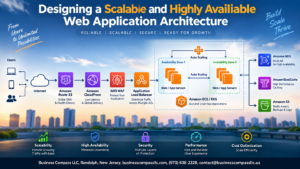
AWS provides dedicated resources through EC2 instances, eliminating resource contention issues common in shared hosting. Auto-scaling capabilities automatically adjust server capacity based on traffic demands, ensuring consistent performance during peak periods.
Storage solutions like S3 offer virtually unlimited capacity with 99.999999999% durability. Content can be distributed globally through multiple availability zones, reducing latency for international visitors. Database services like RDS provide automated backups, point-in-time recovery, and read replicas for improved performance.
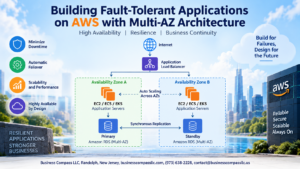
Load balancers distribute traffic across multiple instances, preventing single points of failure. CloudWatch monitoring provides real-time insights into application performance and resource utilization. Auto-scaling groups ensure applications remain available even during hardware failures.
Developer-friendly tools support modern deployment practices like Infrastructure as Code, continuous integration, and blue-green deployments. API-driven architecture enables automation and integration with third-party services.
Cost Optimization Opportunities Through Pay-as-You-Use Pricing
AWS pricing models eliminate fixed monthly fees regardless of actual usage. EC2 instances can be scheduled to run only when needed, reducing costs for development environments or low-traffic periods. Spot instances offer up to 90% savings for flexible workloads.
S3 storage tiers automatically optimize costs based on access patterns. Infrequently accessed content moves to cheaper storage classes without manual intervention. CloudFront CDN reduces bandwidth costs by caching content closer to users.
Reserved instances provide significant discounts for predictable workloads. Auto-scaling prevents over-provisioning by adjusting resources based on actual demand. Detailed billing reports help identify optimization opportunities across services.
Right-sizing recommendations ensure instances match actual requirements. Unused resources can be quickly terminated without long-term commitments or cancellation fees.
Enhanced Security and Compliance Features in AWS Environment
AWS provides enterprise-grade security controls unavailable in shared hosting environments. Virtual Private Clouds (VPC) create isolated network environments with granular access controls. Security groups act as virtual firewalls, controlling inbound and outbound traffic at the instance level.
Identity and Access Management (IAM) enables precise permission management for users and applications. Multi-factor authentication adds extra security layers. CloudTrail logs all API calls for comprehensive audit trails.
Encryption capabilities protect data both in transit and at rest. S3 supports multiple encryption options including customer-managed keys. SSL/TLS certificates through AWS Certificate Manager provide free, auto-renewing security certificates.
Compliance certifications include SOC, PCI DSS, HIPAA, and ISO 27001, meeting regulatory requirements for various industries. DDoS protection through AWS Shield safeguards against common network attacks. Web Application Firewall (WAF) filters malicious traffic before reaching applications.
Regular security patching and updates happen automatically across AWS infrastructure. Vulnerability scanning tools identify potential security issues before they become problems. Backup and disaster recovery options ensure business continuity with geographically distributed storage.
Pre-Migration Assessment and Planning

Auditing your current cPanel hosting setup and resource usage
Before making the jump to AWS, you need a clear picture of your current hosting environment. Start by documenting your current resource consumption through cPanel’s built-in analytics. Check your bandwidth usage over the past 12 months to identify traffic patterns and peak usage periods. Review your disk space consumption, breaking it down by websites, databases, email storage, and backup files.
Log into WHM or your hosting provider’s dashboard to examine CPU and RAM usage statistics. Many shared hosting providers limit these resources, so understanding your actual needs versus current limitations helps size your AWS EC2 instances correctly. Document the number of domains, subdomains, and addon domains you’re currently hosting.
Create an inventory of your current software stack including PHP versions, MySQL/MariaDB versions, Apache/Nginx configurations, and any custom modules or extensions. Note any cPanel-specific features you’re actively using like Softaculous auto-installers, spam filters, or backup systems.
Review your current hosting costs including renewal fees, addon services, and any overage charges. This baseline helps calculate potential savings or costs when migrating to AWS infrastructure.
Identifying website dependencies and third-party integrations
Map out all external services connected to your websites. Email services often present the biggest challenge during cPanel AWS migration since many sites rely on cPanel’s built-in email system. Document all email accounts, forwards, autoresponders, and mailing lists currently configured.
Catalog any third-party integrations including payment processors, CRM systems, analytics tools, and marketing automation platforms. Check if these services use IP whitelisting or webhook URLs that point to your current hosting environment. These connections need updating during migration to prevent service disruptions.
Review SSL certificates and their renewal methods. If you’re using Let’s Encrypt through cPanel or custom SSL certificates, you’ll need alternative solutions on AWS. Document any custom DNS configurations, subdomains pointing to external services, and CDN setups that might conflict with AWS CloudFront implementation.
Examine cron jobs and scheduled tasks currently running on your cPanel server. These automated processes need recreation on your AWS EC2 instances using different scheduling methods.
Calculating migration costs and timeline requirements
AWS pricing differs significantly from traditional cPanel hosting. Calculate estimated monthly costs for EC2 instances based on your resource audit. Factor in data transfer costs, S3 storage fees for static files, and CloudFront charges for content delivery. Use AWS’s pricing calculator to model different scenarios based on your traffic patterns.
Don’t forget hidden costs like data transfer fees for initial migration, potential downtime during DNS changes, and time investment for learning AWS management. Compare these against your current hosting renewal costs over 12-24 months.
Plan your migration timeline around business requirements and traffic patterns. E-commerce sites should avoid peak shopping seasons, while content sites might migrate during low-traffic periods. Budget 2-4 weeks for complex sites with multiple databases and integrations.
Account for testing time on AWS infrastructure before switching DNS. Plan parallel operations where both old and new systems run simultaneously during transition periods. This approach minimizes risks but doubles hosting costs temporarily.
Consider whether you’ll handle the migration internally or hire AWS specialists. Factor consulting costs against the time value of your team learning AWS services from scratch.
Setting Up Your AWS Infrastructure Foundation

Creating and configuring your AWS account and IAM users
Before diving into your cPanel to AWS migration, you’ll need to establish a solid foundation with proper account setup and security measures. Start by creating your AWS account through the official AWS website and completing the verification process, including adding a valid payment method and phone verification.
Once your account is active, your first priority should be setting up Identity and Access Management (IAM) users instead of using your root account for daily operations. Create an administrative IAM user with full access permissions, then generate programmatic access keys for this user. Store these credentials securely using a password manager or AWS Secrets Manager.
For enhanced security, enable Multi-Factor Authentication (MFA) on both your root account and administrative IAM user. Create separate IAM users for different team members or functions, following the principle of least privilege. For example, create a user specifically for backup operations with only S3 and EC2 snapshot permissions.
Set up IAM roles for your EC2 instances to access other AWS services securely. This eliminates the need to store credentials on your servers and provides better security than hardcoded access keys.
Launching EC2 instances for optimal performance
Choosing the right EC2 instance type is crucial for your website’s performance after migrating from cPanel hosting. Start by analyzing your current website’s resource usage patterns, including CPU utilization, memory consumption, and traffic patterns.
For most small to medium websites moving from shared cPanel hosting, a t3.medium or t3.large instance provides an excellent starting point. These instances offer burstable performance with baseline CPU credits, making them cost-effective for variable workloads. If your site experiences consistent high traffic, consider m5.large or c5.large instances for more predictable performance.
When launching your instance, select the latest Amazon Linux 2 AMI or Ubuntu Server LTS for better security and performance optimization. Choose your region based on your primary user base location to minimize latency. Configure your instance with at least 20GB of General Purpose SSD (gp3) storage, which offers better performance than the default gp2 volumes.
During the launch process, create a new key pair for SSH access and download the private key file immediately. Store this securely as you won’t be able to download it again. Consider using AWS Systems Manager Session Manager for secure shell access without managing SSH keys.
Configure your instance with appropriate tags for better organization and cost tracking. Use tags like “Environment”, “Project”, and “Owner” to maintain clear resource management as your AWS infrastructure setup grows.
Configuring security groups and network access controls
Security groups act as virtual firewalls for your EC2 instances, controlling both inbound and outbound traffic. Create dedicated security groups for different functions rather than using the default security group for everything.
Start with a web server security group that allows HTTP (port 80) and HTTPS (port 443) traffic from anywhere (0.0.0.0/0). For SSH access, create a separate rule allowing port 22 only from your specific IP addresses or office network range. Avoid opening SSH to the entire internet unless absolutely necessary.
If your migration includes a database server, create a separate security group for database access. Allow MySQL/MariaDB (port 3306) or PostgreSQL (port 5432) only from your web server security group, not from the entire internet. This creates a layered security approach where database access requires going through your web application.
Consider implementing a bastion host setup for enhanced security. Create a small t3.micro instance in a public subnet that serves as a secure entry point for administrative access. Configure your main web servers in private subnets and access them through the bastion host.
For additional network security, explore AWS Web Application Firewall (WAF) to protect against common web exploits and SQL injection attacks. This provides an extra layer of protection that wasn’t typically available with basic cPanel hosting.
Establishing backup and monitoring systems
Automated backups are essential for any production website migration. Set up EC2 snapshots to create point-in-time copies of your instance volumes. Use AWS Data Lifecycle Manager to automate snapshot creation on a daily or weekly schedule, with automatic deletion of old snapshots to control costs.
For application-level backups, configure automated database dumps to S3 using scheduled scripts. Create a dedicated S3 bucket for backups with versioning enabled and lifecycle policies that transition older backups to cheaper storage classes like S3 Glacier.
Implement CloudWatch monitoring to track your instance performance metrics. Set up alarms for CPU utilization, memory usage, and disk space to receive notifications before issues impact your website. Create custom metrics for application-specific monitoring, such as database connection counts or web server response times.
Install the CloudWatch agent on your EC2 instances to collect detailed system and application logs. This provides valuable insights that weren’t available with traditional cPanel hosting. Configure log groups for different application components like web server access logs, error logs, and application logs.
Consider setting up AWS Config to track configuration changes across your infrastructure. This helps maintain compliance and provides an audit trail of modifications made to your AWS infrastructure setup during and after your migration process.
Migrating Website Files and Databases to AWS

Transferring files from cPanel to S3 storage buckets
Moving your website files from cPanel hosting to AWS S3 requires a systematic approach to ensure nothing gets lost in the process. Start by downloading all your website files from the cPanel File Manager or through FTP access. Create a complete backup of your public_html directory, including all subdirectories, images, scripts, and configuration files.
Once you have your files locally, set up an S3 bucket in your AWS account. Choose a bucket name that follows AWS naming conventions and select the appropriate region for your target audience. Configure the bucket with proper permissions – enable static website hosting if you’re serving static content directly from S3, or set up appropriate access policies for EC2 integration.
Upload your files using the AWS CLI for efficiency, especially if you’re dealing with thousands of files. The command aws s3 sync works perfectly for this task, maintaining your directory structure while transferring everything to your bucket. For large files or slow connections, consider using AWS DataSync or the S3 Transfer Acceleration feature to speed up the process.
Exporting and importing MySQL databases to AWS RDS
Database migration represents one of the most critical aspects of your cPanel to AWS migration. Begin by creating a complete backup of your MySQL databases through cPanel’s phpMyAdmin or using the command line mysqldump utility. Export each database as a separate SQL file, ensuring you capture all tables, stored procedures, and user-defined functions.
Before importing to AWS RDS, provision your RDS instance with the appropriate MySQL version that matches or exceeds your current cPanel setup. Choose an instance type that can handle your database size and expected traffic load. Don’t forget to configure your security groups to allow connections from your EC2 instances.
Import your databases using MySQL command line tools or a database management tool like MySQL Workbench. For large databases, consider breaking the import process into smaller chunks or using AWS Database Migration Service (DMS) for a more robust transfer with minimal downtime. Test each database thoroughly after import to verify all data integrity and relationships remain intact.
Updating configuration files and database connections
Your website’s configuration files need updates to work with your new AWS infrastructure. Update database connection strings in files like wp-config.php for WordPress sites or config.php for custom applications. Replace the old cPanel database host with your new RDS endpoint, and ensure all database credentials match your RDS setup.
Modify any hardcoded file paths that reference the old cPanel directory structure. Update image paths, include statements, and any references to uploaded content to point to your new S3 buckets or EC2 file locations. Don’t overlook configuration files for popular applications like .htaccess rules, which may need adjustment for Apache or Nginx on your EC2 instance.
Check environment-specific settings such as email configurations, API endpoints, and third-party service integrations. Many cPanel hosting providers include specific SMTP settings that won’t work in your AWS environment, so plan to update these with services like Amazon SES or your preferred email provider.
Testing file integrity and database functionality
Comprehensive testing ensures your migration completed successfully without data corruption or missing files. Start by comparing file counts and sizes between your original cPanel backup and your AWS storage. Use checksums or hash comparisons to verify that files transferred correctly, especially for critical assets like images and documents.
Test all database functionality by running sample queries and checking that relationships between tables work properly. Verify that user authentication systems function correctly and that any stored procedures or triggers operate as expected. Pay special attention to date and time fields, which sometimes encounter formatting issues during migration.
Run your website in a staging environment before going live. Test all major functionality including form submissions, user registrations, payment processing, and content management features. Check that file uploads work correctly with your new S3 integration and that dynamic content loads properly from your RDS database. This thorough testing phase prevents surprises after your DNS cutover to the new AWS infrastructure.
Implementing CloudFront for Global Content Delivery

Setting up CloudFront distributions for faster load times
After completing your cPanel to AWS migration and getting your website files hosted on S3, the next step involves setting up CloudFront distributions to dramatically improve your site’s global performance. CloudFront CDN setup transforms your single-server hosting into a worldwide network of edge locations that serve content from the closest point to your visitors.
Start by accessing the CloudFront console in your AWS dashboard. Create a new distribution by selecting “Web” as the delivery method. For the origin domain, point to your S3 bucket that contains your website files. If you’ve set up an Application Load Balancer for dynamic content served from EC2 instances, you can create separate distributions for static and dynamic content.
Configure the default cache behavior settings to optimize performance. Set the viewer protocol policy to “Redirect HTTP to HTTPS” for security. Choose “GET, HEAD, OPTIONS” as allowed HTTP methods for static content, or include POST, PUT, DELETE if your site handles form submissions or API requests.
The geographic distribution settings let you choose which edge locations to use. For most websites migrating from cPanel hosting, “Use All Edge Locations” provides the best performance globally. Price class optimization can reduce costs if your audience is primarily regional.
Set up custom error pages to maintain a professional appearance when files aren’t found. Create 404 and 500 error page redirects that point to custom error pages stored in your S3 bucket.
Configuring SSL certificates for secure HTTPS connections
Securing your CloudFront distribution with SSL certificates ensures encrypted connections between your visitors and the CDN. AWS provides free SSL certificates through Certificate Manager (ACM), making this process much simpler than managing certificates on traditional cPanel hosting.
Navigate to AWS Certificate Manager and request a new public certificate. Enter your domain name and any subdomains you want to protect. Choose DNS validation as the validation method – this allows AWS to automatically verify domain ownership by adding CNAME records to your DNS configuration.
After requesting the certificate, you’ll see validation records that need to be added to your domain’s DNS settings. If you’re using Route 53 for DNS management, AWS can automatically create these validation records. For external DNS providers, manually add the CNAME records provided.
Certificate validation typically completes within a few minutes to several hours. Once validated, return to your CloudFront distribution settings and update the SSL certificate configuration. Select “Custom SSL Certificate” and choose your newly created ACM certificate from the dropdown menu.
Configure the security policy to support modern browsers while maintaining compatibility. “TLSv1.2_2021” provides strong security for most use cases. Enable “Server Name Indication (SNI)” to reduce costs – this works for virtually all modern browsers and devices.
Test your HTTPS configuration using online SSL testing tools to verify proper certificate installation and security grade. Your website should now load securely with the padlock icon in browsers.
Optimizing caching policies for different content types
Effective caching policies maximize the performance benefits of your CloudFront CDN setup while ensuring dynamic content remains fresh. Different file types require different caching strategies based on how frequently they change and their importance to user experience.
Create separate cache behaviors for various content types. Static assets like images, CSS, and JavaScript files can have longer TTL (Time To Live) values since they rarely change. Set these to cache for 24 hours to 1 year depending on your update frequency:
| Content Type | Recommended TTL | Cache Headers |
|---|---|---|
| Images (jpg, png, gif) | 30 days | public, max-age=2592000 |
| CSS/JS files | 7 days | public, max-age=604800 |
| HTML pages | 1 hour | public, max-age=3600 |
| API responses | 5 minutes | private, max-age=300 |
Configure origin request policies to forward appropriate headers, query strings, and cookies based on your application needs. For WordPress sites migrated from cPanel hosting, you’ll typically need to forward cookies for logged-in users and certain query parameters for dynamic content.
Set up cache invalidations for content that needs immediate updates. While CloudFront charges for invalidations, strategic use helps maintain content freshness without sacrificing performance. Use path patterns like /blog/* or /images/* to invalidate entire content sections efficiently.
Enable compression in CloudFront settings to reduce bandwidth usage and improve load times. This automatically compresses text-based files like HTML, CSS, and JavaScript before serving them to users.
Monitor cache hit ratios through CloudWatch metrics to identify optimization opportunities. Aim for cache hit ratios above 85% for optimal performance and cost efficiency.
Post-Migration Optimization and Performance Tuning

Monitoring Website Performance Metrics and User Experience
Your cPanel to AWS migration journey doesn’t end once your site goes live. Tracking performance metrics becomes crucial to understand how your new AWS infrastructure performs compared to your old hosting setup. CloudWatch provides comprehensive monitoring for your EC2 instances, tracking CPU usage, memory consumption, disk I/O, and network traffic patterns.
Set up CloudWatch alarms for key metrics like response times, error rates, and server resource utilization. Real User Monitoring (RUM) tools such as AWS CloudWatch RUM or third-party solutions like GTmetrix help you understand actual user experiences across different geographical locations and devices.
Monitor your CloudFront CDN performance by tracking cache hit ratios, origin response times, and edge location performance. Low cache hit rates might indicate misconfigured caching rules that need adjustment. Database performance metrics through CloudWatch for RDS instances reveal query response times and connection patterns that directly impact user experience.
Page load speeds, bounce rates, and conversion metrics provide insights into how your migration affects business outcomes. Google PageSpeed Insights and Core Web Vitals become your best friends for measuring real-world performance improvements after moving from cPanel hosting to AWS infrastructure.
Fine-Tuning EC2 Instance Specifications Based on Traffic Patterns
AWS provides flexibility that cPanel hosting never offered – the ability to adjust server resources based on actual usage patterns. Analyze your CloudWatch metrics over several weeks to identify peak traffic periods, resource bottlenecks, and underutilized capacity.
If your CPU consistently runs below 20% during normal operations, consider downsizing to a smaller instance type like t3.medium instead of t3.large. Conversely, if you’re hitting 80%+ CPU usage regularly, upgrade to more powerful instances or consider compute-optimized instance families.
Memory usage patterns reveal whether your current instance provides adequate RAM for your applications. WordPress sites often benefit from additional memory for caching plugins and database operations. Monitor swap usage – any swap activity indicates insufficient memory allocation.
Storage performance matters too. If your website relies heavily on database operations, consider upgrading from General Purpose SSD (gp3) to Provisioned IOPS SSD (io2) for consistent performance. Network performance becomes critical for media-heavy sites – Enhanced Networking features on newer instance types provide better throughput and lower latency.
Use AWS Compute Optimizer recommendations to identify right-sizing opportunities based on your actual usage patterns. This service analyzes your resource utilization and suggests optimal instance types that balance performance and cost.
Implementing Auto-Scaling for Handling Traffic Spikes
Traffic spikes can crash traditional cPanel hosting, but AWS auto-scaling handles demand fluctuations seamlessly. Configure Application Load Balancers (ALB) with Auto Scaling Groups to automatically add or remove EC2 instances based on demand.
Set up scaling policies triggered by CloudWatch metrics. CPU utilization above 70% for five minutes can trigger adding new instances, while sustained low usage below 30% removes excess capacity. Target tracking scaling policies work well for most websites, automatically adjusting capacity to maintain your desired metric targets.
Create launch templates that define your EC2 instance configuration, including AMI, instance type, security groups, and user data scripts. Your launch template should include automated setup scripts that install necessary software, configure applications, and join new instances to your existing infrastructure.
Consider predictive scaling for websites with known traffic patterns. E-commerce sites expecting Black Friday traffic or news sites anticipating major events can pre-scale infrastructure based on historical data and scheduled events.
Database auto-scaling requires different approaches. RDS Aurora Serverless automatically scales database capacity based on demand, while traditional RDS instances can use read replicas to distribute read traffic across multiple database instances.
Test your auto-scaling configuration with load testing tools like Apache JMeter or AWS Load Testing solution to verify scaling events trigger correctly and new instances integrate smoothly with your application stack.
Setting Up Automated Backups and Disaster Recovery Procedures
AWS provides multiple backup options that surpass typical cPanel hosting backup limitations. Enable automated RDS snapshots for your databases with configurable retention periods and backup windows during low-traffic hours.
EC2 instance backups use Amazon Machine Images (AMI) and EBS snapshots. Create daily snapshots of your web server instances and implement lifecycle policies to automatically delete old snapshots, balancing data protection with storage costs. AWS Backup service centralizes backup management across multiple AWS services, providing consistent backup policies and cross-region replication.
S3 versioning protects your website files from accidental deletion or corruption. Enable versioning on your S3 buckets and configure lifecycle rules to transition older versions to cheaper storage classes like Glacier for long-term archival.
Cross-region replication adds another layer of protection. Replicate critical data to a different AWS region to protect against regional outages. Your disaster recovery plan should include procedures for switching traffic to backup regions using Route 53 health checks and failover routing.
Document your recovery procedures with step-by-step instructions for restoring from backups. Test your disaster recovery plan quarterly by actually performing restore operations in a separate environment. Recovery Time Objective (RTO) and Recovery Point Objective (RPO) requirements determine your backup frequency and infrastructure design.
AWS Systems Manager provides automation for backup procedures and disaster recovery workflows. Create runbooks that automate common recovery tasks, reducing human error during high-stress situations. CloudFormation templates can quickly recreate entire infrastructure stacks in alternate regions when needed.

Moving from cPanel to AWS might seem like a big step, but the benefits are clear. You’ll get better performance, more flexibility, and the ability to scale your hosting as your business grows. With EC2 handling your server needs, S3 storing your files securely, and CloudFront speeding up content delivery worldwide, you’re setting yourself up for long-term success. The migration process takes some planning and technical know-how, but the end result is a modern hosting solution that can adapt to whatever your website needs.
Ready to make the switch? Start by backing up everything and creating a detailed migration plan. Take your time with each step, test thoroughly before going live, and don’t hesitate to reach out for professional help if you need it. Your website visitors will thank you for the improved speed and reliability, and you’ll have the peace of mind that comes with running on one of the world’s most trusted cloud platforms.