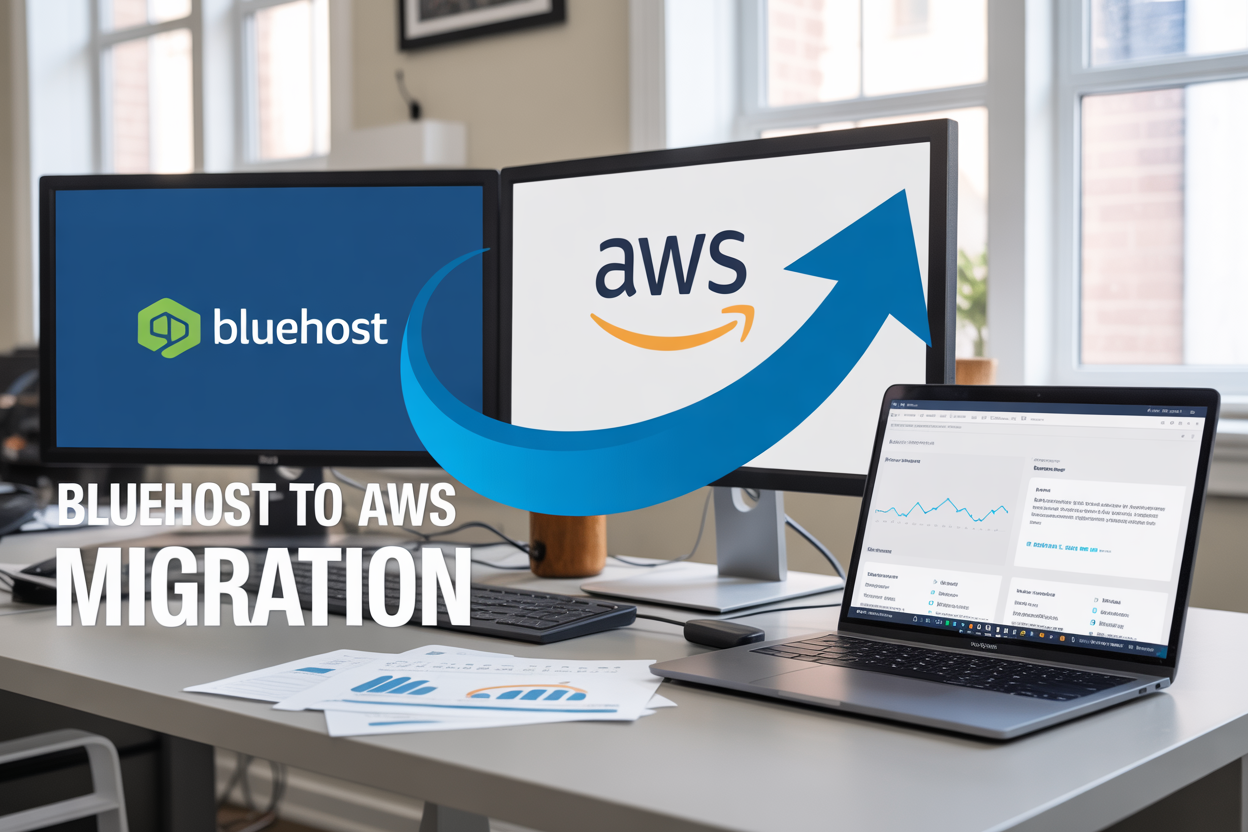
Your Bluehost shared hosting plan worked fine when you started, but now your website feels sluggish during traffic spikes and you’re hitting resource limits. Migrating your website from Bluehost to AWS can solve these performance bottlenecks while giving you the scalability to handle growth.
This comprehensive AWS hosting migration guide is designed for website owners, small business operators, and developers who want to move beyond shared hosting limitations. You’ll learn how to plan your migration properly, avoid common pitfalls, and set up a cloud infrastructure that grows with your needs.
We’ll walk you through assessing your current setup and choosing the right AWS services for your specific requirements. You’ll also discover how to execute the step-by-step migration process safely, then optimize your new AWS configuration to maximize both performance gains and cost efficiency.
Assess Your Current Bluehost Setup and Migration Requirements

Analyze your website traffic patterns and resource usage
Before jumping into your Bluehost to AWS migration, you need to understand how your website currently performs. Log into your Bluehost cPanel and check your resource usage statistics for the past 3-6 months. Look for patterns in CPU usage, memory consumption, and bandwidth spikes.
Pay attention to peak traffic hours and seasonal variations. If you’re running an e-commerce site, you’ll likely see higher resource demands during holidays or sales events. WordPress sites often show increased resource usage during content publishing or plugin updates.
Use tools like Google Analytics to examine your visitor patterns. Check which pages generate the most traffic and when your audience is most active. This data helps you plan for the right AWS instance sizes and auto-scaling configurations.
Document your current bandwidth usage and storage requirements. Bluehost shared hosting often masks true resource consumption, so consider using plugins like Query Monitor or P3 Performance Profiler to get detailed insights into your website’s actual resource needs.
Inventory your current hosting features and dependencies
Create a comprehensive list of everything your Bluehost account currently provides. Start with your hosting plan details: shared hosting, VPS, or dedicated server. Note any add-on services like SSL certificates, domain registration, email hosting, or backup solutions.
Check your PHP version, MySQL database version, and any server modules your website depends on. Many WordPress sites rely on specific extensions like GD library for image processing or cURL for API connections.
| Current Bluehost Feature | AWS Equivalent | Migration Notes |
|---|---|---|
| Shared hosting | EC2 instances | Better control and performance |
| cPanel | AWS Console | Different interface, more powerful |
| Email hosting | SES/WorkMail | Separate service setup needed |
| SSL certificates | Certificate Manager | Free SSL with AWS |
| Automatic backups | S3 + Lambda | More flexible backup options |
Document your current directory structure, file permissions, and any custom configurations. Take screenshots of your cPanel settings, especially DNS records, subdomains, and redirects. This inventory becomes your migration checklist.
Identify performance bottlenecks and scalability limitations
Run performance tests on your current Bluehost setup using tools like GTmetrix, Pingdom, or Google PageSpeed Insights. Record your baseline metrics including load times, Time to First Byte (TTFB), and Core Web Vitals scores.
Shared hosting environments often struggle with database queries and simultaneous user loads. Check if your site experiences slowdowns during traffic spikes or times out during peak usage. These issues signal that AWS’s dedicated resources and CDN capabilities will provide significant improvements.
Look for signs that you’re hitting Bluehost’s resource limits. Common indicators include 508 Resource Limit errors, slow database queries, or throttled CPU usage. Your website might load fine with low traffic but struggle when visitor numbers increase.
Test your website’s response time from different geographical locations. Shared hosting typically uses a single server location, while AWS offers global content delivery through CloudFront CDN, dramatically improving international load times.
Calculate your current monthly hosting costs and usage metrics
Document your complete Bluehost spending including your hosting plan, domain renewals, SSL certificates, and any premium add-ons. Don’t forget about renewal pricing – many users pay promotional rates initially but face significant increases later.
Calculate your cost per visitor and cost per GB of bandwidth used. This baseline helps you compare AWS pricing accurately. While AWS might seem more expensive initially, the improved performance often leads to better conversion rates and business outcomes.
Track your storage usage across all services. Include website files, email storage, databases, and backups. AWS offers more granular pricing where you only pay for resources you actually use, unlike Bluehost’s fixed monthly fees regardless of usage.
Consider hidden costs in your current setup like time spent on performance optimization, security management, or dealing with shared hosting limitations. AWS migration often reduces these operational burdens while providing better scalability for future growth.
Your migration planning phase sets the foundation for a successful transition. Take time to gather accurate data about your current setup – this information directly impacts your AWS architecture decisions and helps avoid surprises during the migration process.
Choose the Right AWS Services for Your Website Needs

Select Appropriate EC2 Instance Types for Your Traffic Volume
Picking the right EC2 instance when migrating from Bluehost to AWS can make or break your website’s performance. Start by analyzing your current traffic patterns and resource usage on Bluehost. For most small to medium websites coming from shared hosting, a t3.small or t3.medium instance provides excellent starting points with burstable performance that handles traffic spikes efficiently.
If you’re running a WordPress site with moderate traffic (under 10,000 monthly visitors), t3.small instances offer 2 vCPUs and 2GB RAM, which typically outperforms most shared hosting environments. For higher traffic websites or resource-intensive applications, consider t3.large or moving up to m5.large instances for consistent performance.
Memory-optimized instances like r5.large work well for database-heavy applications, while compute-optimized c5 instances excel for CPU-intensive workloads. The beauty of AWS lies in scalability – you can start small and resize your instances based on actual performance data.
Configure RDS Database Solutions for Optimal Performance
Database performance often becomes the bottleneck when migrating from shared hosting to cloud infrastructure. Amazon RDS eliminates the headaches of database maintenance while delivering superior performance compared to typical shared hosting database setups.
Choose MySQL or MariaDB for WordPress migrations, as they offer seamless compatibility. Start with db.t3.micro for development environments or small websites, then scale to db.t3.small or db.m5.large based on your database size and query complexity.
Enable automated backups with point-in-time recovery – something you likely didn’t have on Bluehost. Multi-AZ deployments provide automatic failover capabilities, ensuring your website stays online even during maintenance windows. For read-heavy applications, implement read replicas to distribute database load and improve response times.
Parameter groups allow fine-tuning of MySQL settings for your specific workload, optimizing query cache, connection limits, and buffer sizes that shared hosting environments rarely allow you to customize.
Set Up CloudFront CDN for Global Content Delivery
CloudFront transforms your website’s global performance by caching content at edge locations worldwide. Unlike basic CDN solutions you might have used with Bluehost, CloudFront integrates seamlessly with other AWS services and provides granular control over caching behaviors.
Create distributions for both your website content and static assets. Configure appropriate cache behaviors for different file types – set longer TTL values for images, CSS, and JavaScript files, while keeping dynamic content cache times shorter. This approach dramatically reduces server load and improves page load times for visitors regardless of their location.
Enable compression for text-based files and implement custom error pages to maintain professional appearance during maintenance or errors. CloudFront’s real-time logs provide insights into user behavior and help optimize caching strategies over time.
Implement S3 Storage for Static Files and Backups
Amazon S3 revolutionizes how you handle file storage and backups compared to traditional shared hosting limitations. Create separate buckets for different purposes: one for static website assets, another for backups, and potentially a third for user uploads if applicable.
Configure S3 bucket policies to serve static files directly, reducing load on your EC2 instances. This approach works particularly well for images, downloads, and media files. Implement lifecycle policies to automatically transition older files to cheaper storage classes like S3 Infrequent Access or Glacier for long-term archival.
Set up automated backup solutions using S3 and Lambda functions to regularly snapshot your website files and database backups. Unlike shared hosting environments with limited backup retention, S3 allows you to maintain multiple backup versions with different retention policies.
Enable versioning on critical buckets to protect against accidental deletions or modifications. Cross-region replication can provide additional protection for mission-critical data.
Choose Route 53 for DNS Management and Domain Routing
Route 53 offers enterprise-grade DNS management capabilities far beyond typical domain registrar DNS services. The service provides 100% uptime SLA and global anycast network for fast DNS resolution worldwide.
Configure health checks to automatically route traffic away from unhealthy instances, ensuring your website remains accessible even during server issues. This redundancy wasn’t possible with traditional shared hosting setups.
Implement weighted routing policies for gradual traffic migration during the transition from Bluehost. Start by directing 10% of traffic to AWS while monitoring performance, then gradually increase the percentage as you gain confidence in your new setup.
Alias records provide seamless integration with other AWS services like CloudFront and load balancers without the limitations of traditional CNAME records. Set up proper MX records for email if you’re maintaining email services separately from your web hosting migration.
Prepare Your Website Files and Database for Migration

Create complete backups of all website files and databases
Before starting your Bluehost to AWS migration, securing comprehensive backups stands as your most critical safety net. Download all website files through cPanel’s File Manager or FTP client, ensuring you capture every directory including hidden files like .htaccess. Create separate database exports using phpMyAdmin, saving each as an SQL file with compression enabled to reduce file sizes.
Store these backups in multiple locations – your local drive, cloud storage, and an external device. This redundancy protects against data loss during the migration process. Document your backup creation date and verify file integrity by checking file sizes and testing database imports on a local server.
Update hardcoded URLs and file paths for AWS compatibility
Your website likely contains numerous hardcoded references to Bluehost file paths and URLs that will break after migration. Search through your codebase for absolute URLs pointing to your current domain, updating them to relative paths or configurable variables. Pay special attention to:
- Image source paths in HTML and CSS files
- JavaScript file references
- Database entries containing full URLs
- Configuration files with server-specific paths
- Plugin settings with hardcoded domain references
Use search-and-replace tools like Better Search Replace for WordPress databases, but always test changes in your development environment first. Replace absolute paths with WordPress functions like get_site_url() or relative paths to ensure compatibility across different environments.
Optimize images and static assets for faster loading
AWS offers superior performance capabilities, but you’ll maximize these benefits by optimizing your assets beforehand. Compress images using tools like TinyPNG or ImageOptim, aiming for file size reductions of 50-70% without noticeable quality loss. Convert images to modern formats like WebP where browser support allows.
Minify CSS and JavaScript files to reduce bandwidth usage and improve loading speeds. Consider implementing a content delivery network (CDN) strategy using AWS CloudFront, which requires organizing static assets into logical folder structures.
Review your media library and remove unused files that consume storage space unnecessarily. This cleanup reduces migration time and ongoing AWS storage costs.
Test website functionality in a local development environment
Setting up a local testing environment prevents costly mistakes during your actual AWS migration. Install XAMPP, MAMP, or Docker to create a local server environment matching your production setup. Import your backed-up files and database, then thoroughly test all website functionality.
Check contact forms, user registration processes, payment systems, and plugin interactions. Test different browsers and devices to ensure compatibility remains intact. Verify that all internal links work correctly and that your optimized images display properly.
Run performance tests using tools like GTmetrix or Pingdom to establish baseline metrics. This data helps you measure improvement after completing your migration to AWS and validates that your preparation work enhances rather than degrades site performance.
Execute the Step-by-Step Migration Process
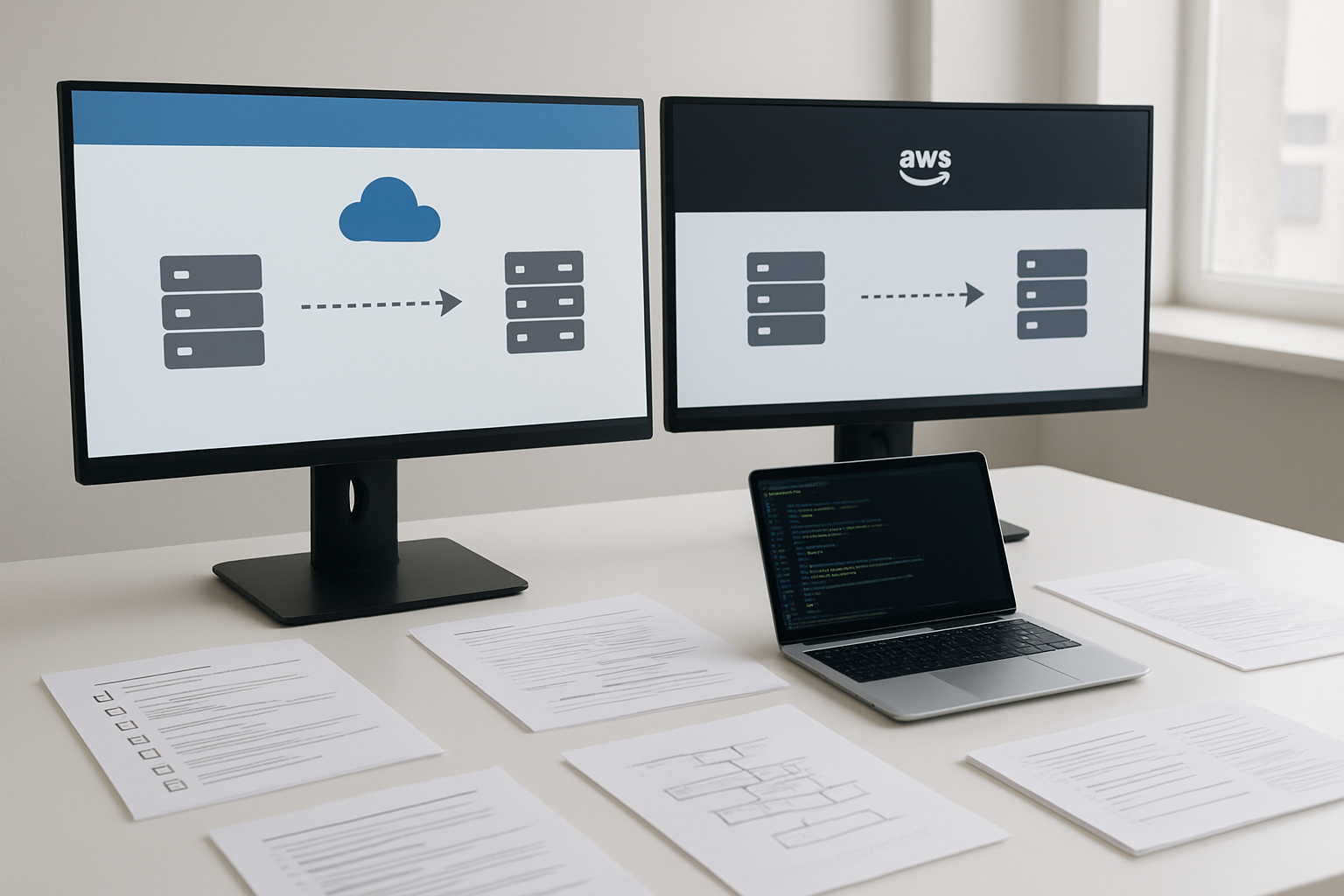
Launch and Configure Your AWS EC2 Instances
Setting up your EC2 instances marks the real beginning of your Bluehost to AWS migration journey. Start by selecting the right instance type based on your website’s traffic patterns and resource requirements. For most WordPress sites migrating from shared hosting, a t3.small or t3.medium instance provides excellent performance without breaking the bank.
Choose Amazon Linux 2 or Ubuntu as your operating system – both offer solid performance and extensive community support. Configure your security groups to allow HTTP (port 80), HTTPS (port 443), and SSH (port 22) access. Create a new key pair for secure SSH connections, and download the private key file immediately since you won’t get another chance.
Install your web server stack next. The LAMP stack (Linux, Apache, MySQL, PHP) remains popular, though many developers prefer NGINX for its superior performance handling concurrent connections. Use package managers like yum or apt to install these components quickly:
sudo yum update -y
sudo yum install httpd php mysql -y
sudo systemctl start httpd
sudo systemctl enable httpd
Don’t forget to configure your firewall rules and set up automatic security updates to keep your instance protected.
Transfer Website Files Using Secure FTP or AWS CLI
Moving your website files from Bluehost requires careful planning to avoid downtime and data loss. The AWS CLI offers the most efficient method for large file transfers, especially when dealing with thousands of images or extensive media libraries.
First, download your complete website backup from Bluehost’s cPanel. Most shared hosting providers offer one-click backup tools, but you can also use FTP clients like FileZilla to download everything manually. Compress your files into a single archive to speed up the transfer process.
Install and configure the AWS CLI on your local machine or directly on your EC2 instance:
aws configure
# Enter your Access Key ID, Secret Access Key, and preferred region
Upload your website files using the AWS S3 sync command for optimal performance:
aws s3 sync /path/to/your/website s3://your-bucket-name
Alternatively, use rsync or scp for direct transfers to your EC2 instance. This approach works well for smaller websites but can be slower for large file collections. Always verify file integrity after transfer by comparing file counts and checksums between source and destination.
Import and Configure Your Database on AWS RDS
Database migration requires precision to prevent data corruption or loss. Export your MySQL database from Bluehost using phpMyAdmin or command-line tools. Create a complete dump file that includes both structure and data:
mysqldump -u username -p database_name > backup.sql
Launch your RDS instance with the same MySQL version running on Bluehost to avoid compatibility issues. Choose Multi-AZ deployment for production websites to ensure high availability and automatic failover protection. Configure your security groups to allow connections from your EC2 instances on port 3306.
Import your database using the MySQL command line:
mysql -h your-rds-endpoint -u admin -p database_name < backup.sql
Update your website’s configuration files to point to the new RDS endpoint. For WordPress sites, modify the wp-config.php file with your new database credentials and hostname. Test database connectivity thoroughly before proceeding to DNS updates.
Configure automated backups and set up monitoring for your RDS instance. Enable slow query logging to identify performance bottlenecks that might need optimization after migration.
Update DNS Records to Point to Your New AWS Infrastructure
The DNS update represents the final step in your AWS migration step by step process. This change makes your website live on AWS infrastructure, so timing and accuracy are critical.
Access your domain registrar’s control panel or your current DNS provider’s management interface. If you’re using Bluehost’s nameservers, you’ll need to either update records there or transfer DNS management to AWS Route 53 for better integration and performance.
Update your A record to point to your EC2 instance’s Elastic IP address. Using an Elastic IP ensures your website remains accessible even if you need to restart or replace your instance. Configure the following essential records:
| Record Type | Name | Value |
|---|---|---|
| A | @ | Your Elastic IP |
| A | www | Your Elastic IP |
| CNAME | www | yourdomain.com |
Set TTL values to 300 seconds (5 minutes) during migration to allow quick rollback if issues arise. You can increase TTL to 3600 seconds or higher once everything works smoothly.
Consider setting up AWS Route 53 health checks to monitor your website’s availability. These checks can automatically redirect traffic to a backup server if your primary instance becomes unavailable, ensuring maximum uptime for your visitors.
Monitor DNS propagation using tools like whatsmydns.net to track when changes take effect globally. The process typically completes within 24-48 hours, though most users will see updates much sooner.
Optimize AWS Configuration for Maximum Performance Gains

Configure Auto-Scaling Groups for Traffic Spikes
Auto-scaling groups are your safety net when traffic suddenly explodes on your website. Unlike Bluehost’s shared hosting limitations, AWS auto-scaling automatically adjusts your server capacity based on real-time demand. Start by creating launch templates that define your EC2 instance configuration, including AMI, instance type, security groups, and user data scripts.
Set up scaling policies that trigger when CPU utilization hits 70% or when network traffic exceeds specific thresholds. Configure your minimum instances to handle baseline traffic and maximum instances to accommodate peak loads without breaking the bank. Target tracking scaling policies work best for most websites, automatically maintaining your desired metrics.
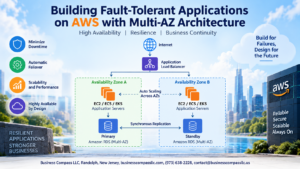
Create separate auto-scaling groups for different application tiers – web servers, application servers, and database read replicas. This granular approach ensures each layer scales independently based on its specific demands. Don’t forget to distribute instances across multiple Availability Zones for redundancy and better performance.
Set Up CloudWatch Monitoring and Alerts
CloudWatch transforms your AWS migration from Bluehost into a data-driven operation. Create custom dashboards that track key metrics like response times, error rates, and resource utilization. Unlike Bluehost’s basic monitoring, CloudWatch provides granular insights into every aspect of your infrastructure.
Start with essential alarms for CPU utilization, memory usage, disk space, and network performance. Set up composite alarms that combine multiple metrics to reduce false positives. Configure SNS topics to receive notifications via email, SMS, or Slack when thresholds are breached.
Enable detailed monitoring for EC2 instances to get 1-minute metrics instead of the default 5-minute intervals. Create custom metrics using CloudWatch Logs for application-specific monitoring like login failures, payment processing errors, or slow database queries. Set up log groups with proper retention policies to manage storage costs while maintaining visibility.
Implement Caching Strategies with ElastiCache
Caching dramatically improves website performance AWS and reduces database load. ElastiCache offers both Redis and Memcached engines, with Redis being the better choice for most applications due to its persistence and advanced data structures.
Deploy ElastiCache clusters in the same VPC as your application servers to minimize latency. Use Redis for session storage, database query caching, and full-page caching. Configure cluster mode for Redis to enable horizontal scaling and automatic failover across multiple nodes.
Implement application-level caching for frequently accessed data like user profiles, product catalogs, or configuration settings. Set appropriate TTL values based on how often your data changes – static content can cache for hours while dynamic content might need shorter expiration times. Use cache-aside patterns where your application checks the cache first, then falls back to the database if data isn’t found.
Consider CloudFront CDN integration with ElastiCache for global content delivery, especially if you’re serving international audiences.
Fine-Tune Security Groups and Access Controls
Security groups act as virtual firewalls, replacing the basic security offered by shared hosting. Create specific security groups for each tier of your application – separate groups for web servers, application servers, databases, and load balancers.
Follow the principle of least privilege by opening only necessary ports to specific sources. Web servers typically need ports 80 and 443 open to the internet, while database servers should only accept connections from application servers. Use security group references instead of IP addresses when possible to maintain flexibility as your infrastructure evolves.
Implement IAM roles and policies for service-to-service communication. Create specific roles for EC2 instances, Lambda functions, and other AWS services with minimal required permissions. Use AWS Systems Manager Session Manager for secure shell access instead of opening SSH ports in security groups.
Regular security group audits help identify unused rules or overly permissive access. Enable VPC Flow Logs to monitor network traffic patterns and detect potential security issues. Consider using AWS Config rules to automatically check security group compliance against your organization’s standards.
Monitor Performance Improvements and Cost Management

Track website speed and uptime improvements
After completing your Bluehost to AWS migration, measuring the performance gains becomes critical to validate your investment. Start by establishing baseline metrics using tools like GTmetrix, Pingdom, or Google PageSpeed Insights to compare your pre-migration performance with current AWS hosting results.
Monitor key performance indicators including page load times, Time to First Byte (TTFB), and Core Web Vitals scores. Most websites see 40-60% improvement in loading speeds after migrating from shared hosting to AWS cloud infrastructure. Set up automated monitoring using AWS CloudWatch to track uptime statistics and receive alerts if performance drops below acceptable thresholds.
Create weekly performance reports comparing your current metrics against Bluehost baseline data. Document specific improvements like reduced server response times, faster database queries, and better handling of traffic spikes. This data proves valuable when justifying the migration investment and planning future optimizations.
Set up billing alerts and cost optimization strategies
AWS cost management requires proactive monitoring since cloud spending can fluctuate based on traffic and resource usage. Configure billing alerts through AWS Budgets to receive notifications when monthly costs exceed predetermined thresholds. Start with conservative limits and adjust based on your actual usage patterns.
Implement cost optimization strategies by regularly reviewing your AWS Cost Explorer reports. Look for unused resources like idle EC2 instances, unattached EBS volumes, or oversized database instances that drain your budget unnecessarily. Many websites reduce AWS costs by 20-30% through proper resource rightsizing.
| Cost Optimization Strategy | Potential Savings | Implementation Effort |
|---|---|---|
| Reserved Instance pricing | 30-50% | Low |
| Auto Scaling Groups | 15-25% | Medium |
| S3 storage class optimization | 20-40% | Low |
| CloudFront CDN implementation | 10-20% | Medium |
Schedule monthly cost reviews to identify spending trends and optimize resource allocation. Use AWS Trusted Advisor recommendations to spot additional cost-saving opportunities across your infrastructure.
Monitor traffic patterns and resource utilization
Understanding your website’s traffic patterns helps optimize AWS resource allocation and prevent performance bottlenecks. Use CloudWatch metrics to track CPU utilization, memory usage, and network throughput across your EC2 instances and RDS databases.
Analyze peak traffic periods to ensure your AWS configuration handles load spikes effectively. Unlike Bluehost’s shared hosting limitations, AWS allows dynamic scaling based on real-time demand. Set up CloudWatch alarms to trigger auto-scaling actions when resource utilization reaches defined thresholds.
Monitor database performance metrics including connection counts, query execution times, and storage utilization. AWS RDS Performance Insights provides detailed analytics showing which queries consume the most resources, helping identify optimization opportunities that weren’t visible on Bluehost.
Track bandwidth usage patterns to optimize your CloudFront CDN configuration. Identify which content types generate the most traffic and ensure proper caching strategies reduce origin server load while improving user experience.
Plan for future scaling based on growth projections
Successful AWS migration sets the foundation for handling future growth that would overwhelm traditional shared hosting platforms. Analyze your traffic growth trends from the past 12 months to project future scaling requirements and budget accordingly.
Design your AWS architecture with horizontal scaling in mind. Plan for additional EC2 instances, database read replicas, and CDN distribution points as your website grows. Document your scaling triggers and processes to ensure smooth expansion when traffic increases.
Consider implementing AWS services that support rapid growth, such as Application Load Balancers for distributing traffic across multiple servers and Amazon ElastiCache for reducing database load. These services become essential as your website scales beyond what Bluehost could ever support.
Create quarterly scaling reviews to assess current capacity against projected growth. This proactive approach prevents performance degradation during traffic surges and ensures your AWS infrastructure grows sustainably with your business needs.

Moving from Bluehost to AWS might seem overwhelming at first, but breaking it down into these key steps makes the process manageable. You’ve learned how to assess your current setup, pick the right AWS services, prepare your files and database, and execute the migration smoothly. The real magic happens after the move when you optimize your AWS configuration and start seeing those performance improvements you were hoping for.
The jump to AWS opens up a world of possibilities for your website’s growth. Your site will handle traffic spikes better, load faster for visitors, and give you the flexibility to scale as your business grows. Keep an eye on your performance metrics and costs in those first few weeks – this data will help you fine-tune your setup and make sure you’re getting the best bang for your buck. Take the leap and start planning your migration today.